 CRMAI Docs
Identity & Linking
What the Agent tab covers
This is the first tab in AI Configuration, covering the agent's basic identity and who/what it's connected to.
Field | Description |
|---|---|
Name | The agent's display name (example: Sidra AI). Has a visibility toggle next to it. |
Agent Tasks & Role | A short field describing what the agent is responsible for. |
AI Recipient Mode | Filters who receives AI responses. Options include All Customers (and likely others such as new customers only / existing customers only, based on the dropdown). |
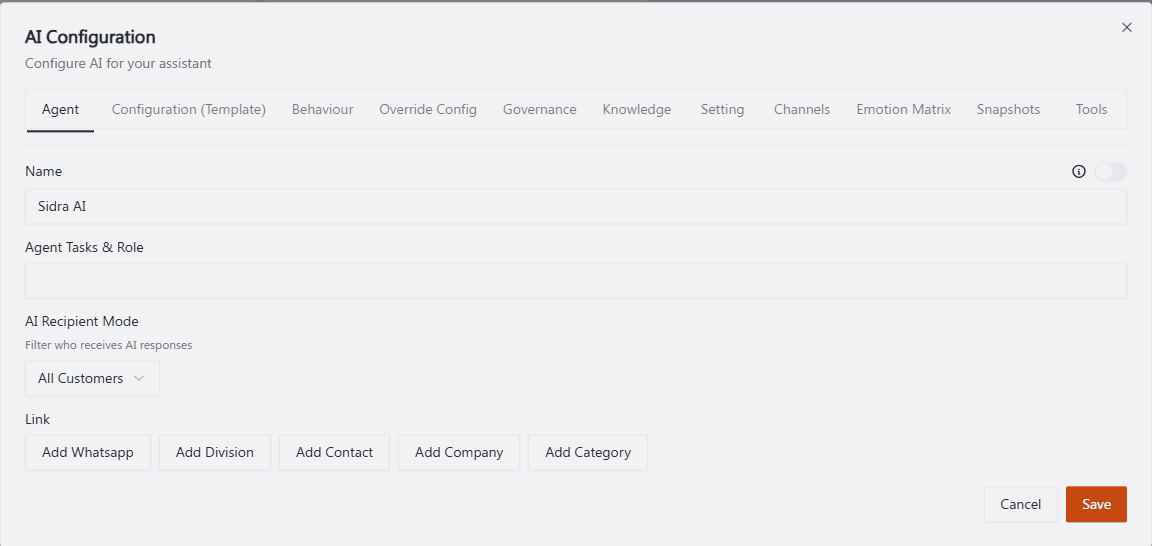
Recommended annotation: ① arrow to the Name field. ② arrow to the Agent Tasks & Role textarea. ③ box the AI Recipient Mode dropdown. Numbers should read top-to-bottom matching the field order in the table above.
Link section
At the bottom of the Agent tab, you can link this agent to:
Add Whatsapp — the WhatsApp connection(s) this agent operates on.
Add Division — the division(s) this agent is associated with.
Add Contact — specific contacts this agent applies to.
Add Company — specific companies this agent applies to.
Add Category — specific tags/categories this agent applies to.
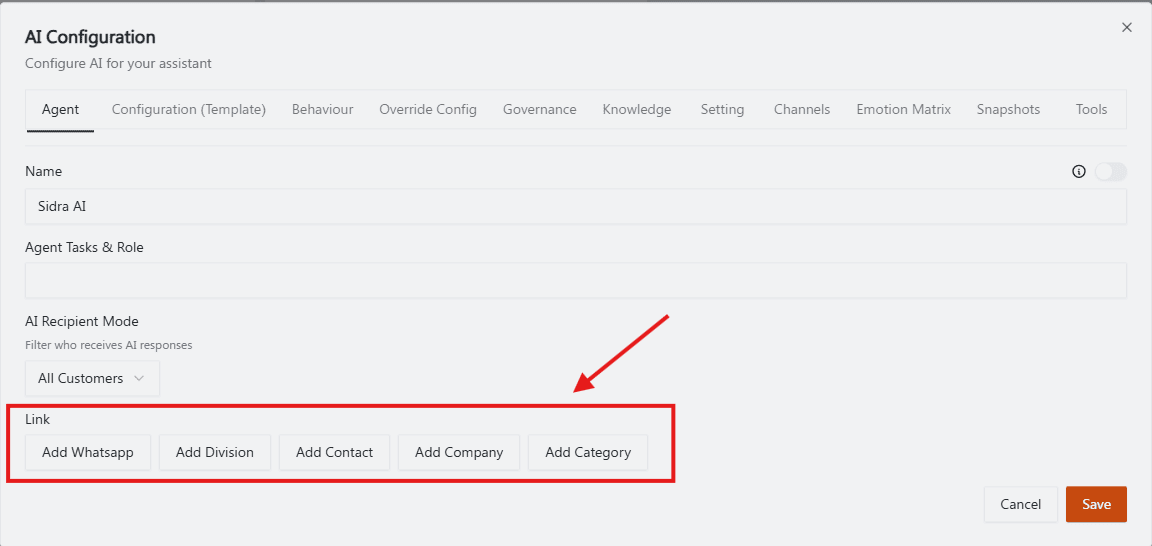
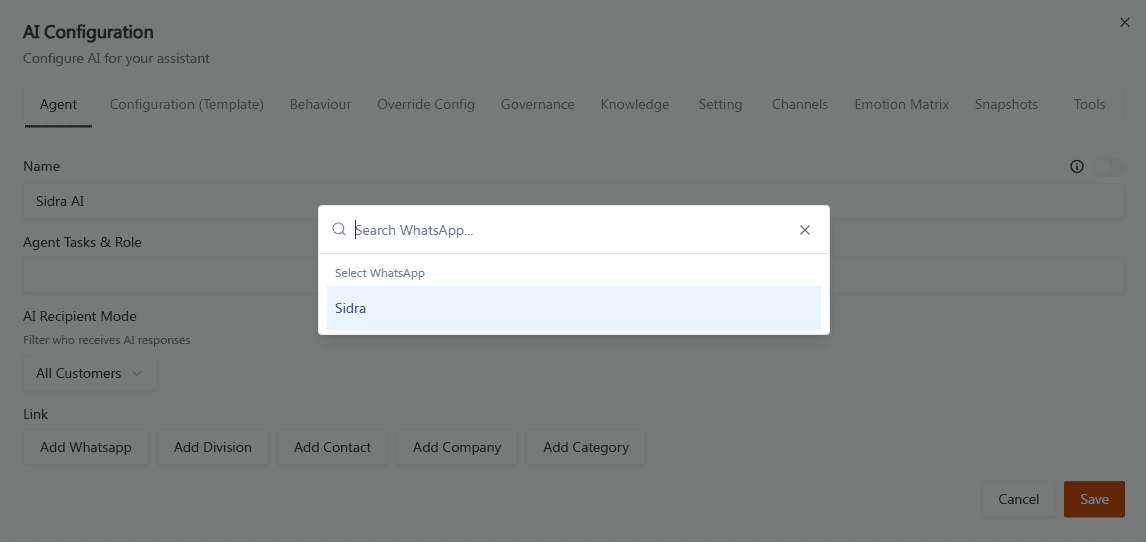
Recommended annotation: number the five buttons ①–⑤ left to right (Add Whatsapp, Add Division, Add Contact, Add Company, Add Category), matching the bullet order above.
Operational guidance
Keep Agent Tasks & Role short and specific — this is a summary field, not the full behavioral prompt (that belongs in Behaviour).
Use the Link section to scope an agent narrowly (e.g., one agent per Division) rather than running one agent across everything — this makes Governance, Tools, and Emotion Matrix tuning much easier to reason about per use case.
Double-check AI Recipient Mode before activating — an agent scoped to the wrong audience can reply to customers it shouldn't.
Related: Behaviour: Agent Personality · Division Setup · Contact Management