 CRMAI Docs
Agent Tools
Purpose
"Manage which tools this agent can use. Tools with a level above the agent's autonomy level require human approval." Each tool the agent could call is listed with a required Level; whether it's actually usable depends on the agent's Authority Limit Level set in Governance.
Available tools
Tool | Level | What it does |
|---|---|---|
Tag Customer | 4 | Add a tag to the current customer. Provide both |
Fill Customer Data | 4 | Update the current customer profile with details extracted from the conversation. Provide name, email, and company; use |
Route Ticket | 7 | Reassign the current ticket to another agent and/or queue. Provide |
Get Customer Info | 2 | Return the current customer profile, including email/WhatsApp contact, tags, company, and custom fields. |
Load Chat History | 1 | Load older chat history from the current ticket when the provided conversation context isn't enough. Provide |
Describe Image | 1 | Describe the contents of an image the customer sent. Provide the |
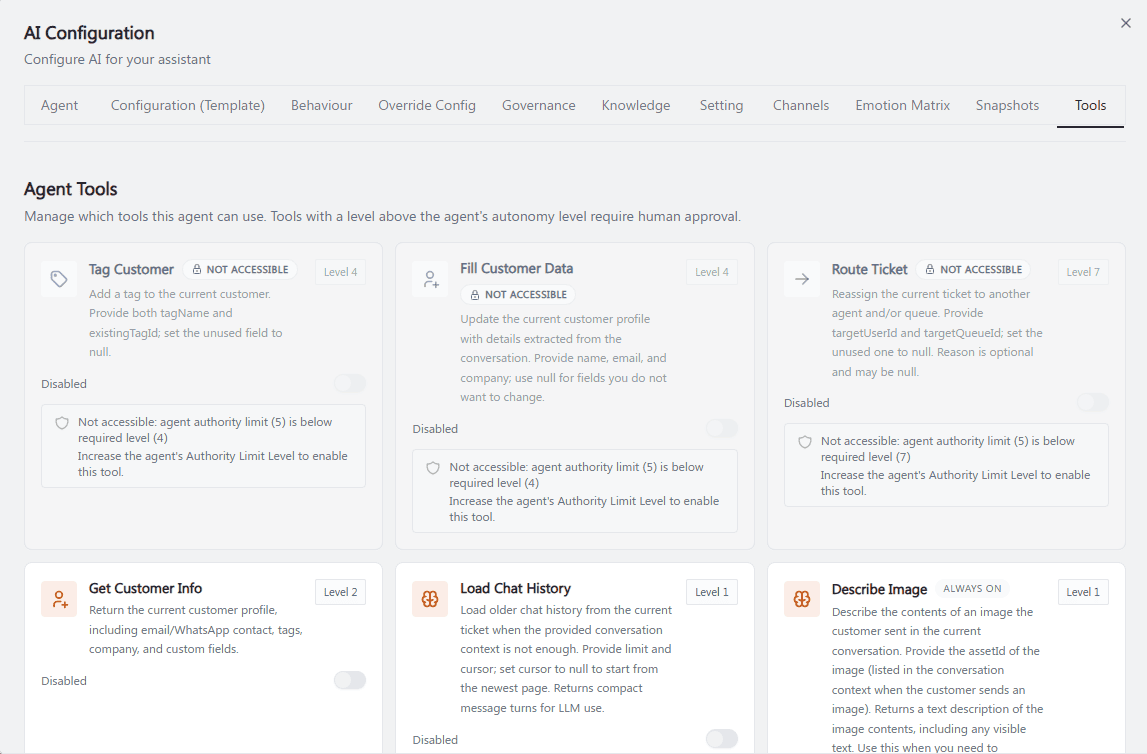
Recommended annotation: color-code by state rather than sequential numbers — 🔴 red outline around every card showing NOT ACCESSIBLE (Tag Customer, Fill Customer Data, Route Ticket in the example), 🟢 green outline around accessible-but-disabled cards (Get Customer Info, Load Chat History), 🔵 blue outline around Always active (Describe Image). Add one shared legend below the image mapping the three colors to the three states described in "Accessibility and locking" below — this state distinction matters more here than click order.
Accessibility and locking
Each tool card shows one of these states:
Toggle available, currently Disabled — the tool is accessible (agent's Authority Limit Level meets the requirement) but not yet turned on.
🔒 NOT ACCESSIBLE — the agent's current Authority Limit Level is below the tool's required Level. The card shows: "Not accessible: agent authority limit (X) is below required level (Y). Increase the agent's Authority Limit Level to enable this tool." You must raise Authority Limit Level in Governance first before this toggle becomes available.
Always active — currently only Describe Image works this way; it can't be turned off.
Operational guidance
Enable only the tools the agent's defined role genuinely needs — Tag Customer, Fill Customer Data, and Route Ticket all modify customer/ticket data, so review carefully before granting them.
Route Ticket (Level 7) is the highest-privilege tool — reserve it for agents you're confident should be reassigning tickets autonomously, since a misconfigured agent with this tool could route conversations away from the right team.
If a tool you need shows NOT ACCESSIBLE, don't just crank up Authority Limit Level to "unlock" it without thinking — remember Authority Limit Level also caps max response length (level × 1000 tokens), so raising it has side effects beyond just the tool.
Load Chat History and Get Customer Info are low-risk, read-only tools (Level 1–2) — reasonable defaults to enable for most agents that need conversational context.
Related: Governance & Autonomy · Shared Inbox · Contact Management · SmartForms