 CRMAI Docs
Division Setup
Purpose
Organize your team structure so incoming conversations can be routed to the correct department automatically.
Access
Dashboard:
/{locale}/dashboard/division
Division list
The Division List table shows: Label (a color dot), Name, Greeting Message (preview text), and Action (⋯ menu).
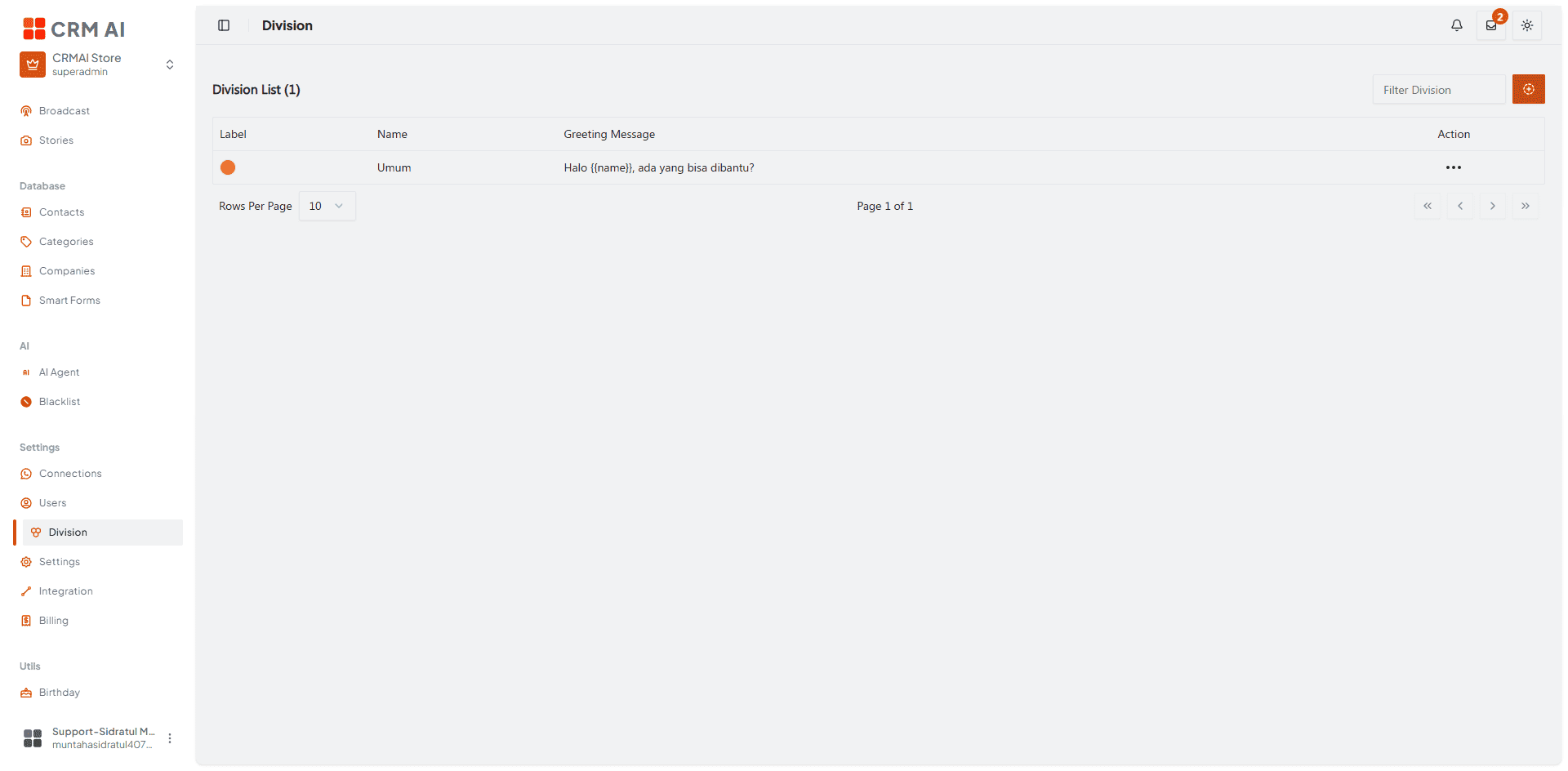
Recommended annotation: ① box the colored Label dot. ② arrow to the Greeting Message column showing a preview like "Halo {{name}}, ada yang bisa dibantu?" — note it can include the
{{name}}variable. ③ arrow to the ⋯ action menu.
How to create a division
Click the ⊕ button top-right of the Division List page.

In the Configuration dialog, fill in:
Field | Description | Example shown |
|---|---|---|
Division Name | Required display name. |
|
Deskripsi | Optional description. Placeholder: "Deskripsi Divisi (Opsional)". | (empty) |
Division Color | A color picker/bar. | Green |
Note: the Deskripsi field label appeared in Indonesian in the reviewed screenshot even though the rest of the dialog was in English (similar to a mixed-locale observation noted elsewhere in this documentation, e.g. the Away Message Cooldown field). If your workspace locale is English, confirm whether this is expected or a translation gap worth reporting.
Configure the Division Greeting section:
Field | Description |
|---|---|
Enable division greeting | Toggle — must be on for the greeting to be sent. |
Greeting Image | Optional file upload. |
Message Type | Dropdown — Text or Interactive. |
Interactive message builder | "Activate interactive then arrange JSON payload from the builder modal." Click Activate Builder to open it — see Interactive Messages. |
Greeting message text | Free text, e.g. "Halo dengan divisi support CRMAI, ada yang bisa kami bantu?" |
Click Save.
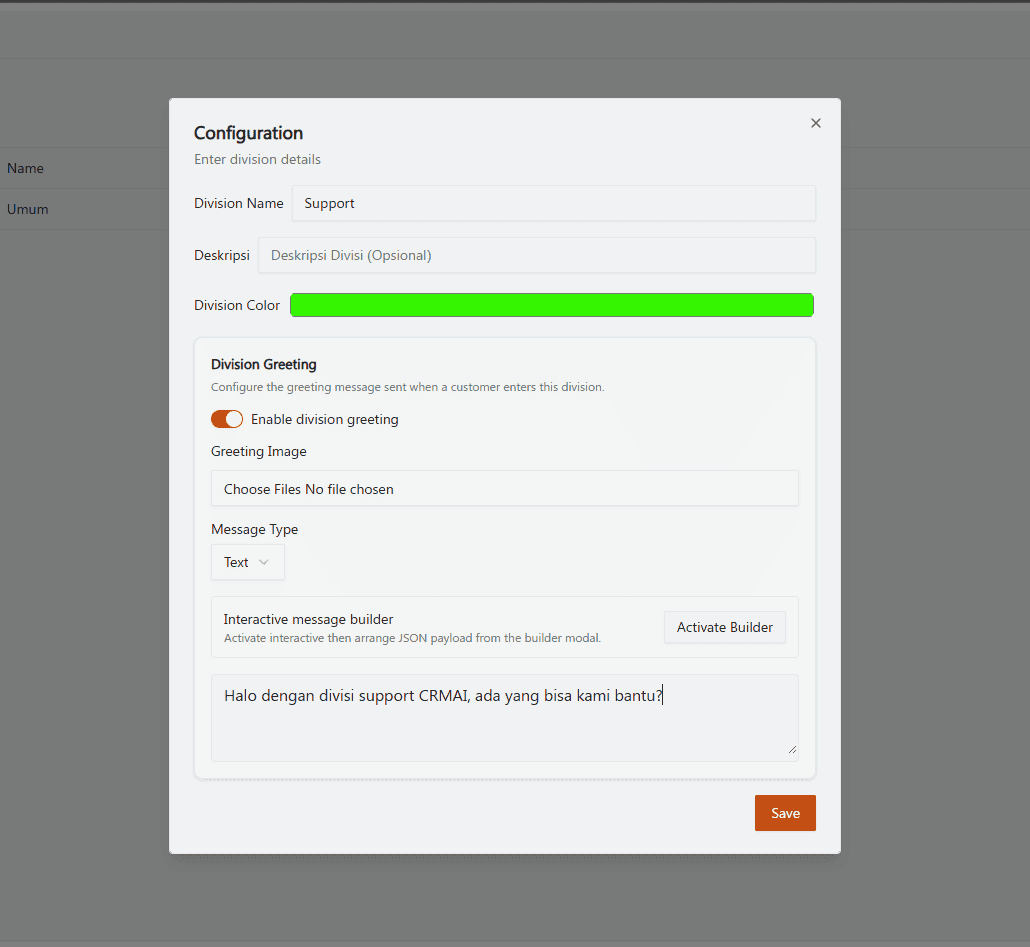
Recommended annotation: ①②③ number Division Name, Deskripsi, and Division Color at the top. ④ box the Division Greeting panel as one group, with ⑤⑥⑦ numbering Enable toggle, Message Type, and the greeting text area inside it. ⑧ arrow to Save.
Use divisions with connections
When configuring a connection, select the target divisions that should use that connection. For WhatsApp Merapi connections, division choices may also be displayed as interactive quick-answer buttons.
Edit and delete
Use the ⋯ action menu to edit or delete a division. Before deleting, check the connections, users, and routing rules that refer to it.
⚠️ The delete handler has known implementation inconsistencies — verify deletion behavior in a staging workspace before relying on it in production.
Related: User Roles & Permissions · Connections Overview · Inbox Tabs & Ticket Lifecycle