 CRMAI Docs
AI Blacklist
If a specific customer chat needs special handling by a human agent and shouldn't be replied to automatically by the AI, add them to the AI Blacklist.
Access
Blacklist page:
/{locale}/dashboard/blacklistInbox (Kotak Pesan): Directly via the ticket options in the chat interface.
Steps to Activate AI Blacklist
Method 1: Via the Inbox
Locate the target customer ticket in your Inbox.
You can either click the 3-dot Ticket Options icon in the top right corner of an open chat
.png)
or open the options menu directly from the ticket list in the left sidebar.
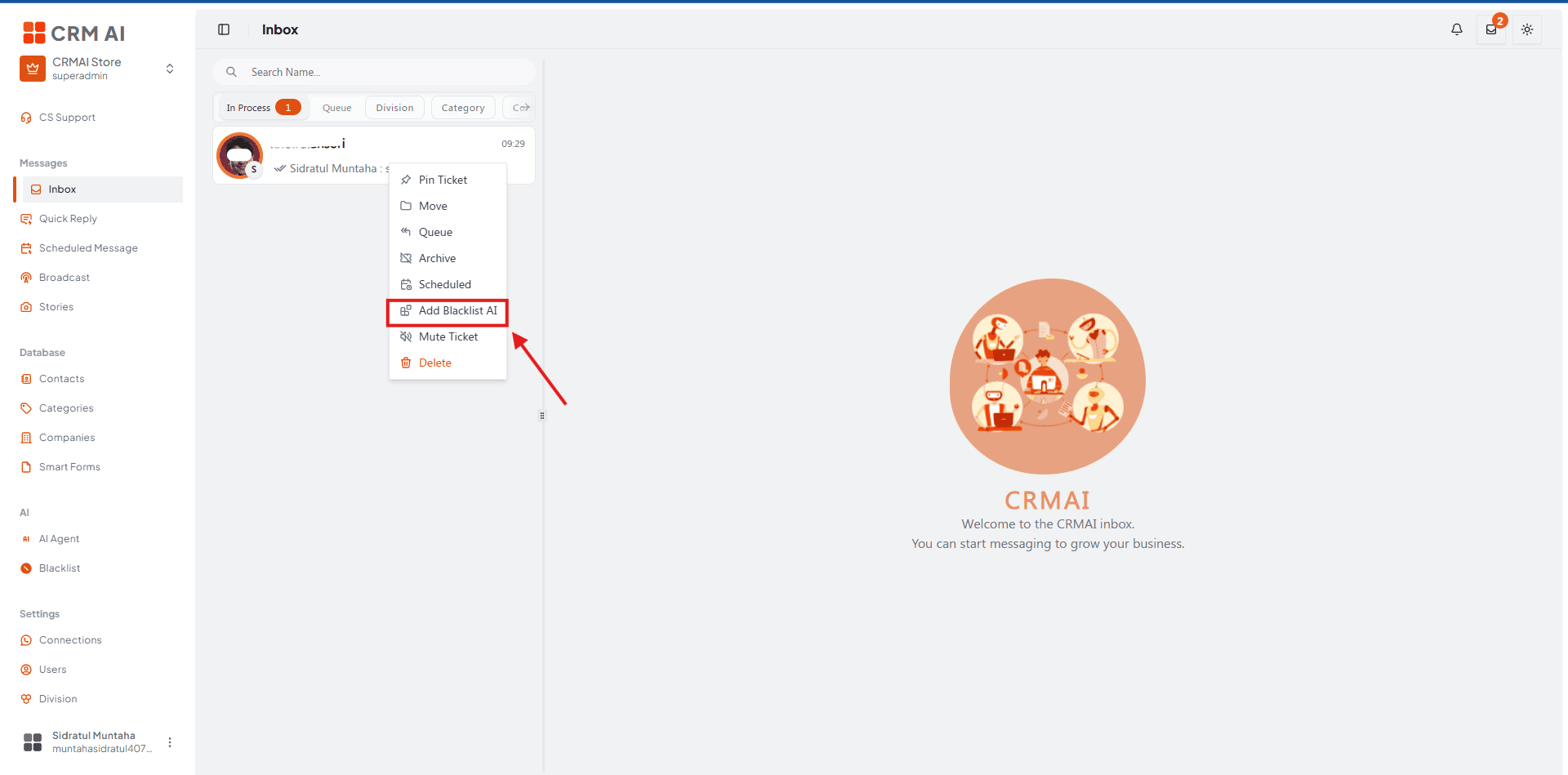
Select Add Blacklist AI.
Method 2: Via the Blacklist Page
Navigate to the Blacklist page.
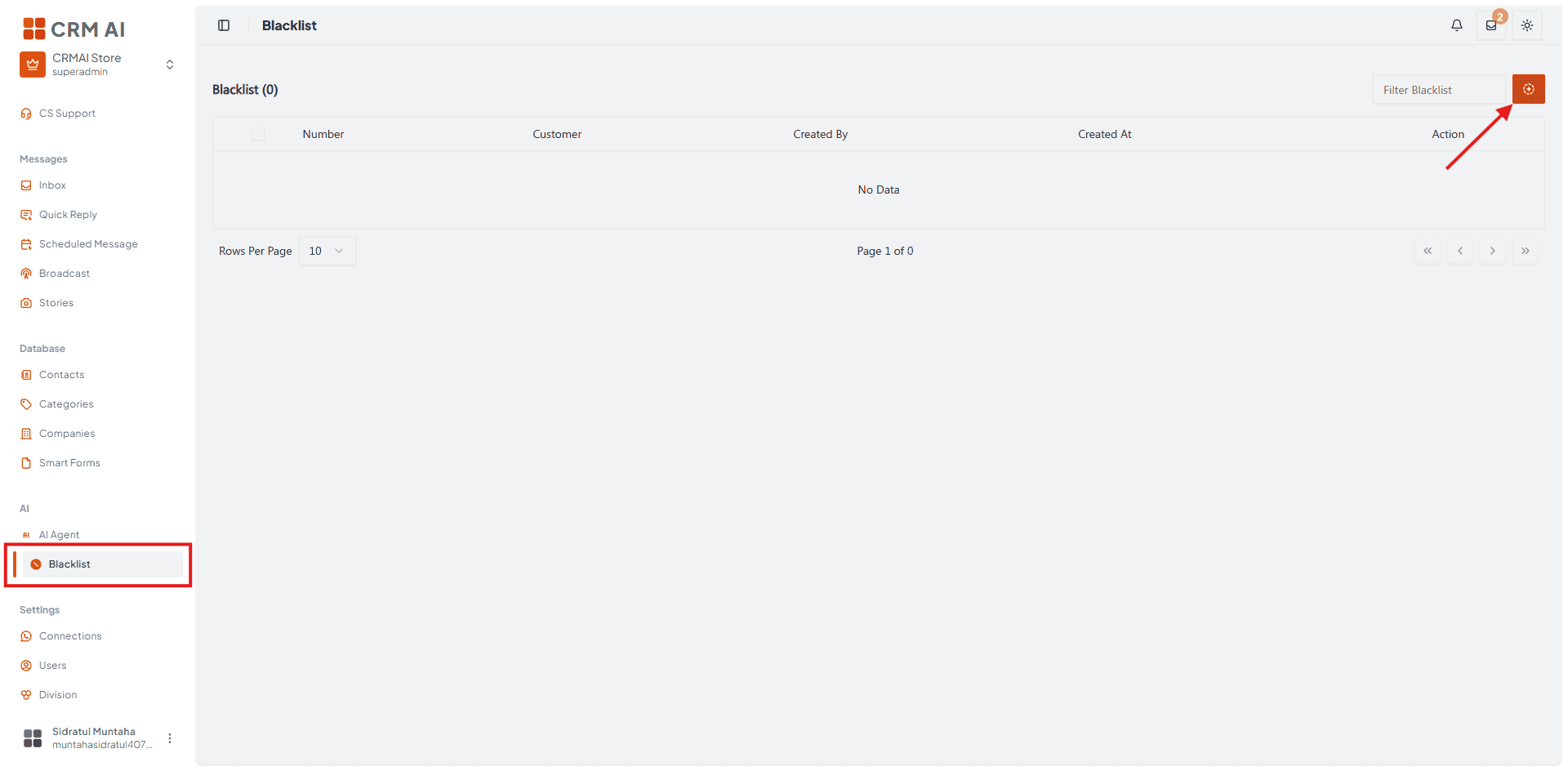
Click the button in the top right to add a new entry.
Enter a reason for pausing (optional — e.g., "Special VIP complaint handling").
Search for and select the specific contact from the dropdown.
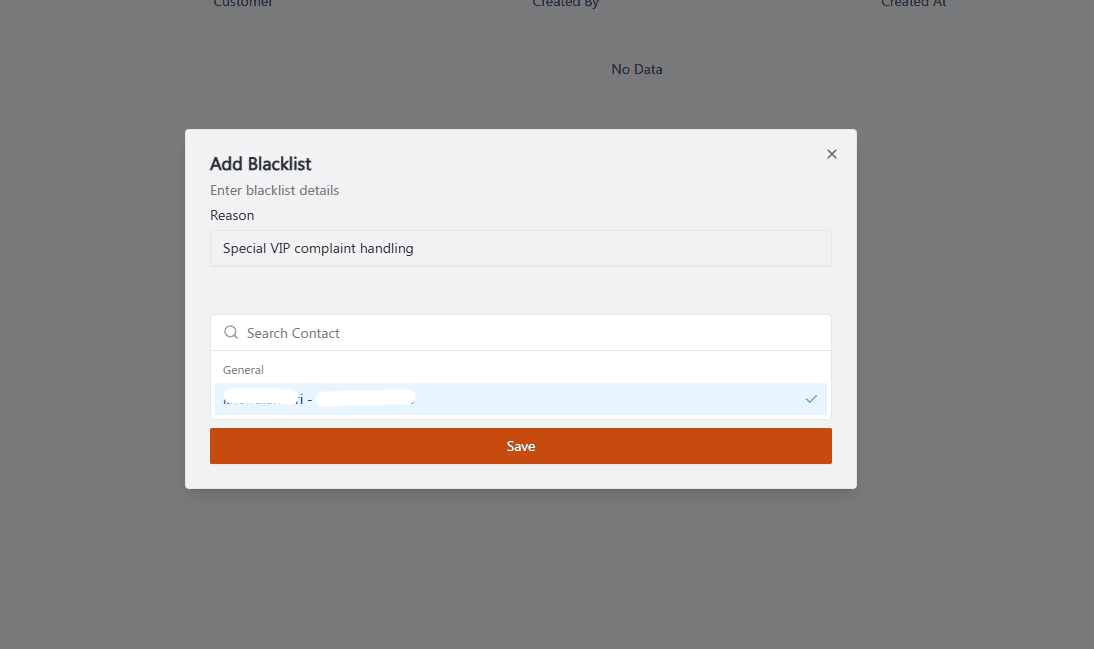
Click Save.
Blacklist Effects & Management
A warning banner appears at the top of the chat: ⚠️ AI replies are paused for this chat.
The AI Agent automatically stops all automatic replies for that number.
All paused numbers can be monitored and managed via the
/blacklistmenu page.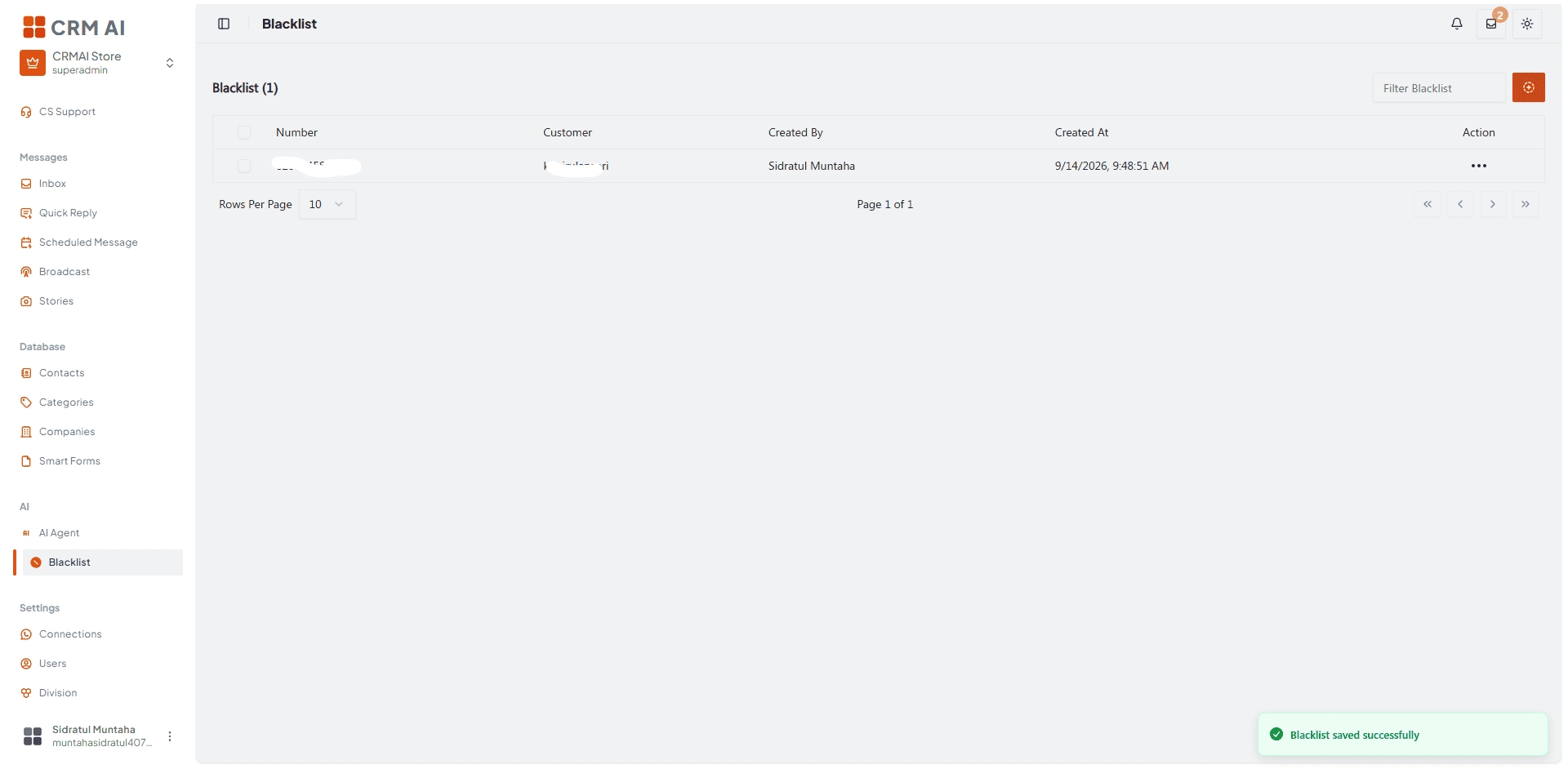
Remove an Identity
Method 1: Via the Inbox
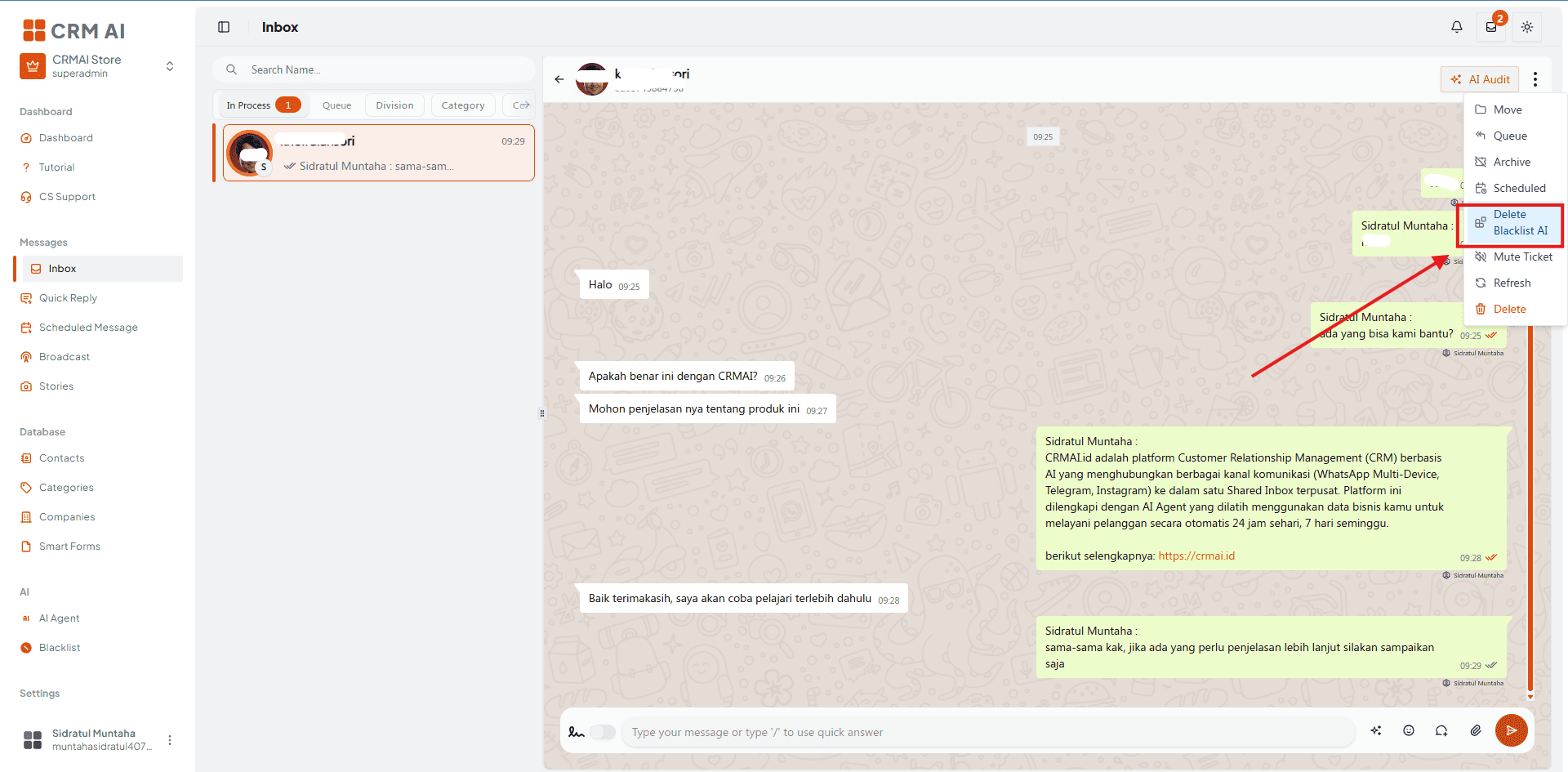
Find the blacklisted ticket in your Inbox.
Open the ticket options (either from the sidebar list or the top-right menu inside the chat).
Select the option to remove the AI Blacklist.
Method 2: Via the Blacklist Page
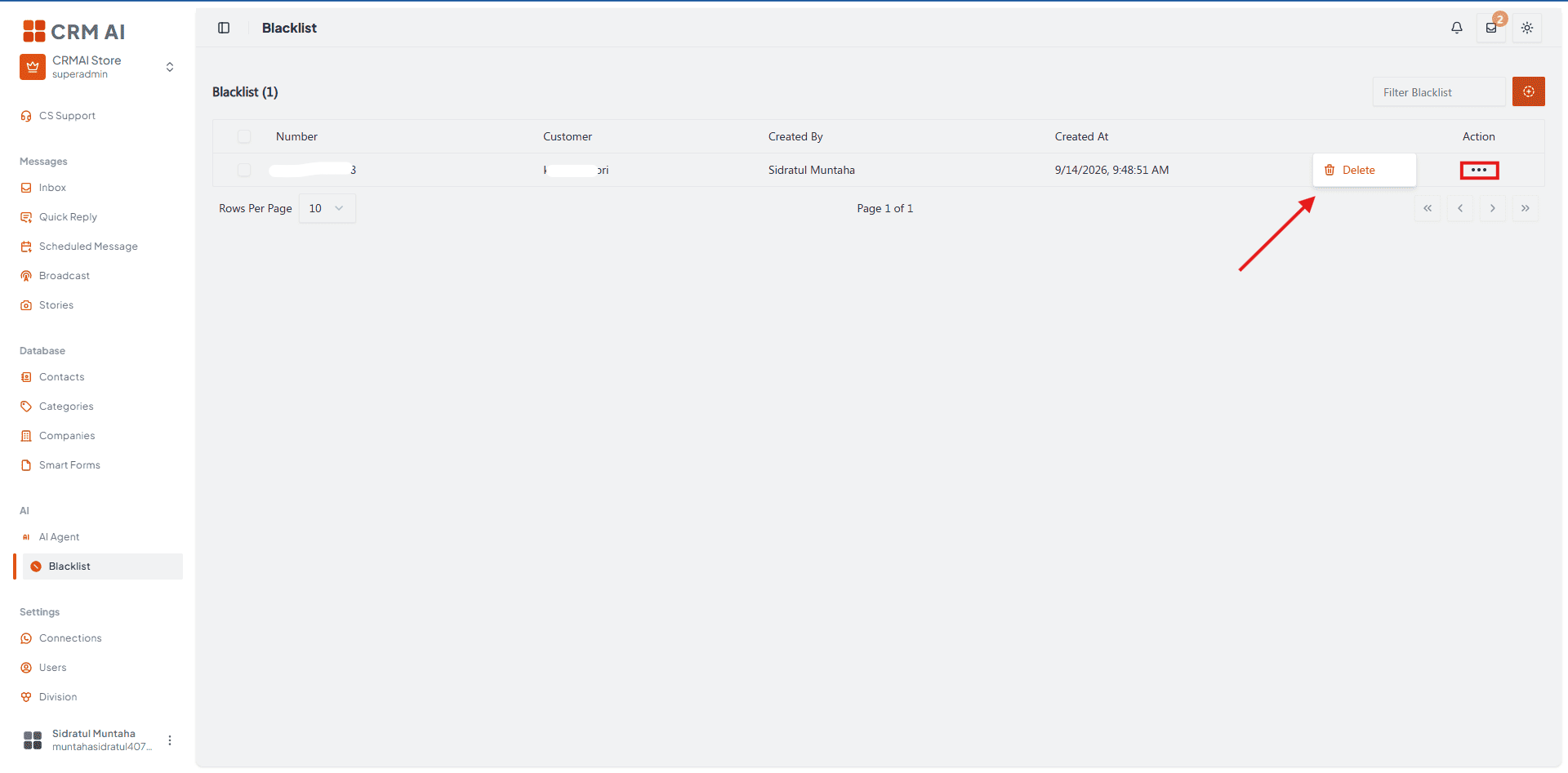
Find the identity in the blacklist table.
Open the row action.
Choose Delete from blacklist.
Confirm the action.
Removing an identity doesn't automatically send a message — it only changes the AI eligibility state. Verify AI behavior is restored according to the agent and channel configuration.
Troubleshooting
If the add action is blocked, ask an administrator to review your blacklist permission.
If an identity can't be selected, it may already be blacklisted.
If AI continues to reply, confirm that the correct channel identity — not only the customer record — was blacklisted.
If the banner doesn't appear, refresh the ticket and verify the identity associated with the conversation.