 CRMAI Docs
Knowledge
Purpose
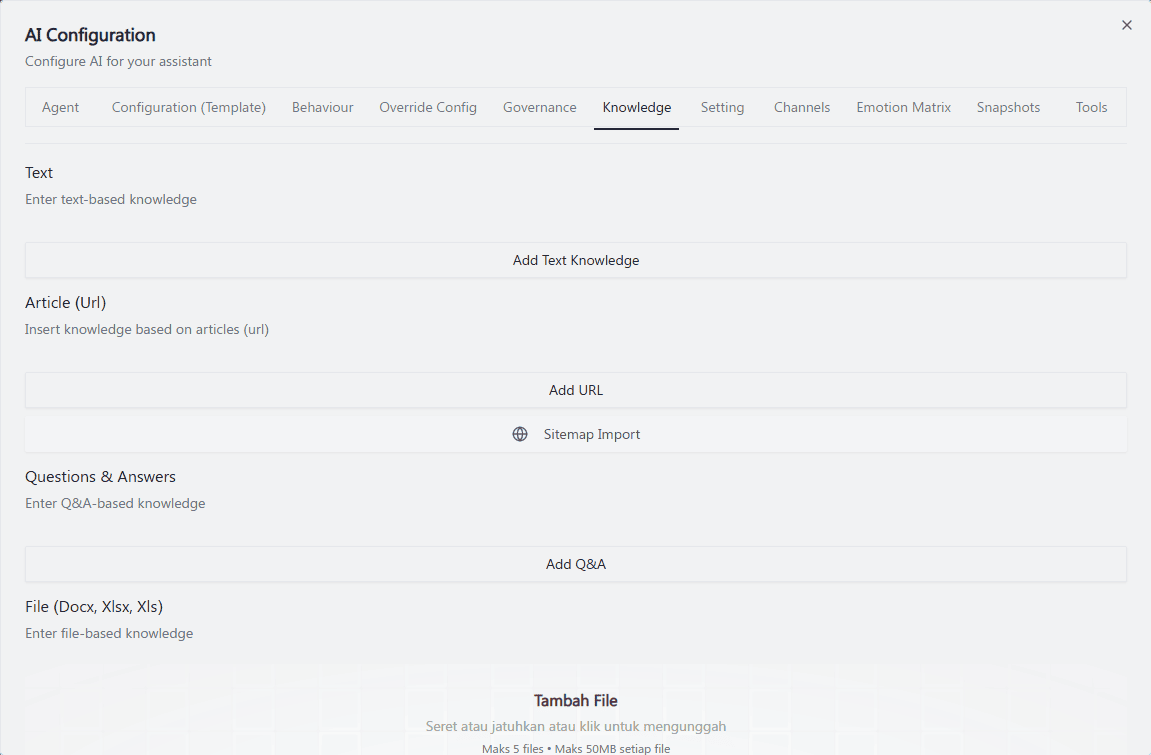
To ensure the AI Agent can answer business questions accurately without hallucination, you must feed it business knowledge through the Knowledge tab in AI Configuration. There are four ways to add knowledge: Text, Article (URL), Questions & Answers, and File.
A. Text-based knowledge
Open AI Configuration and go to the Knowledge tab.
In the Text section, click Add Text Knowledge.
Type or paste the knowledge content directly, then save.
B. Article (URL)
The Article (Url) section lets you add knowledge from web pages, either one at a time or in bulk via a sitemap.
Add a single URL
In the Article (Url) section, click Add URL.
Enter the URL of the article you want the AI to learn from.
Import via Sitemap
Click Sitemap Import (the button with the globe icon, below Add URL).
In the Sitemap Import dialog, enter your website's sitemap URL (e.g.
https://example.com/sitemap.xml).Click Preview to see the list of URLs found in the sitemap before importing them.
Confirm the import, or click Cancel to close the dialog without importing.
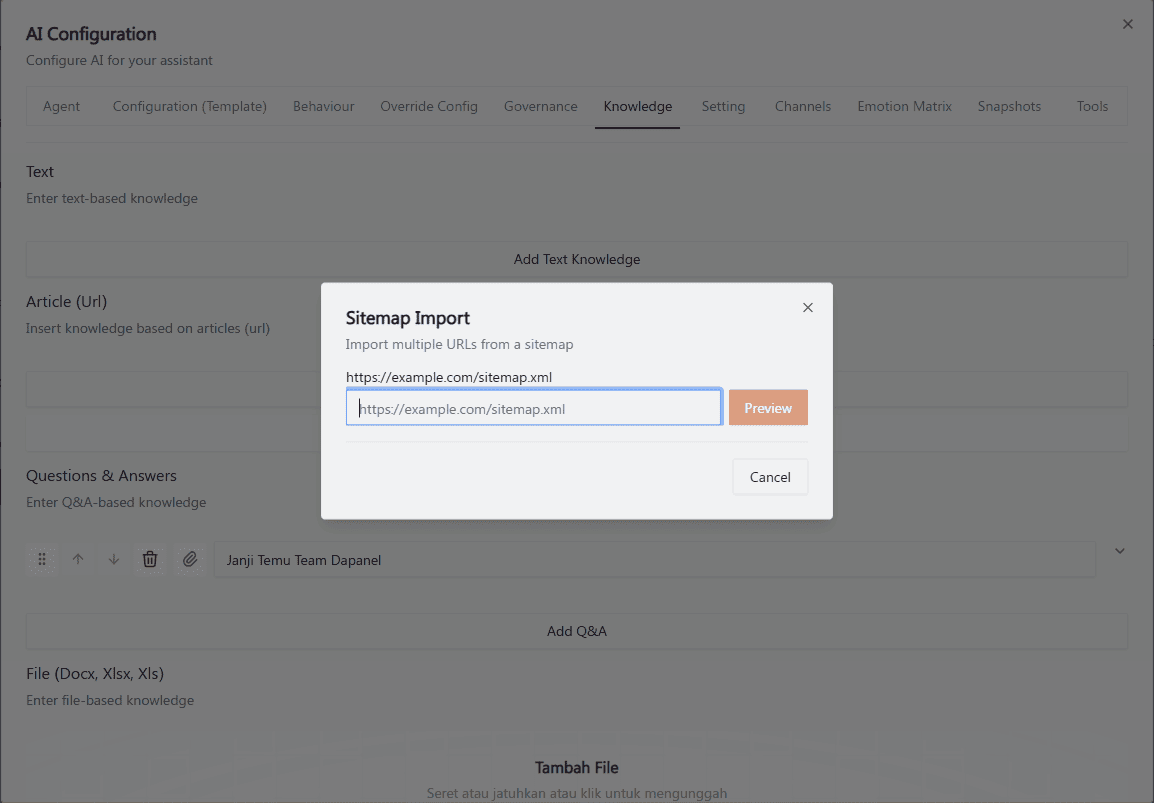
Recommended annotation: ① arrow to Add Sitemap Source. ② box the sitemap URL input field with a sample URL typed in. ③ arrow to the Sync button. Numbers match steps 2–4 above.
C. Questions & Answers
In the Questions & Answers section, click Add Q&A.
Enter the question and its corresponding answer.
Each entry has a few controls: the drag handle (⋮⋮) and up/down arrows to reorder, a paperclip icon to attach a file to that Q&A, a trash icon to delete it, and a chevron to expand/collapse it.
D. File (Docx, Xlsx, Xls)
In the File section, drag and drop a file onto the Tambah File ("Add File") area, or click it to browse and select a file from your computer.
Supported formats: .docx, .xlsx, .xls only (no PDF).
Limits: maximum 5 files, maximum 50MB per file.
Wait for the file to finish processing before assuming the AI can use it.
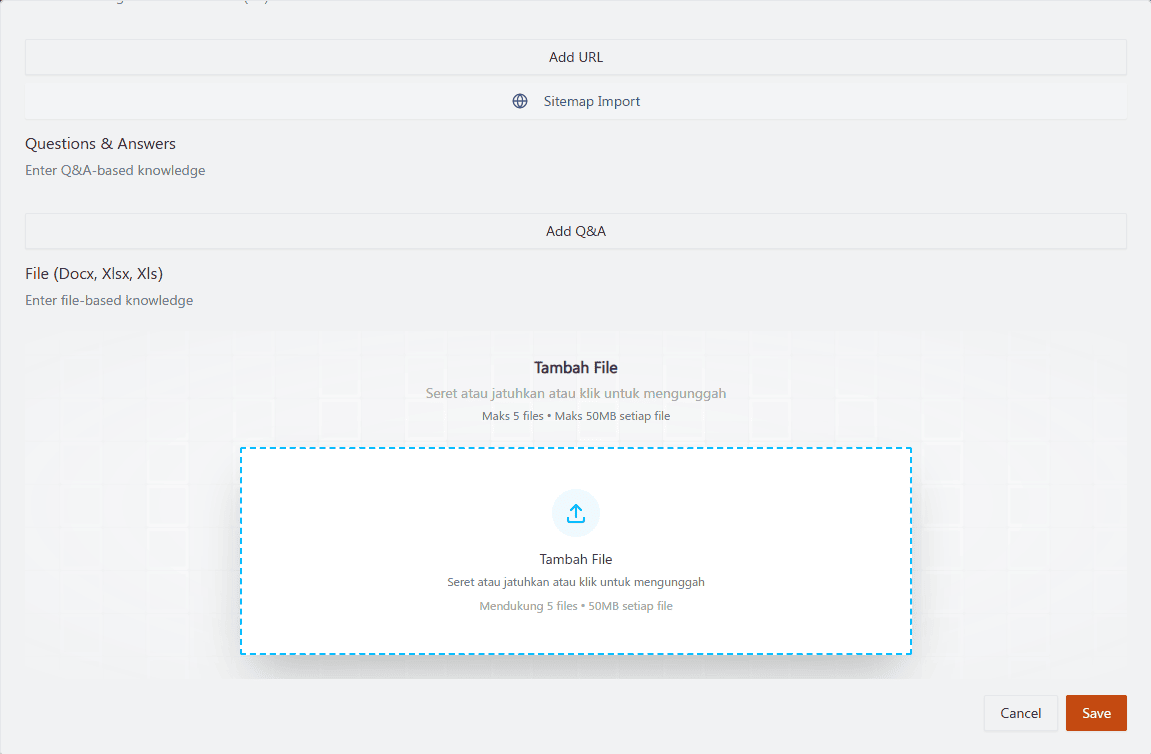
Recommended annotation: ① arrow to Upload Document. ② box the file picker / accepted formats note. ③ arrow to the label field. ④ circle the status badge, ideally captured mid-processing next to a second row already showing Ready / Active, so both states are visible in one image.
Operational guidance
Give Text entries, Q&A entries, and file labels clear, descriptive names — this makes it easier to identify which source answered a given question later.
Use Preview in Sitemap Import to check which URLs will be pulled in before committing, especially after major website changes (pricing updates, new product pages).
Don't assume a file is usable immediately after upload — wait for processing to complete.
Keep sensitive internal-only documents out of the Knowledge tab unless the AI Agent's audience is meant to have access to that information.
⚠️ Still to confirm: whether Sitemap Import is a one-time import or sets up periodic re-sync; what the processing/ready status indicator looks like for uploaded files; how to edit or remove a Text/URL/Q&A/File entry after it's added; and exact page-count or content-size limits per URL/sitemap.
Related: Identity & Linking · Override Config