 CRMAI Docs
Profile & Password
This page controls your own account details: display name and login password. Changes here only apply to the account you're logged in as — they don't touch workspace settings or other users.
Opening the Profile page
Log in to CRMAI.
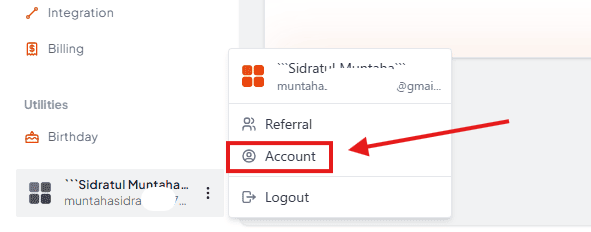
Open the account menu in the sidebar or user area.
Select Profile Account in the below.
The page URL follows the active language, in the pattern /{language}/dashboard/profile.
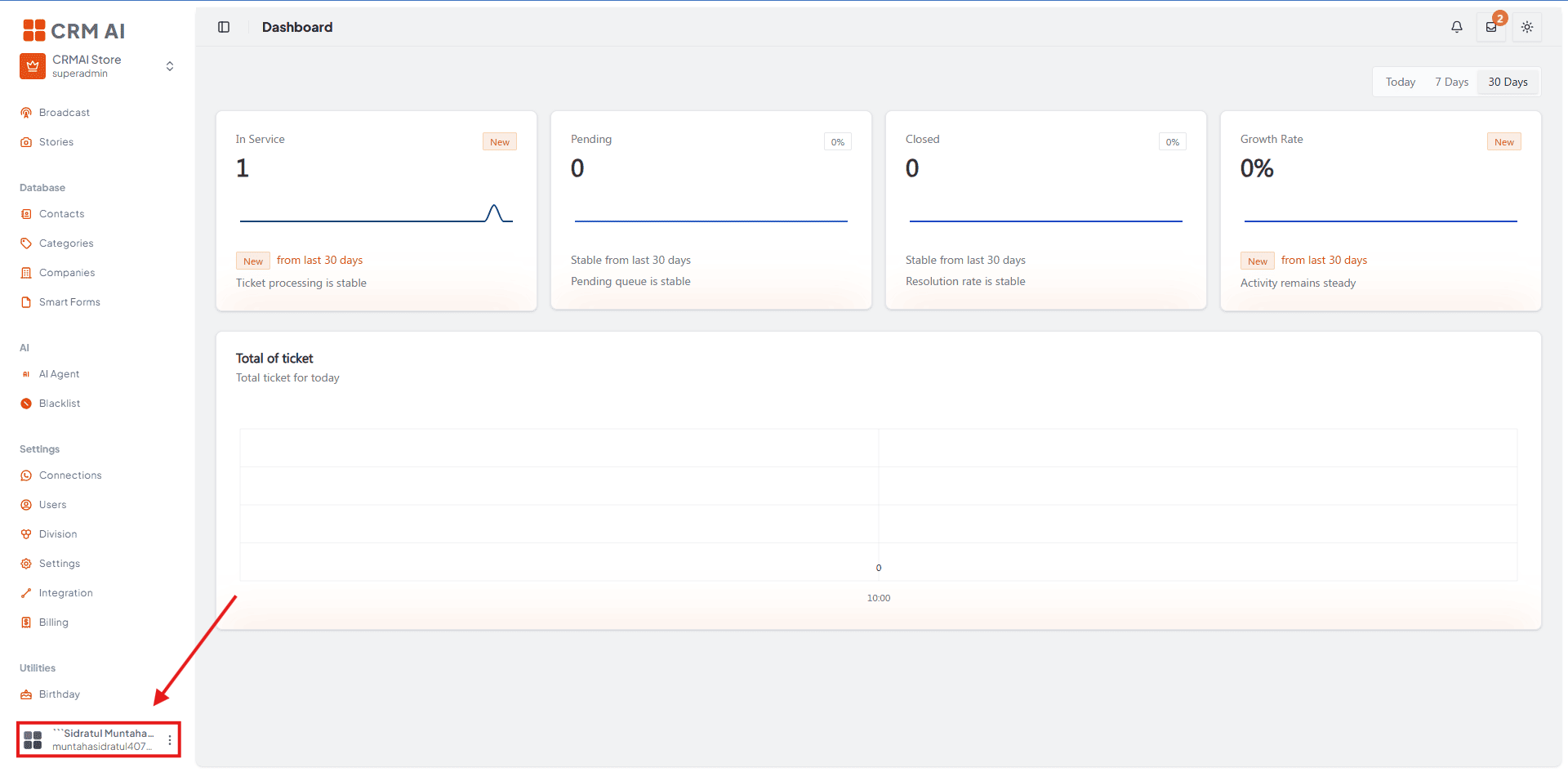
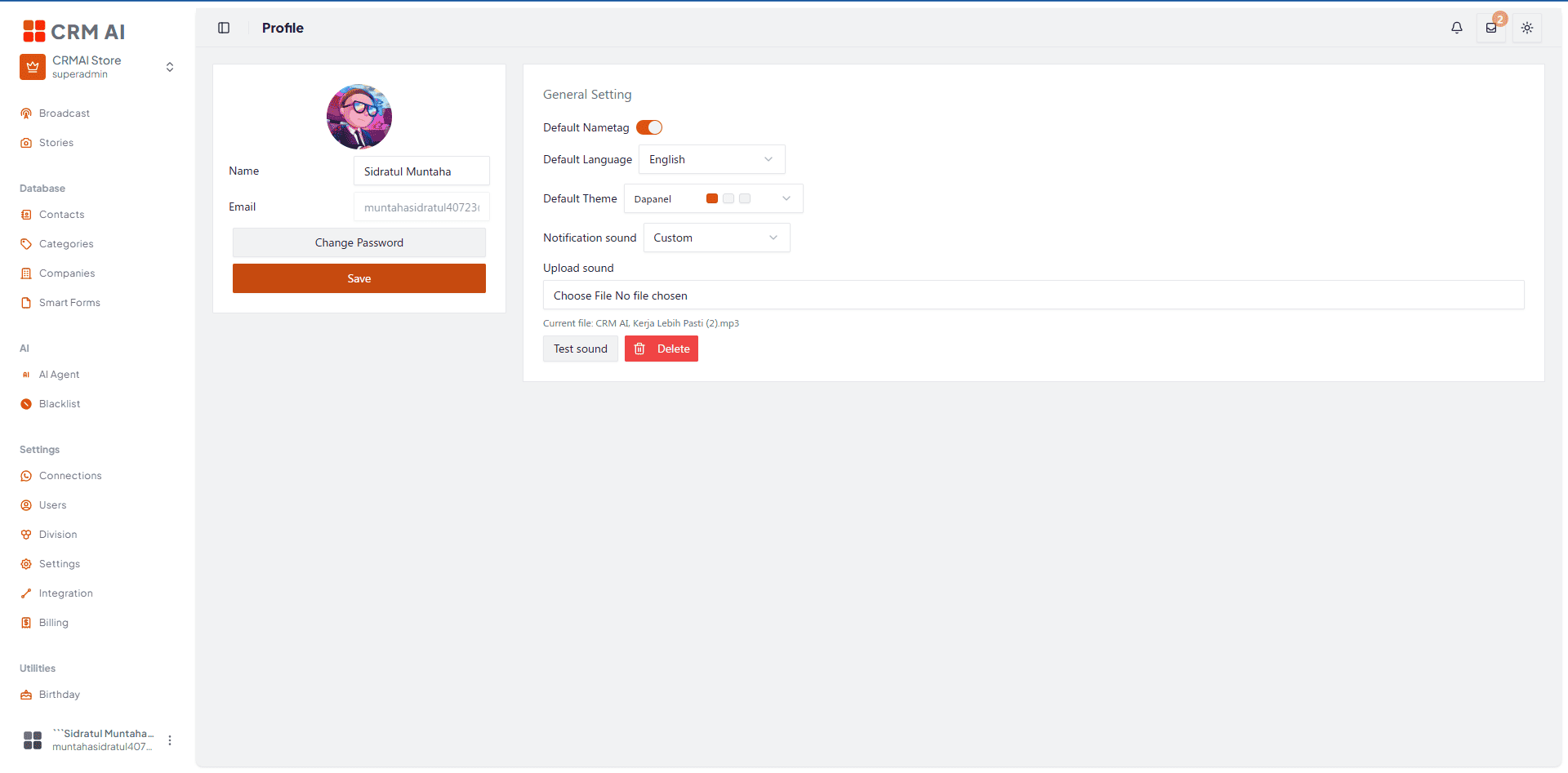
The Profile page has two sections: Profile (name, email, password) and General Settings (language, theme, tag name, notification sound — covered on other pages).
Email is shown for reference only and can't be edited from here.
Changing your name
This is the name shown as your display name throughout the app.
Open Profile Account.
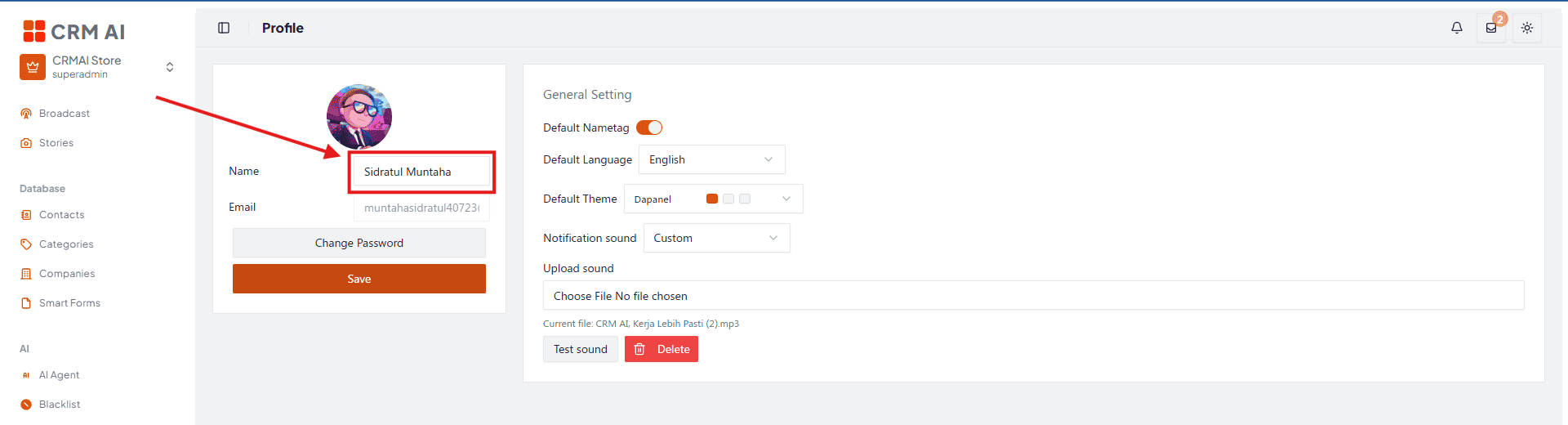
Update the Name field.
Click Save.
Wait for the success notification.
If the success message hasn't appeared, treat the change as unsaved — don't navigate away yet.
Changing your password
Open Profile.
Click Change Password.
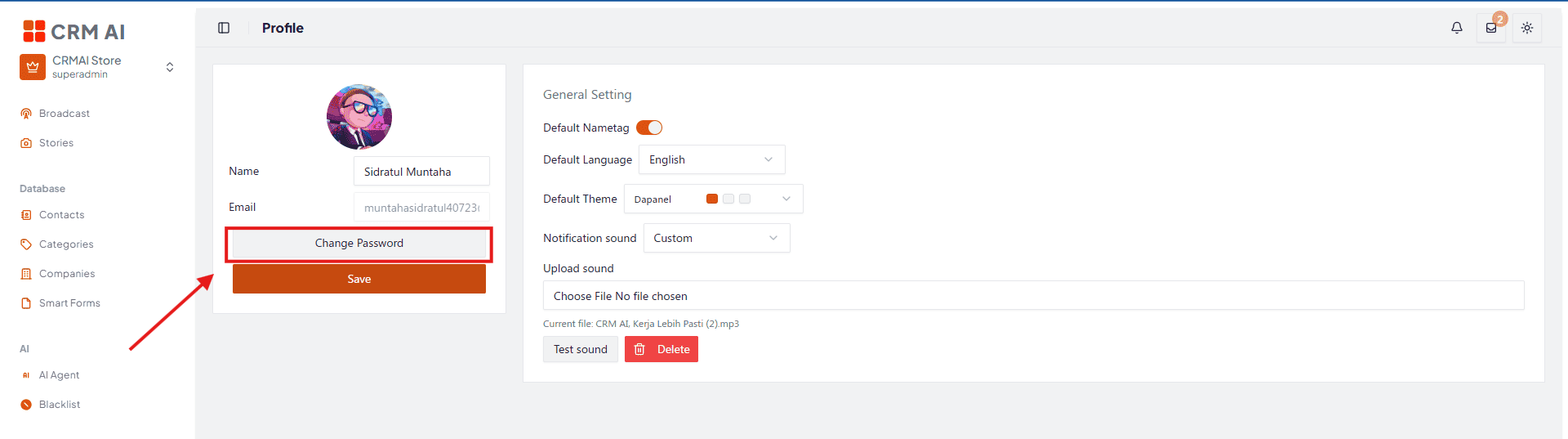
Enter Old Password.
Enter New Password.
Enter Confirm Password — it must match the new password exactly.
Click Save.
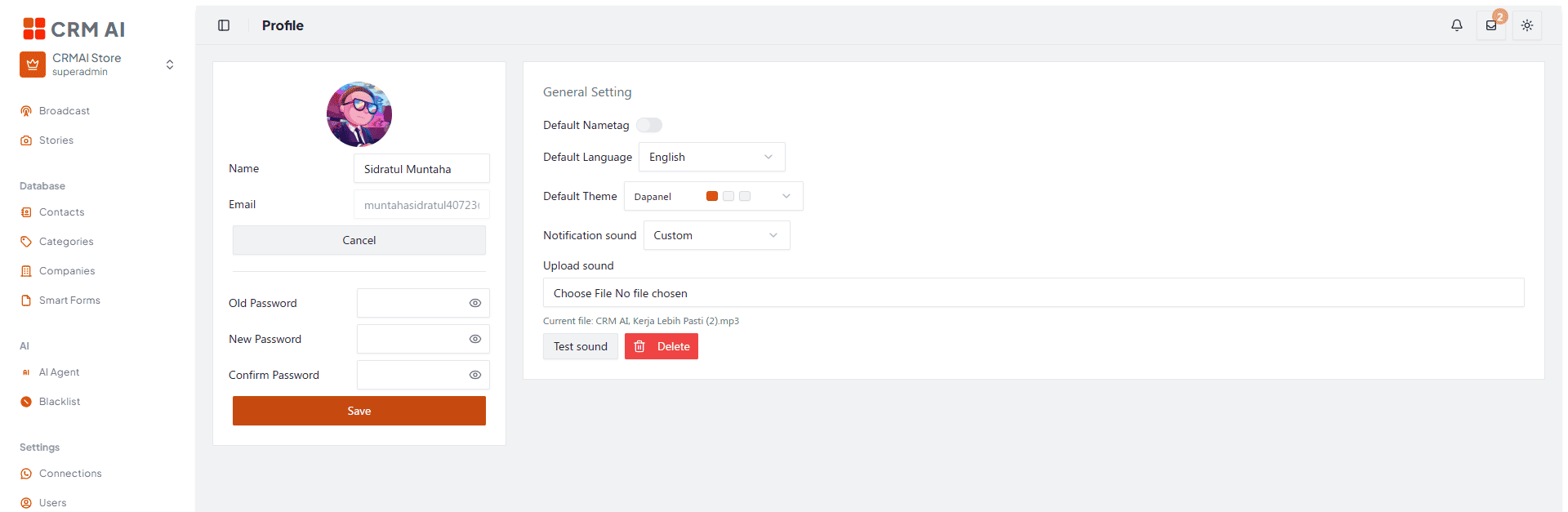
The eye icon on each password field lets you double-check what you typed before submitting.
Forgot your old password? Don't try to guess it here. Log out and use Forgot password on the login page instead.
Security tips
Don't reuse a password from another service.
Don't share your password with anyone, including teammates.
Troubleshooting
Issue | Fix |
|---|---|
New password rejected | Double-check your old password is correct, and that the new password matches the confirmation. If you've forgotten your old password, use the login page's password recovery flow instead of this form. |
Name not saving | Make sure you clicked Save and actually saw the success notification. Also check your session is still active — if you got logged out silently, the change may not have gone through. |
If the problem persists, note down the last step you took and any error message shown, then report it to support. Never include your password or any tokens in the report.