 CRMAI Docs
Notifications
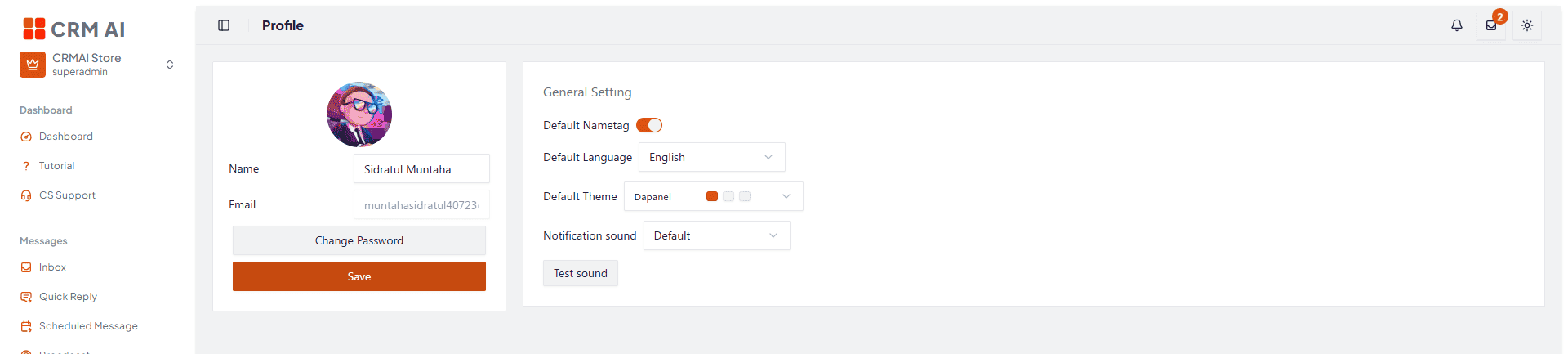
CRMAI has two kinds of notifications, set up separately: notification sound (from Profile) and browser notifications (from the bell icon in the header). You can use both together or configure each on its own.
Notification sound
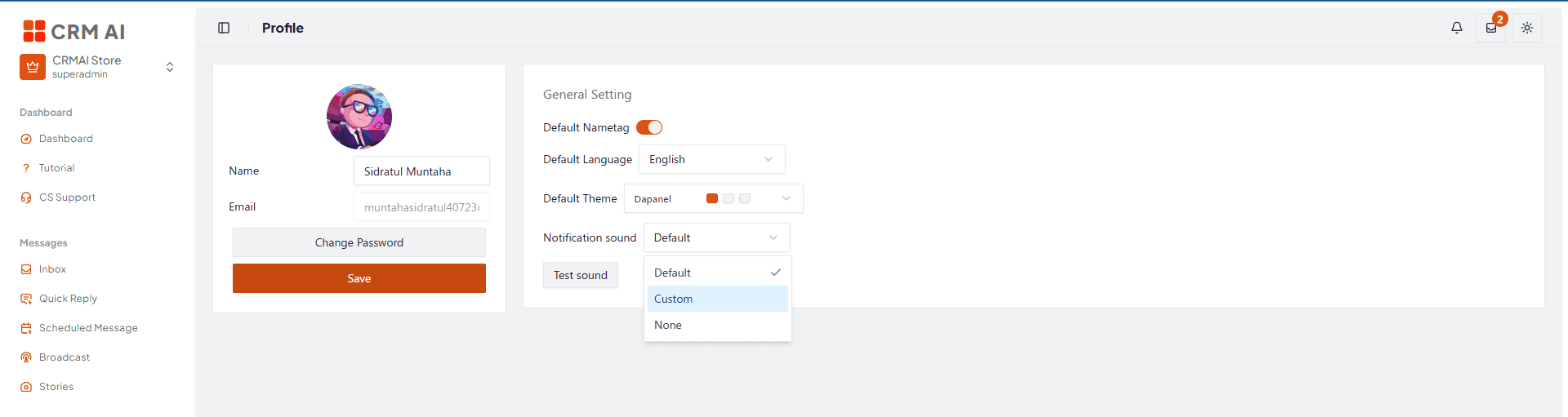
This is the sound the app plays when a message comes in. There are three options:
Option | Behavior |
|---|---|
Default | CRMAI's built-in sound. |
Custom | An audio file you upload yourself. |
None | Sound is turned off. Visual notifications can still appear if other notification features are active. |
Using the default sound
Open Profile.
Find Notification sound.
Select Default.
Click Test sound to check it.
Uploading a custom sound
Open Profile.
Under Notification sound, select Custom.
Click Upload sound.
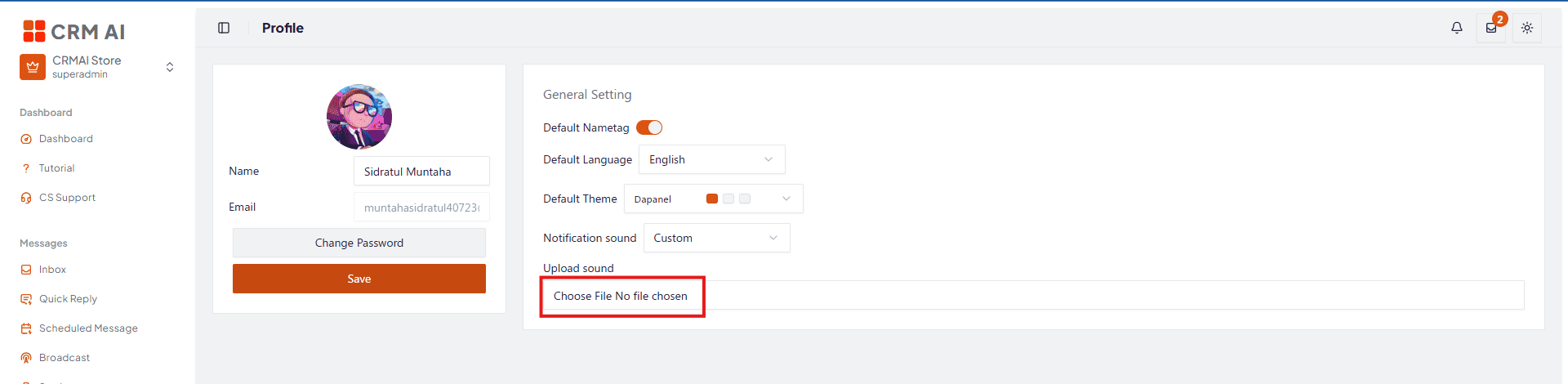
Choose an audio file from your device.
Confirm the file name appears under Current file.
Click Test sound.
Max file size is 2 MB, and the format needs to be recognized as audio by the browser.
Removing a custom sound
Make sure you're on Custom mode.
Click Delete next to the Test sound button.
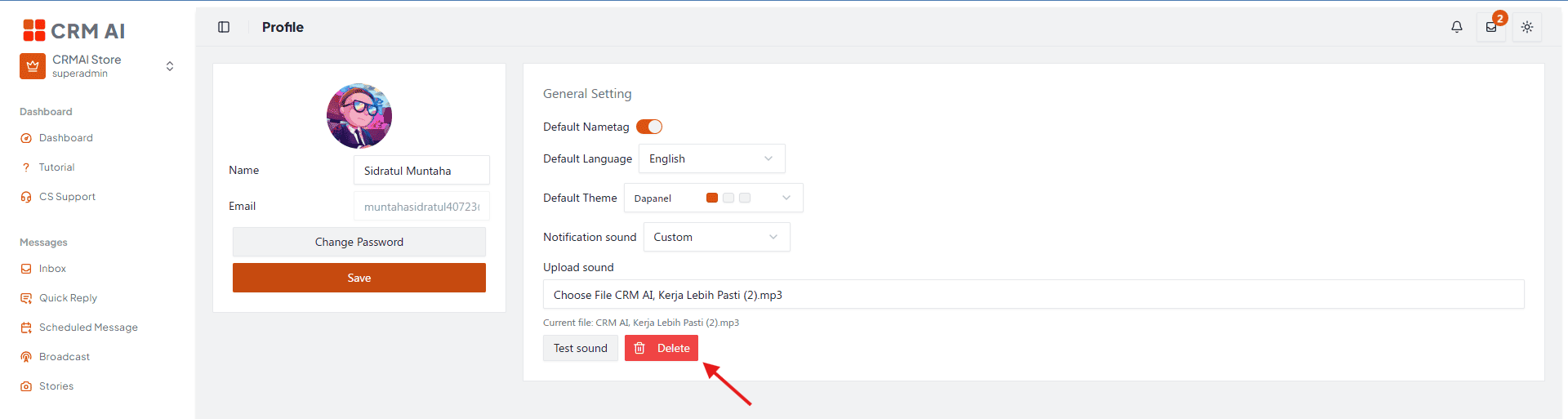
If you still want a notification sound, pick another option manually — the system doesn't fall back to Default automatically after you remove a custom file.
Browser notifications
This is different from sound — browser notifications are system-level alerts that can appear even when the dashboard tab isn't active, depending on browser and device support.
Enabling
Find the bell icon in the dashboard header.
Click it.
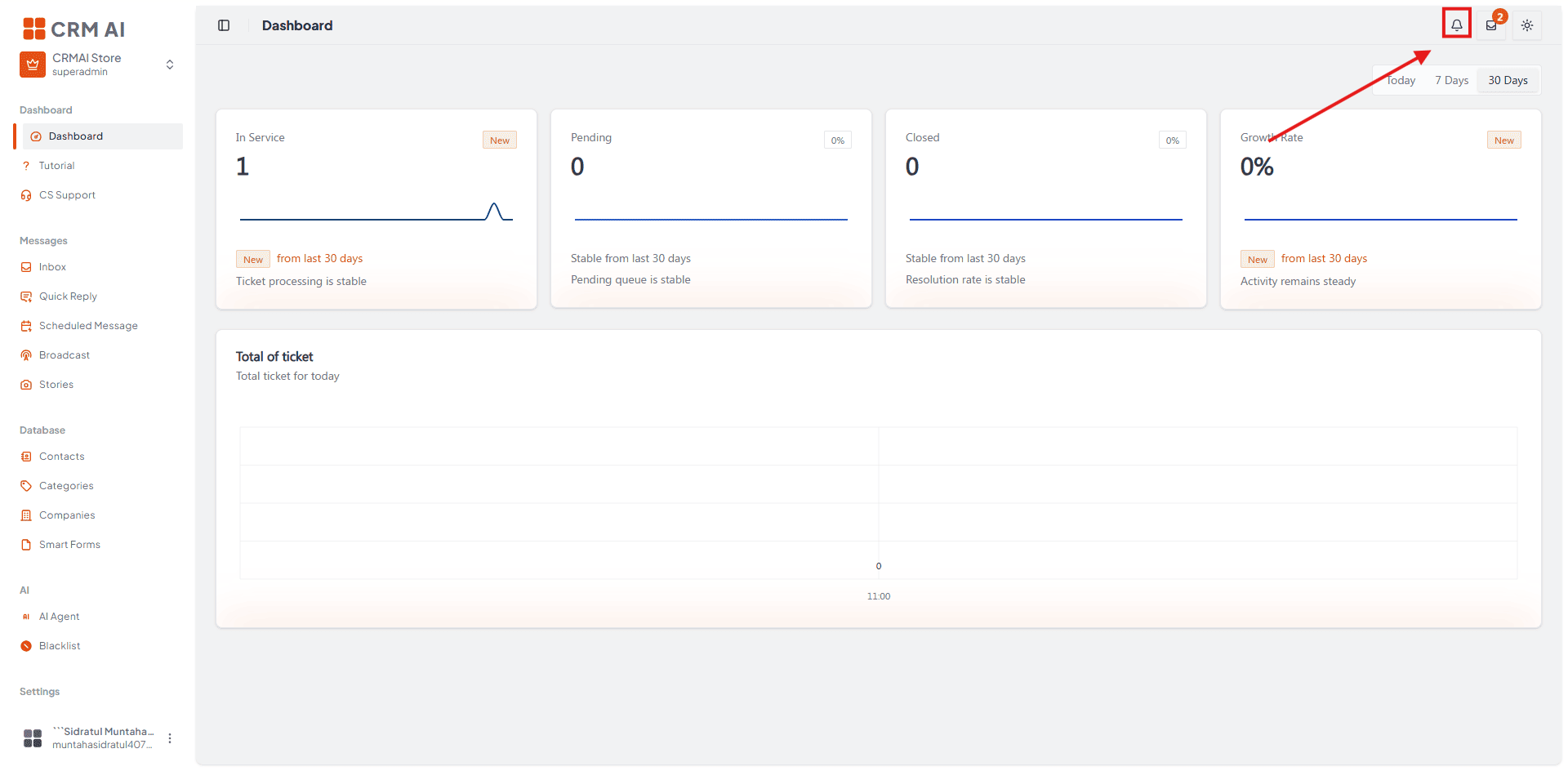
In the panel that appears, click Enable.
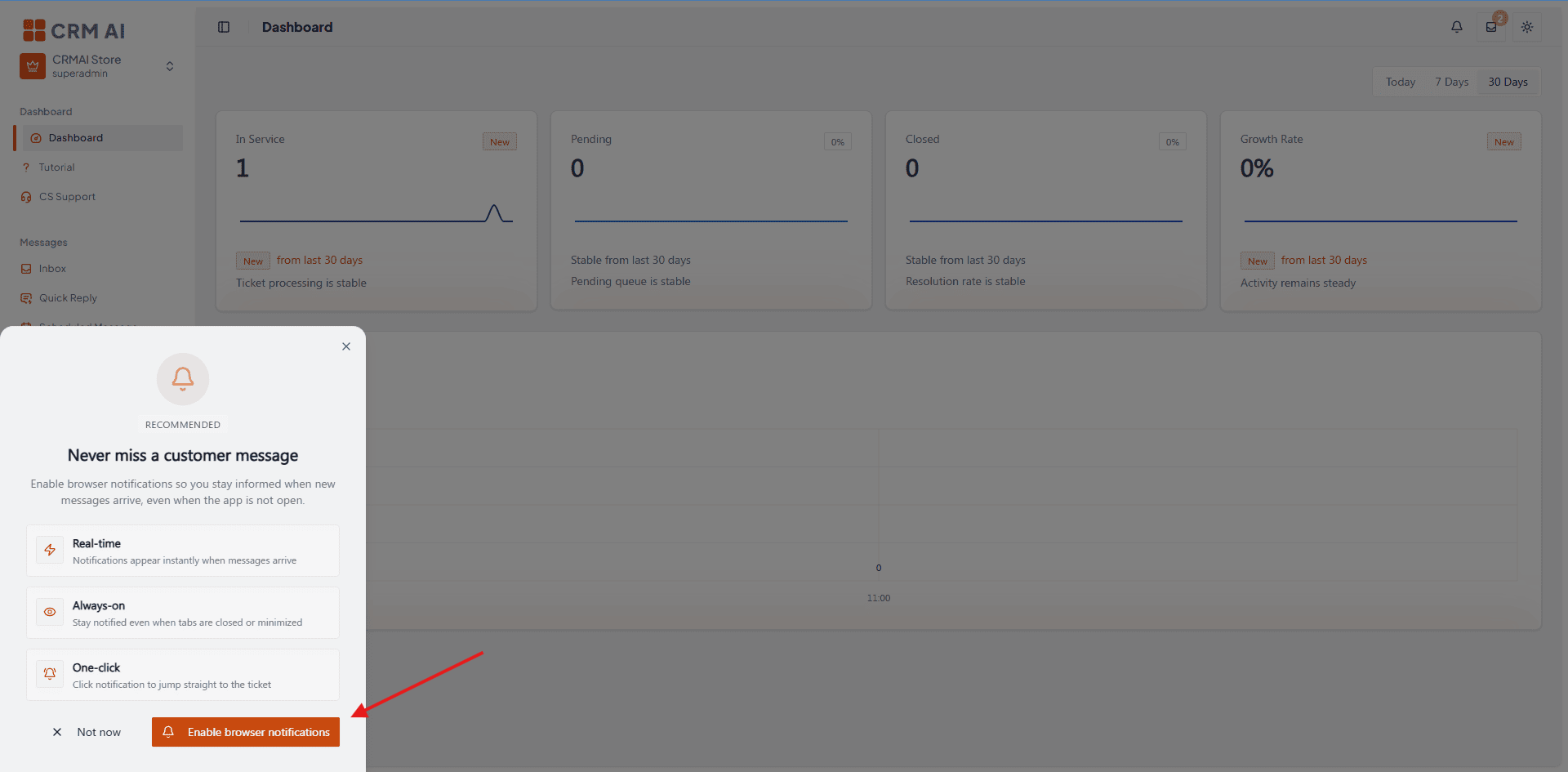
If the browser asks for permission, choose Allow.
Wait for the confirmation notification.
If the bell icon doesn't appear at all, your browser or device likely doesn't support Web Push.
Disabling
Click the bell icon.
Click Disable.
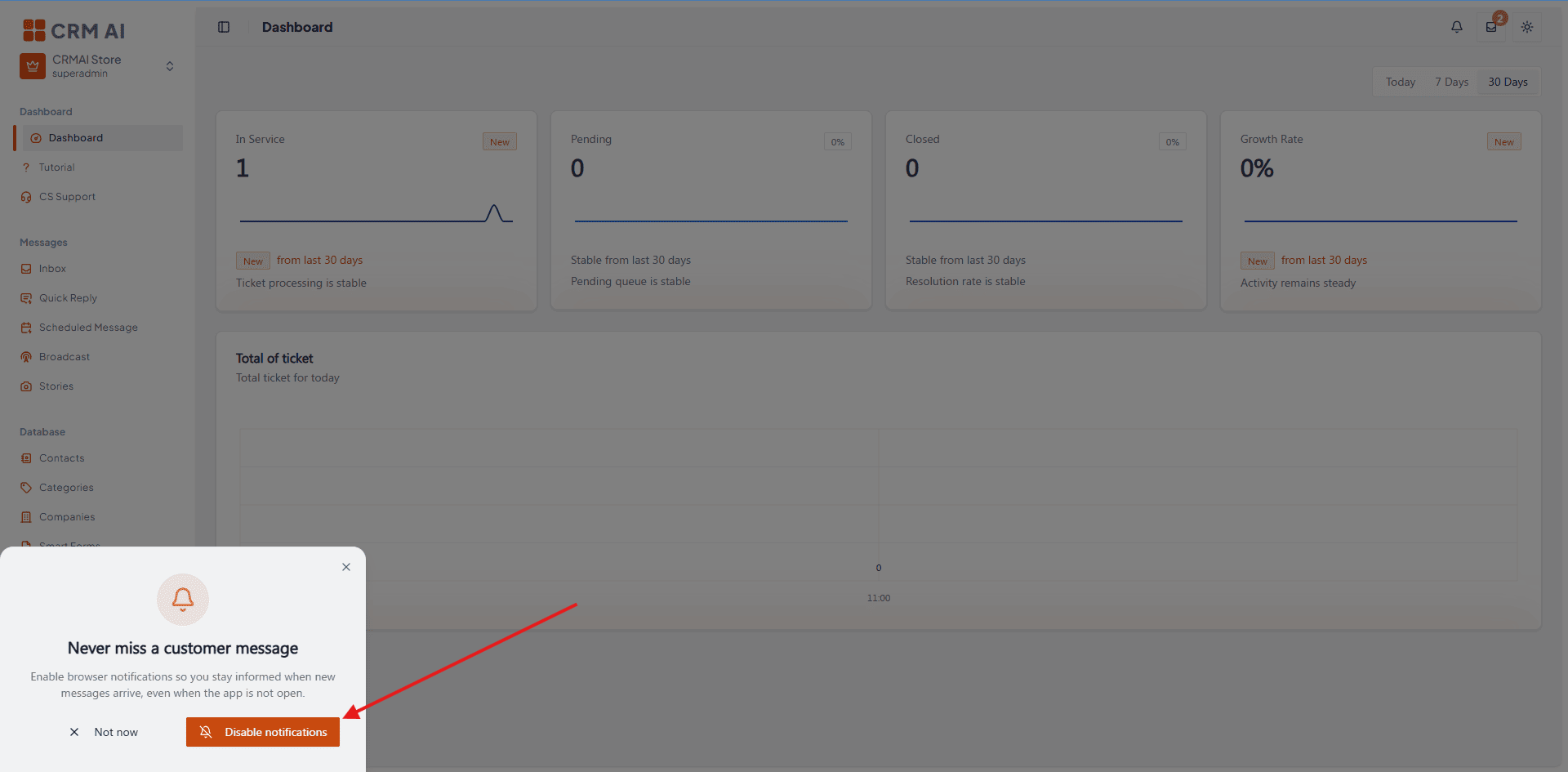
Check the success notification to confirm.
Note: disabling from CRMAI only removes the push subscription. Your browser's notification permission can still show as "allowed" — that's normal.
If notifications are blocked
Click the bell icon.
Choose the option to open Browser settings.
Allow notifications for the CRMAI domain.
Come back to CRMAI and enable it again.
On some browsers, if the settings page can't be opened directly, CRMAI copies the instructions to your clipboard instead.
Troubleshooting
Issue | Fix |
|---|---|
Custom sound fails to upload | Check the file size (2 MB max) and make sure the format is recognized as audio. |
Sound doesn't play on incoming messages | Check the active sound option, your device/browser volume, and confirm the mode isn't set to None. Test it with the Test sound button in Profile. |
No bell icon | Your browser/device may not support Web Push, or the component is still loading. |
Browser notifications blocked | Open browser settings through the bell panel, then allow notifications for the CRMAI domain. |