 CRMAI Docs
AI Agent
Purpose
The AI Agent module configures the AI assistant that operates on customer conversations. Configuration is organized into 11 tabs inside the AI Configuration dialog, covering identity, behavior, knowledge, governance, per-channel and per-sentiment overrides, tools, and configuration history.
Access
Main configuration:
/{locale}/dashboard/aiModel profiles:
/{locale}/dashboard/ai/profilesAgent templates:
/{locale}/dashboard/ai/templatesUsage tracking:
/{locale}/dashboard/usage-ai
The public feature page is available at /{locale}/features/ai-agent.
The AI Agent list page
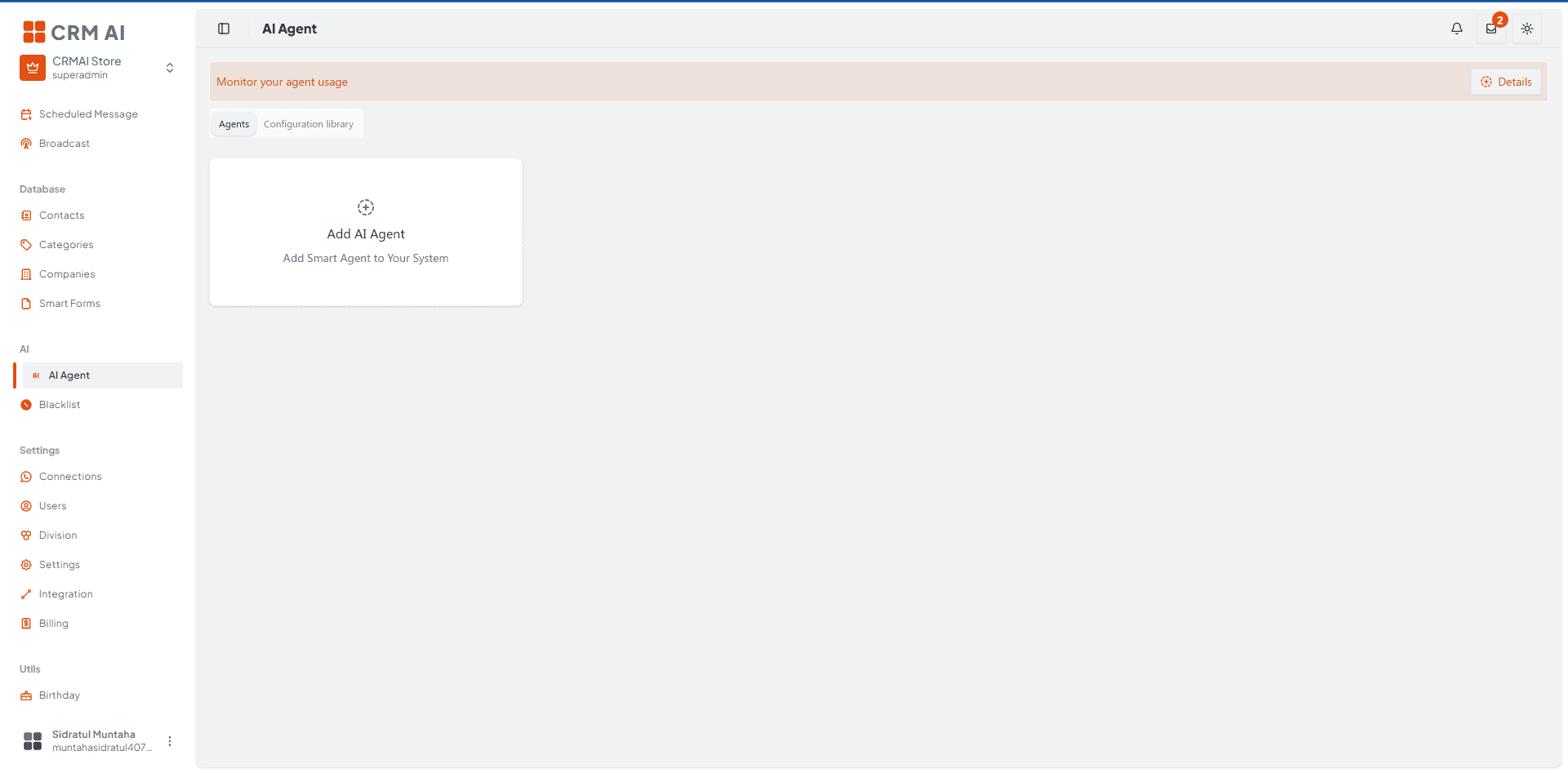
Opening AI Agent shows:
A "Monitor your agent usage" banner with a Details button linking to the Usage AI page.
Two tabs: Agents and Configuration library.
One card per agent, showing:
Name and a status pill (Active / Inactive).
Runtime: state (e.g.,
idle).Four stat counters: WhatsApp, Division, Contact, Response — the number of each linked/consumed by this agent.
Configuration button — opens the AI Configuration dialog (see tabs below).
Try Live button — opens a temporary test chat (see below).
Delete button.
An Add AI Agent card to create a new agent.
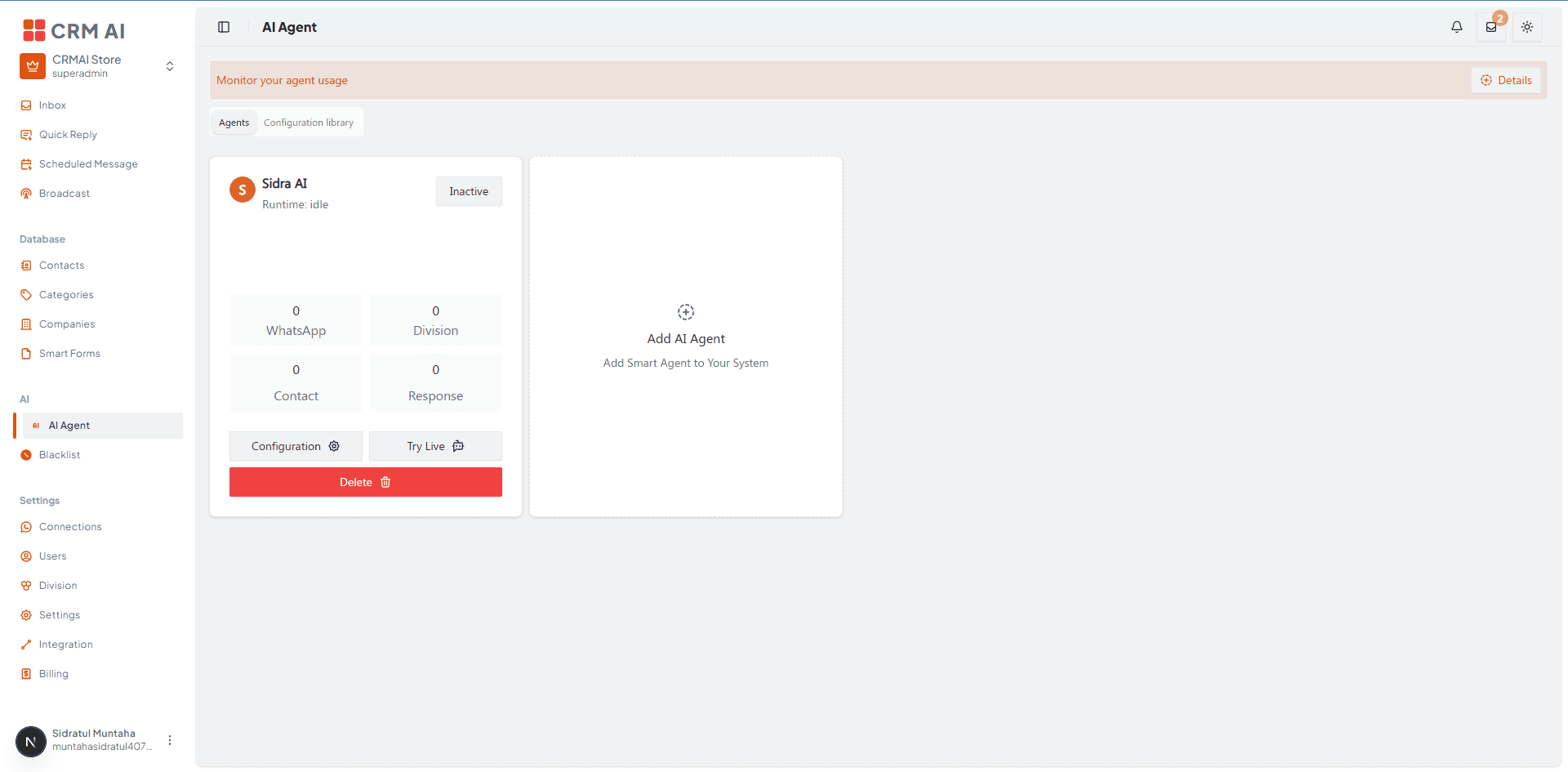
Recommended annotation: ① circle the status pill (Active/Inactive) top-right of the card. ② arrow to the "Runtime: idle" label. ③ bracket the four stat counters (WhatsApp/Division/Contact/Response) as one group. ④⑤⑥ number the Configuration, Try Live, and Delete buttons left to right, matching the order they're introduced in the bullet list above.
Configuration tabs
Clicking Configuration on an agent card opens the AI Configuration dialog with these tabs, in order:
Tab | What it configures | Documentation |
|---|---|---|
Agent | Name, task/role, recipient mode, and links to WhatsApp/Division/Contact/Company/Category. | |
Configuration (Template) | Which Model Profile and Configuration Template this agent uses. | |
Behaviour | The Agent Personality prompt — the core system prompt shaping how the agent speaks and behaves. | |
Override Config | Toggles for Agent Overrides, Runtime Config, and Generation Config. | |
Governance | Autonomy level, decision scope, authority limit, memory depth, context retention. | |
Knowledge | Sitemap sync and manual document upload for the knowledge base. | |
Setting | Typing simulation, passive mode, group replies, multi-bubble, escalation, opening hours, follow-up. | |
Channels | Per-channel tone/style overrides (currently WhatsApp only). | |
Emotion Matrix | Tone adjustment rules triggered by detected customer sentiment. | |
Snapshots | Immutable configuration history, auto-created on every change. | |
Tools | Which tools the agent can call, gated by Authority Limit Level. |
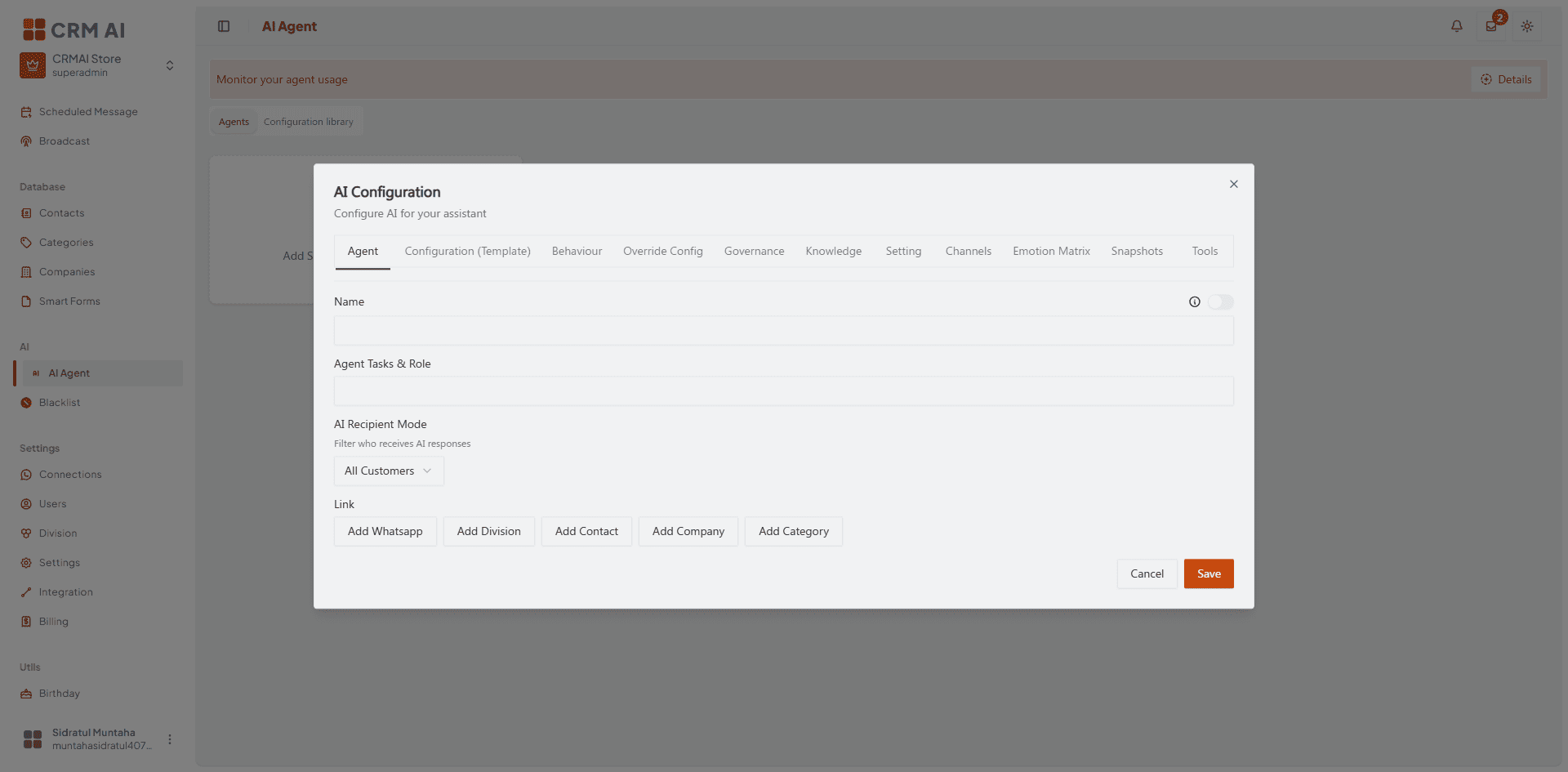
Recommended annotation: underline the full tab bar in one continuous highlight, then number each tab ①–⑪ left to right (Agent, Configuration (Template), Behaviour, Override Config, Governance, Knowledge, Setting, Channels, Emotion Matrix, Snapshots, Tools) matching the row order in the table above — this screenshot works as a single "map" image that every sub-page can reference back to.
Try Live (test chat)
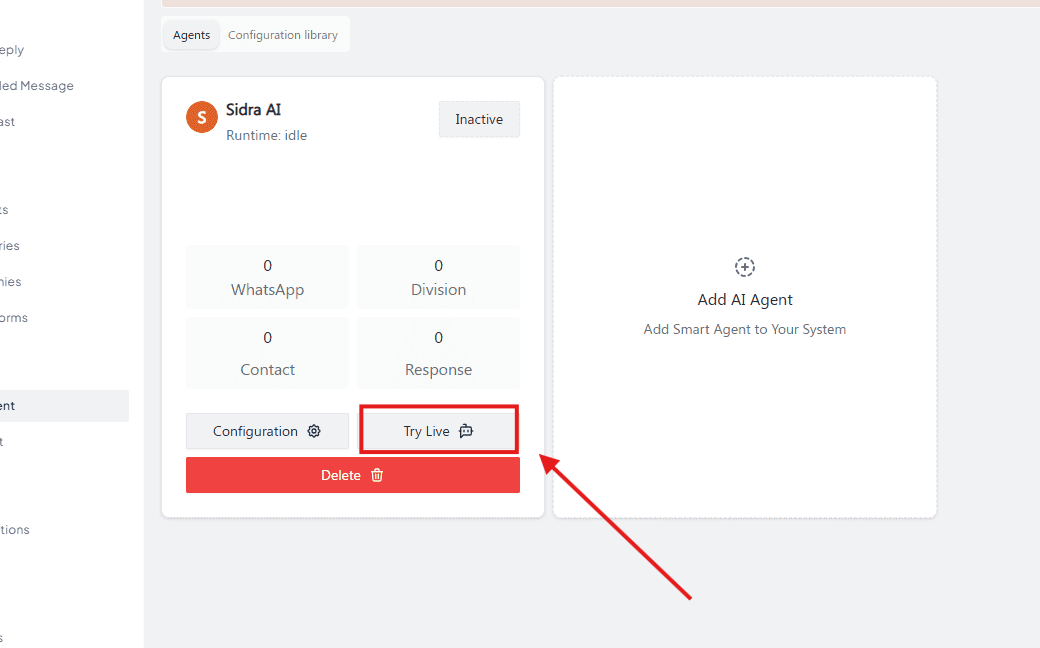
Clicking Try Live on an agent card opens a temporary chat room at /{locale}/dashboard/chat/{room-id}, with a Temporary Chat notice:
"This chat only lasts 10 minutes from the last incoming message. Temporary chat usage also cuts the available tokens and is stored in usage history."
Below the notice, the chat shows a "Start the interaction" prompt with quick-start suggestion buttons (e.g., Good morning, Words for today, Give me a rhyme) and a message input field.
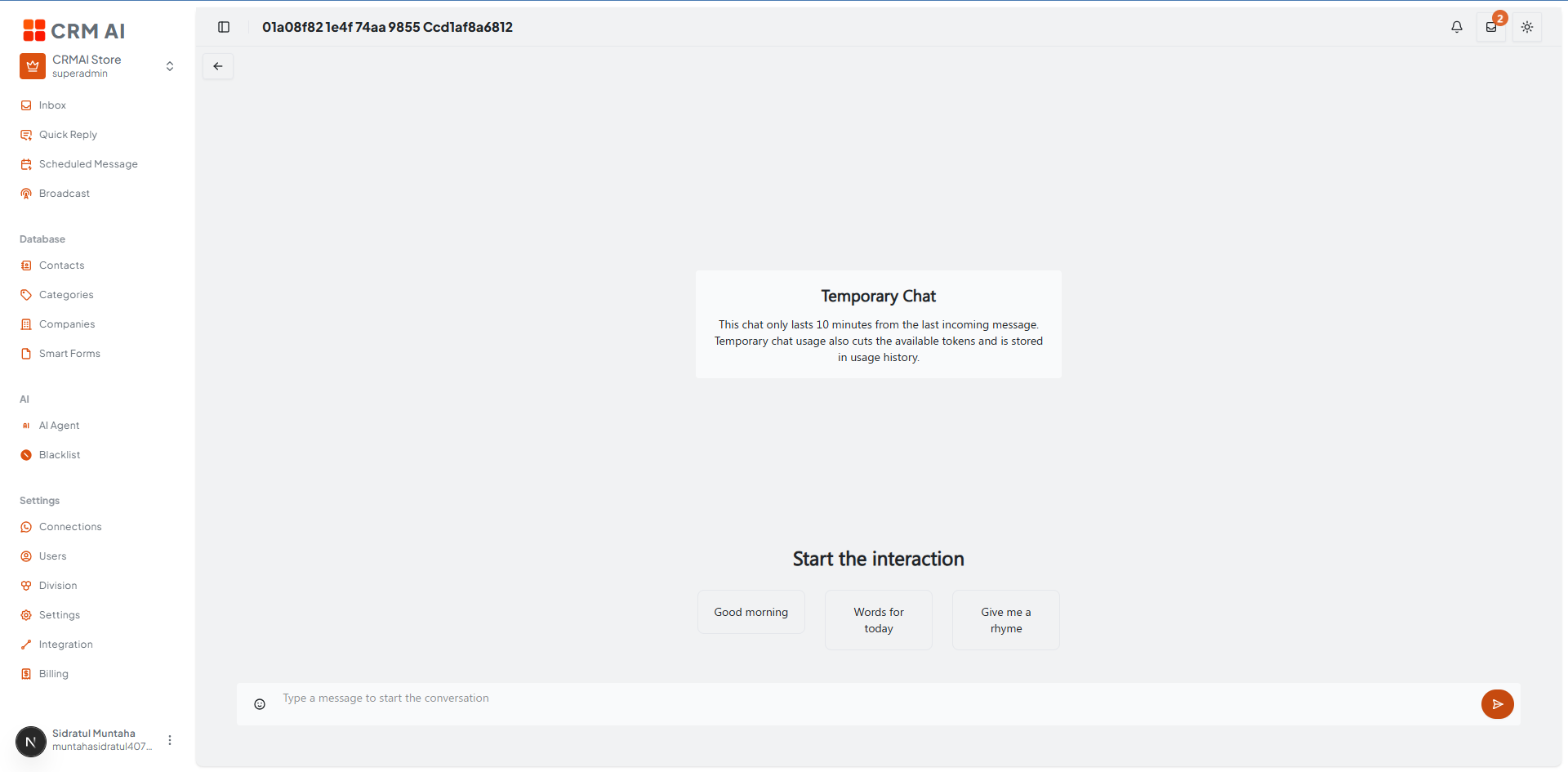
Recommended annotation: box the "Temporary Chat" notice text and add a callout bubble reading "expires 10 min after last message — consumes real tokens" pointing directly at it, since this is the single most important warning on the page.
⚠️ Important: Try Live sessions consume real response tokens from your plan's AI quota, and the conversation is recorded in Usage AI just like a real customer conversation. It is not a free/unlimited sandbox — test deliberately rather than running long exploratory chats.
The 10-minute session timer resets with each new incoming message, but ends 10 minutes after the last message — so an idle test chat expires and can't be resumed; start a new one instead.
AI Usage tracking
The Usage AI page (/{locale}/dashboard/usage-ai) shows a running total of AI responses consumed against your plan's quota (e.g., 86 / 100000 Response), a chart of daily usage, and a per-response log table with Date, Agent Name, Model, Response (preview text), Usage count, and an action menu. Filter by date range (This Week, etc.) and by agent name.
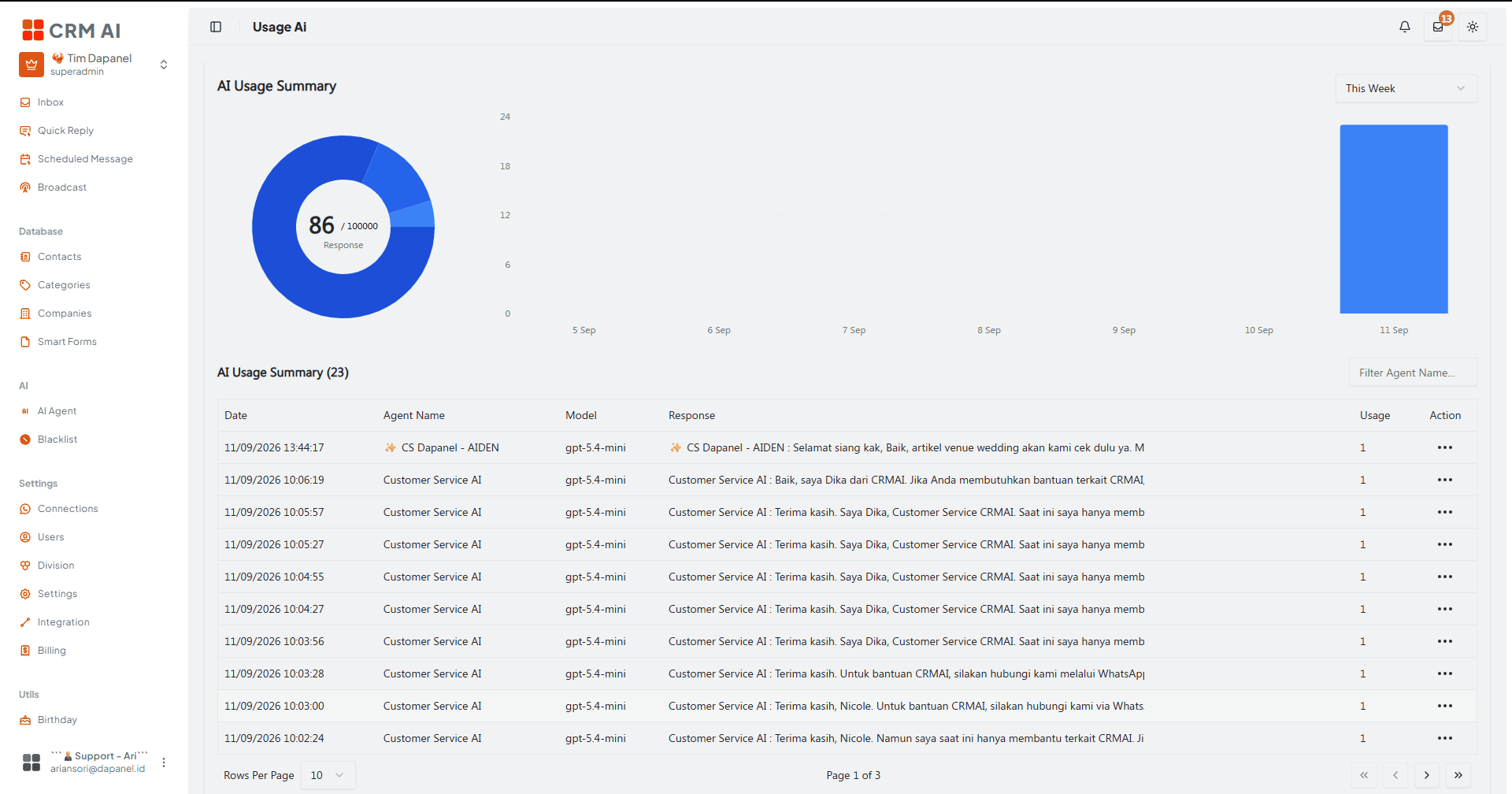
Recommended annotation: ① arrow to the response counter inside the donut chart (e.g., "86 / 100000"). ② box the date-range filter dropdown. ③ underline the Agent Name column header in the log table below, since that's the most-used filter when troubleshooting a specific agent's consumption.
See also Plans, Billing & AI Tokens for what happens when your quota runs low.
Recommended setup sequence
Open AI Agent and create a new agent.
Agent tab — set the name, task/role, and recipient mode; link the relevant WhatsApp connection, Division, or Category.
Configuration (Template) tab — select a Model Profile and Configuration Template.
Behaviour tab — write the Agent Personality prompt.
Governance tab — set autonomy, decision scope, and authority limits appropriate for how much you trust the agent to act independently.
Knowledge tab — sync your sitemap and/or upload reference documents.
Setting tab — configure escalation rules and operational toggles (typing simulation, opening hours, etc.).
Channels tab and Emotion Matrix tab — add overrides only if you need channel- or sentiment-specific behavior; both are optional and empty by default.
Tools tab — enable only the tools the agent's role actually needs, keeping in mind tools above the Authority Limit Level stay locked.
Save, then set the agent to Active and use Try Live to test before enabling it for live customer traffic — remember Try Live consumes real tokens, so test deliberately.
Operational guidance
Start with one narrowly defined role per agent.
An agent's status pill (Active/Inactive) is a separate control from Runtime state — check both when troubleshooting why an agent isn't responding.
Test the agent on controlled conversations before activation, but keep Try Live sessions short and purposeful since they consume plan tokens.
Check Snapshots before and after major configuration changes — every change is automatically recorded, so you can always see what changed and when.
Keep Governance and Blacklist rules aligned with the Inbox workflow.
Do not enable tools that are not required for the agent's role — a tool being toggled on is not enough by itself; it also needs the agent's Authority Limit Level to meet the tool's required level, or it stays NOT ACCESSIBLE.
Smart Form access is opt-in via Allow Smart Form Tool in the Setting tab — an agent cannot access published Smart Forms by default.
Do not promise a specific model/provider to customers unless it's configured through the selected Model Profile.