 CRMAI Docs
Contact Management
The Contacts module is the central hub for managing your business leads, customer profiles, and B2B relationships. Maintaining an organized database allows for better segmentation, automated interactions, and personalized customer service.
Access: Navigate to Dashboard > Contacts (or /{locale}/dashboard/contacts).
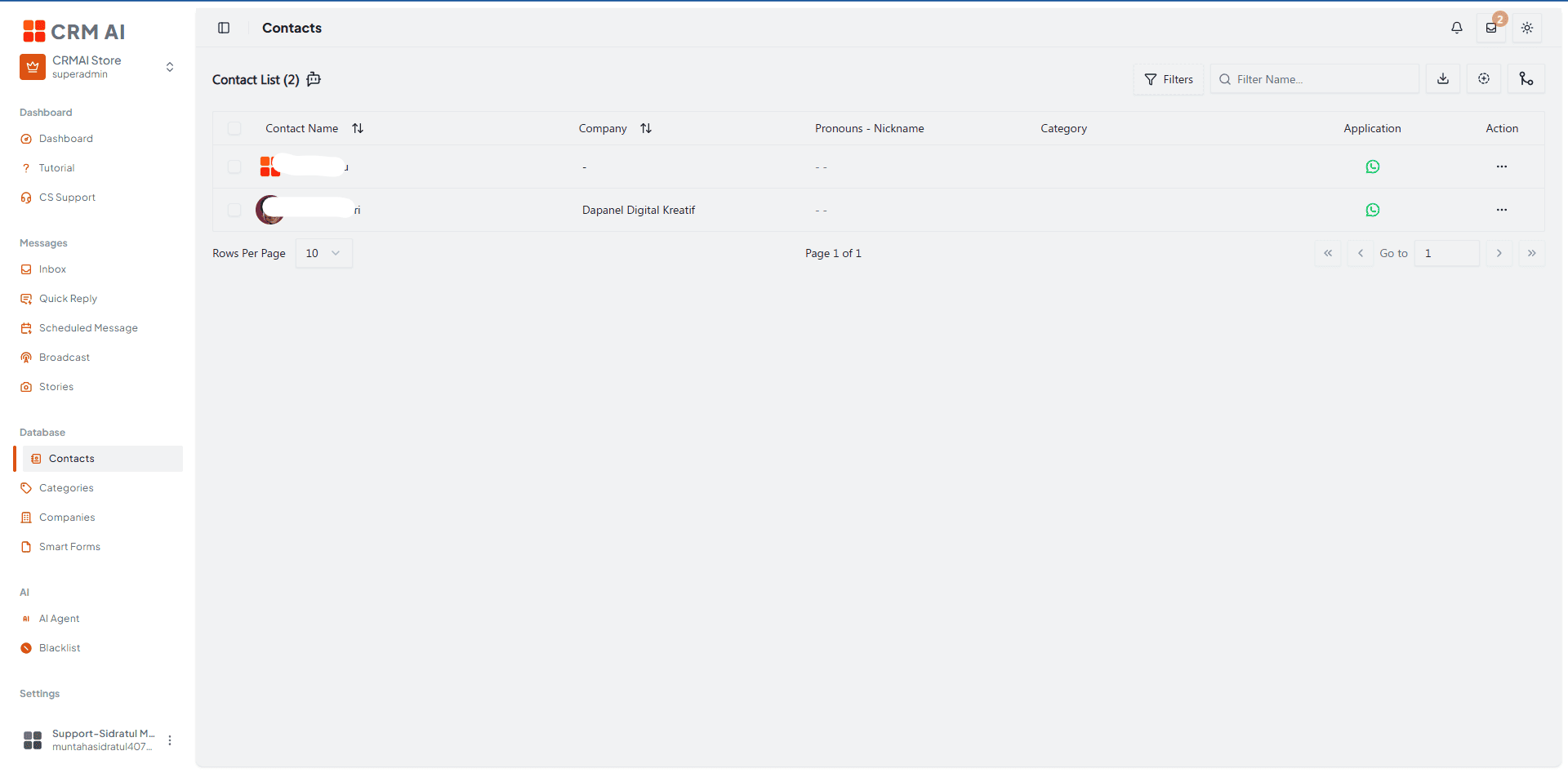
1. Adding Contacts Manually
For individual new leads, you can create profiles directly from the dashboard.
Navigate to the Contacts menu.
Click the Add Contact icon (typically a plus button) in the top right area.

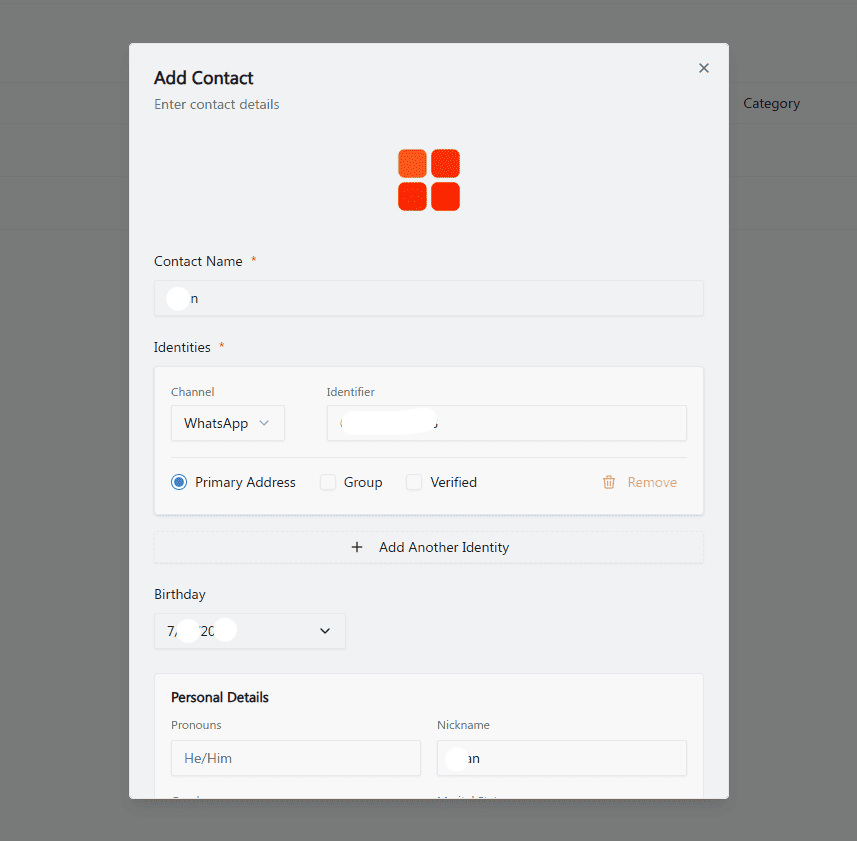
Basic Details & Identities: A customer must have at least one identity. Enter their Name, and add an Identity by selecting the channel (e.g., WhatsApp, Email, Instagram) and inputting the identifier (e.g., their phone number). You can also add their Birthday and Pronouns.
Address & Notes: Scroll down to fill in specific address details (Line 1, City, Province, Postal Code, Country) and assign an address label (e.g., Home or HQ). Use the Notes box for any special context about the client.
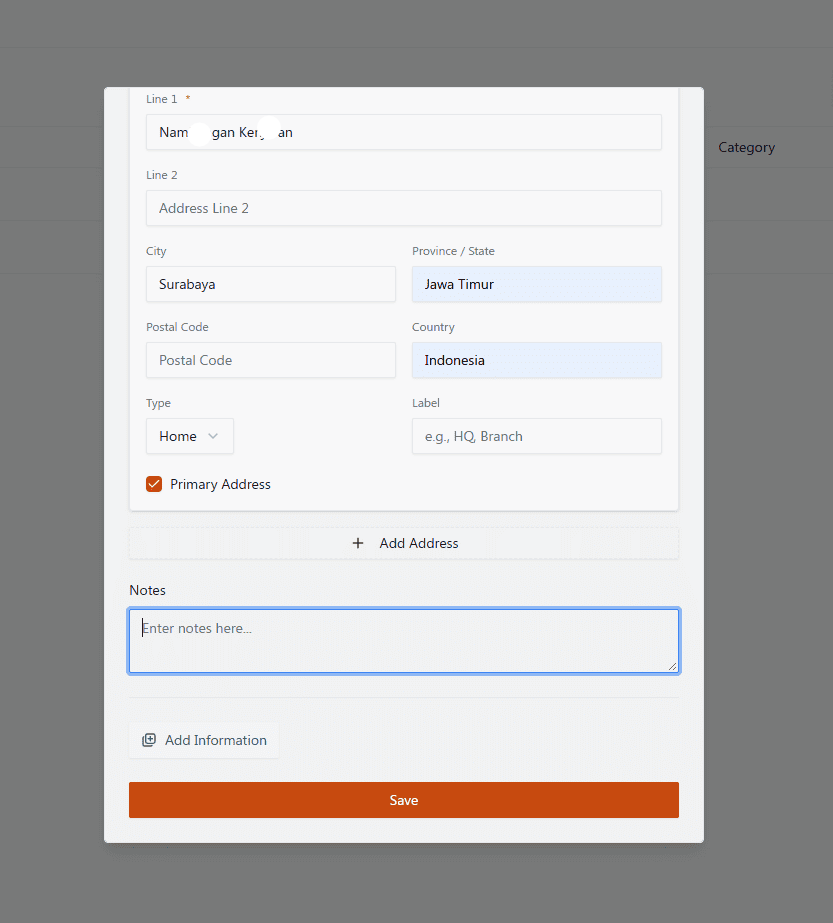
Click Save to create the profile.
2. Importing Contacts in Bulk
If you have a large existing database, you can upload your contact history simultaneously rather than adding them one by one.
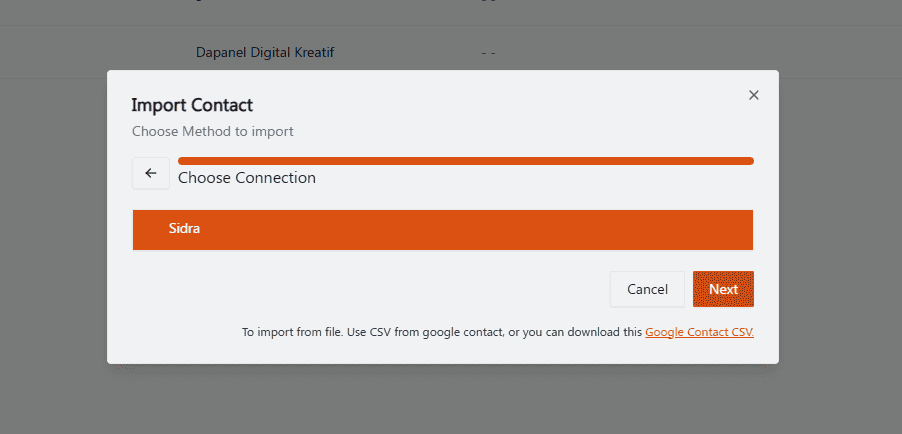
From the Contacts page, click the import action.

Choose your import method:
Import From Device: Pull contacts directly from a connected WhatsApp device.
Import From File: Upload a CSV file (you can download the provided Google Contact CSV template to format your data correctly).
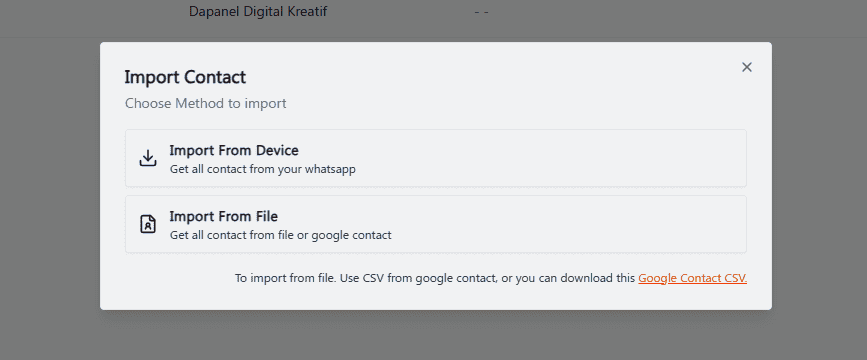
If importing from a device, select the active connection (e.g., Sidra) to proceed. Note: The Merapi provider does not support contact import.
3. Managing the Contacts Table
The main Contacts table provides a quick overview of your database with robust search and filtering capabilities.
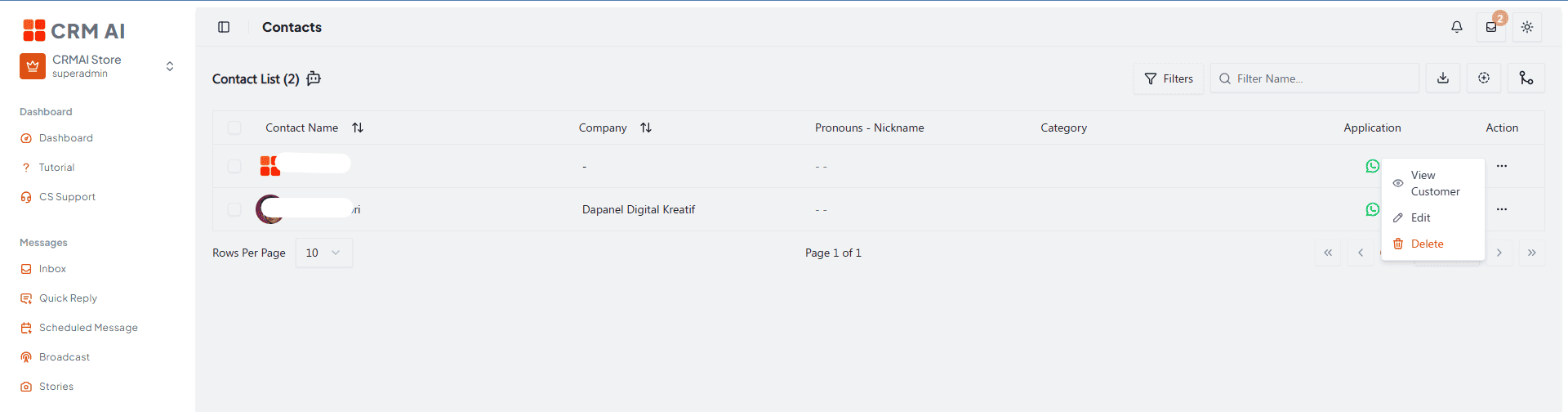
Search & Filter: Use the search bar (with debounce) or apply filters by company, lifecycle stage, tags, or groups.
Quick Actions: Click the three-dot (
...) action menu next to any contact to View Customer, Edit their details, or Delete the record.Smart Fill: Supported by workspace settings, the Smart Fill toggle can automatically update contact fields (like name or email) when a connected form detects them. Always review automatically detected values.
4. Viewing the Customer Profile (360 View)
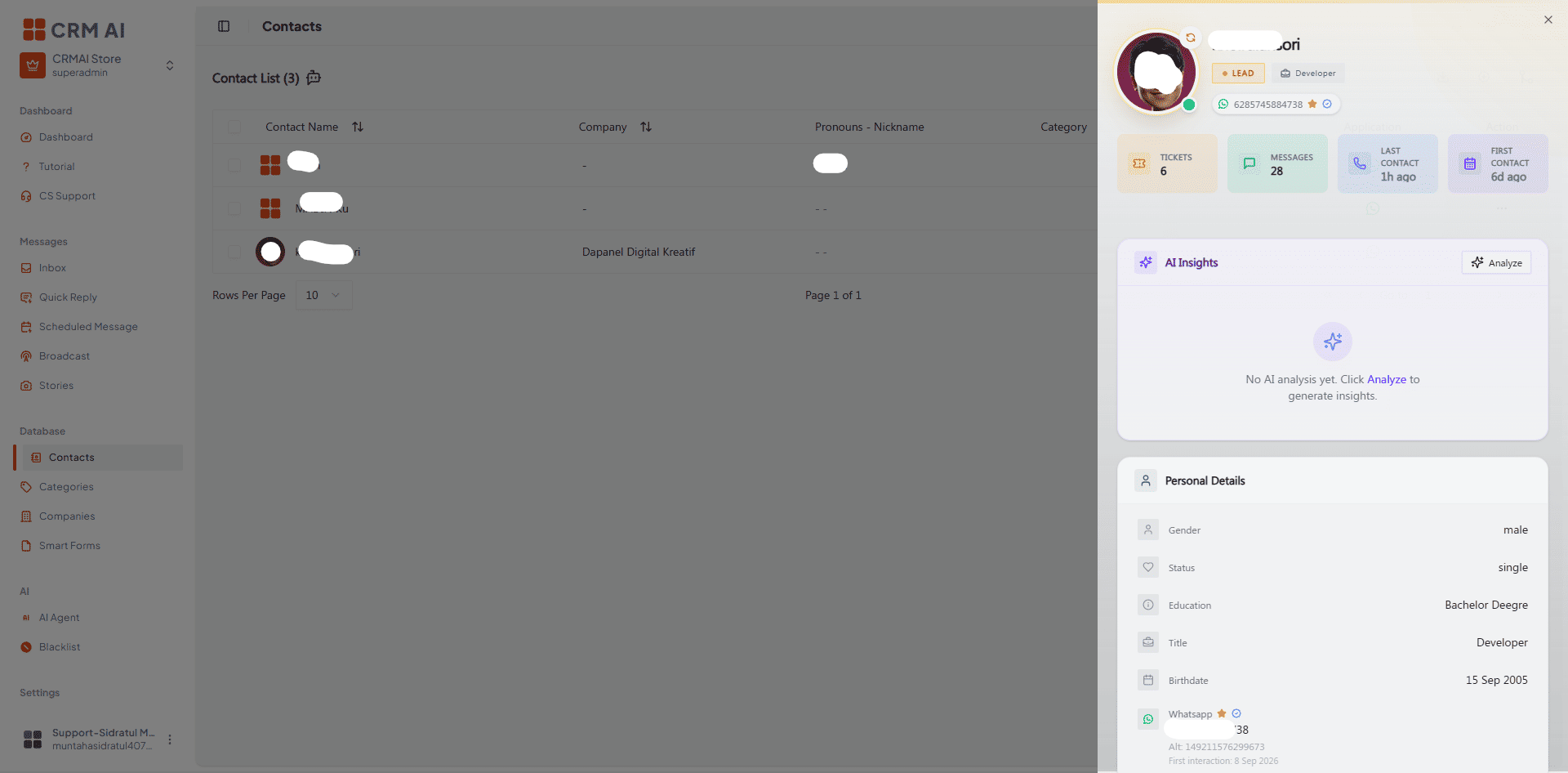
Clicking View Customer opens a comprehensive side panel detailing every interaction and data point associated with that person.
Profile Header: Displays their photo, tags (e.g., Lead, Developer), and primary contact channels. Quick action buttons allow you to open a ticket or start a message.
AI Insights: Displays auto-generated behavioral or engagement insights.
Detailed Tabs: Review Personal Details, associated Company & Location, and Custom Notes.
Activity Timeline (Customer 360): A complete chronological history of your relationship, tracking ticket status changes, profile updates, and message events.
5. Merging Duplicate Customers
Use the merge tool when duplicate profiles are created for the same person.
Select the checkboxes next to the duplicate contact records in the main table.
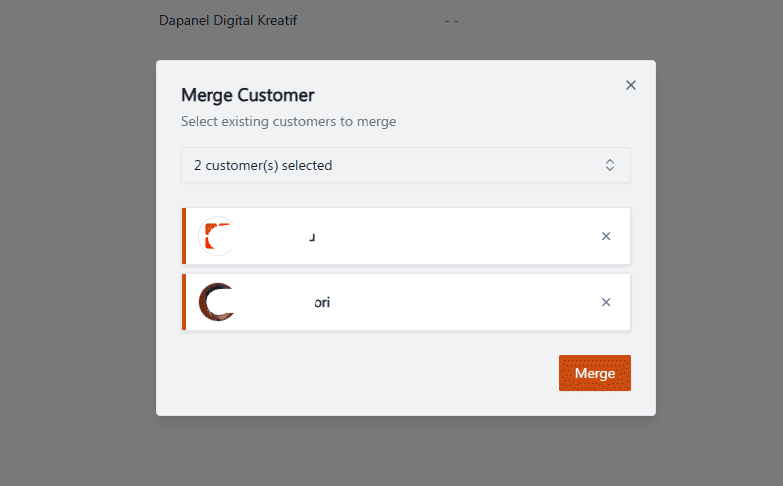
Click the Merge action.

Review the selected customers in the pop-up modal.
Follow the prompts to choose which specific field values to retain for the final merged profile.
6. Category & Tags Management
Categories allow you to segment your contacts (e.g., "Client", "VIP", "Vendor") and apply specific automated rules to those segments.
Navigate to
Database > Categories.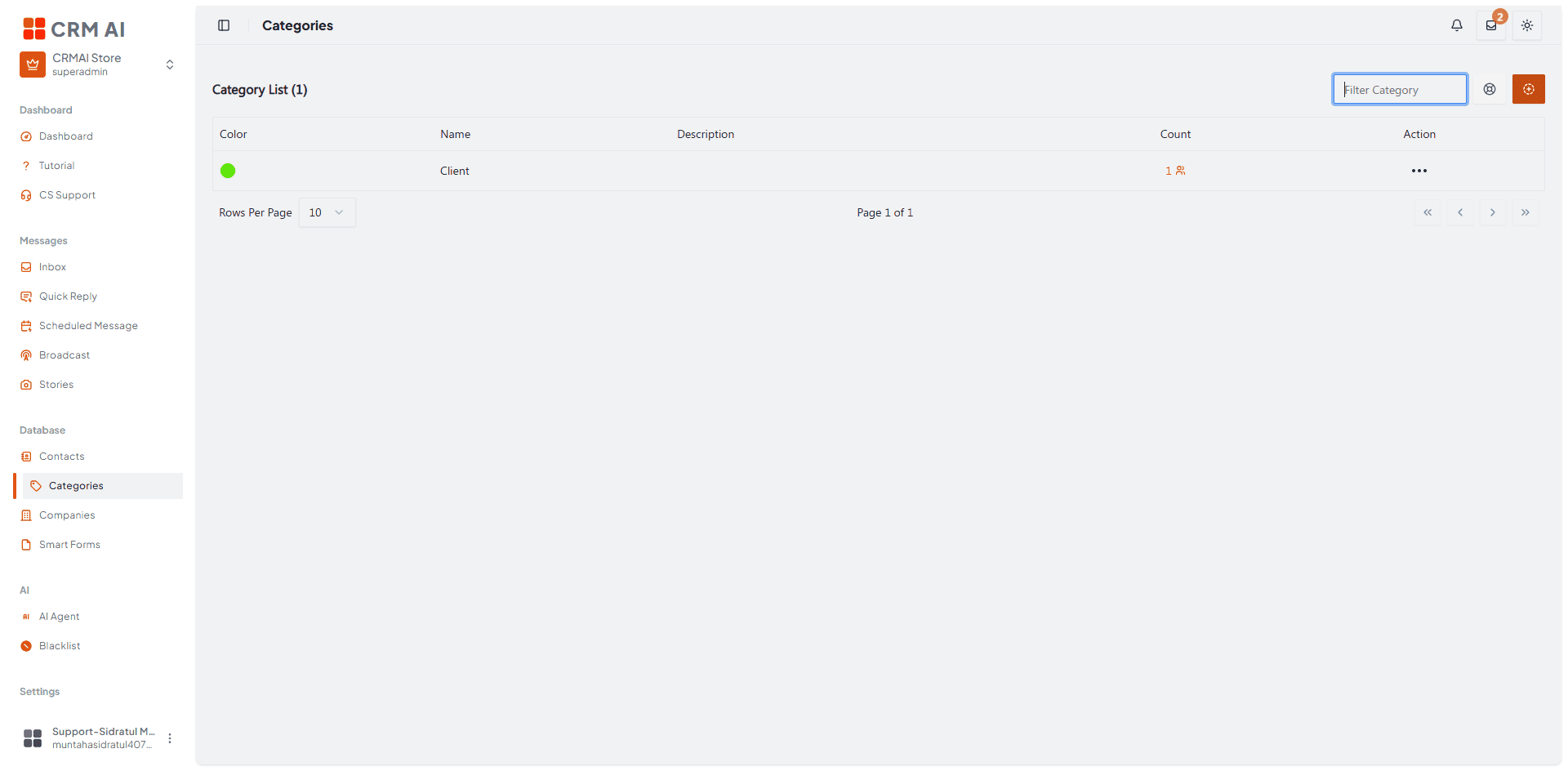
Click to create or edit a category.

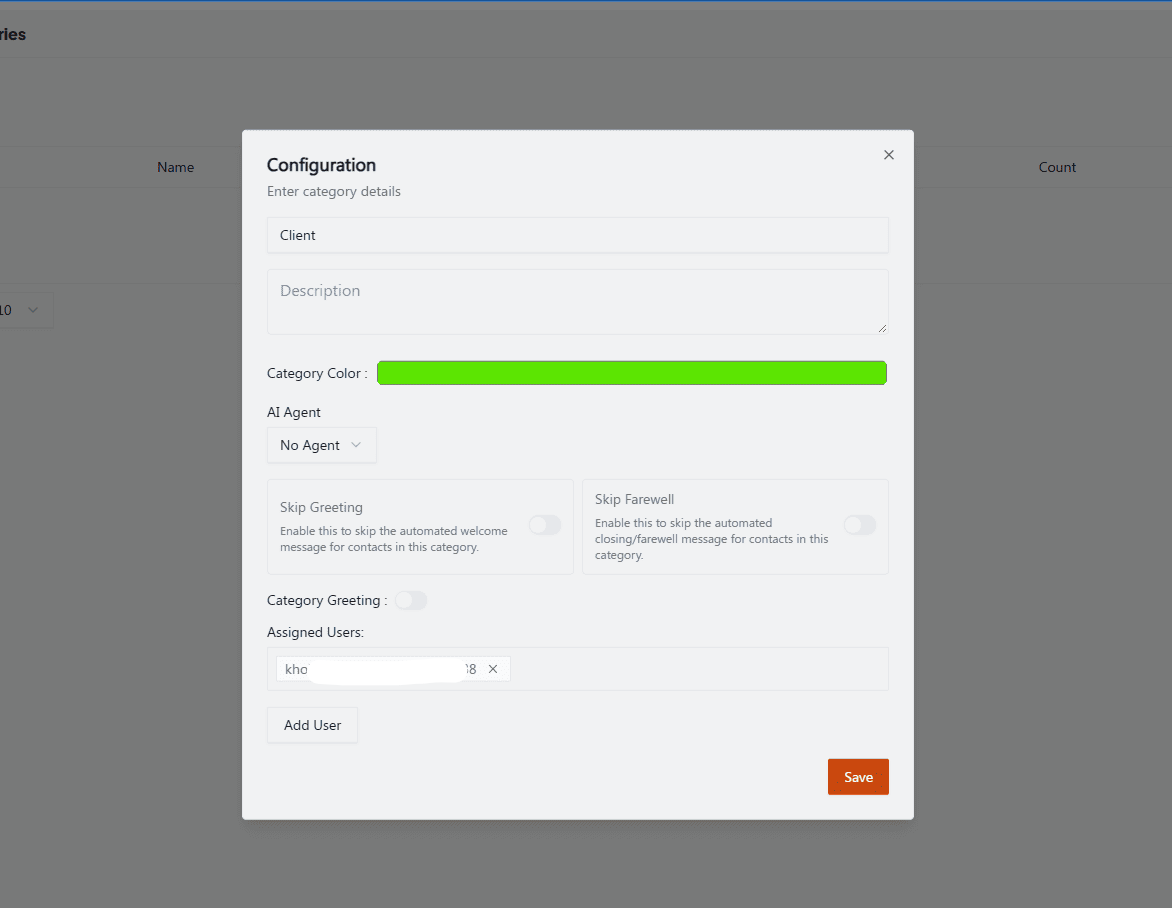
Configure the settings:
Name & Color: Set a clear name (e.g., Client) and assign a color code for quick visual identification in the table.
Automations: Assign a specific AI Agent to handle inquiries from this category, or toggle options to Skip Greeting or Skip Farewell for these specific contacts.
Assigned Users: Route contacts in this category to specific team members automatically.
7. Company Management (B2B)
If your business operates B2B (Business-to-Business), use the Companies module to group individual contacts under their respective corporate entities.
Navigate to
Database > Companies.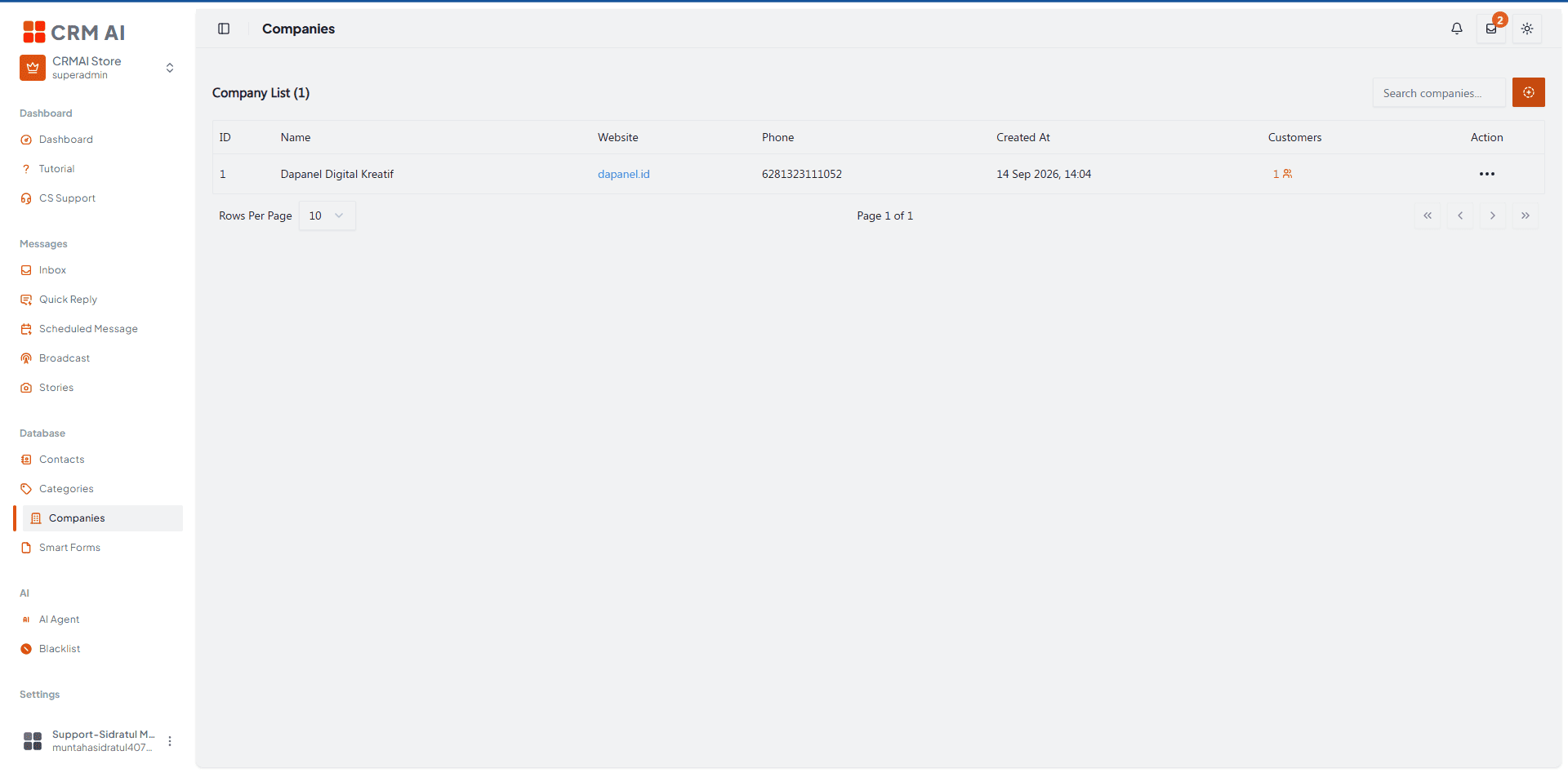
Click to create or edit a Company profile.

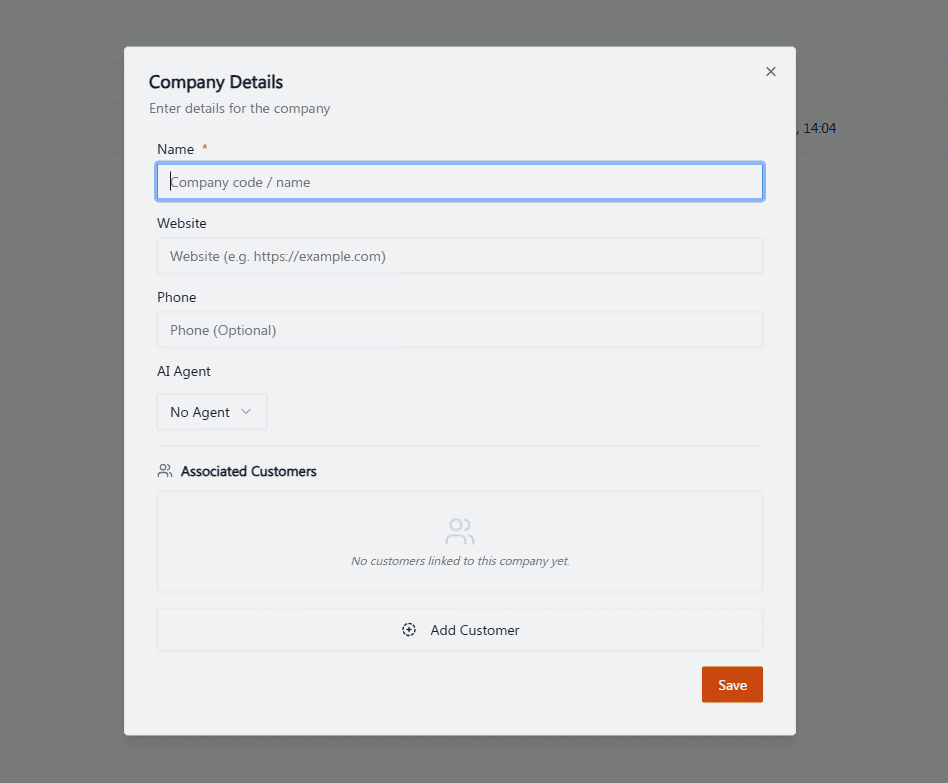
Enter the structural details:
Name, Website, and Phone: Define the core corporate information.
AI Agent: Assign a specific AI agent to handle the company's generalized routing if needed.
Associated Customers: Link existing individual contacts from your database to this company. This ensures that when you view a contact's 360 profile, their corporate affiliation is instantly visible.
Related: Smart Forms · Broadcast · Birthday Automation