 CRMAI Docs
Language & Appearance
This page controls the interface language and the dashboard's visual settings: Light/Dark mode, color preset, and whether tag names show up in conversations.
Changing the app language
CRMAI currently supports four languages:
Option in the app | Language |
|---|---|
Bahasa Indonesia | Indonesian |
Inggris | English |
Jepang | Japanese (日本語) |
Korea | Korean (한국어) |
To change it:
Open Account Profile.
Under General Settings, find Language.
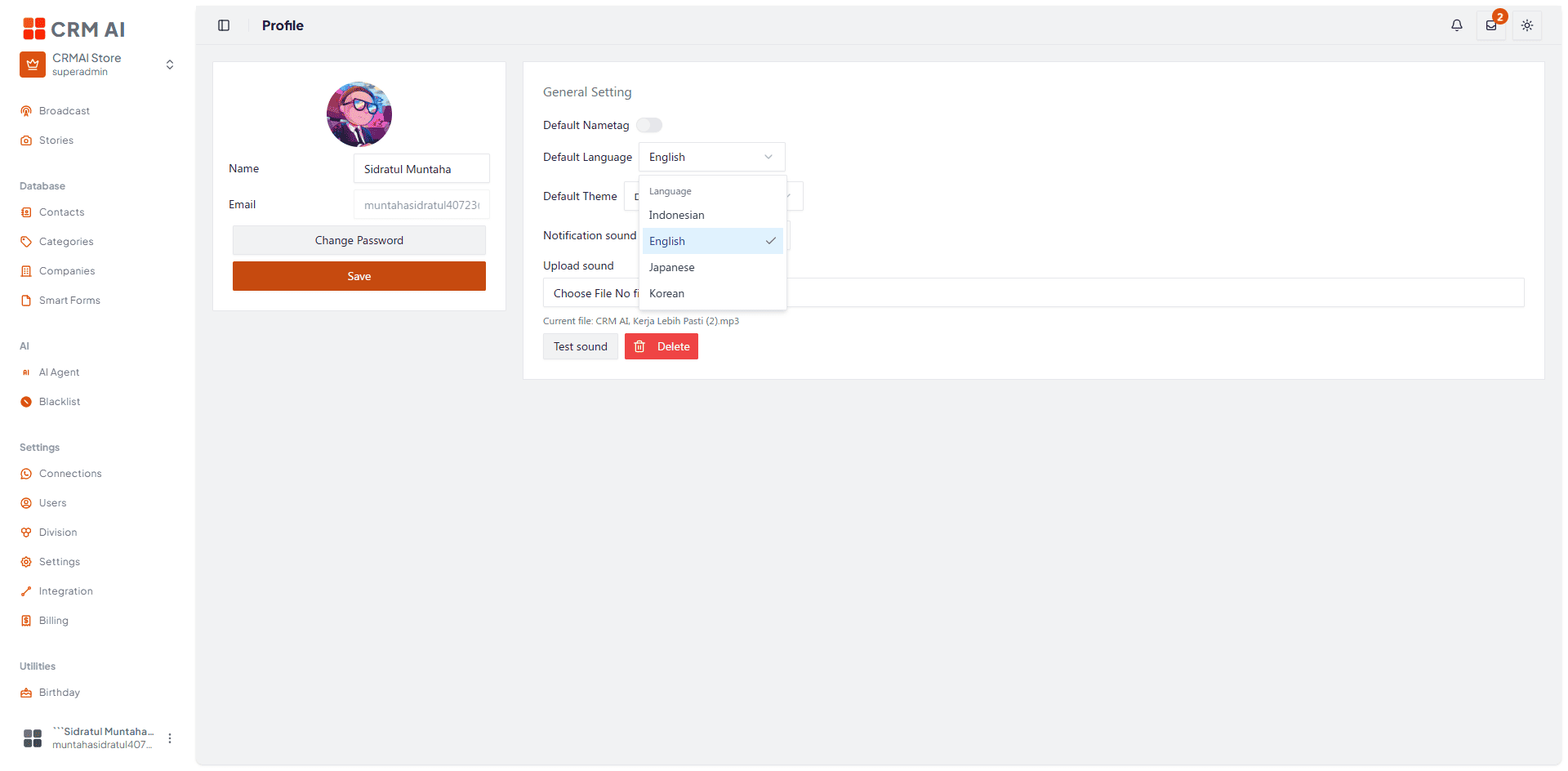
Open the language selector.
Pick the language you want.
The app switches to a URL with the new language code and reloads the interface text.
Keep in mind: this only changes labels and interface text that have translations available. Business data you've created yourself — contact names, broadcast names, message content, knowledge base entries — isn't translated automatically.
Switching Light/Dark mode
This control lives in the header or sidebar, usually shown as a sun/moon icon.
Click the theme control.

Choose Light or Dark.

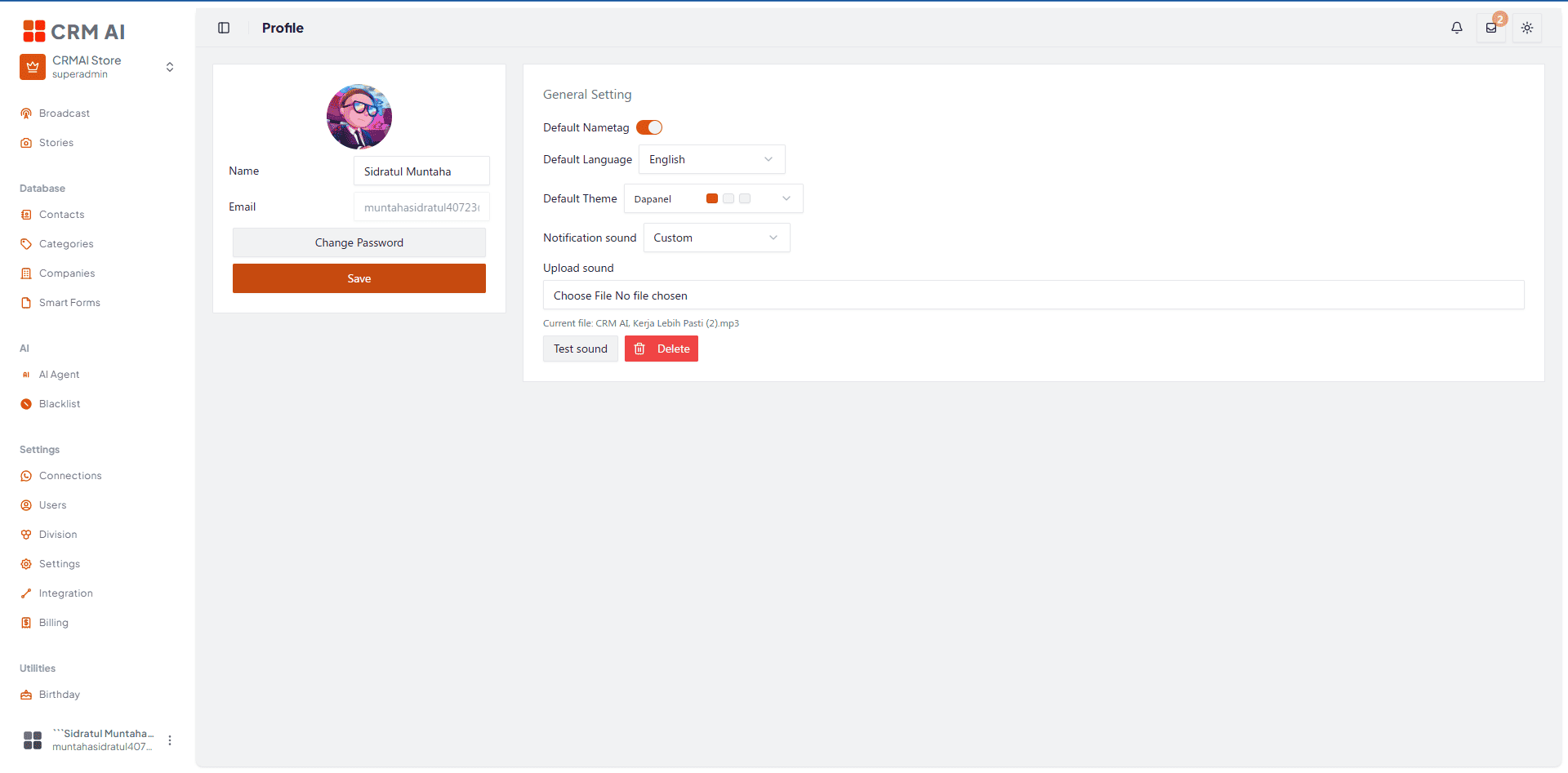
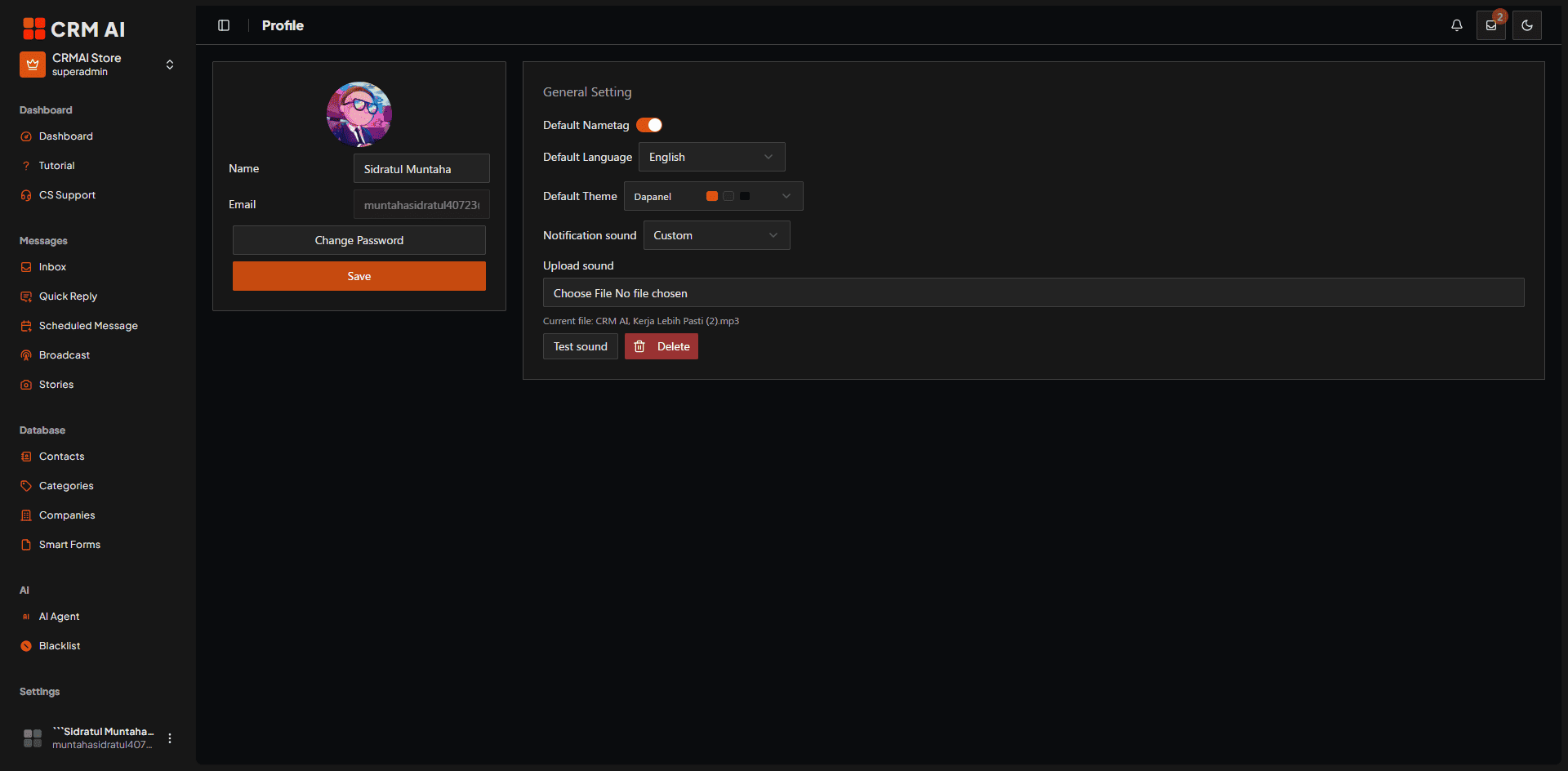
The display updates immediately. Note that there's no "follow system" option here — just the two manual choices.
Changing the color preset
This is separate from Light/Dark mode. The theme preset controls the combination of primary, secondary, and background colors across the dashboard.
Open Account Profile.
Under General Settings, find Theme.
Open the preset list.
Pick the preset you want — each option usually shows a color sample.
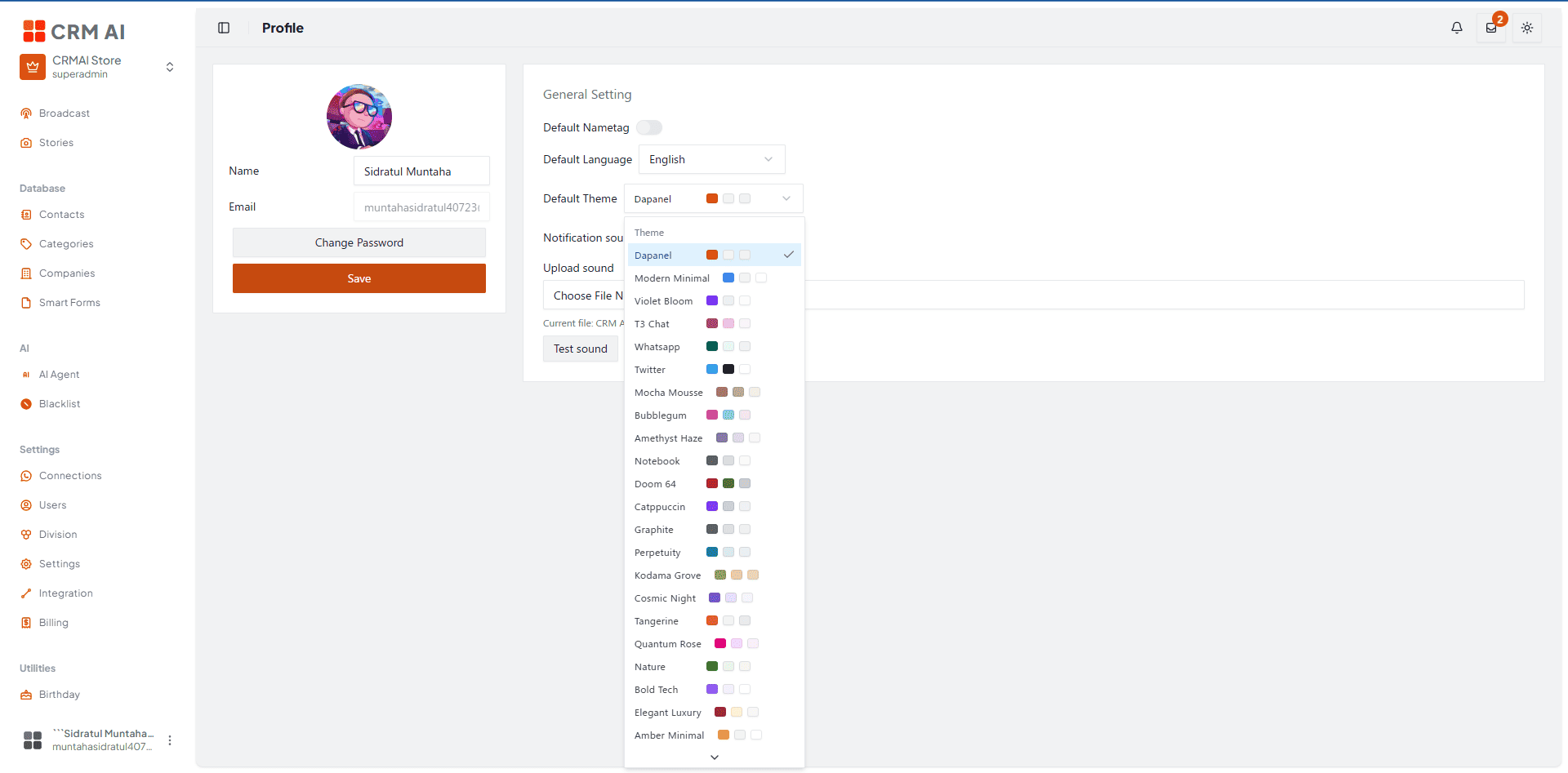
Colors apply to the dashboard immediately once selected. Changing the preset won't affect your Light/Dark mode setting; the two are independent.
Showing tag names in conversations
This setting only controls whether the built-in tag name label shows up in active conversations.
Open Profile.
Under General Settings, find Tag Name.
Turn the switch on to show the label, off to hide it.
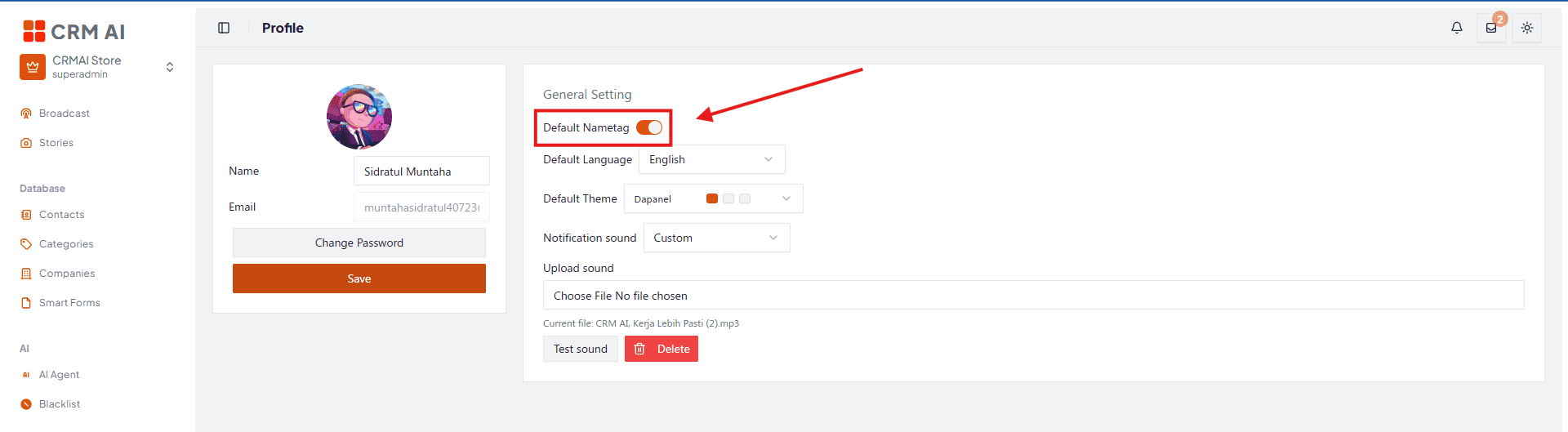
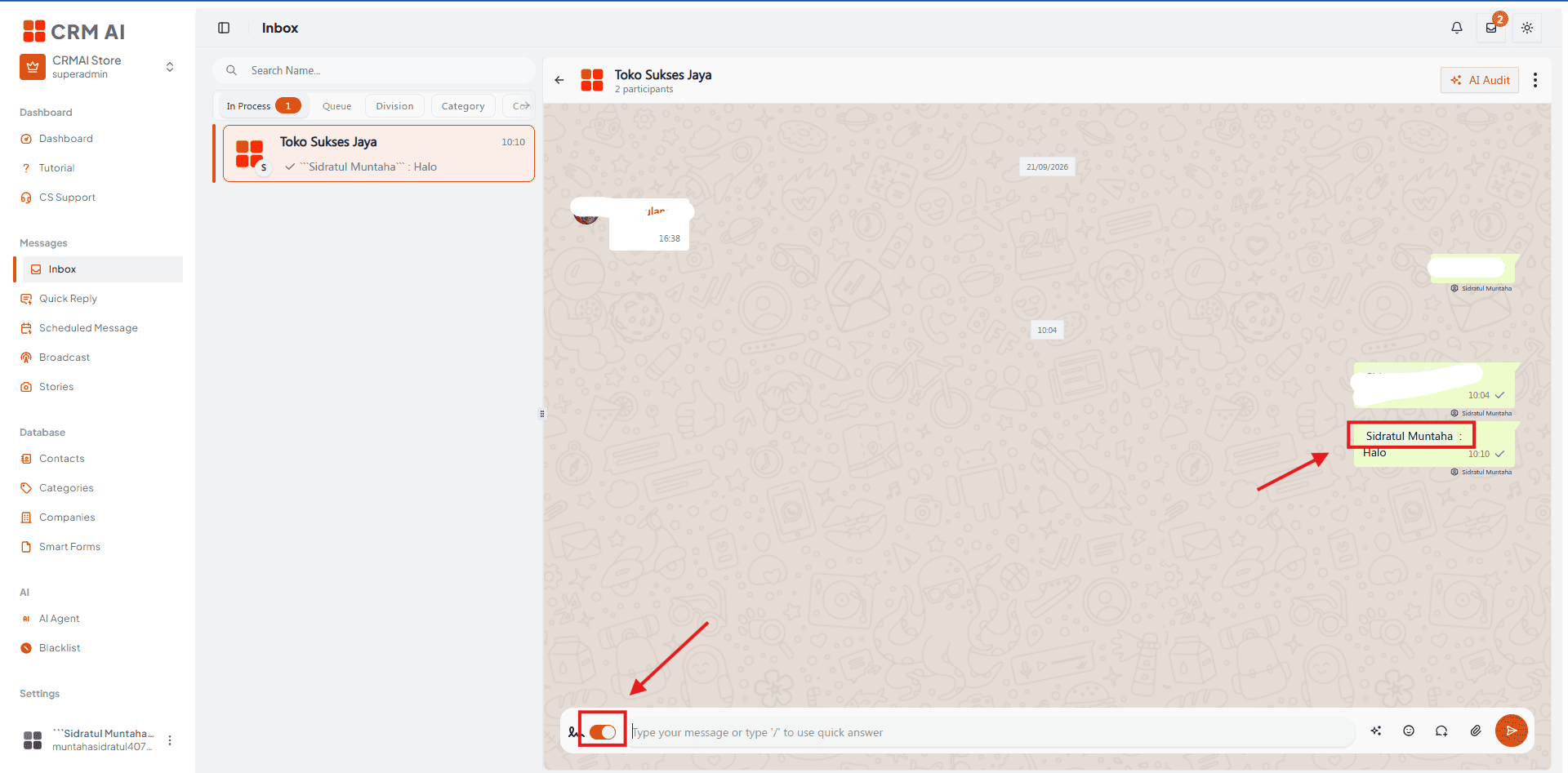
This is purely a display setting. It doesn't create, delete, or modify any tags already saved in the system.
Troubleshooting
Issue | Fix |
|---|---|
Language changed but some text stayed the same | That's expected — not all data gets auto-translated. Reload the page and check whether that text is actually user-created business data. |
Theme doesn't change right away | Give it a moment for the page to finish loading your preferences. Make sure you actually clicked the preset rather than just previewing it. Try reloading the page. |
Theme reverts to the old setting | Check whether your browser is blocking site cookies. If it still fails after reloading, you can try clearing site data — just make sure your login info is safe first. |