 CRMAI Docs
Automated Messages
Where this lives
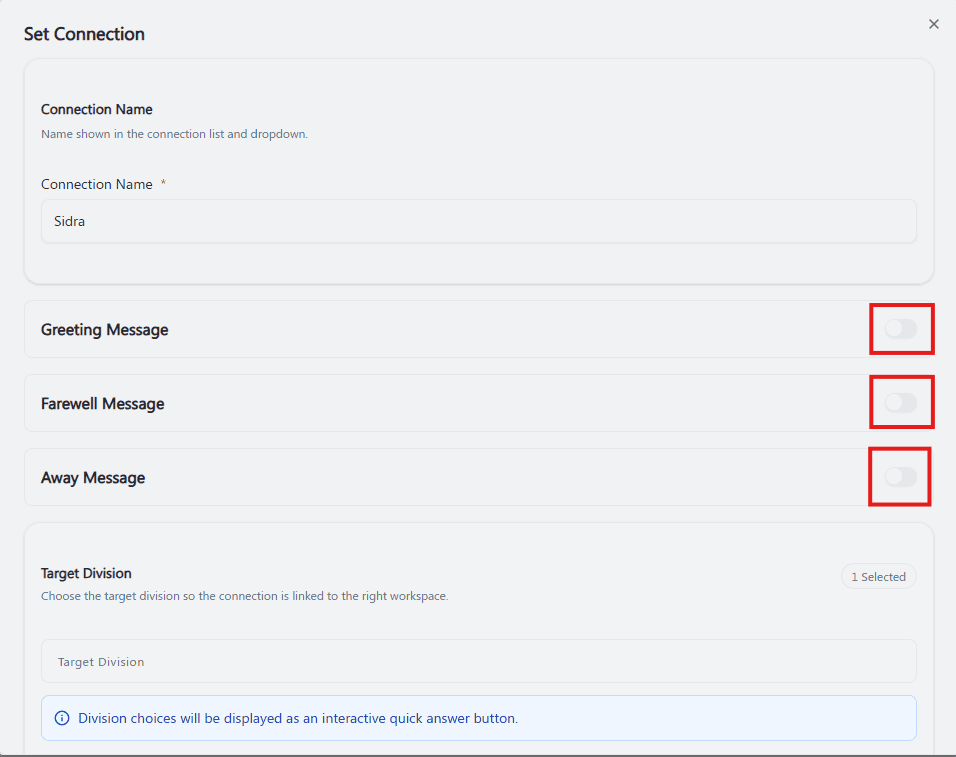
Automated messages are configured inside the Set Connection dialog for each connection — the same dialog where you set the Connection Name. Below the name field, three independently toggleable sections appear: Greeting Message, Farewell Message, and Away Message. Each is off by default; toggling one on reveals its fields.
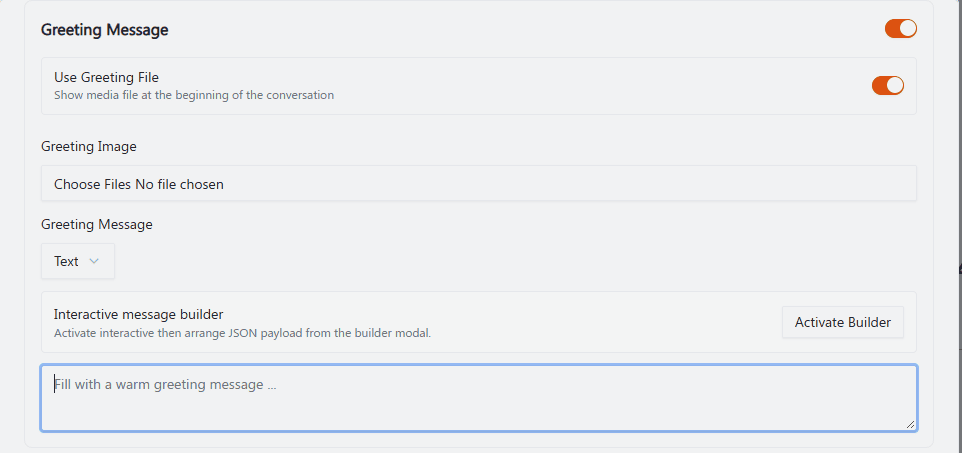
Greeting Message
Shown at the beginning of a conversation. Once toggled on:
Field | Description |
|---|---|
Use Greeting File | Toggle — "Show media file at the beginning of the conversation." |
Greeting Image | File picker (shown when Use Greeting File is on). |
Greeting Message | Message type dropdown — Text or Interactive. |
Interactive message builder | "Activate interactive then arrange JSON payload from the builder modal." Click Activate Builder to open it — see Interactive Message. |
Message text area | Placeholder: "Fill with a warm greeting message ..." |
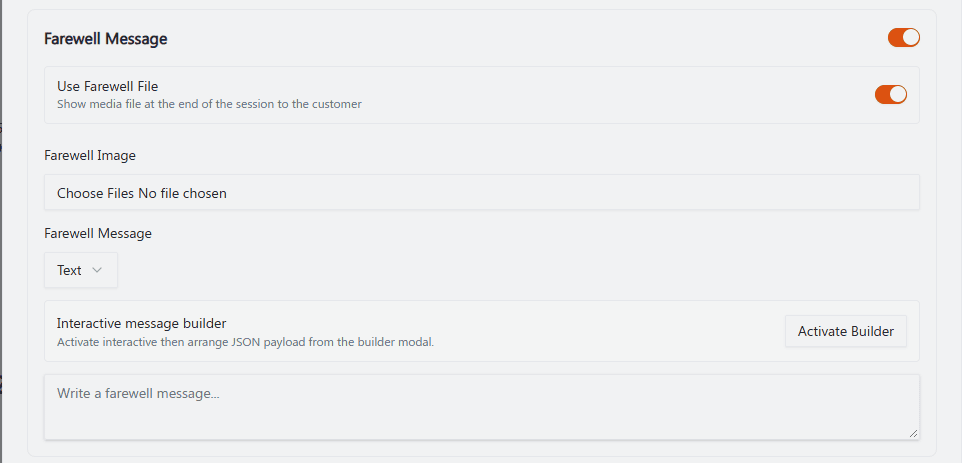
Farewell Message
Shown at the end of a session. Same structure as Greeting Message:
Field | Description |
|---|---|
Use Farewell File | Toggle — "Show media file at the end of the session to the customer." |
Farewell Image | File picker. |
Farewell Message | Message type dropdown — Text or Interactive. |
Interactive message builder | Same builder as above. |
Message text area | Placeholder: "Write a farewell message..." |
Away Message
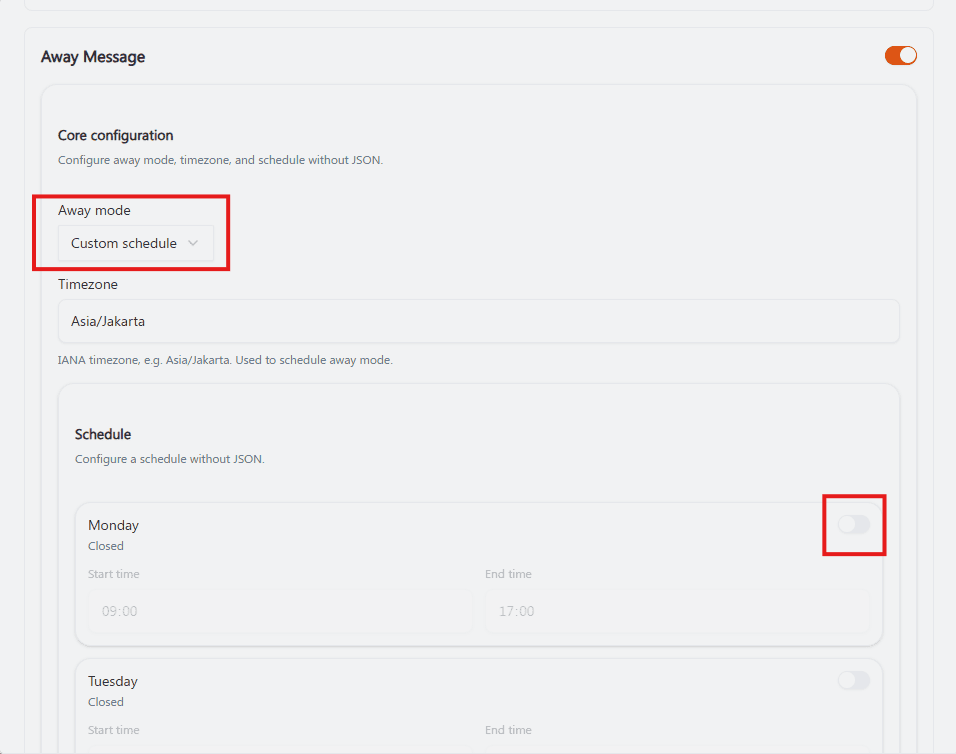
The most detailed section — messages sent when the connection is unavailable, outside configured hours, or matching the selected away rule. Once toggled on, it's organized into three groups:
Core configuration
"Configure away mode, timezone, and schedule without JSON."
Field | Description |
|---|---|
Away mode | Dropdown. Example shown: |
Timezone | Free text, IANA format. "IANA timezone, e.g. Asia/Jakarta. Used to schedule away mode." Example: |
Schedule | "Configure a schedule without JSON." One row per day (Monday–Sunday), each with its own toggle. When a day's toggle is off, it's labeled Closed and its Start time / End time fields are grayed out. Toggle a day on to set its Start time and End time (e.g., |
Recipient target
Field | Description |
|---|---|
Recipient target | Dropdown. Example shown: |
Content & media
"Write the message, attach media, and tune the send cooldown."
Field | Description |
|---|---|
Use Away File | Toggle — "Show media file when the away message is sent." |
Away Message | Message type dropdown — Text or Interactive. |
Interactive message builder | Same builder as Greeting/Farewell. |
Message text area | Placeholder: "Fill with an away message ..." |
Cooldown (seconds) | "Time gap before the away message can be sent again to the same contact (default: 28800 seconds / 8 hours)." Example value: |
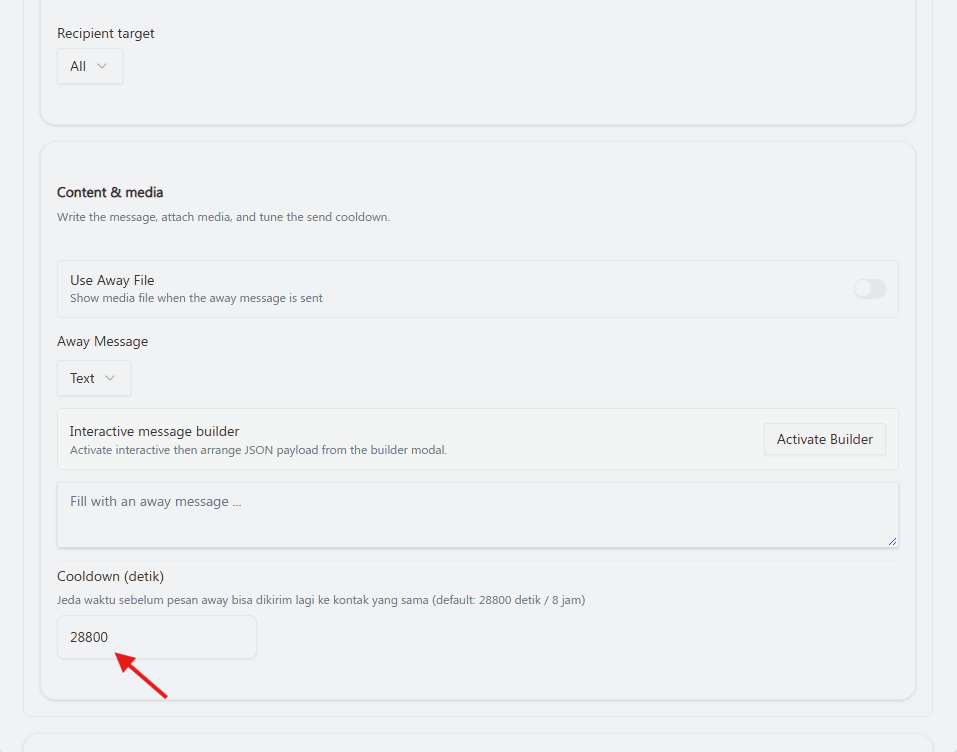
Note: in the reviewed screenshots, the Cooldown field's label and helper text appeared in Indonesian ("Cooldown (detik)" / "Jeda waktu sebelum pesan away bisa dikirim lagi...") while the rest of the dialog was in English. If your workspace locale is set to English, confirm whether this is expected mixed-locale behavior or a translation gap worth reporting.
Text and interactive messages
Text messages
The default message type. A plain text editor with a placeholder prompt guiding what to write (e.g., "Fill with a warm greeting message..."). Supports customer variables in {{variableName}} format — see Quick Answer for the full variable list.
Interactive messages
Switch the message type dropdown to Interactive, then click Activate Builder to open the Interactive message builder modal and arrange the JSON payload — see Interactive Message for the builder's structure (buttons vs. list menus).
Interactive message availability is provider-dependent — currently enabled for Telegram and WhatsApp using the Merapi provider. Test the final message with a controlled recipient before enabling it for all conversations.
Operational guidance
Configure Away mode and Schedule together — an "Always" away mode ignores the day-by-day schedule entirely, so pick one mode and don't leave conflicting settings half-configured.
Set Timezone to match your actual operating region — a wrong timezone here is the most common cause of away messages firing at the wrong time.
Use a Cooldown long enough to avoid annoying repeat customers (the 28800-second/8-hour default is a reasonable starting point), but short enough that a customer messaging again the next day still gets the reminder.
Test all three message types (Greeting, Farewell, Away) with a real test conversation before relying on them for live customers — especially after switching between Text and Interactive modes, since the switch can behave differently per provider.
Related: Connections Overview · WhatsApp Setup · Interactive Message ·