 CRMAI Docs
Ticket Options (Header Chat)
Purpose
Once a chat is in the Process tab, clicking the three-dot icon (⋮) in the top right corner of the chat header reveals management options for that ticket.
Available options
Option | What it does |
|---|---|
AI Audit | Analyze conversation quality using AI — see AI Audit. |
Move (Pindah) | Transfer the ticket/message to another agent or division. |
Queue (Antrian) | Return the ticket/message back to the Queue tab. |
Archive (Arsip) | Save the ticket to the Archive. Reopen it later via the Others tab. |
Scheduled (Pesan Terjadwal) | Set up an automated message (image attachments supported) to be sent at a specified time. |
Add Blacklist AI | Pause automatic AI replies for this conversation — see AI Blacklist. |
Mute Ticket | Disable sound and popup notifications for incoming messages in this specific chat. |
Refresh | Manually re-sync and fetch the latest messages for the conversation. |
Delete (Hapus) | Permanently delete the entire conversation with the client. |
⚠️ Delete is not recommended unless absolutely necessary — it permanently removes the entire conversation. Use Archive instead to avoid losing data; archived tickets can always be reopened.
⚠️ Location discrepancy to confirm: other documentation describes AI Audit as being invoked through this same three-dot (⋮) menu, but one source describes it as a separate, always-visible button in the top-right chat header (distinct from the ⋮ menu). Confirm in the live product which is accurate — if AI Audit has its own dedicated button, adjust the screenshot below so readers don't go looking for it inside the ⋮ menu by mistake.
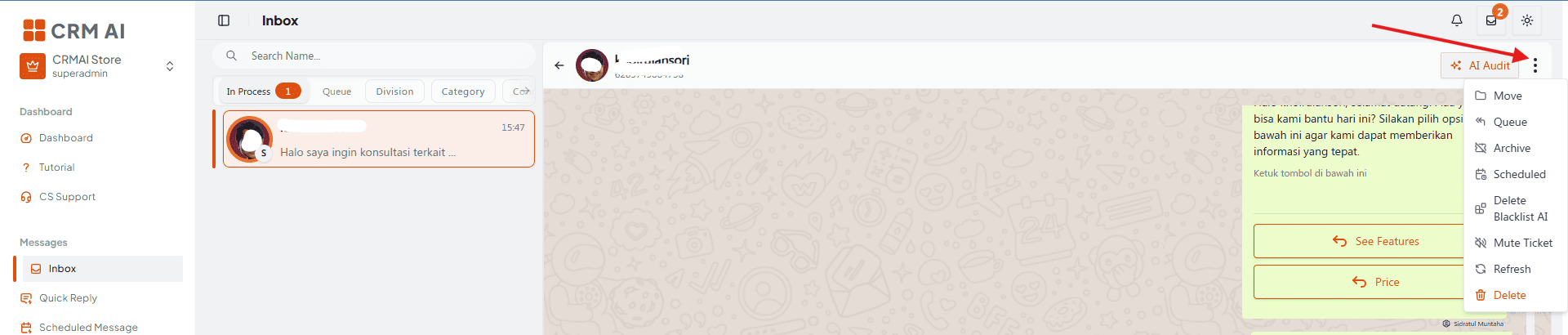
Recommended annotation: number all nine menu items ①–⑨ top to bottom exactly as they appear in the opened dropdown, matching the table row order above. Color the two destructive items (Delete, and optionally Archive) with a red/amber tint to visually separate "safe" actions from "use with caution" ones.
For how to run an audit and interpret the report, see AI Audit.
A. Transferring a ticket (Move)
Click the three-dot menu (⋮) in the top-right corner of the chat header.
Select Move.
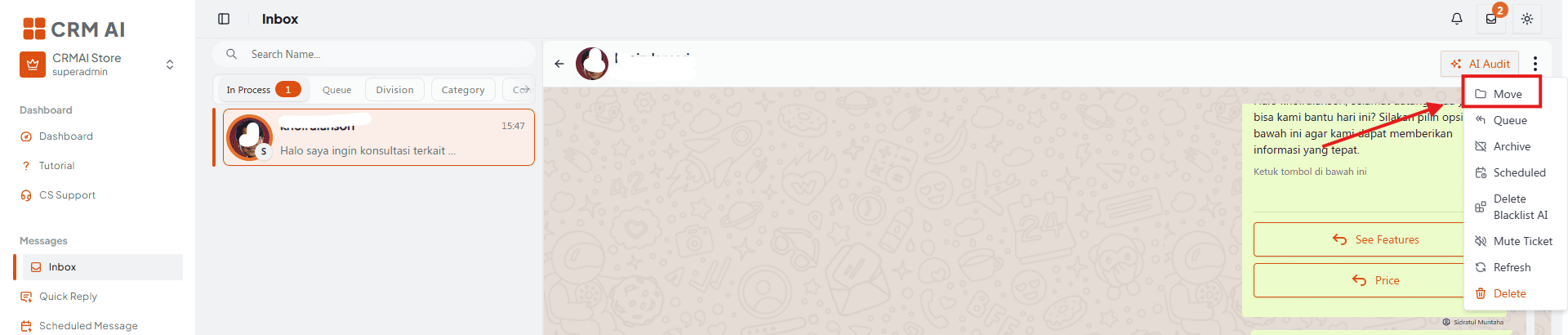
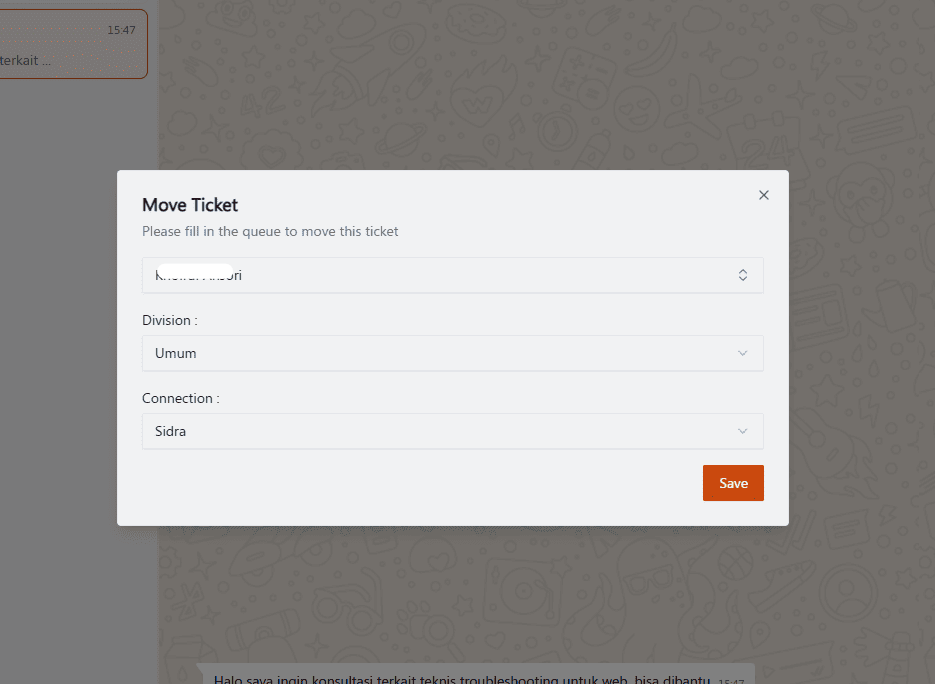
Choose the target agent or division from the dropdown list, then confirm the transfer.
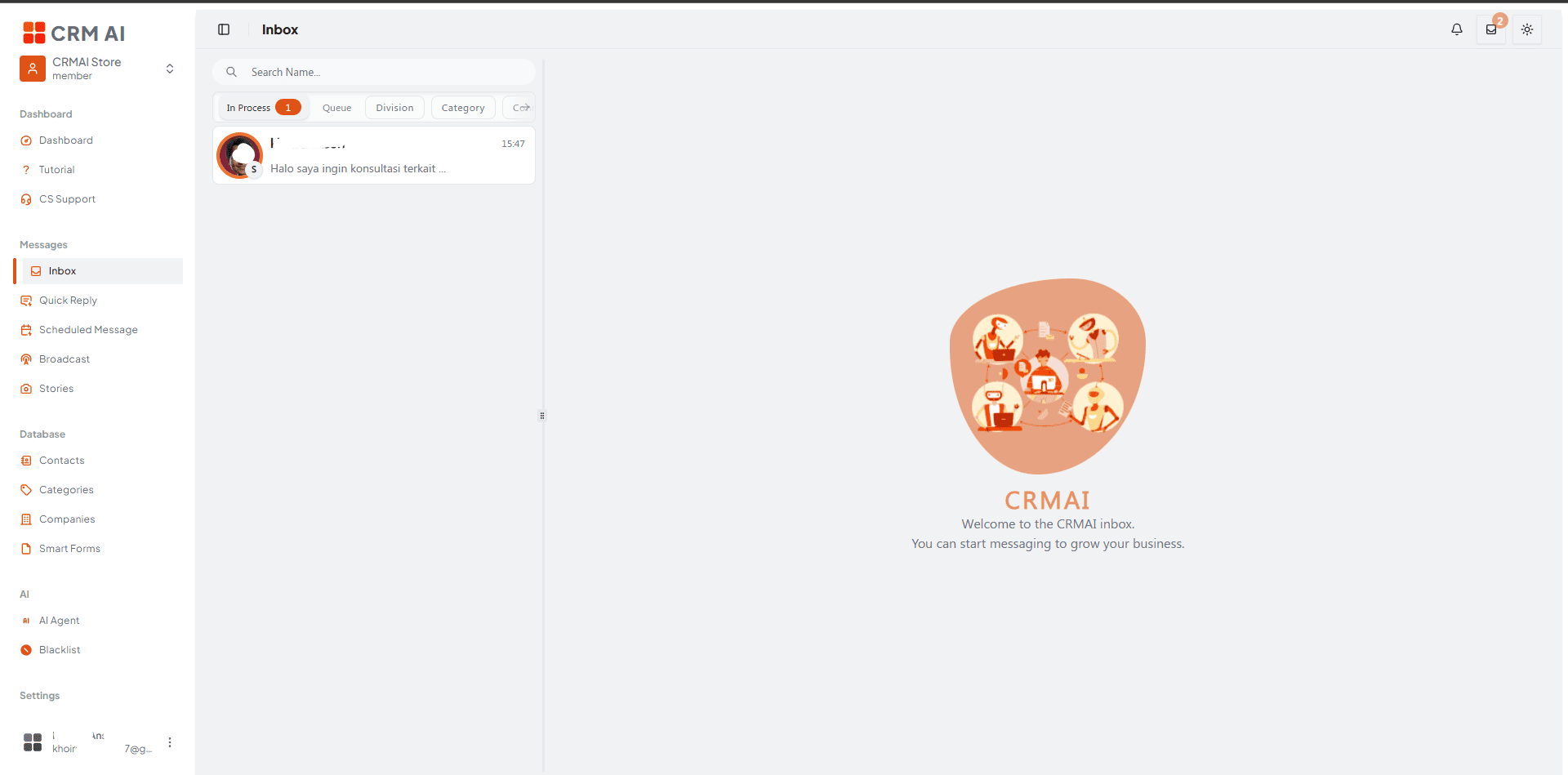
Receiver Verification: The agent who receives the transferred ticket must check their In Process tab. The reassigned conversation will automatically appear there, allowing them to view the chat history and continue handling the customer.
Recommended annotation: ① arrow to the ⋮ icon. ② arrow to Move in the opened menu. ③ box the target agent/division dropdown with a sample selection.
B. Returning a ticket to Queue
Click the three-dot menu (⋮) in the chat header.
Select Queue.
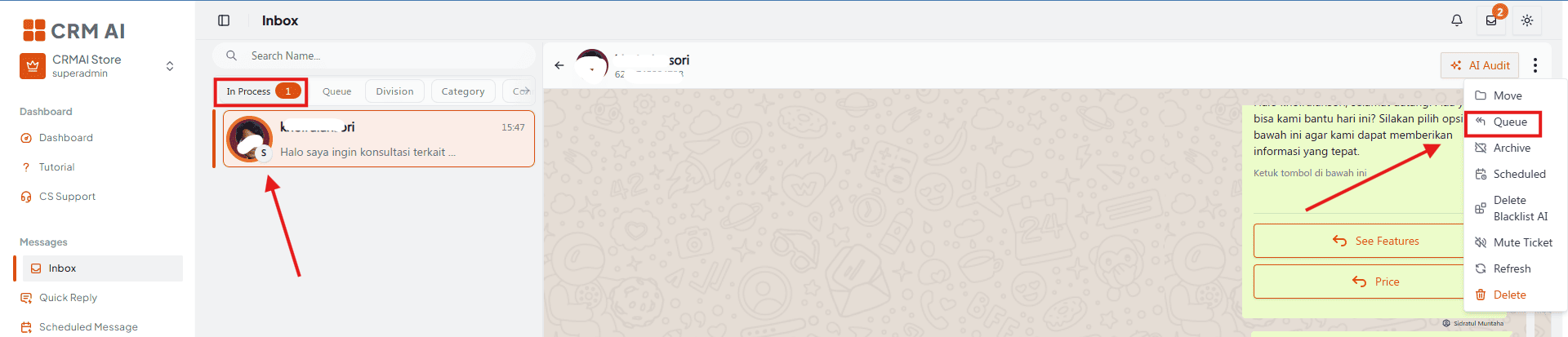
Ownership of the ticket is released and returned to the Queue tab for another agent to claim.
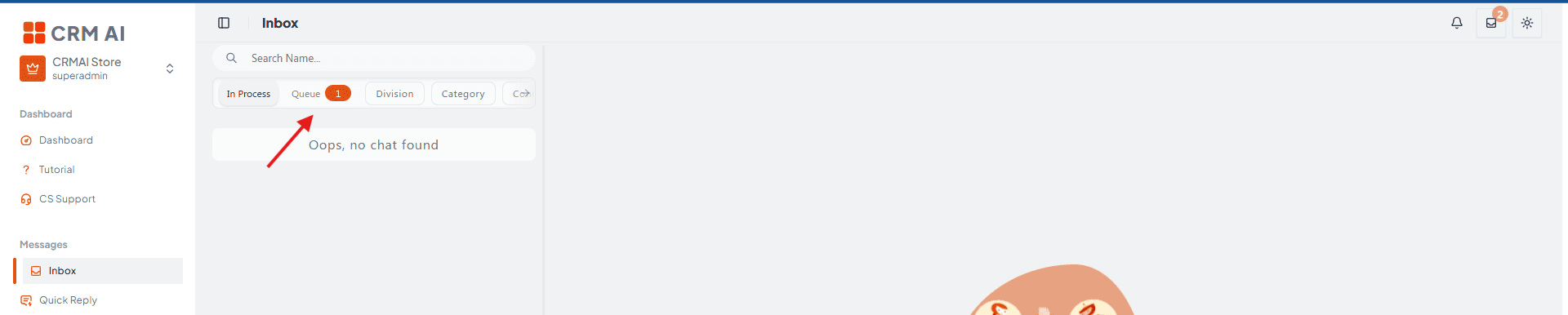
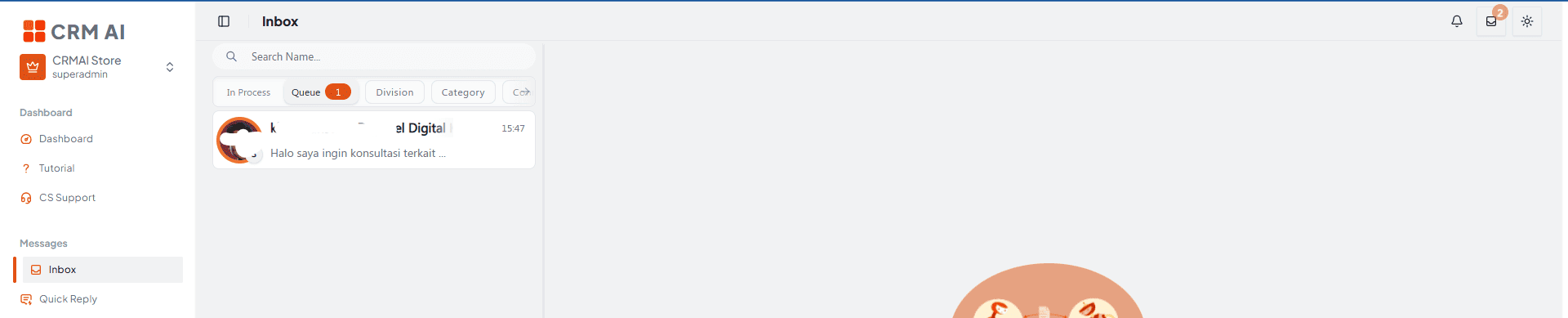
Recommended annotation: ① arrow to ⋮. ② arrow to Queue. Add a small motion arrow showing the ticket moving back to the Queue tab, mirroring the "claim" motion arrow used in Inbox Tabs & Ticket Lifecycle for visual consistency (this is the reverse action).
C. Archiving a ticket
Click the three-dot menu (⋮) in the chat header.
Select Archive.
The ticket is marked as resolved and stored under Others → Archive.
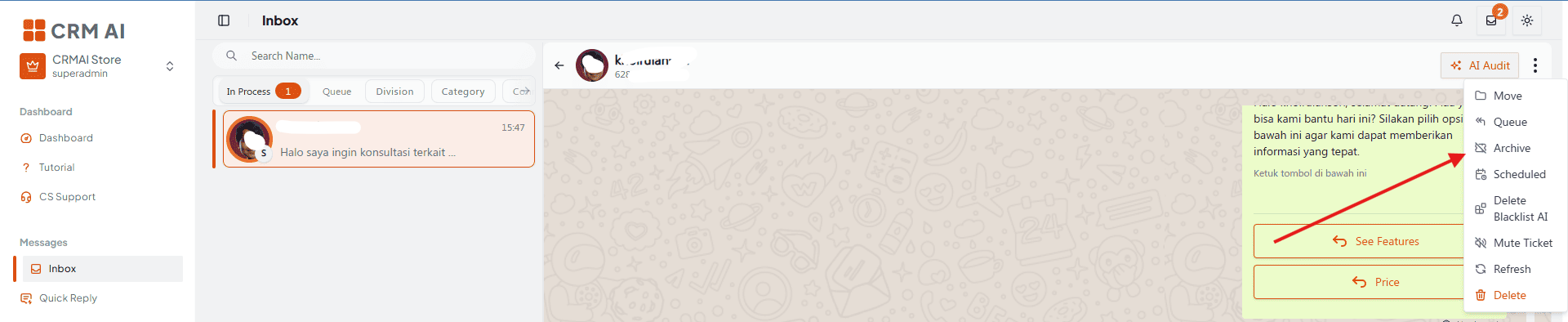
Recommended annotation: ① arrow to ⋮. ② arrow to Archive. ③ small inset showing where it lands — the Others tab with Archive selected — so readers know where to find it again later.
D. Scheduling a message from chat
Click the three-dot menu (⋮) in the chat header, then select Scheduled to open the same scheduling form used on the main Scheduled Messages page, pre-filled with this ticket's recipient. For the full field reference, statuses, and troubleshooting, see Scheduled Messages.
⚠️ Scheduled Message from the ticket header is currently under development. Use with caution and report any bugs/errors.
E. Adding a customer to the AI Blacklist
Pauses automatic AI replies for this conversation. For the steps, effects, and how to manage/remove a blacklisted identity, see AI Blacklist.
F. Muting ticket notifications
Click the three-dot menu (⋮) in the chat header.
Select Mute Ticket to disable sound and popup notifications for incoming messages in this specific chat.
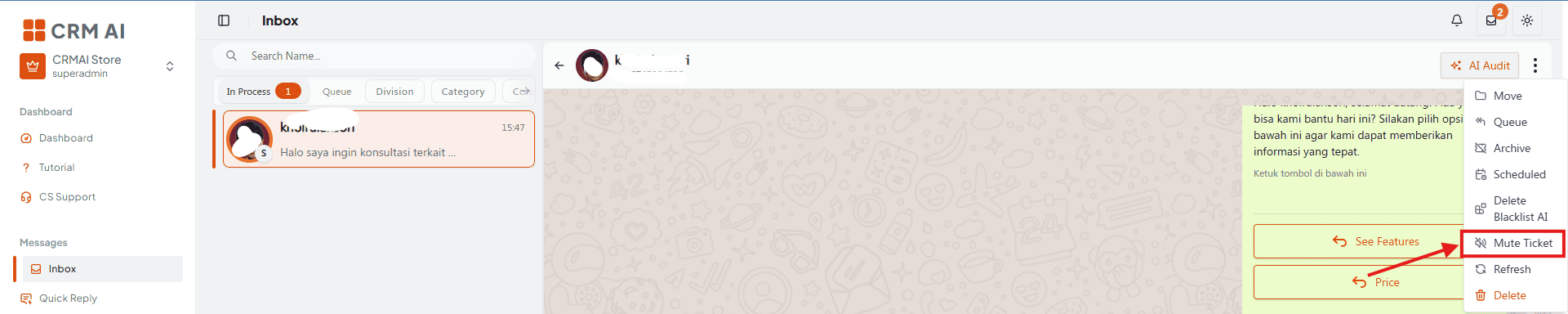
Recommended annotation: ① arrow to ⋮. ② arrow to Mute Ticket. Add a small mute-icon overlay on the chat header in a "before/after" pair so readers can recognize the muted state visually afterward.
G. Refreshing the chat
Click the three-dot menu (⋮) in the chat header.
Select Refresh to manually re-sync and fetch the latest messages for the conversation.
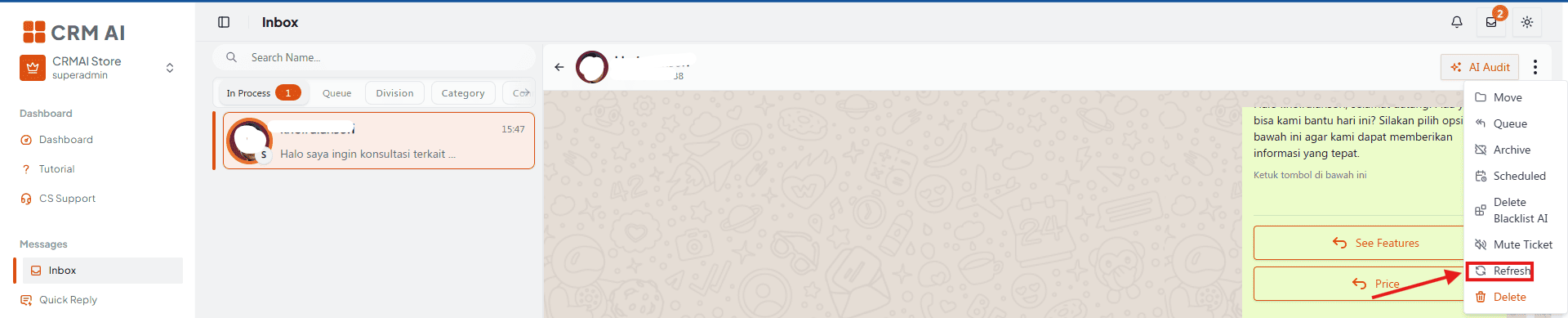
Recommended annotation: ① arrow to ⋮. ② arrow to Refresh. This is a simple one-step action — keep the annotation minimal.
H. Deleting a ticket
Click the three-dot menu (⋮) in the chat header.
Select Delete.
Confirm the action.
⚠️ Warning: this permanently deletes the complete chat history and cannot be undone. Use Archive instead.
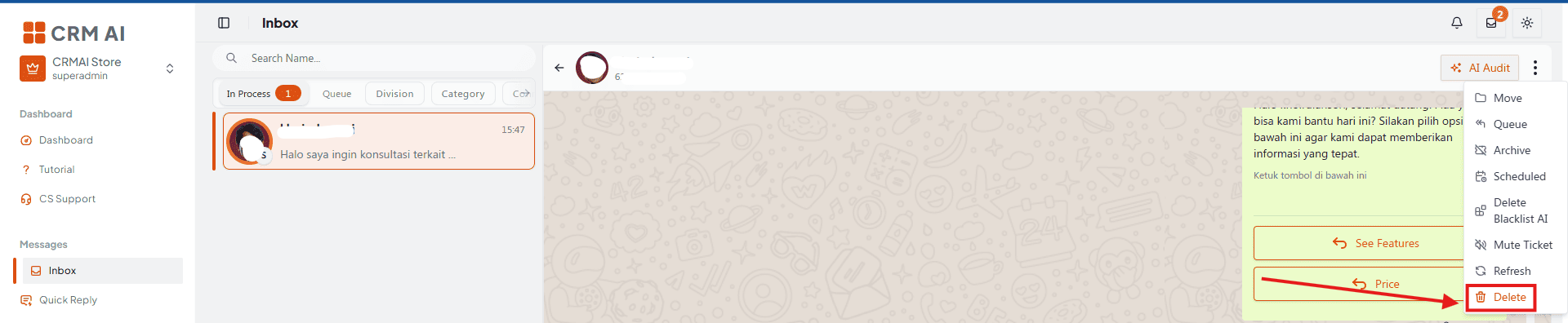
Recommended annotation: ① arrow to ⋮. ② arrow to Delete, styled in red. ③ box the confirmation dialog with a red border and a callout reading "irreversible — use Archive instead" pointing at it directly, since this is the single most consequential action on the page.
Recommended usage
Use Move when a ticket needs a specialist from another team, rather than asking the customer to repeat their issue.
Use Queue if you claimed a ticket by mistake or need to hand it back for reassignment.
Prefer Archive over Delete in virtually all cases — archived conversations remain searchable and reopenable.
Use Mute Ticket for a conversation you're monitoring but don't need real-time alerts for (e.g., a long-running follow-up), rather than muting your entire notification settings.
Use Refresh if a conversation seems out of sync (e.g., after a connectivity hiccup) before assuming something is broken.
Related: Inbox Tabs & Ticket Lifecycle · AI Audit · AI Blacklist · Scheduled Messages