 CRMAI Docs
Scheduled Messages
Purpose
Draft a message to be sent automatically at a specific date and time in the future, or establish a recurring delivery schedule.
Access
Dashboard: /{locale}/dashboard/scheduled-message
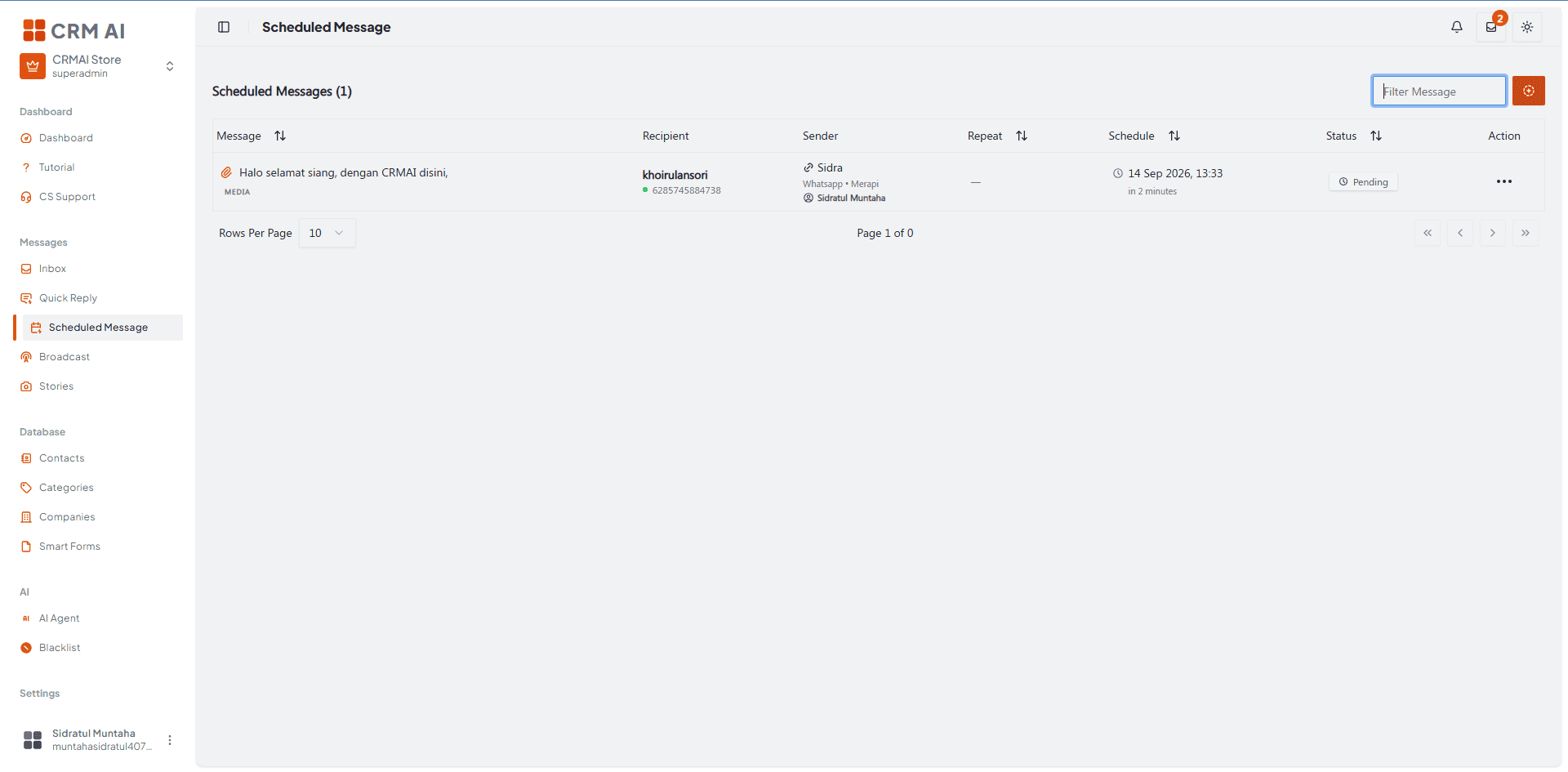
How to create a scheduled message
Navigate to the Scheduled Messages menu and click the add/settings button.
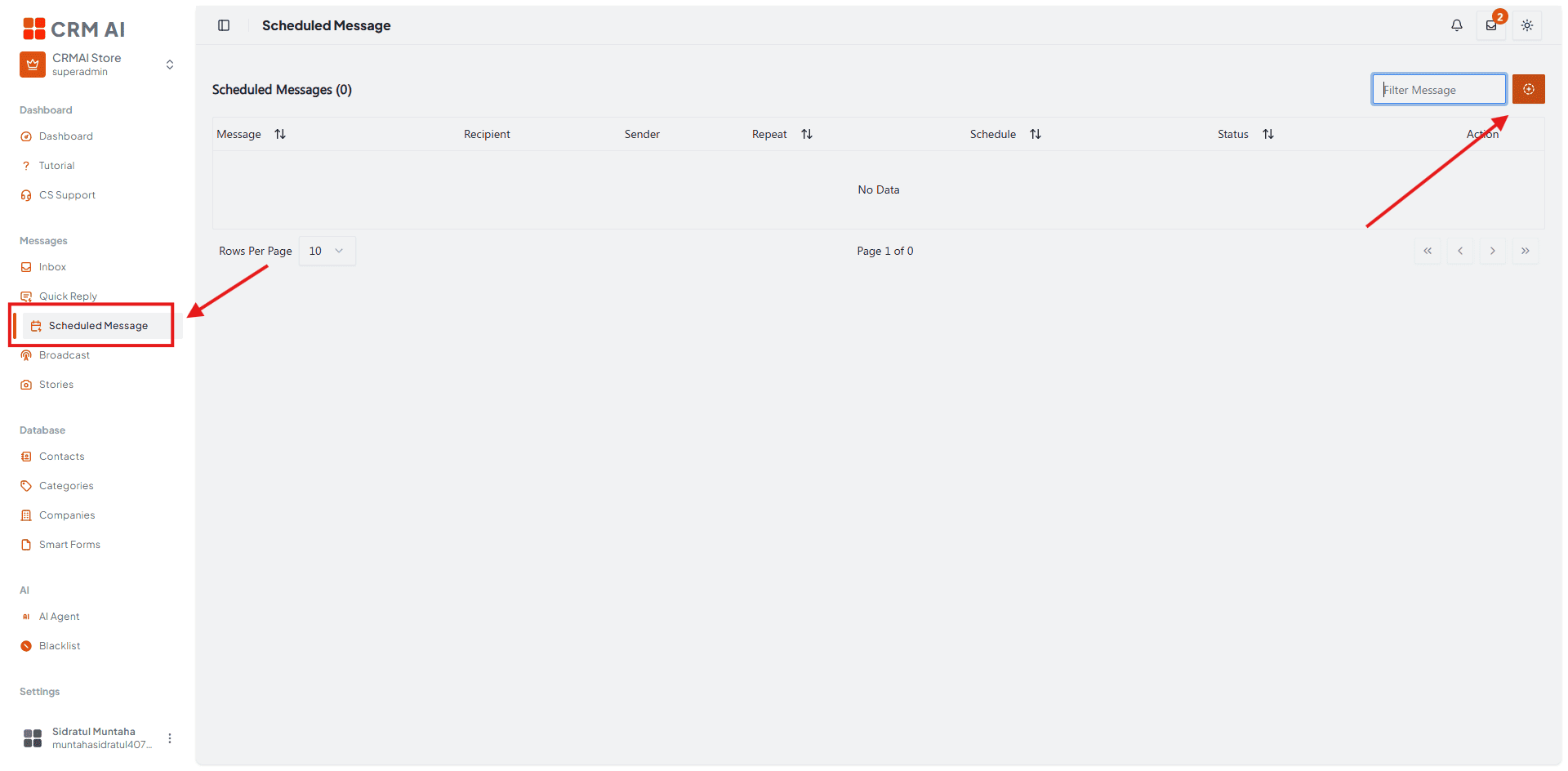
Select your target recipient(s) and sender connection.
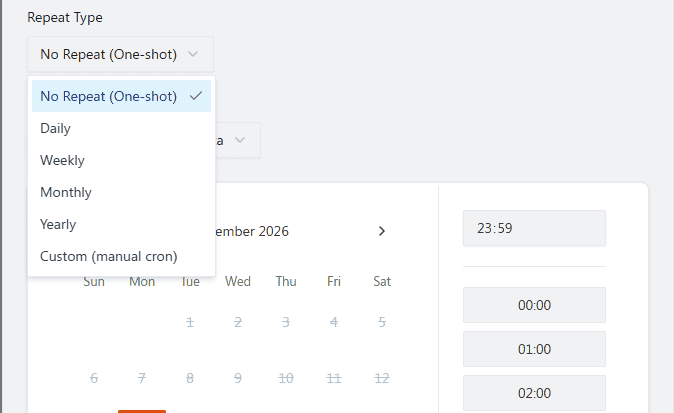
Choose whether the delivery is a single occurrence ("No Repeat") or a recurring schedule. Available options include Daily, Weekly, Monthly, Yearly, or a Custom manual cron.
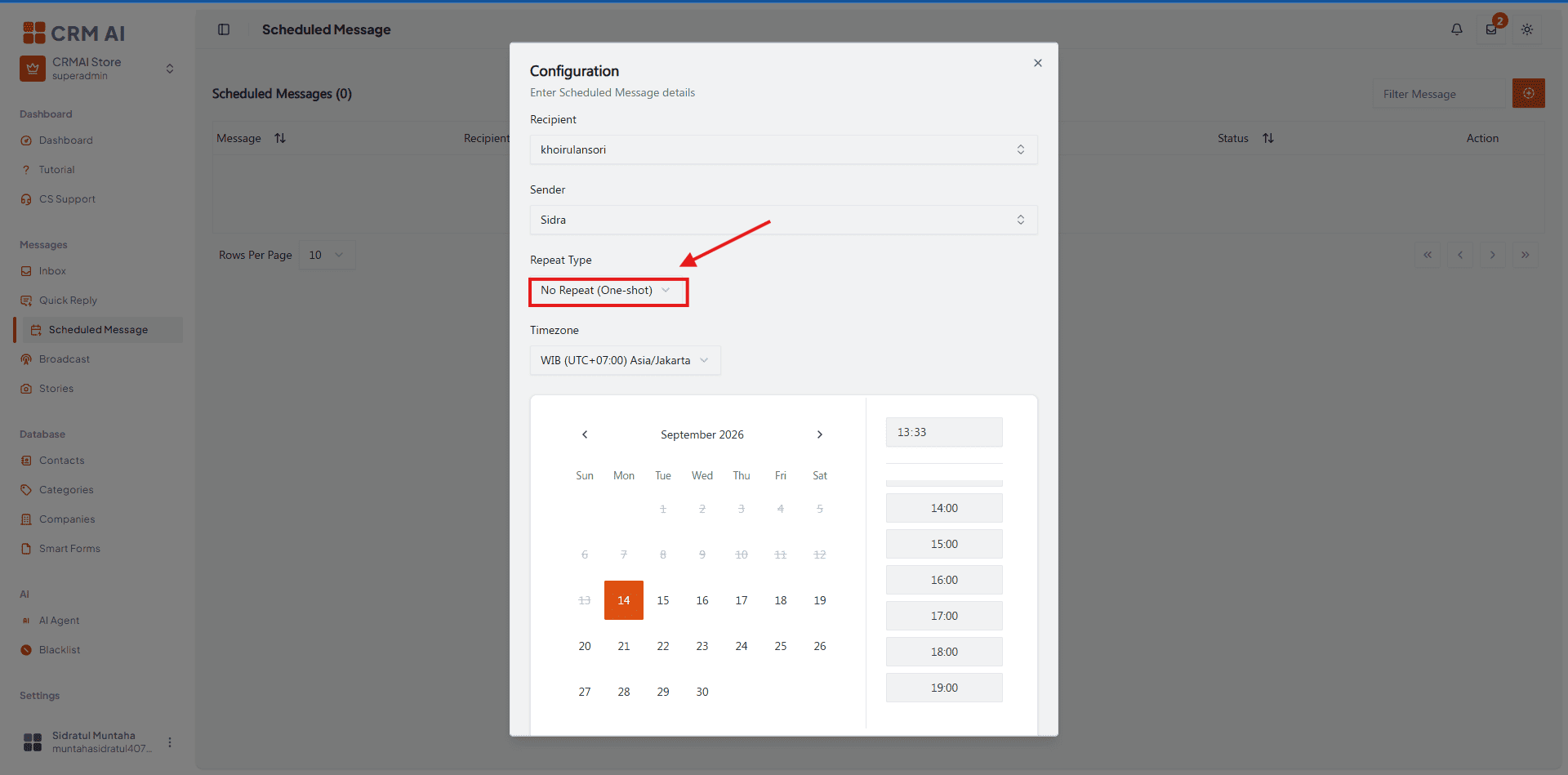
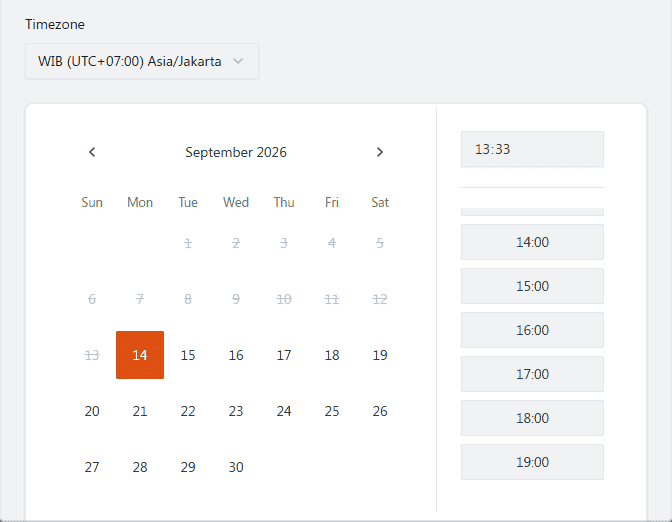
Explicitly define the timezone from the dropdown menu (e.g., WIB UTC+07:00 Asia/Jakarta) to ensure accurate delivery, then pick the exact date and time from the calendar picker.
Upload any necessary media files and choose your "Message type" (e.g., Text). Type your message directly into the text area. For advanced formatting, you can click Activate Builder to arrange a JSON payload using the Interactive message builder.
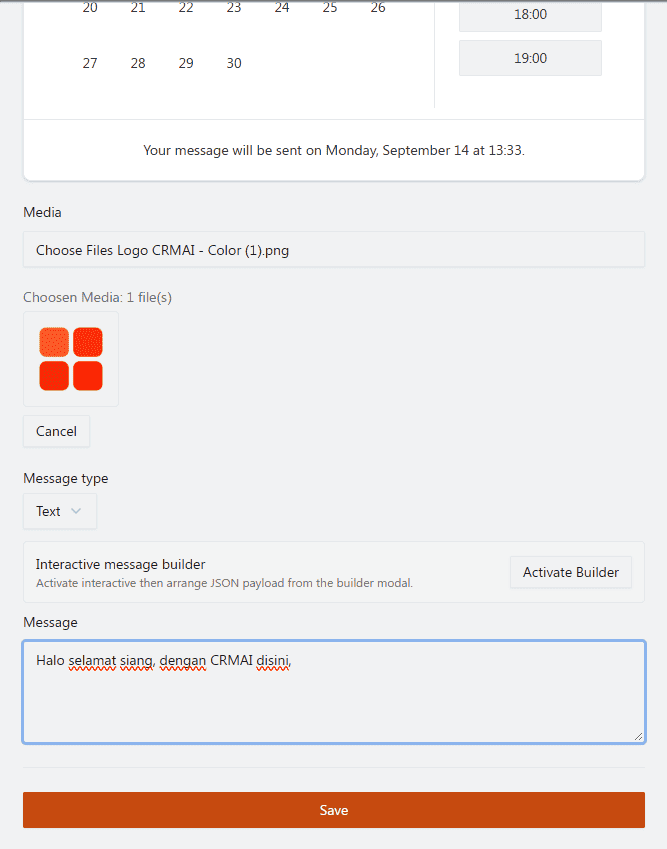
Click Save. The system dispatches the message automatically — you don't need to be online.
Sender and recipient rules
The sender connection is required, and the recipient must be a valid customer identity.
Choose a sender on the same channel as the recipient identity when the interface enforces channel compatibility.
The date/time value is strictly tied to the selected timezone dropdown. Always confirm this selection matches your intended delivery window before saving.
Statuses, Tracking, and Actions
Use the Filter Message box in the top right to locate specific schedules quickly. You can also adjust the list view using the Rows Per Page pagination controls at the bottom left.
Commonly displayed lifecycle values include pending, scheduled, sent, failed, and cancelled.
Click the three-dot (
...) action menu next to any message to edit or cancel a schedule, provided its current status allows it.
Troubleshooting
If no sender is available, create or reconnect a channel connection first.
If the recipient doesn't appear, confirm the customer identity exists and matches the channel.
If the scheduled time appears incorrect, verify that the timezone dropdown in the configuration dialog was set correctly.
If an item can't be cancelled, check its current status — completed or dispatched items may no longer be cancellable.