 CRMAI Docs
SmartForms User Guide
SmartForms allows you to build interactive data collection forms that can be shared via a public web link or sent directly to customers through WhatsApp. This keeps the customer engaged without requiring them to leave their chat environment.
Form Lifecycle States
Draft: The form is under construction and cannot accept live public submissions.
Published: The form is live, active, and ready to collect data via shared links or WhatsApp.
Archived: The form is retired. It is retained for historical data purposes but is no longer active for new submissions.
1. Creating a New Form
Start by initializing the basic details of your new data collection form.
Navigate to
Dashboard > Smart Forms.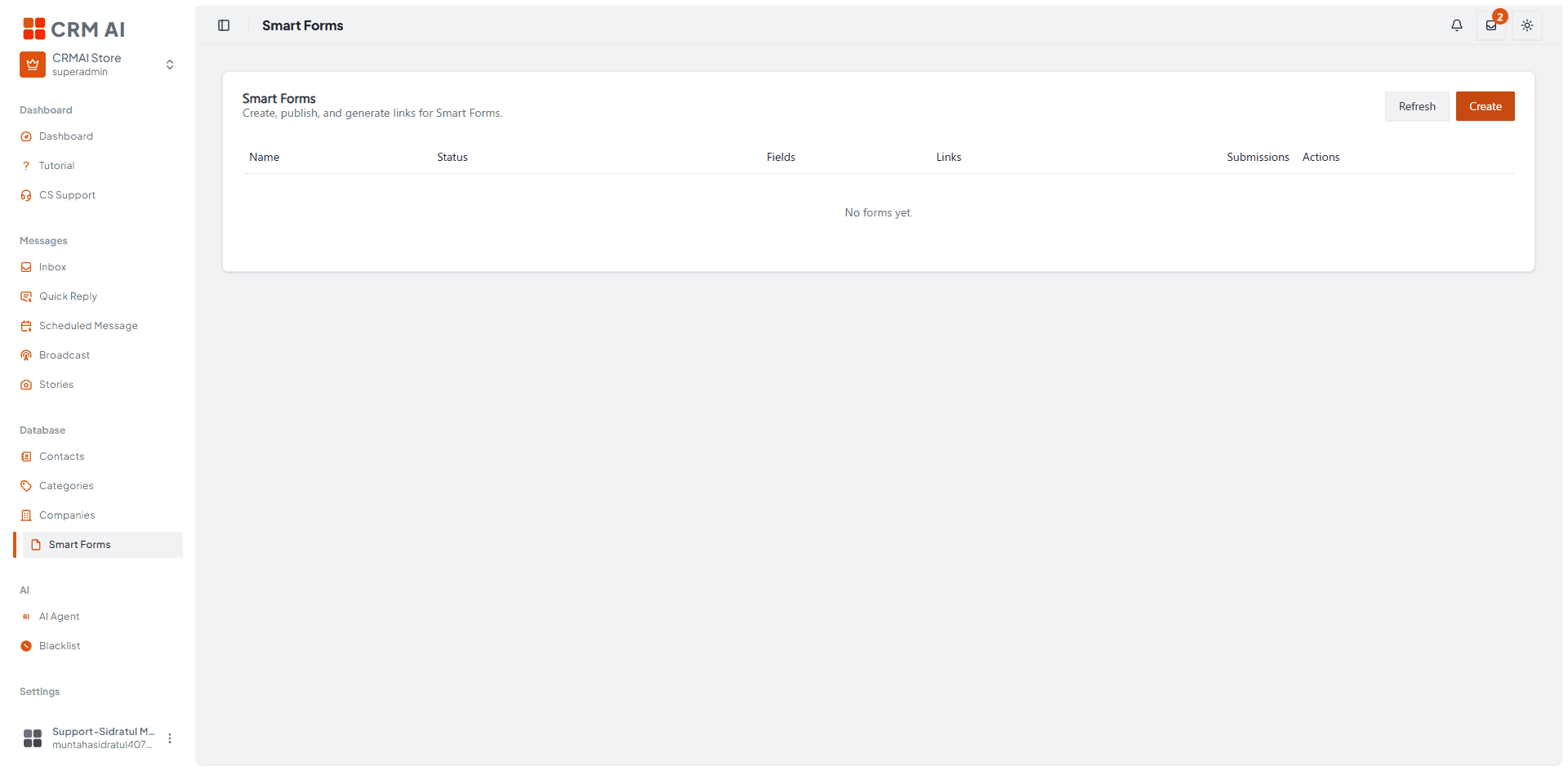
Click the Create button in the top right corner.

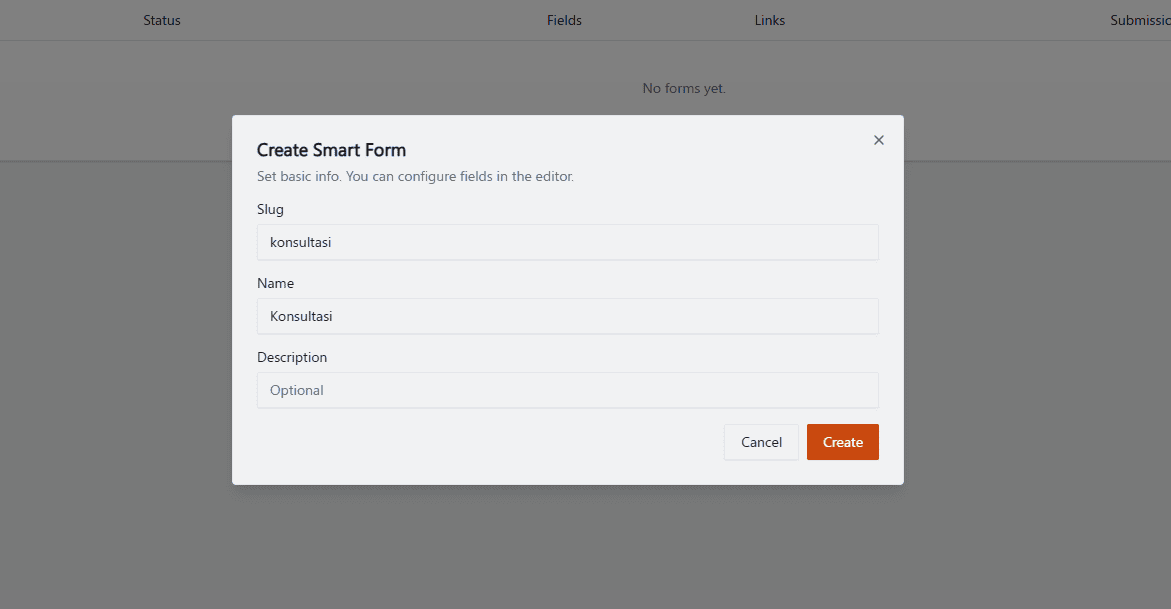
In the pop-up modal, enter the basic information:
Slug: The unique URL path for your form (e.g.,
konsultasi).Name: The display name for internal tracking.
Description: Optional context about the form's purpose.
Click Create to save.
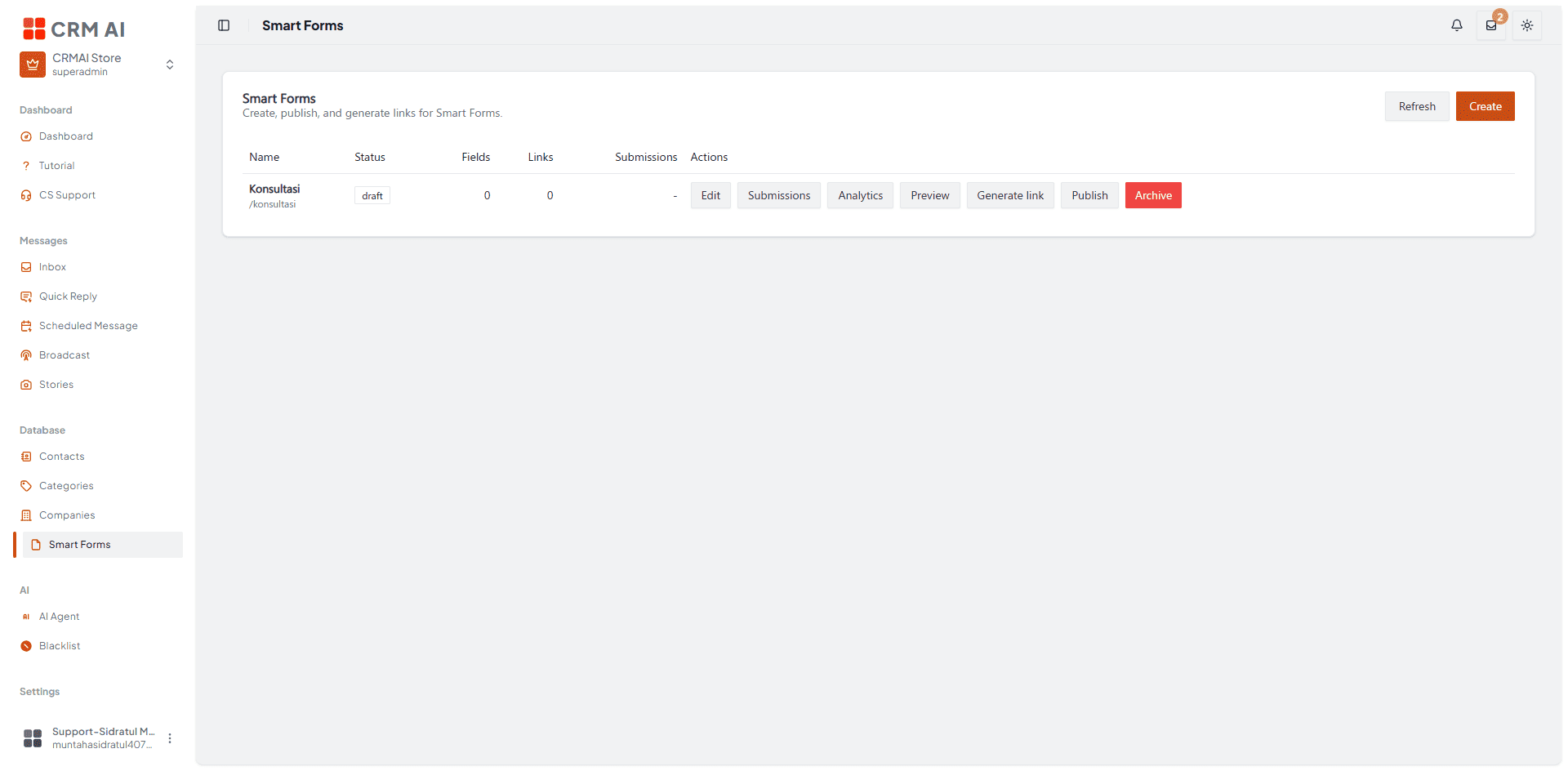
Your new form will now appear in the dashboard list with a draft status.
2. Designing the Form (Editor)
Use the visual builder to construct your form's layout and determine what data you need to collect.
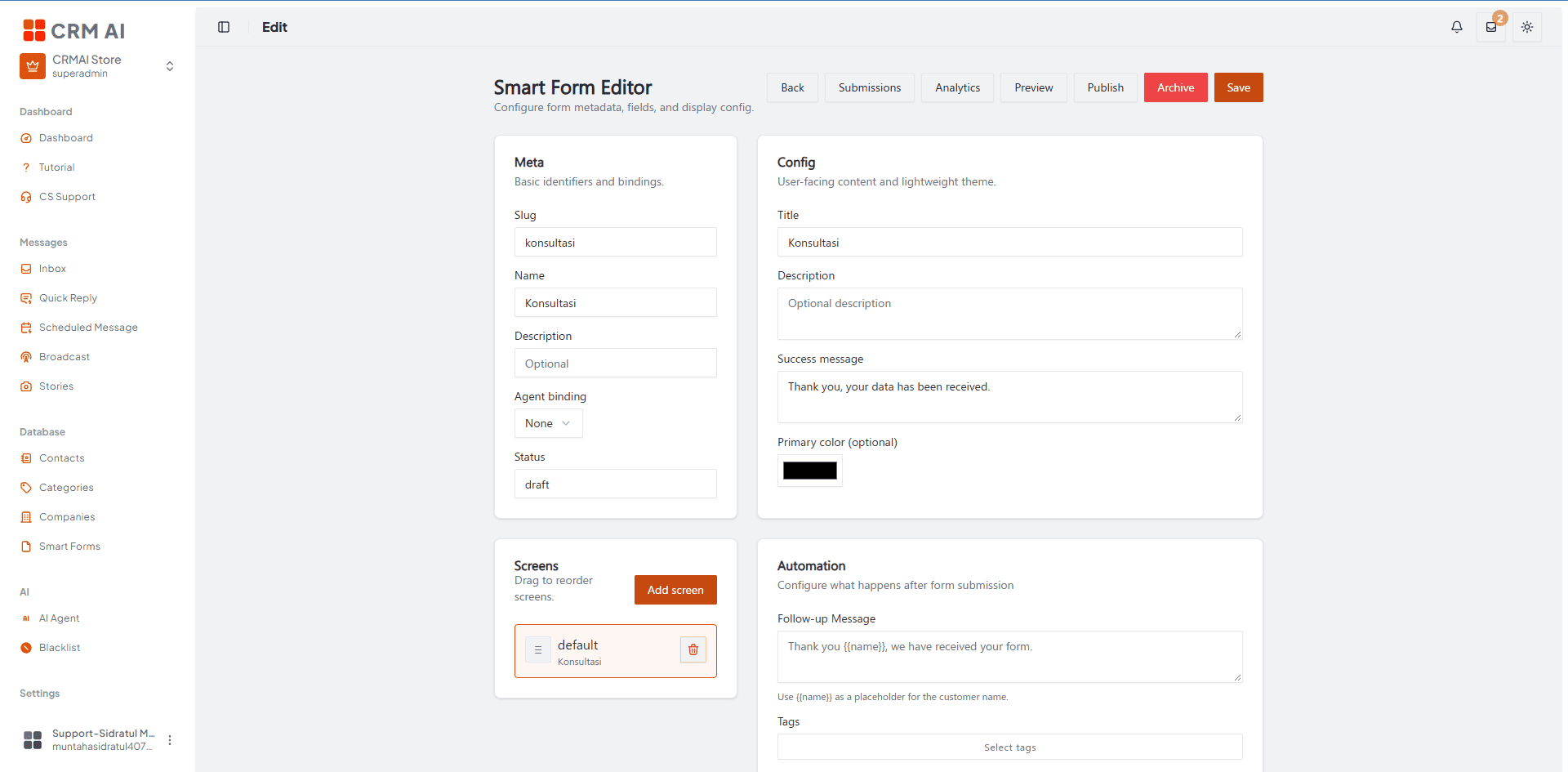
From the Smart Forms list, click Edit on your draft form.
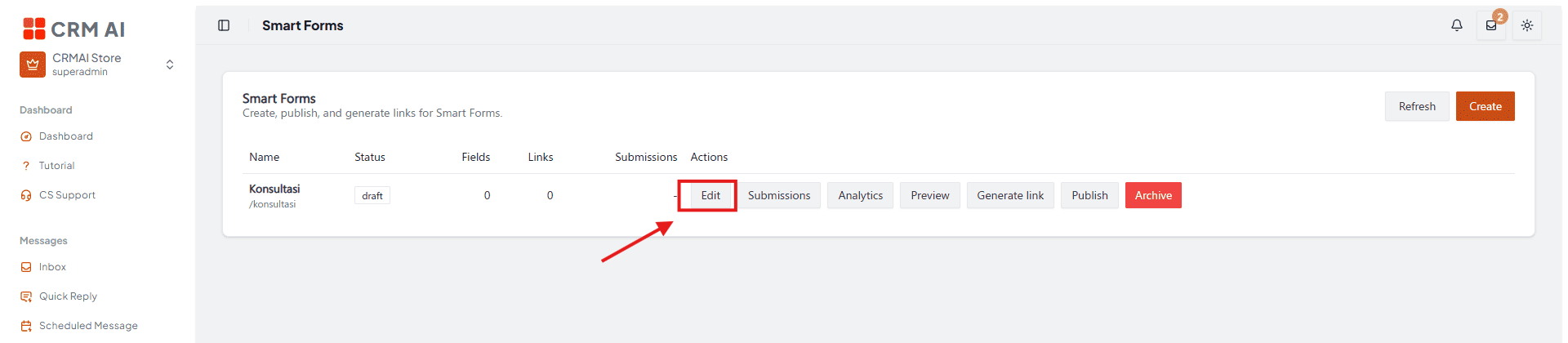
Smart Form Edit Page.
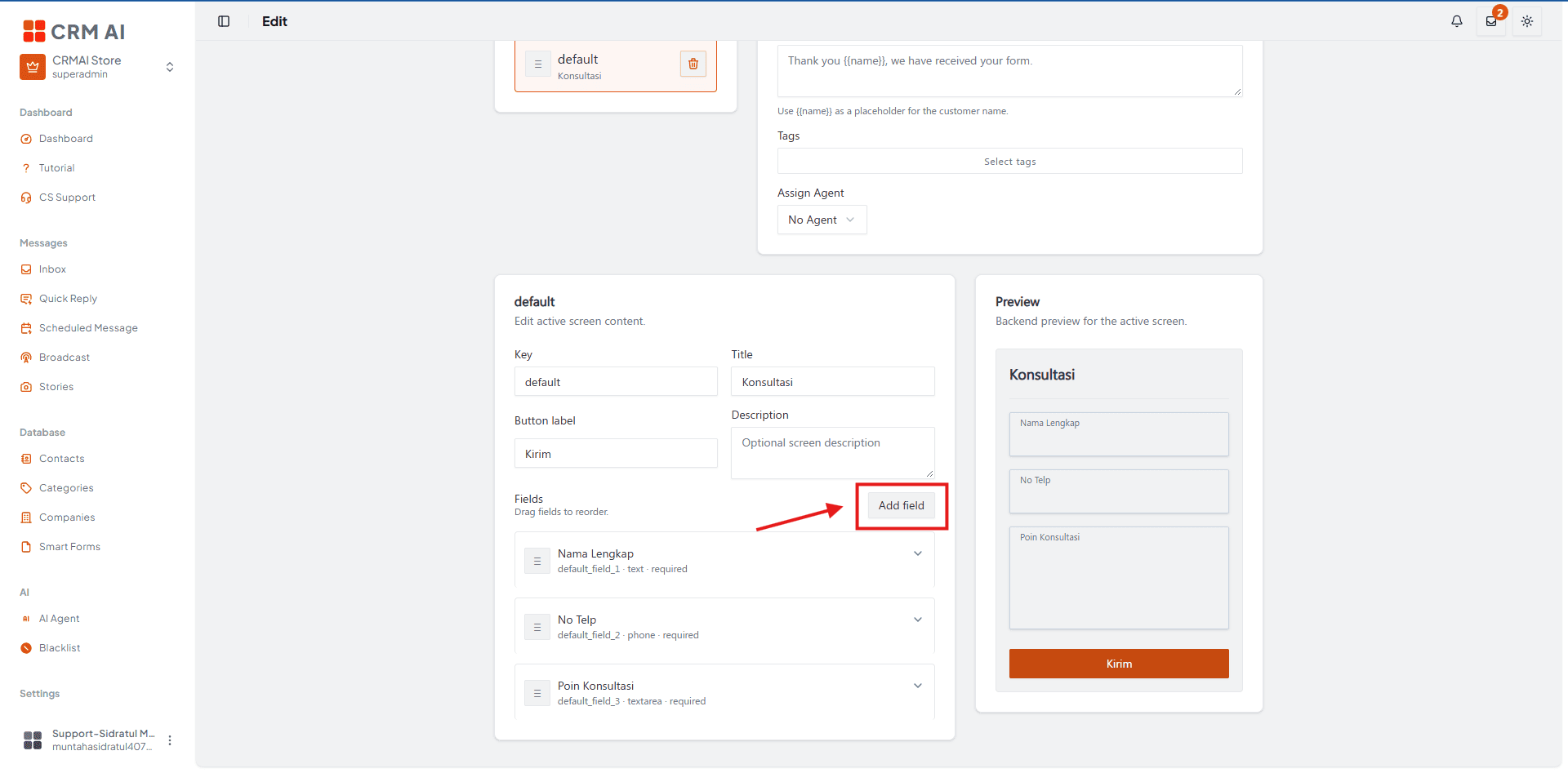
Click Add field to insert new inputs (e.g., Textarea, Phone, Number, File Uploads).
Select a field from the middle column to configure its settings on the left panel:
Label & Placeholder: Define what the customer sees.
Help Text: Provide additional guidance (e.g., "Bantu user mengerti input ini").
Required Toggle: Enable this only for strictly necessary information.
Drag and drop fields in the middle column to reorder them. Watch the live preview update instantly on the right side of your screen.
Click Save

3. Previewing and Publishing
Always verify the user experience before making a form public.
Click Preview from the main dashboard list to see exactly how the form will render for customers. Note: Submissions are disabled in Preview mode.

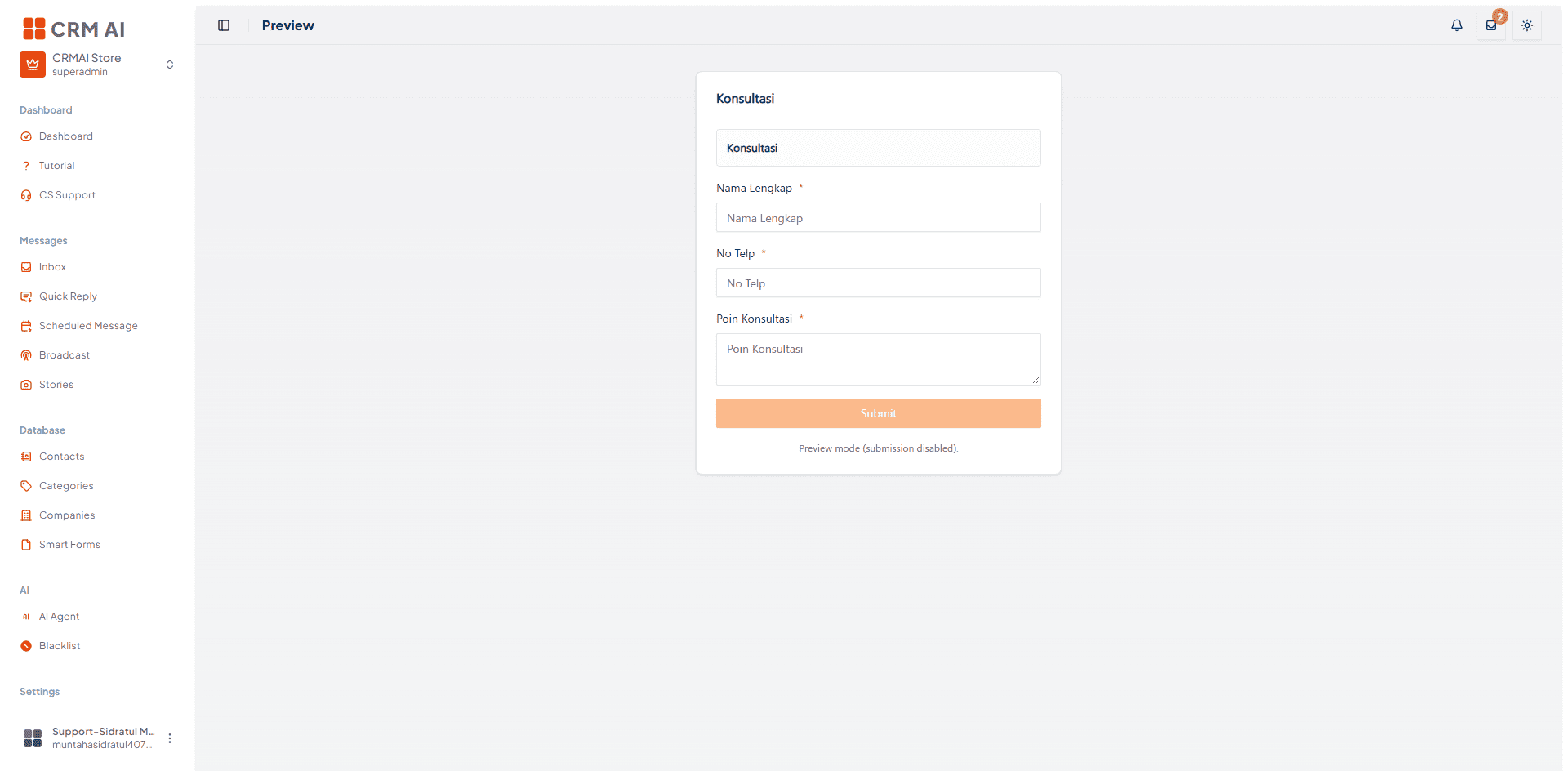
Once satisfied with the design, return to the list and click Publish. The form's status will change from draft to published.


4. Generating Sharing Links
Once published, you must generate a link to distribute the form. Click Generate link on your published form to open the configuration modal.
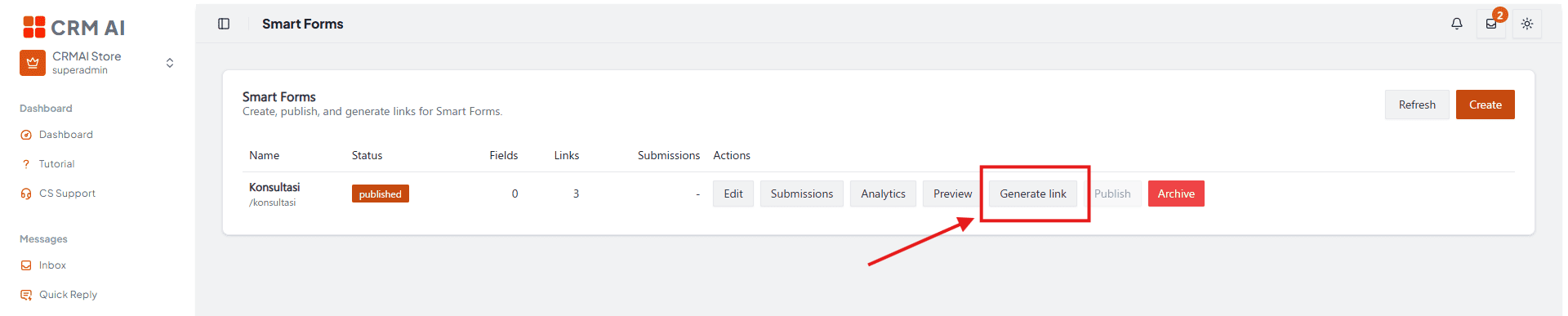
Option A: Shared Link (Public/Anonymous) Use this mode for general campaigns where anyone can fill out the form.
Set the Link Mode to Shared.
Define the Source (e.g.,
wa) and an optional Campaign name for tracking.Set expiration time limits or maximum submission caps if applicable, then click Generate.
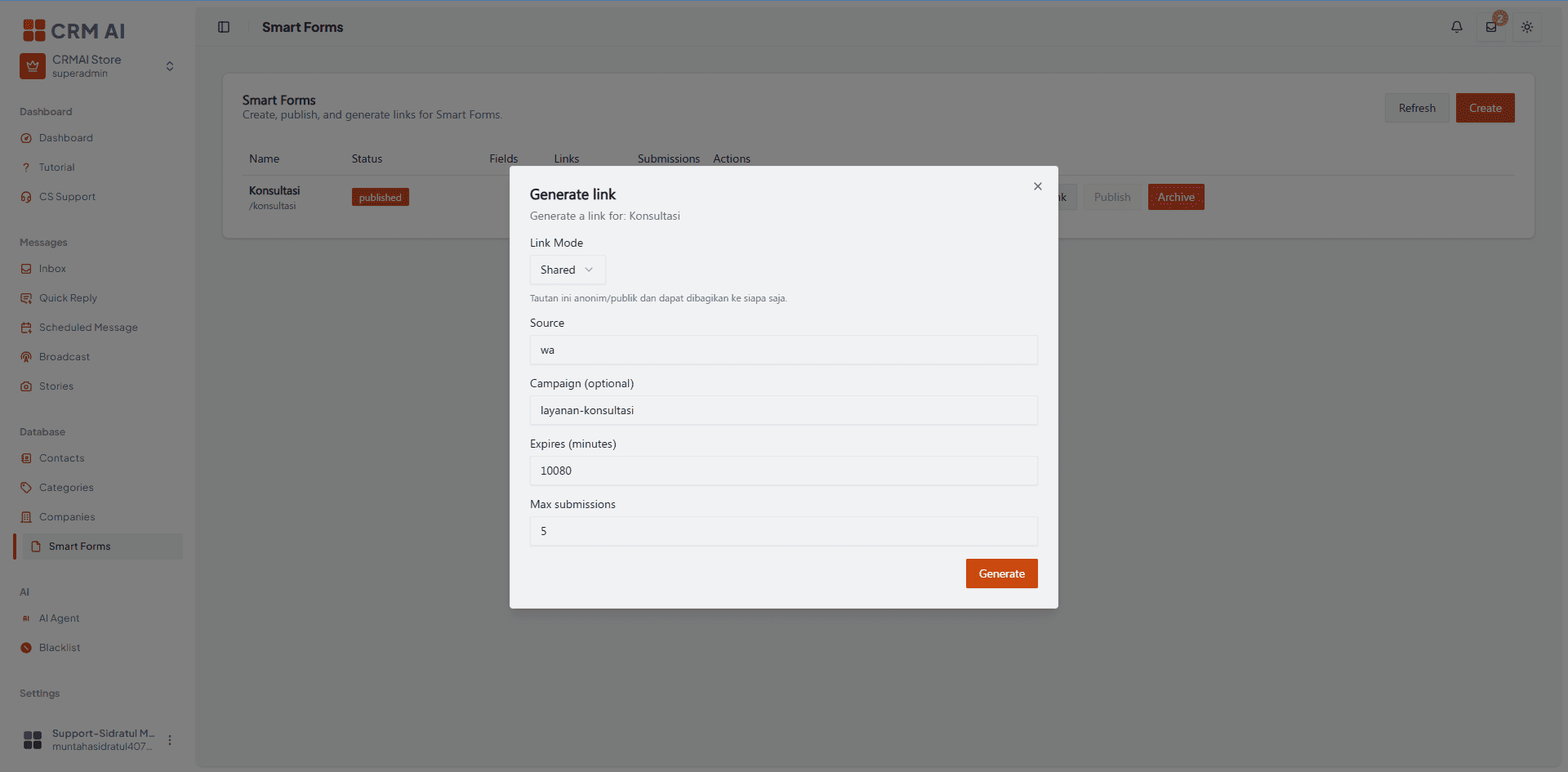
Option B: Personal Link (Targeted) Use this mode when sending the form to a specific, known customer.
Set the Link Mode to Personal.
Input the exact Customer identity ID. This links the submission directly to their existing CRM profile.
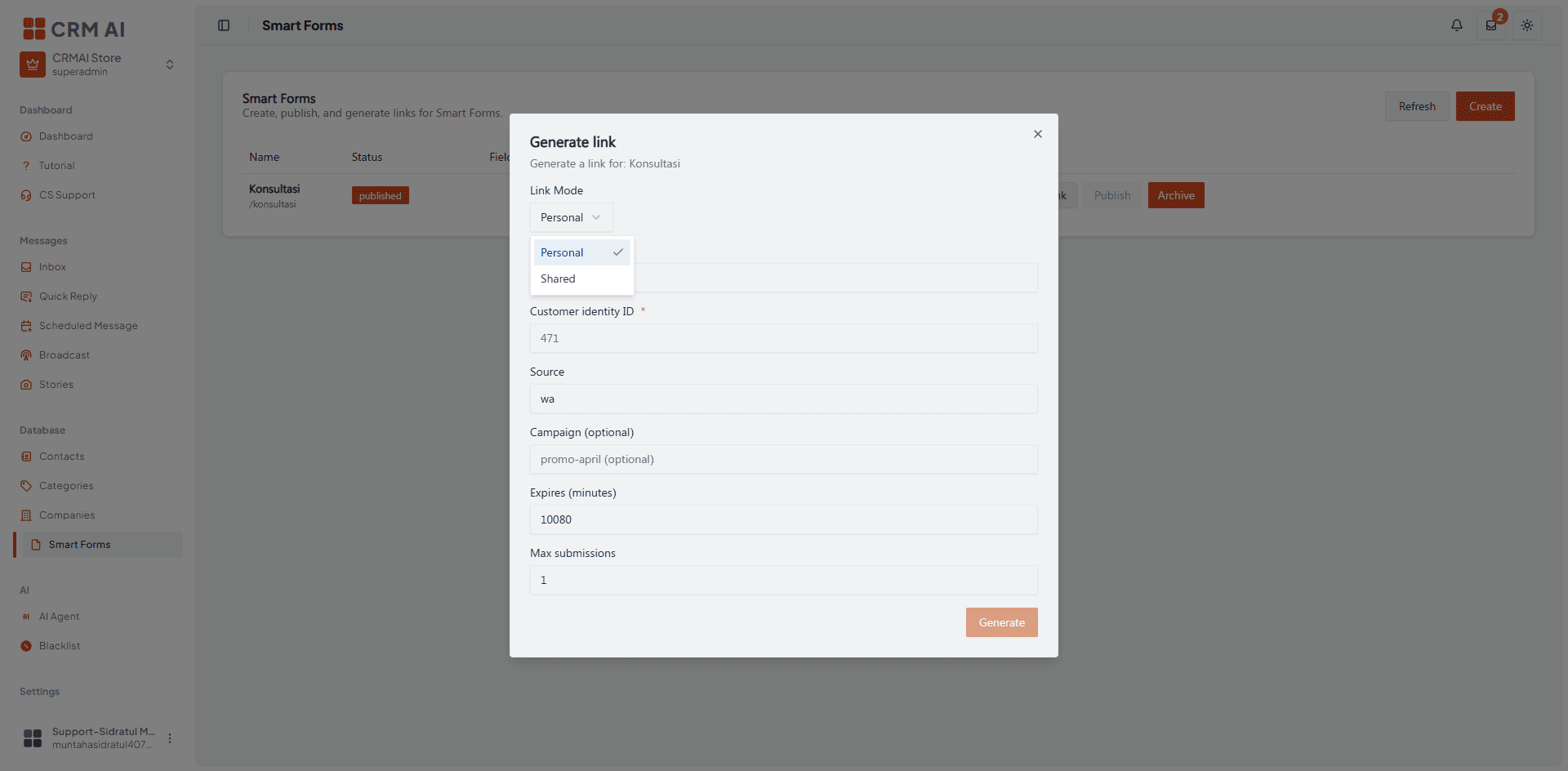
Distributing the Link After clicking generate, you will receive the final URL. You can Copy it to share manually, Open it to test, or Revoke it if you need to invalidate the link.
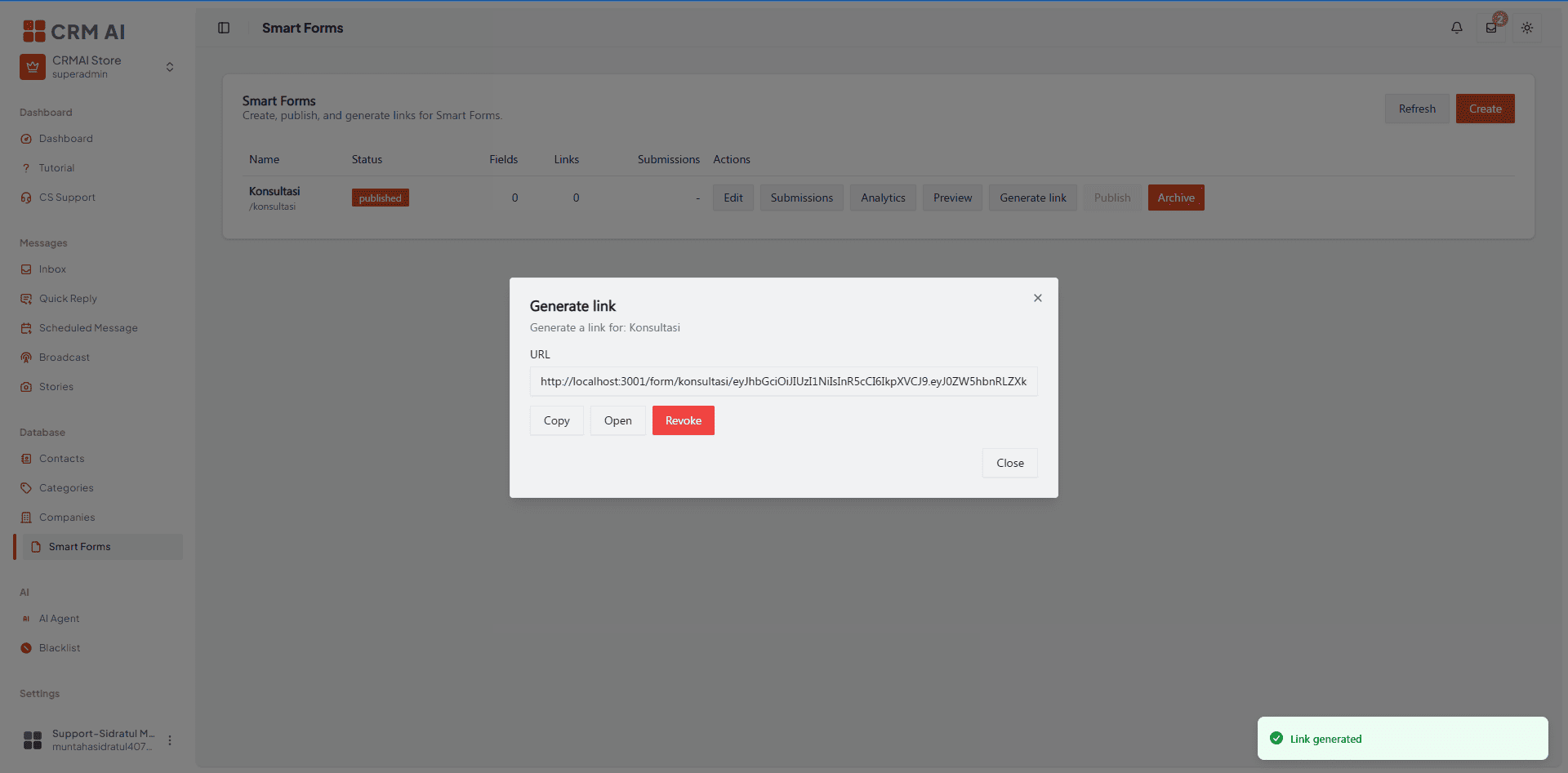
5. Monitoring Submissions & Analytics
Track your form's performance and review incoming data in real-time.
Reviewing Submissions
Click Submissions on your form.

Use the Filters to narrow down responses by specific sources, campaigns, or date ranges.
Export the structured data to your device using the Export CSV or Export XLSX buttons for external reporting.
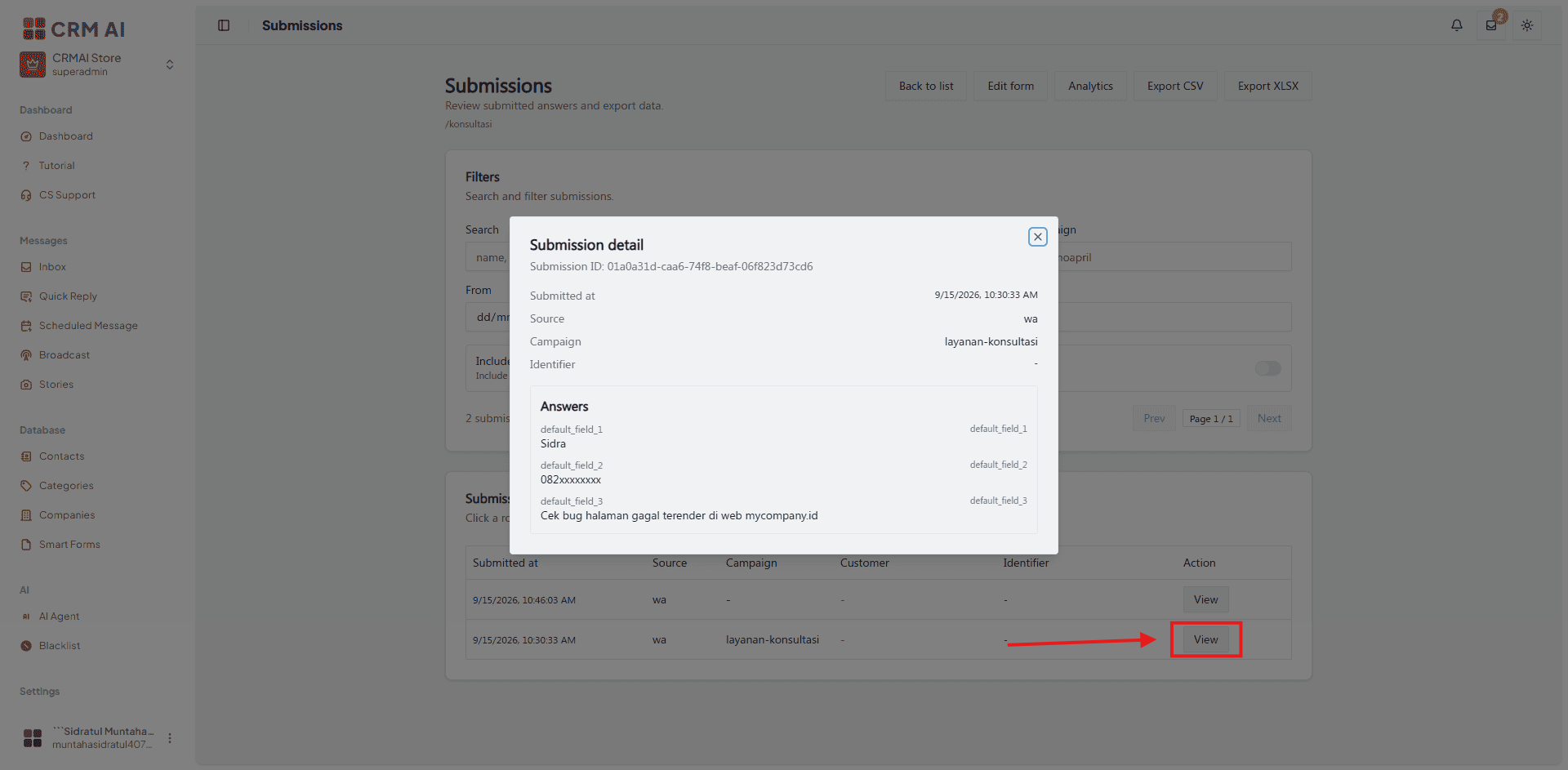
Viewing Analytics
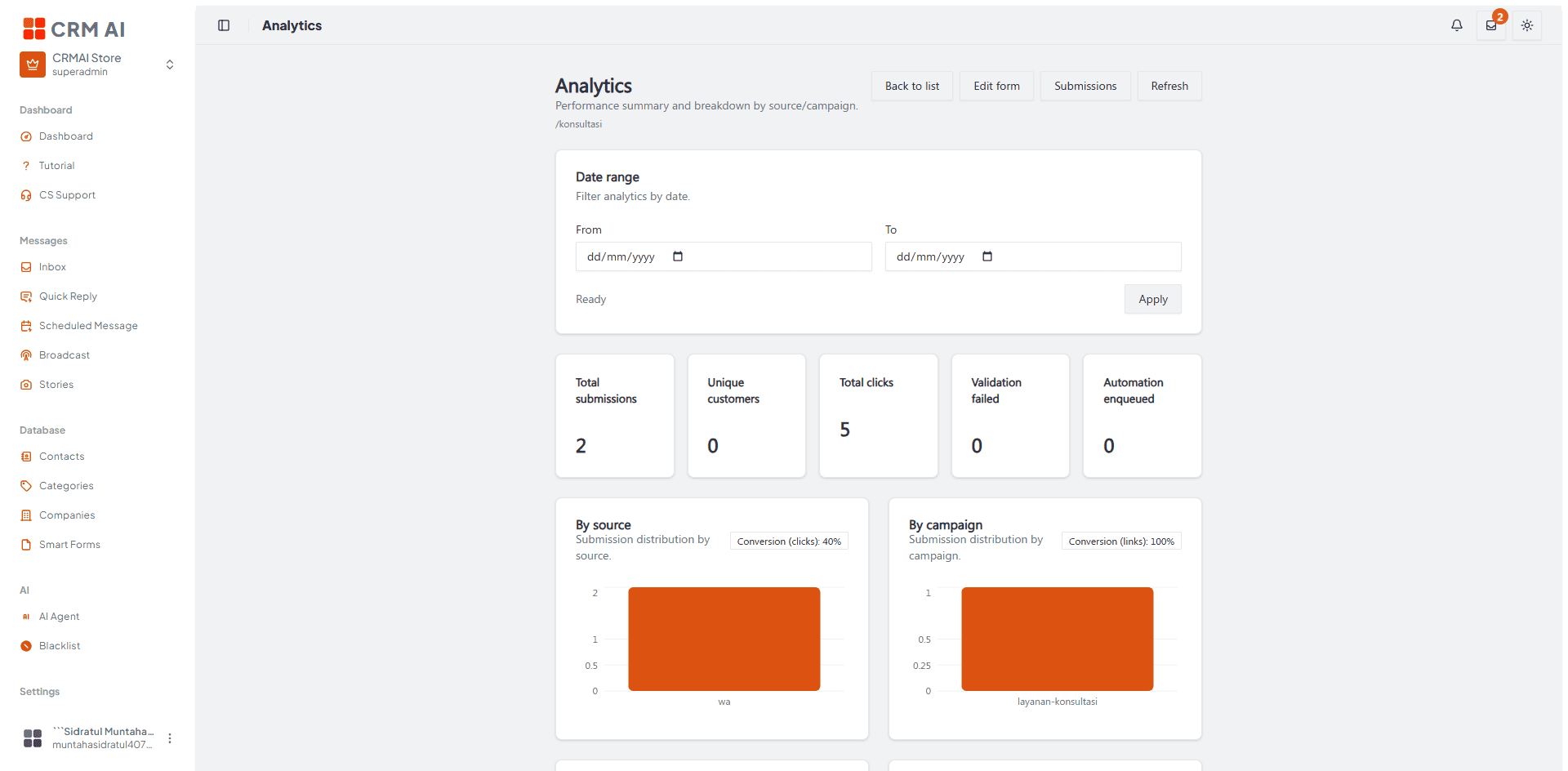
Click Analytics to view performance summaries.
Review key metrics including Total Submissions, Unique Customers, Total Clicks, and Conversion rates broken down by Source and Campaign.
Operational Best Practices
Clarity is Key: Keep field labels brief and customer-friendly. Do not expose internal technical identifiers in visible labels.
Data Integrity: Use the correct field type (e.g., use the 'Phone' type for numbers) to ensure proper data validation.
Retaining History: Archive obsolete forms instead of overwriting them with completely new fields. This ensures your historical submission data remains accurate and understandable.