 CRMAI Docs
Inbox Tabs & Ticket Lifecycle
Purpose
The Shared Inbox organizes conversations into tabs that reflect where a ticket is in its lifecycle, and lets operators filter by division, category, or connection.
Tabs
Queue Tab (Antrian)
Contains all incoming chats from clients, visible to every role (Admins and Members). Chats here automatically trigger a welcome message on the first interaction. You can filter incoming chats by Division.
⚠️ Important: To reply to a client, you must first claim the ticket by clicking the Process button in the top right corner of the chat. Chats in Queue can't be replied to directly.
Claiming a ticket from Queue
Click the Queue tab on the left navigation panel.
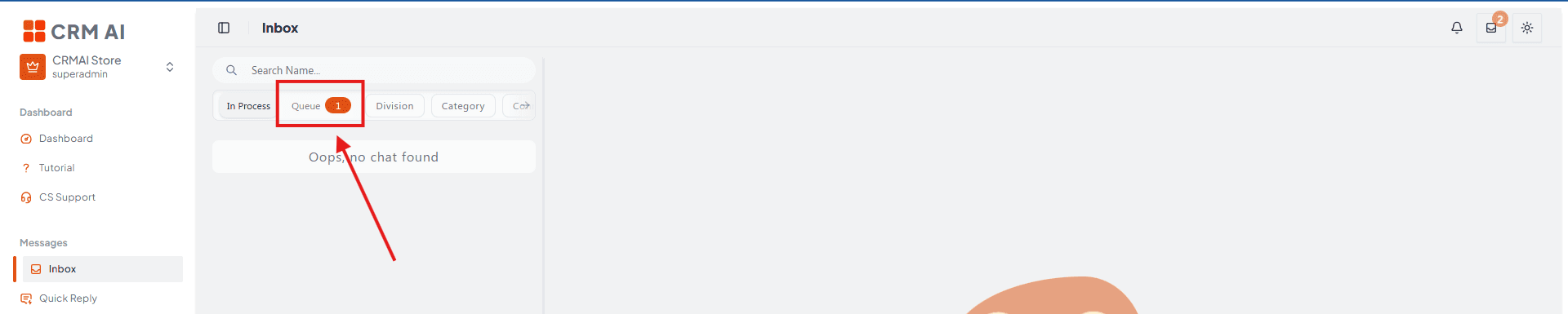
Select the customer ticket you want to handle.
Click the Process button in the top-right corner of the chat window to claim ownership. The ticket automatically moves to the In Process tab.
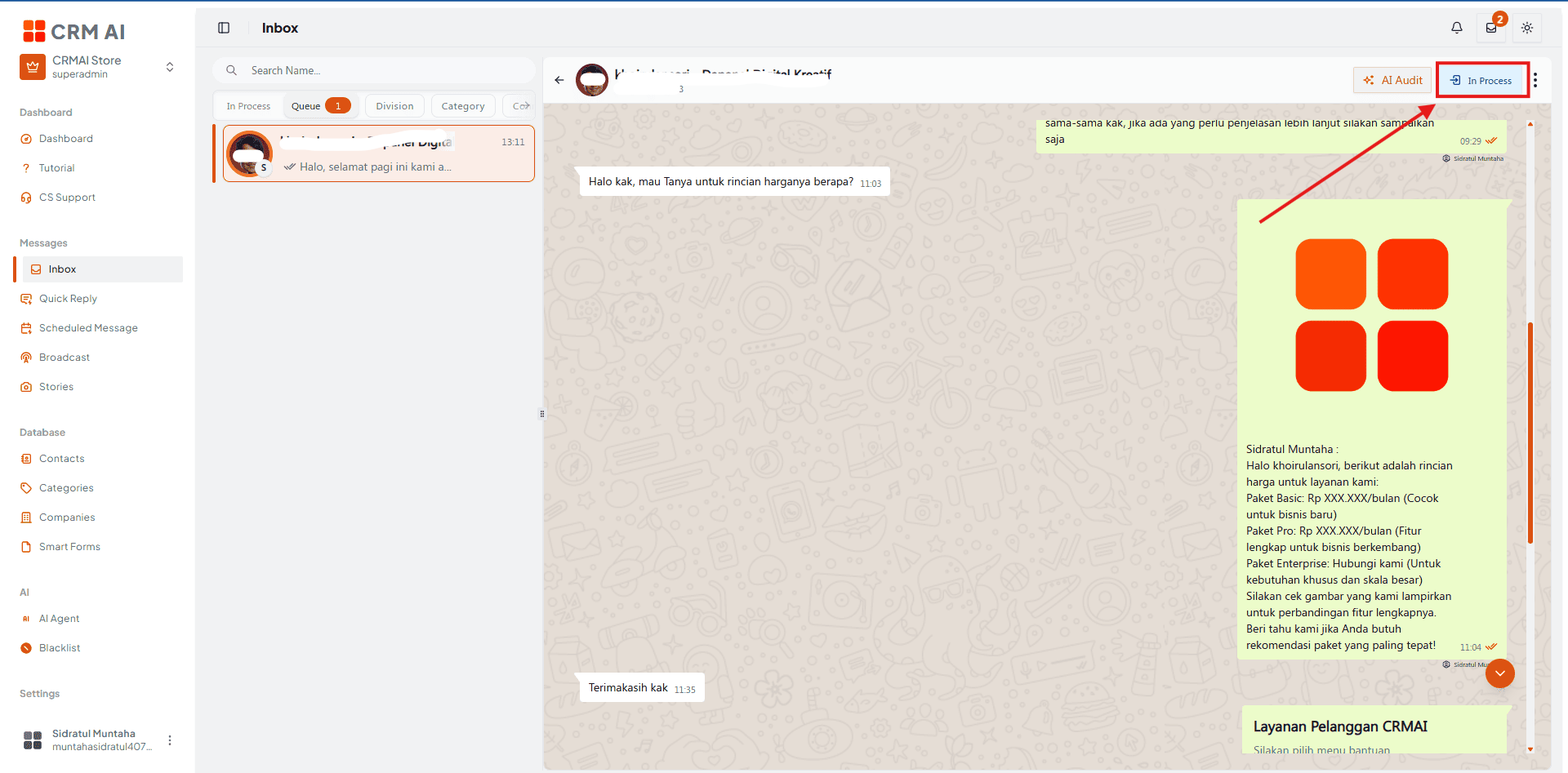
Recommended annotation: ① arrow to the Queue tab in the left nav. ② box the selected ticket in the list. ③ arrow to the Process button top-right of the chat window, with a small motion arrow showing the ticket "jumping" from Queue to In Process — this before/after movement is the key concept readers need to visualize.
Process Tab (Proses)
Contains all messages that have been moved from Queue and are currently being handled.
Admins can see all processed messages without exception.
Agents/Members can only see the messages they're actively processing.
Chat bubbles in this tab display Category Tags for easy client grouping, and the replying agent's name (e.g., 🧑💼 Support - Denada).
Division Tab (Divisi)
Filters incoming chats based on available divisions — useful for users assigned to multiple divisions to sort their workload.
Category Tab (Kategori)
Filters chats based on the category/tag shown next to the client's WhatsApp name.
Connection Tab (Koneksi)
Filters chats based on the specific WhatsApp number/connection the client contacted. The connection label is visible next to the client's profile picture.
Filtering tickets by Division, Category, or Connection
The three filter tabs above (Division, Category, Connection) all work the same way:
Select a filter tab from the left panel: Division, Category, or Connection.
Click the specific division name, category tag, or WhatsApp channel number you want to view.
The ticket list below instantly refreshes to display only matching conversations.
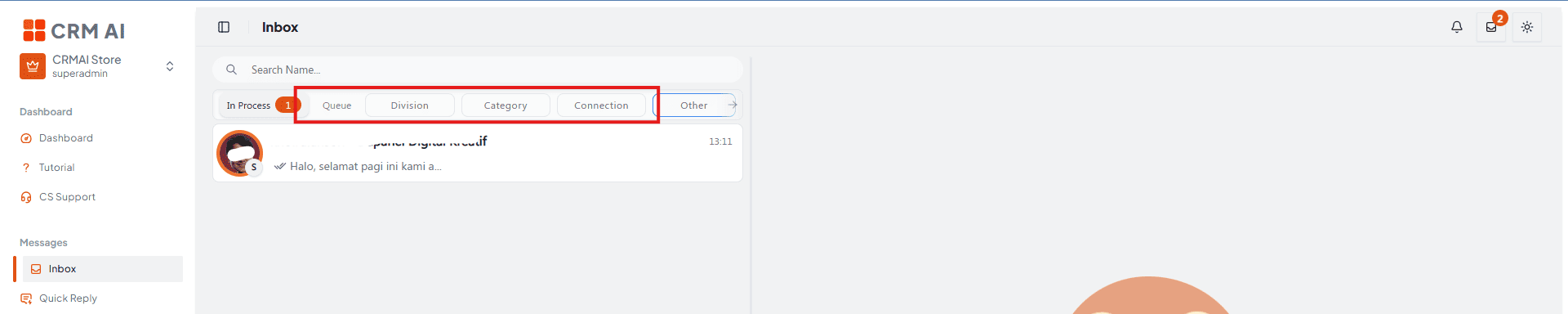
Recommended annotation: ① arrow to one of the three filter tabs (pick Division for the primary example). ② box the specific value clicked within that tab (e.g., a division name). ③ box the refreshed ticket list below with a "before → after" split so readers see the filtering effect, not just the click target.
Others Tab (Lainnya)
Contains:
New — start a new conversation/send a new message.
Archive — view archived messages and resume previous conversations.
Accessing new chats & archives
Click the Others tab on the left panel.
Select New to initiate a new outbound chat by manually entering a customer's phone number.
Select Archive to review previously resolved and archived conversations.

Recommended annotation: ① arrow to the Others tab. ②③ number New and Archive as two side-by-side options within the opened menu, each with a one-line label ("② start outbound chat" / "③ view resolved chats") so the two actions aren't confused with each other.
Recommended annotation: underline the full tab bar in one continuous highlight, then number each tab ①–⑥ left to right (Queue, Process, Division, Category, Connection, Others) — use this as the "map" screenshot at the top of the page that the more detailed step-by-step screenshots below each refer back to.
Ticket lifecycle summary
Stage | Tab | Who can see it |
|---|---|---|
New incoming chat | Queue | All roles |
Claimed / being handled | Process | Admins (all) · Agents (own only) |
Archived | Others → Archive | Depends on permission |
Operational guidance
Claim tickets from Queue promptly — clients waiting in Queue haven't received a personal reply yet, only the automatic welcome message.
Use Division and Category filters together to prioritize workload when your team is assigned across multiple areas.
Don't rely on Delete to clean up old tickets — use Archive instead (see Ticket Options) to avoid losing conversation history.
Use Others → New for proactive outreach (e.g., following up on a lead) rather than searching Contacts for a WhatsApp link — it's a faster path to start a fresh conversation.
Related: Ticket Options (Header Chat) · Division Setup