 CRMAI Docs
Message Management & Composer Bar
Purpose
The composer bar at the bottom of the chat is where operators write and send replies. It supports several conveniences beyond plain text.
Features
Auto-Resize Textarea — the input box expands to fit the length of the typed text.
WhatsApp Text Formatting — supports standard bold, italic, and
strikethroughformatting.Media Attachment — click the paperclip icon to attach Images, Videos, PDF Documents, or Audio.
Signature toggle — a switch at the far-left of the composer bar (two-person icon). When on, the sending agent's name/identity is shown above the message bubble the customer receives — useful in multi-agent teams so customers know who they're talking to. When off, replies are sent without an attributed name.
Generate Message by AI — the Sparkle icon, positioned immediately to the left of the emoji (smiley) icon in the composer toolbar. Generates a suggested reply using AI, which the operator can review, edit, and send (or discard) rather than typing a response from scratch. This is distinct from the AI Agent auto-replying on its own — here a human operator stays in control and triggers the suggestion manually.
Interactive Message Builder — the Message+ icon (a message bubble with a plus sign), positioned between the emoji icon and the paperclip icon. Opens a builder for composing buttons or list-menu messages — see Interactive Messages.
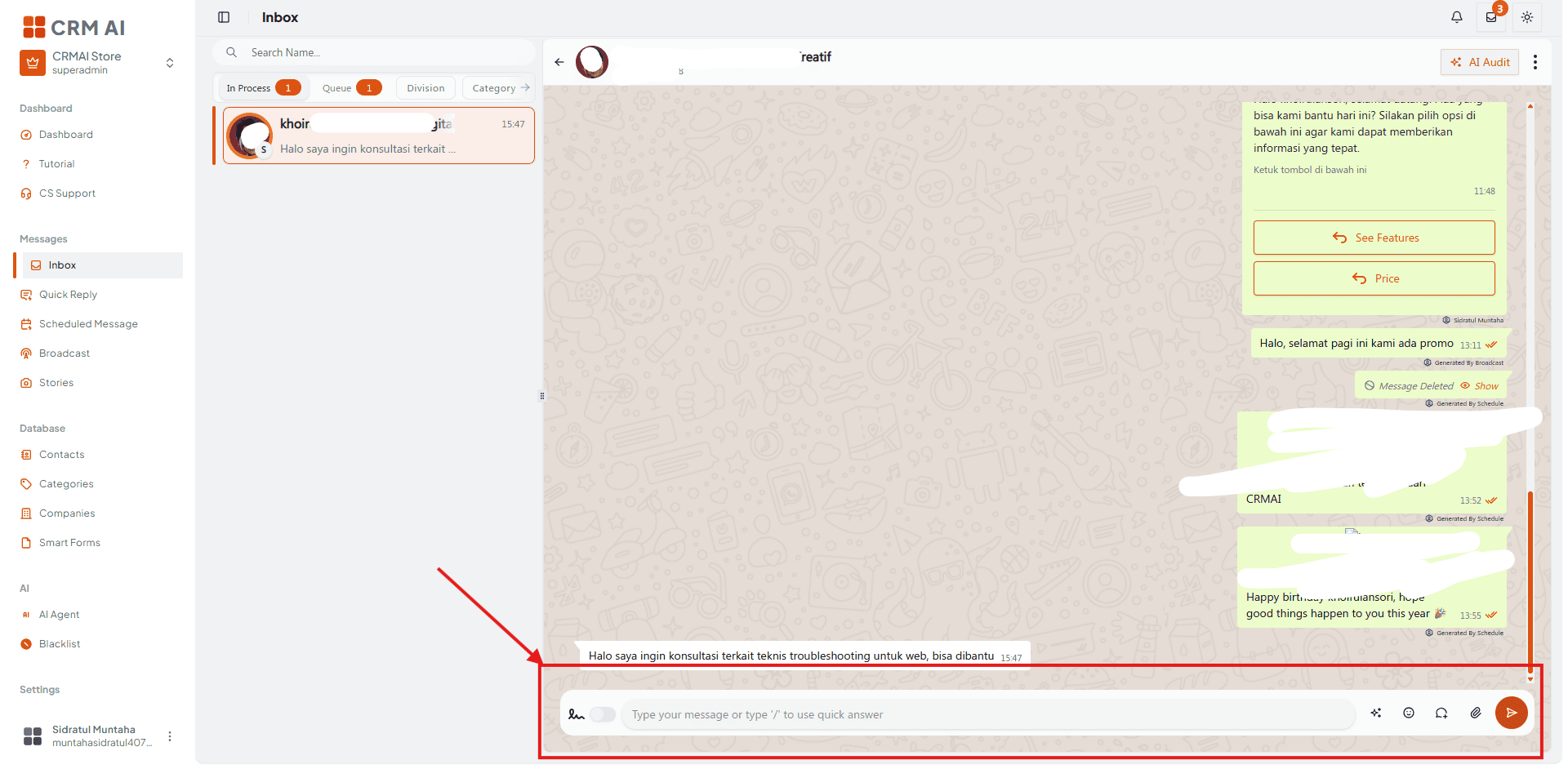
Recommended annotation: ① box the Signature toggle at the far left with a callout "shows agent name above message when ON." ② box the auto-resizing text field. ③ arrow to the Sparkle icon (left of emoji) with a callout "Generate Message by AI — human reviews before sending." ④ arrow to the emoji icon. ⑤ arrow to the Message+ icon (Interactive Message Builder) between emoji and paperclip. ⑥ arrow to the paperclip icon.
A. Sending text & Quick Answers
Type your response directly into the text field at the bottom of the chat.
To use a pre-saved template, type a forward slash (
/) followed by the template keyword (e.g.,/price), then choose an item from the pop-up list.Click the Paper Airplane (Send) icon or press Enter to send your reply.
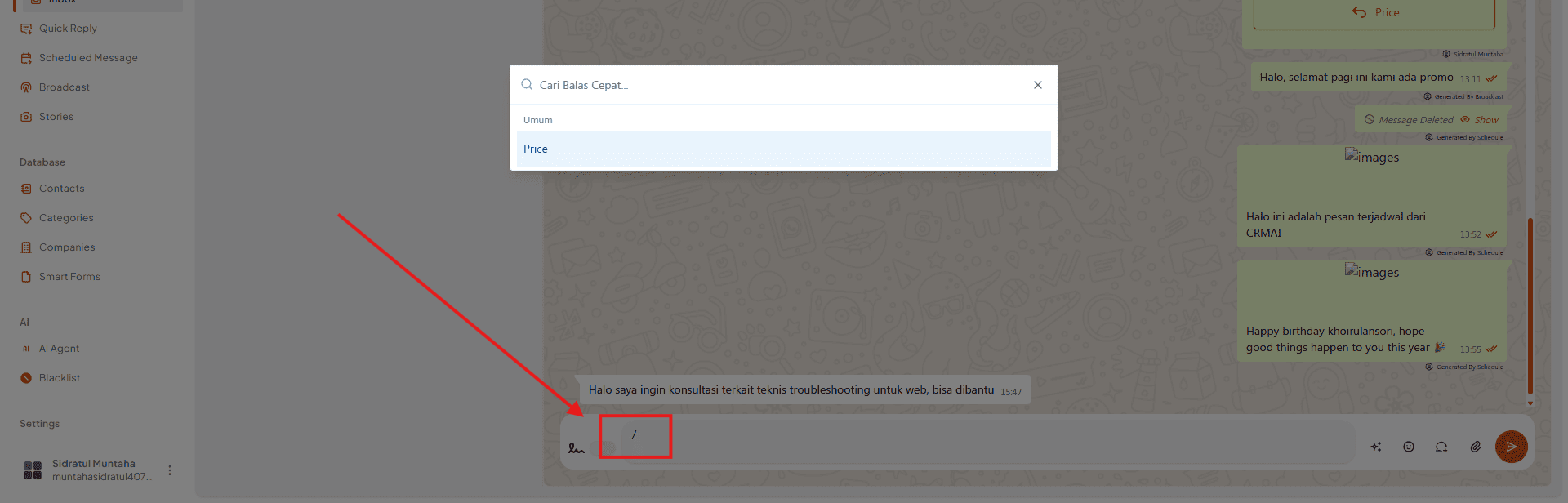
Recommended annotation: ① box the typed
/pricetext mid-entry. ② box the pop-up suggestion list that appears below it, with an arrow to the matching template. ③ arrow to the Send icon. See Quick Answer for how to create these templates in the first place.
B. Generating a message with AI
Click the Sparkle icon (left of the emoji icon) in the composer bar.
Review the AI-suggested reply that appears in the text field.
Edit the suggestion as needed, or discard it and type your own reply instead.
Click Send (or press Enter) once you're satisfied with the message.


Recommended annotation: ① arrow to the Sparkle icon. ② box the resulting suggested text in the composer field with a callout "editable before sending — not sent automatically." This distinction (human-in-the-loop vs. auto-reply) is the most important thing for readers to understand about this feature.
C. Sending interactive messages
Click the Message+ icon (a message bubble with a plus sign) in the composer bar, positioned between the emoji icon and the paperclip icon.
In the Interactive Message Builder modal, fill in the Header, Body, Footer, and add your preferred Buttons or List Menu.
Click Save Message Builder, then click Send on the composer bar.

Recommended annotation: ① arrow to the Message+ icon between emoji and paperclip. ②③④⑤ number Header, Body, Footer, and Buttons/List Menu fields inside the opened builder modal. ⑥ arrow to Save Message Builder. See Interactive Messages for the full builder reference (buttons vs. list menus, provider support).
D. Attaching files and media
Click the Paperclip icon in the bottom-right corner of the composer bar.
Select a file from your computer (Images, PDFs, Documents, or Audio).
Click Send once the file preview appears in the composer.

Recommended annotation: ① arrow to the Paperclip icon. ② box the file picker/selection dialog. ③ box the resulting file preview in the composer before sending — this preview step is easy to miss and worth its own callout.
E. Inserting emojis
Click the Smiley Face icon on the composer bar.
Select the emoji you wish to add to your message text.

Recommended annotation: ① arrow to the Smiley icon. ② box the opened emoji picker. Simple two-step action — keep the annotation minimal.
Notes and limitations
The composer isn't available for every ticket state — closed and pending tickets may not accept a reply until the ticket is moved to Process (see Inbox Tabs & Ticket Lifecycle).
Video files are not currently supported by the chat dropzone despite being listed as an attachment type — confirm supported formats before relying on video attachments.
Related composer features
Quick Answer — insert a saved reusable response with a shortcut (see Quick Answer).
Interactive Messages — send buttons or list menus instead of plain text (see Interactive Messages).