 CRMAI Docs
Quick Reply
Naming note: earlier product documentation referred to this feature as "Quick Reply." The dashboard menu and the content below consistently call it Quick Answer — using that name here to match what users actually see in the product.
Purpose
Quick Answer lets you send rapid responses without retyping frequently used messages. If you've used WhatsApp Business, this is very similar to its Quick Replies feature — but with CRMAI, you're not limited to plain text. You can also attach media such as images and documents (PDFs, Docs, etc.).
Access
Dashboard:
/{locale}/dashboard/quickAnswers
.png)
How to set up and use Quick Answers
Navigate to Dashboard > Quick Answer (or Quick Reply).
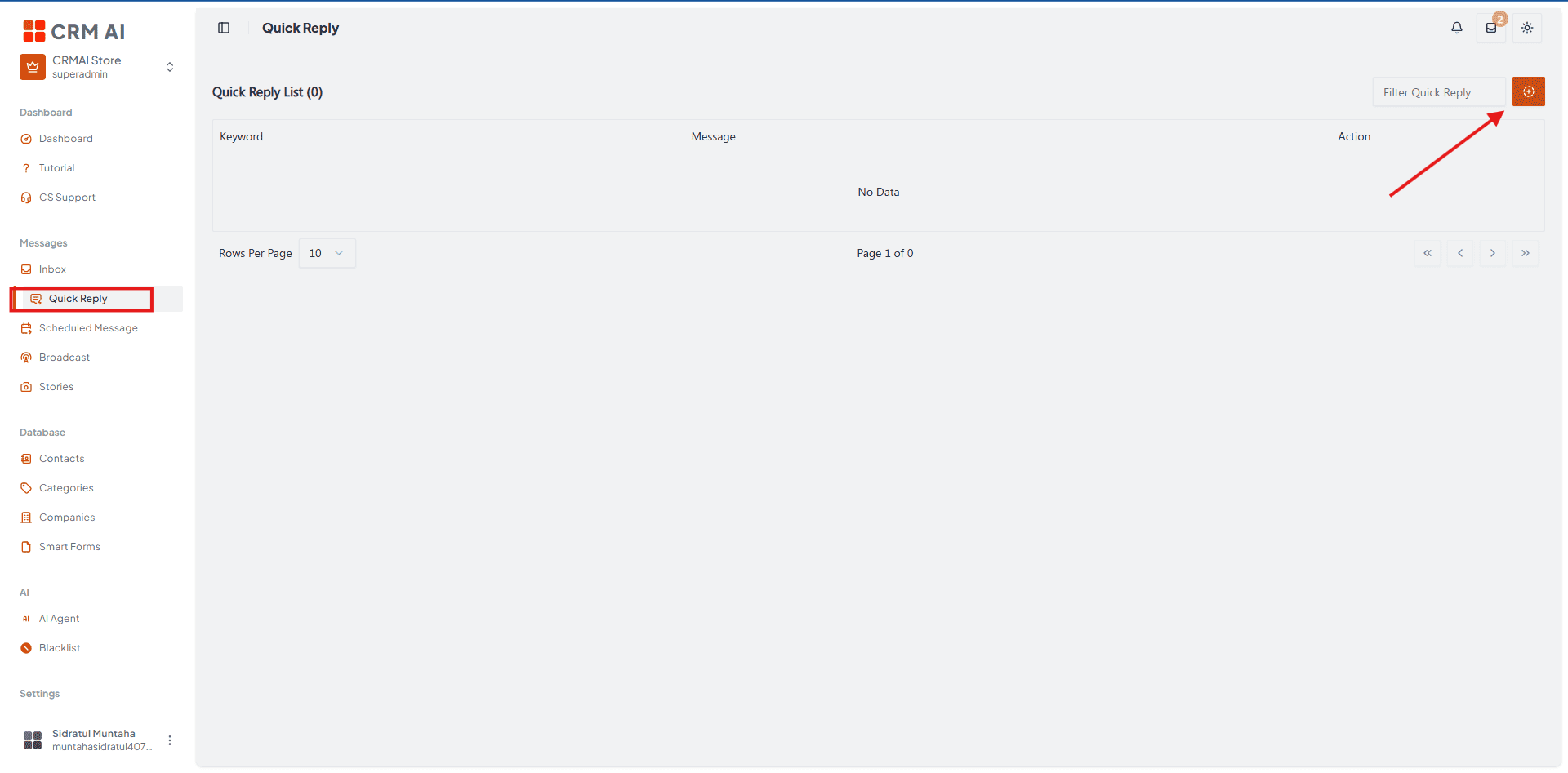
Click the button in the top right corner to open the creation pop-up (Configuration).
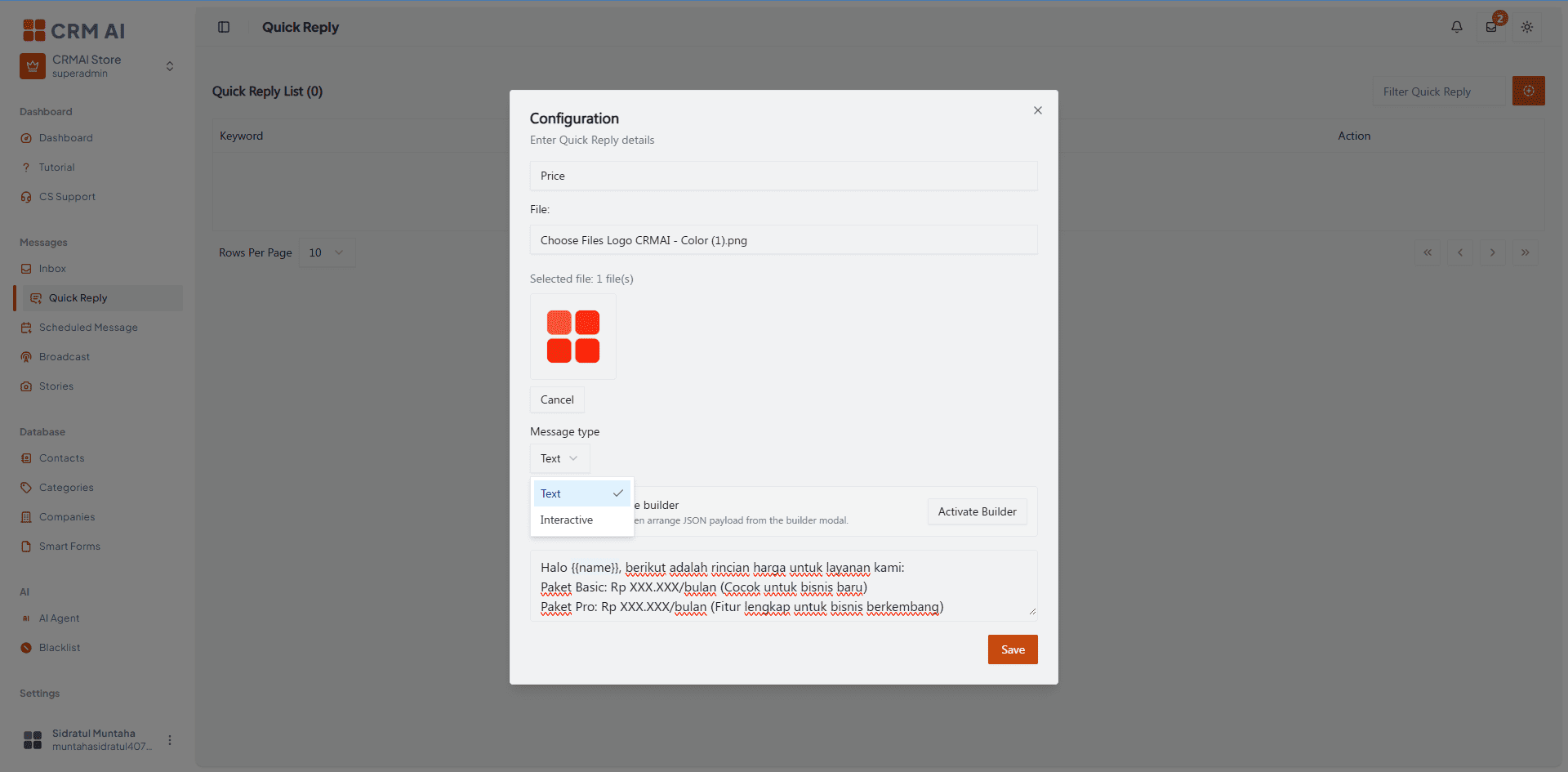
Enter your desired Keyword (e.g., Price).
To attach an image or file, click Choose File in the File section.
Select the Message type:
Text: Enter your complete Quick Answer message directly in the "Write your message here..." text field.
Interactive: Click the "Activate Builder" button to arrange the JSON payload for interactive elements (like buttons or lists). For complete instructions on how to build and configure interactive payloads, please refer to: Interactive Message
Click Save to store the template — it will appear automatically in the Quick Answer table.
To use it in a chat: type
/ + (your keyword)on mobile or desktop within the Inbox composer.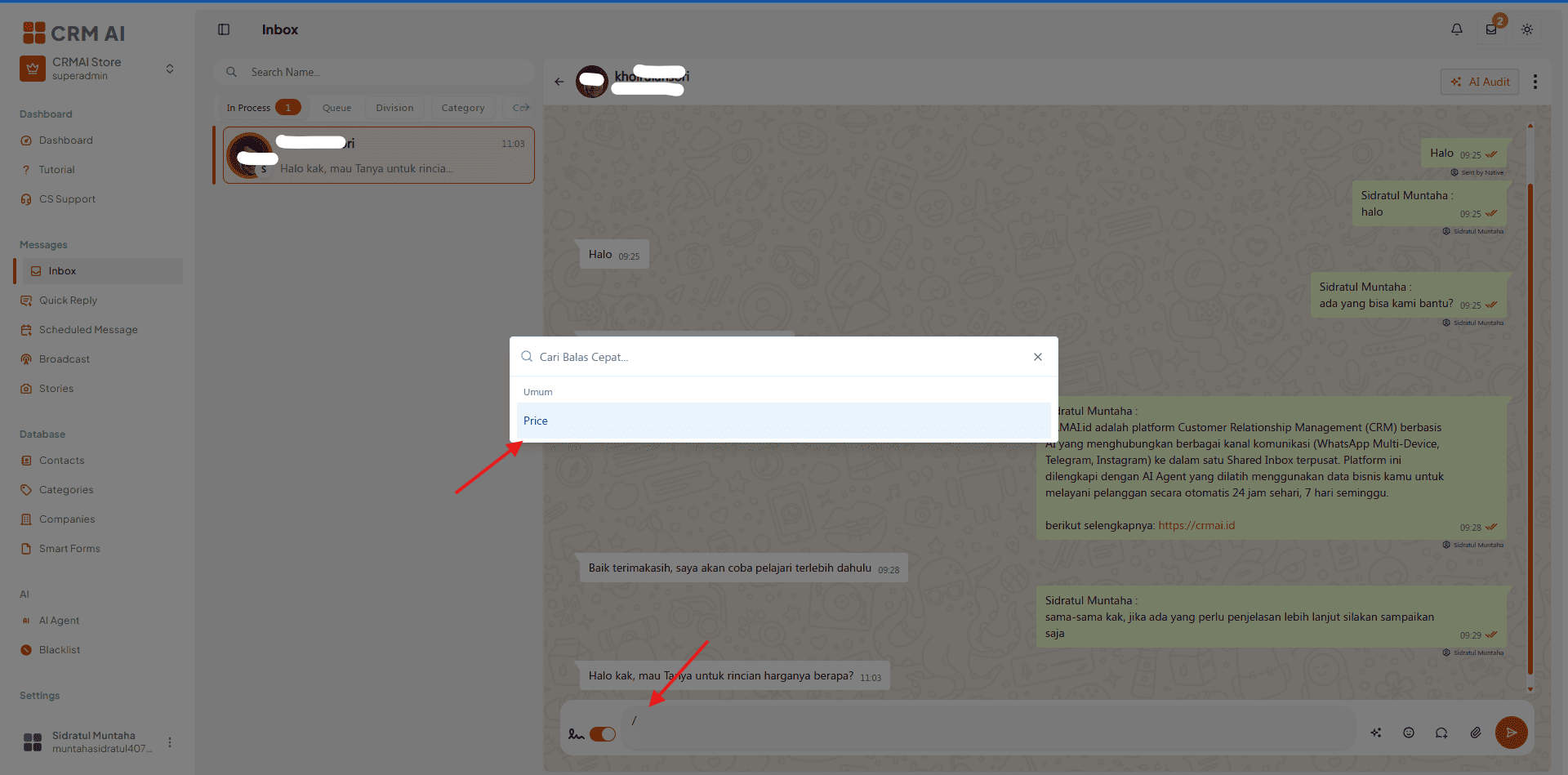
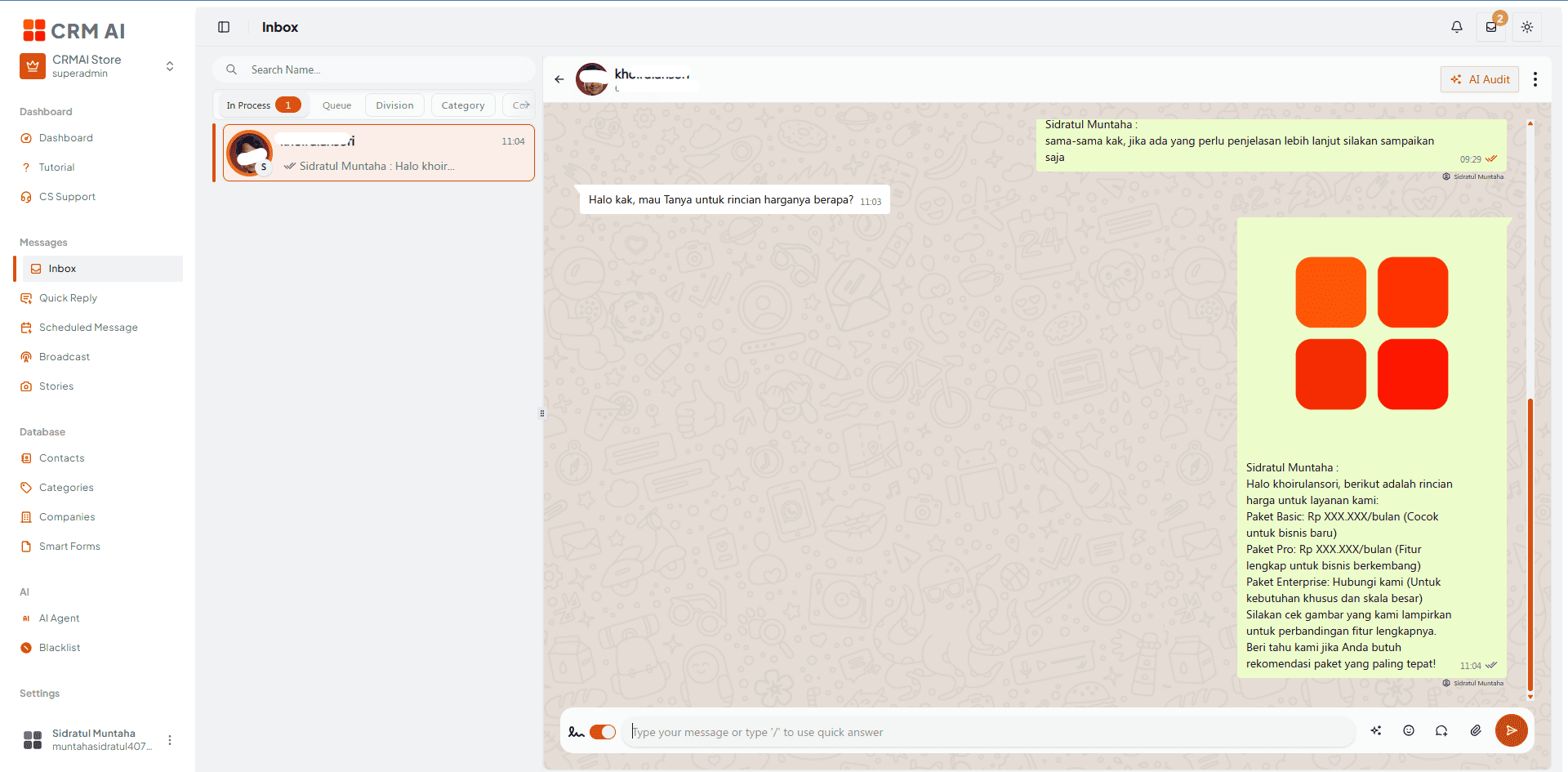
💡 Pro tip: use Quick Answers to instantly send product catalogs, product images, or lengthy standard operating procedures (SOPs) that would otherwise require long descriptions typed out each time.
Using variables
The message editor supports customer variables in the {{variable}} format. Available values include name, nickname, pronouns, lifecycle, gender, maritalStatus, jobTitle, age, birthDate, company, and hasAgent. Type {{ to open the variable selector.
Troubleshooting
If the feature is unavailable, ask an administrator to check the plan feature gate.
If a shortcut can't be saved, check that both the shortcut and message are filled in.
If media isn't shown, verify the upload completed and is still available.