 CRMAI Docs
Interactive Messages
Purpose
Interactive messages eliminate the need for clients to manually type their answers, significantly increasing response rates.
Message types
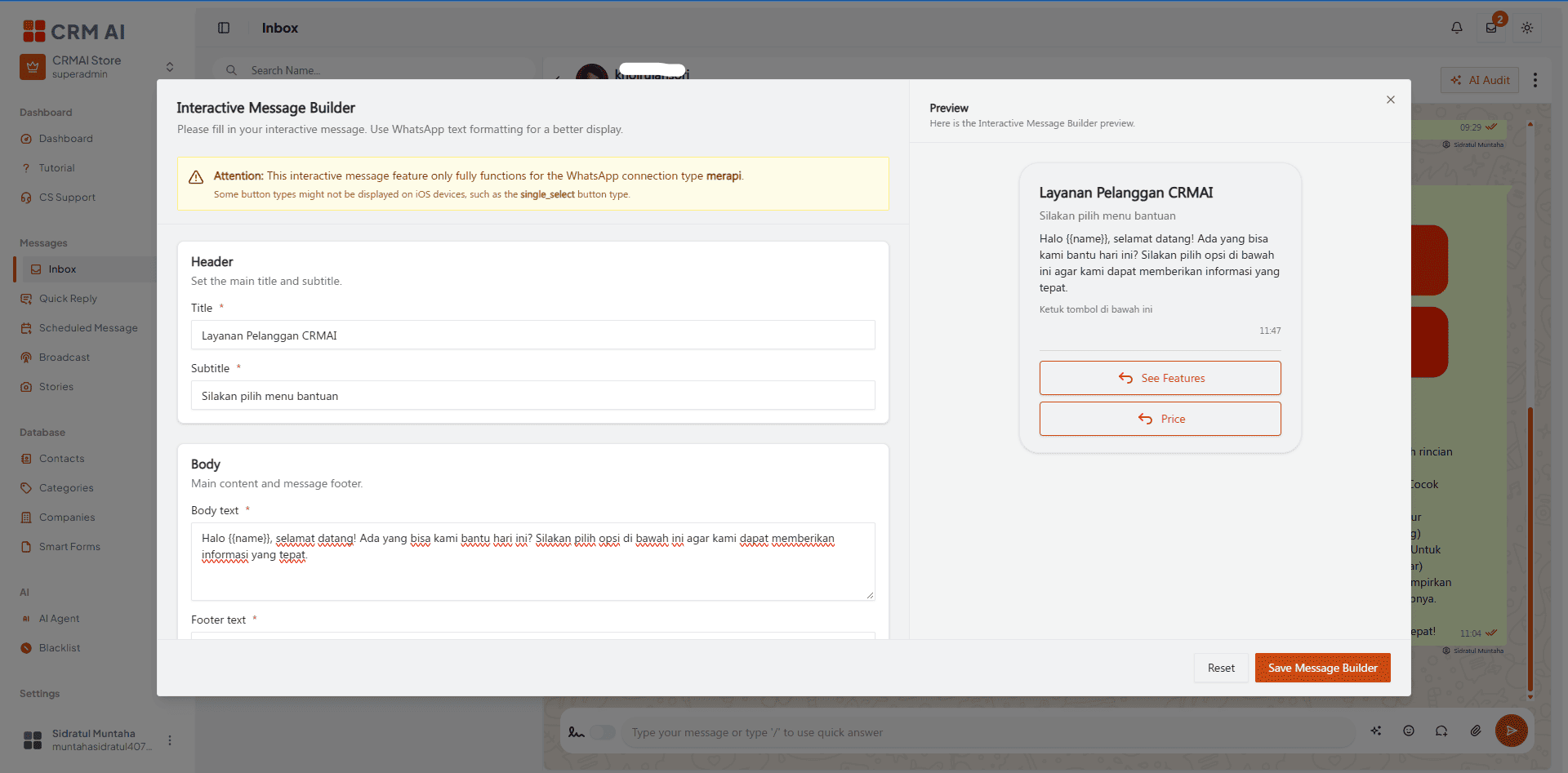
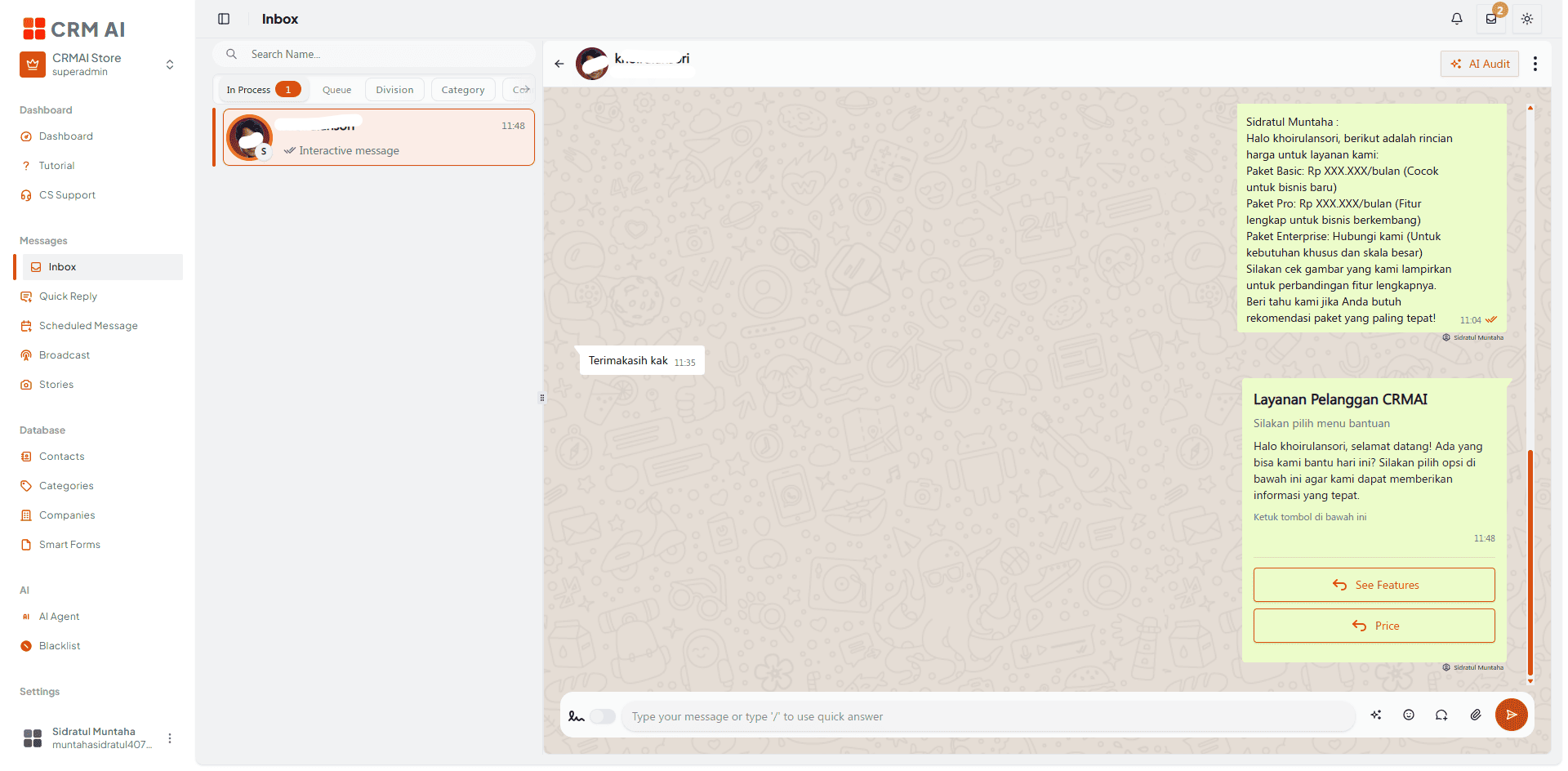
Interactive Buttons — send a message with up to 3 quick-reply buttons (e.g., View Product, Talk to Agent, Store Location). When a user taps a button, it registers as a text reply in your Inbox.
List Menus — send a structured dropdown menu, ideal for displaying a larger variety of choices, such as a list of services, pricing tiers, or FAQ topics.
How to send an interactive message
Open the Composer Bar in the Shared Inbox.
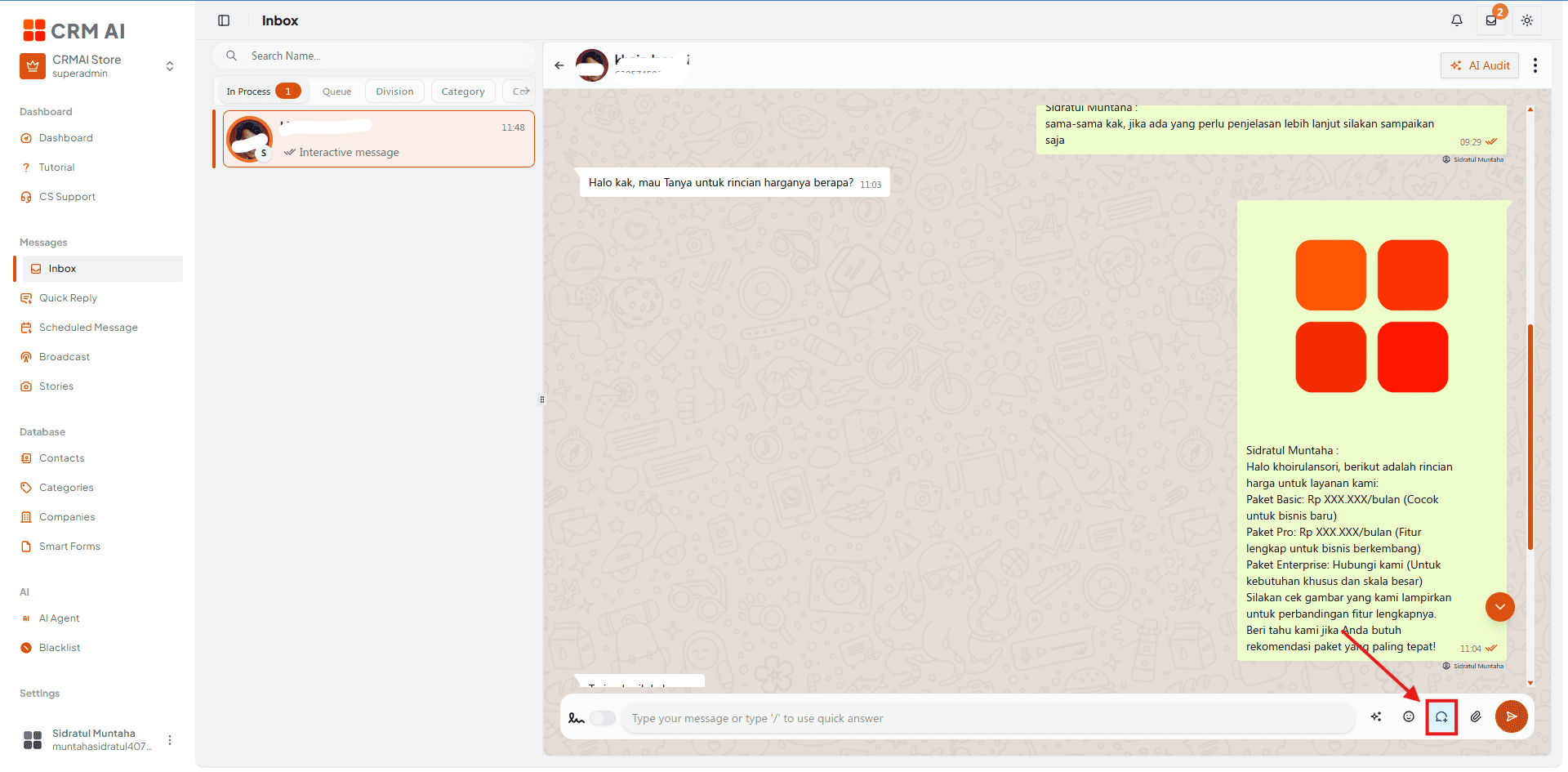
Select the Interactive icon.
Define your header, body text, and button/list labels.
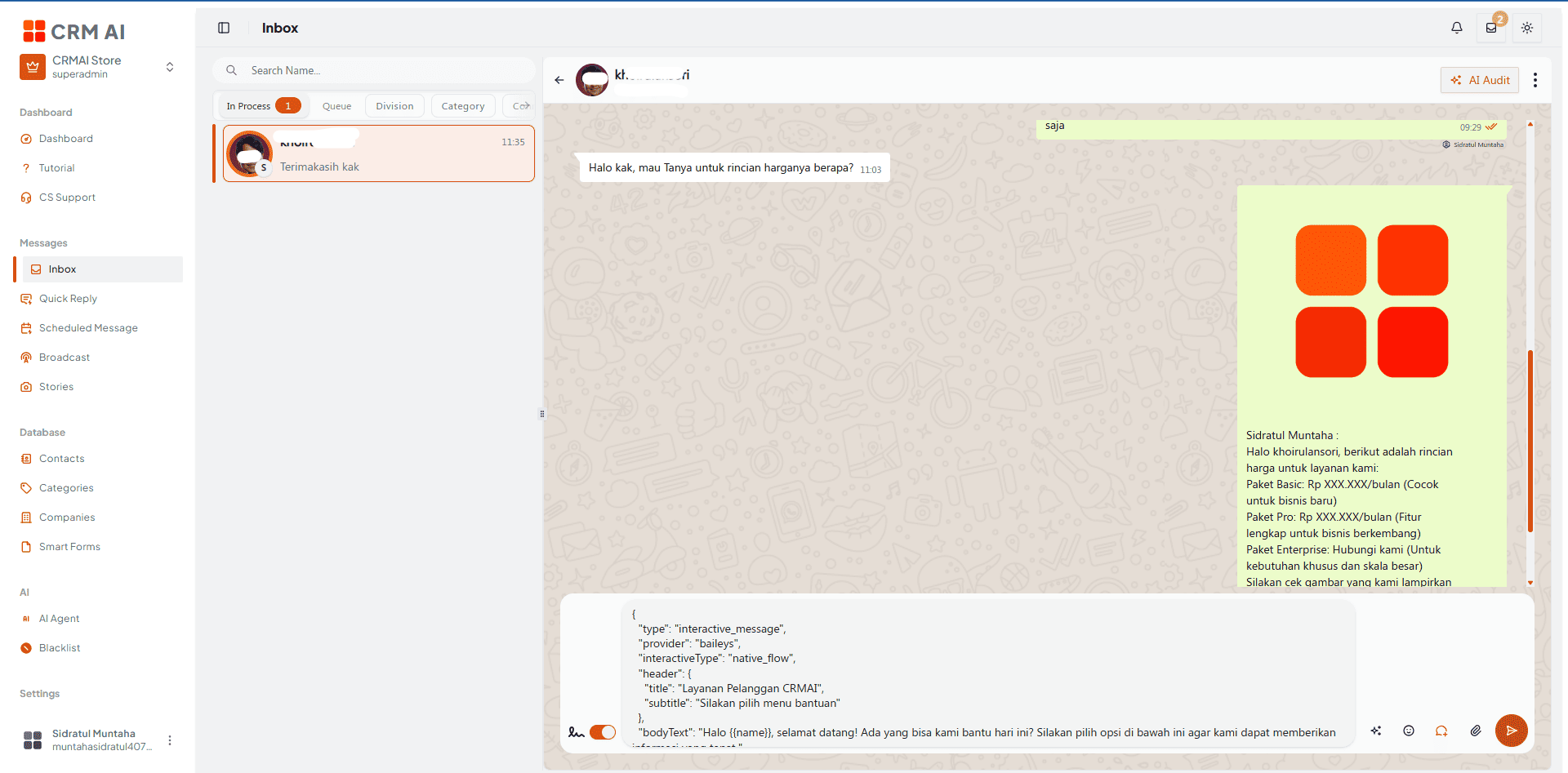
Send.
Where else this is available
Beyond the Inbox composer, the interactive message builder is also available in:
Connections: greeting, farewell, and away messages.
Quick Answer.
Broadcast.
Supported provider behavior
Interactive behavior is enabled for Telegram and for WhatsApp using the Merapi provider. If the selected connection doesn't support interactive messages, the editor returns to text mode and extracts the interactive body text.
Interactive payload capabilities can vary by provider and channel. Test the final message with a controlled recipient before sending to a wide audience.
Limitations
Interactive messages aren't universally available for every channel/provider.
Changing from interactive mode to text mode may preserve only the interactive body text.