 CRMAI Docs
Birthday Automation
Purpose
Automatically nurture customer relationships by sending personalized birthday wishes.
Access
Dashboard:
/{locale}/dashboard/birthday
Setup
Ensure your clients have a Date of Birth saved in the Contacts database.
Go to the Birthday menu and toggle the automation to Active.
Draft a greeting template using dynamic variables (e.g., "Happy Birthday {{name}}! Enjoy a 10% discount today.").
Define the sending time (e.g., 08:00 AM). The system checks the database daily and sends the message to matching contacts.
How birthday detection works
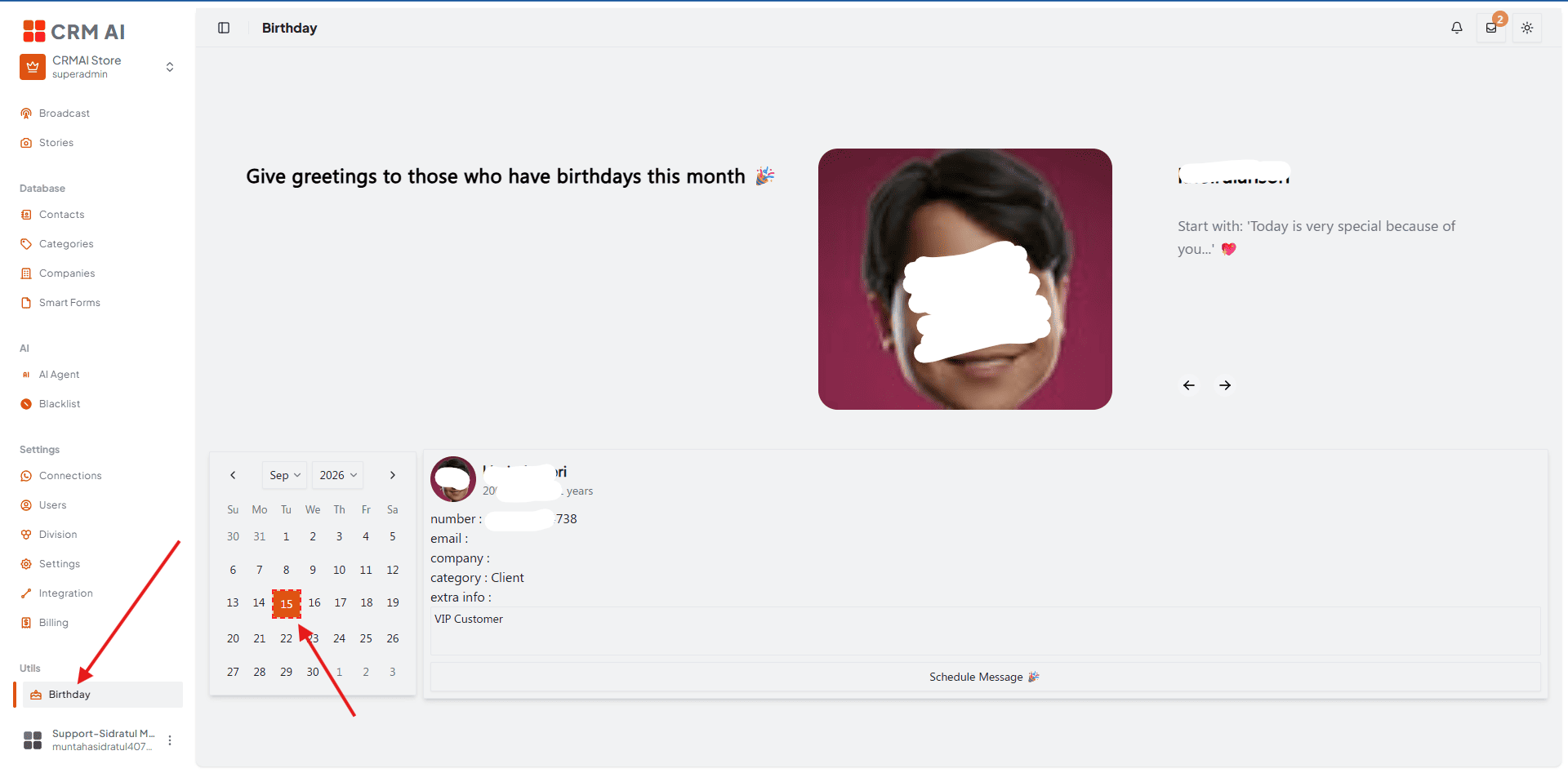
The page filters customer records by the selected month and marks calendar dates that match a customer's stored birth date. Selecting a date shows the matching contact's profile — name, birth date, age, primary identifier/phone, email identity, company, categories/tags, extra information, and notes.
A contact must have a stored birth date and a usable primary identity for the scheduling action.
Schedule a birthday message manually
Open Birthday.
Select the relevant month and day in the calendar.
Review the customer card.
Click Schedule.
Select the sender connection.
Optionally attach one media file.
Edit the birthday message.
Click the send/schedule action.
Confirm the success notification.
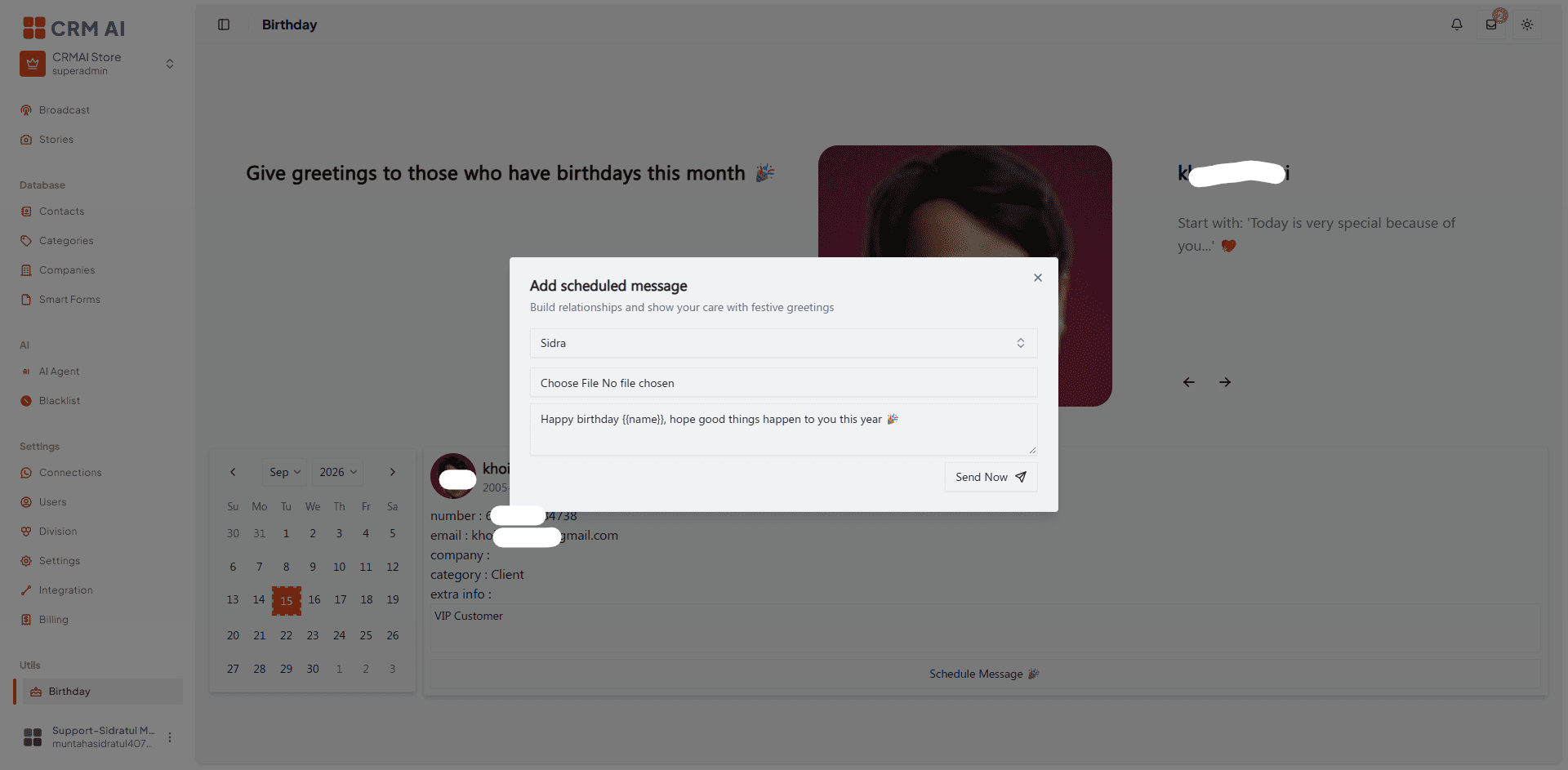
Only the selected contact's first/primary identity is used. The workflow creates a scheduled-message request at midnight for the selected date using the browser timezone offset.
Troubleshooting
If a birthday isn't visible, check that the customer has a valid birth date.
If scheduling is unavailable, check that the customer has a primary identity.
If no sender appears, configure a connection first.
If the scheduled date is off by one day, verify the browser timezone.