 CRMAI Docs
Stories
Stories let you create and publish short status updates (text or image) from the CRMAI dashboard directly to your active channel connections, then track publication status from a single page.
Prerequisites
Feature access: Stories requires feature access on your workspace. If the page shows a feature-locked notice, contact your workspace administrator or check Billing for your plan and feature limits.
Active connection: at least one channel connection must be active before you can create a Story. Available connections appear in the Select Channel field.
Access
Log in to CRMAI and select the correct workspace.
Open the Messages menu in the sidebar → select Stories.
Page URL: /{locale}/dashboard/stories
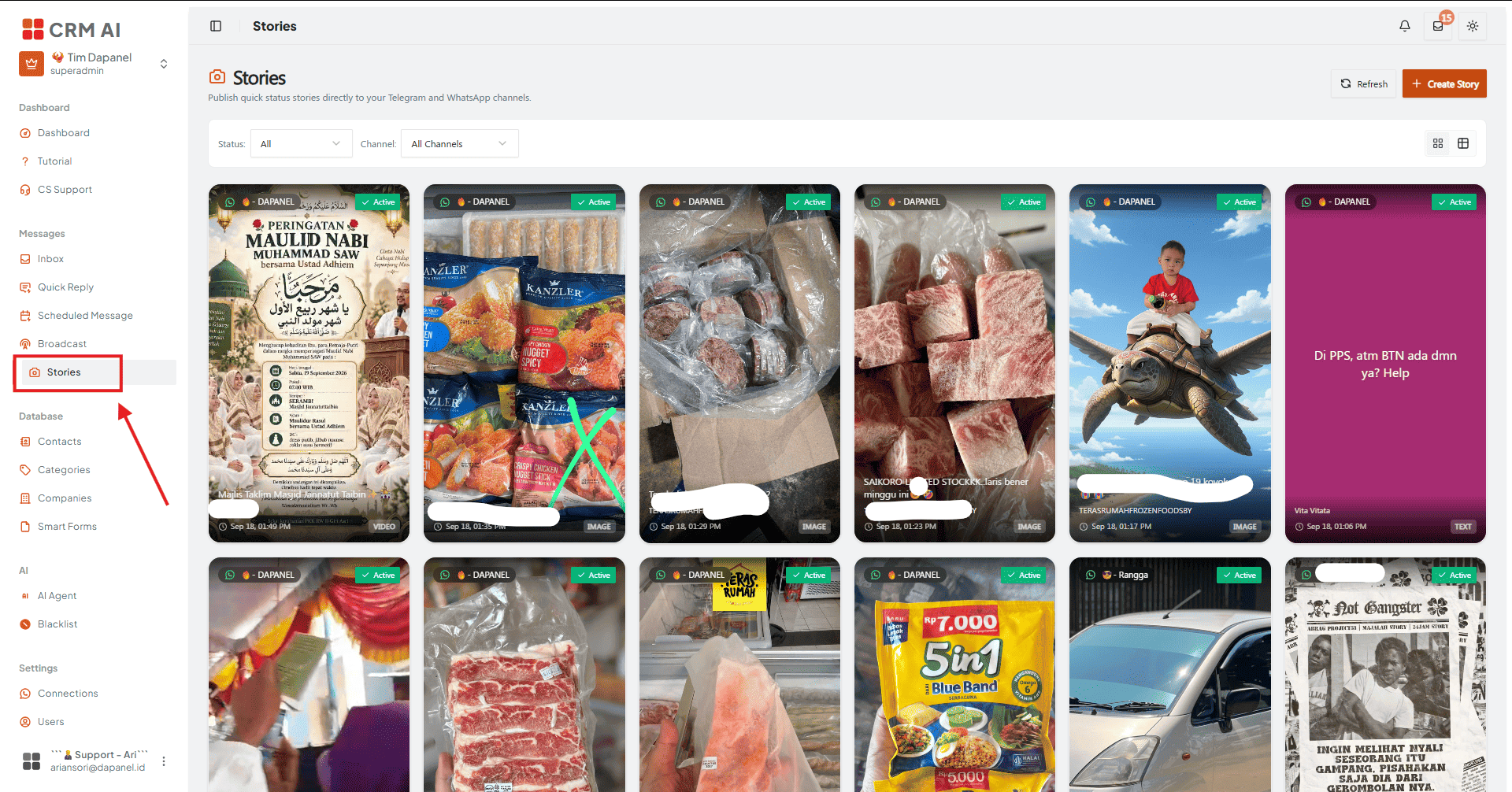
Stories Page Functions
Function | Description |
|---|---|
Create Story | Opens the form for creating and publishing a new Story. |
Refresh | Reloads the latest Story list. |
Status filter | Filters Stories by publication status. |
Channel filter | Filters Stories from a specific connection. |
Grid / Table view | Switches between vertical preview cards and a compact table. |
Pagination | Moves between pages when the number of Stories exceeds the current list. |
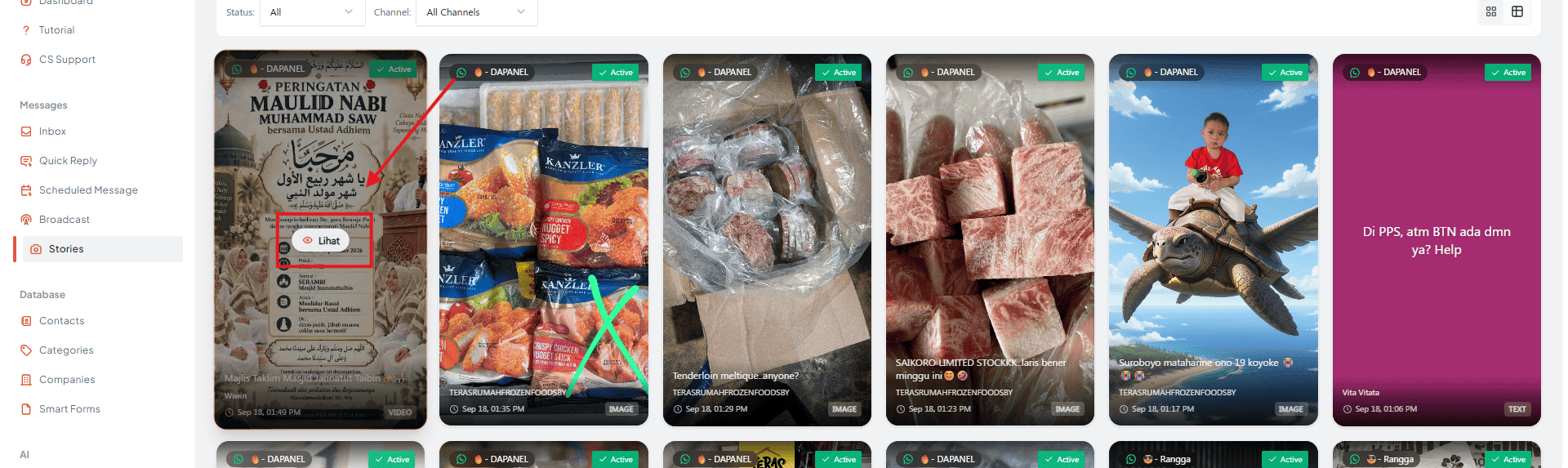
Click any Story card or row to open Story Detail.
Creating a Story
Click Create Story.

Select Channel — choose a WhatsApp, Telegram, or other connection available in the workspace. If a default connection exists, it's auto-selected. Only connections already configured on the Connections page appear here.
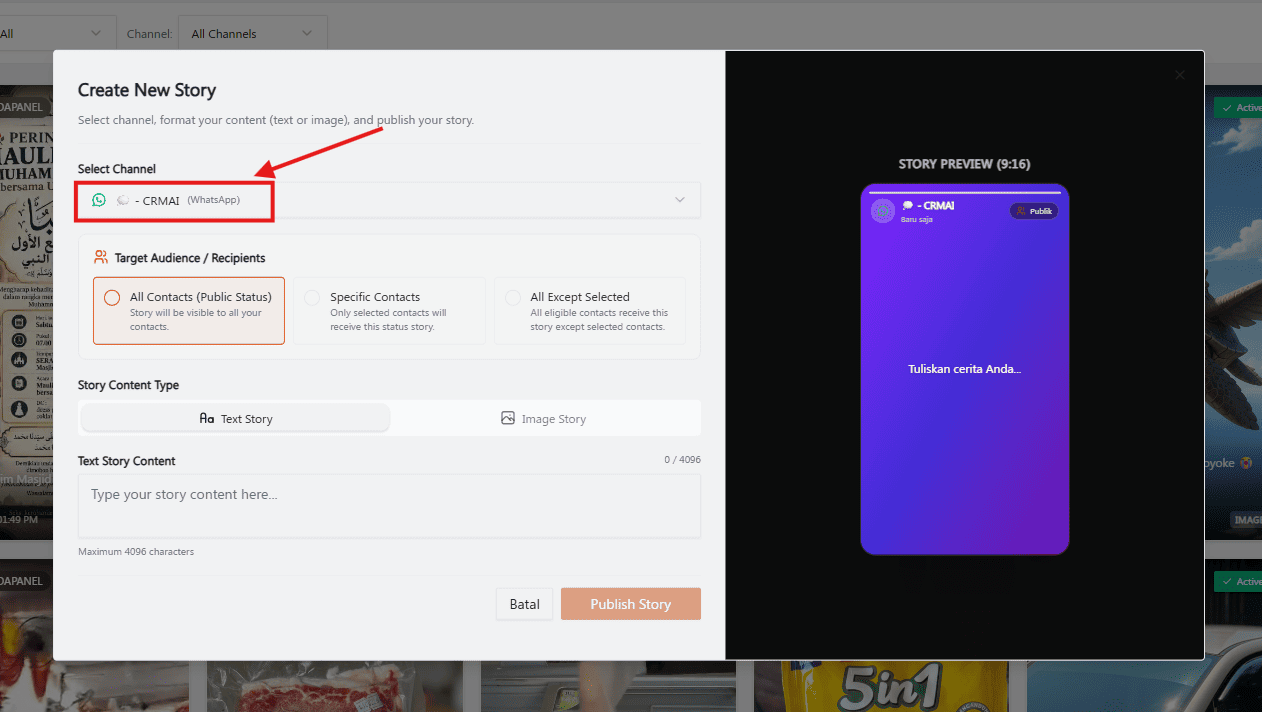
Choose the target audience:
Option
Behavior
All Contacts (Public Status)
Default — the Story goes to all eligible contacts on that channel.
Select Specific Contacts
The Story only goes to the selected contacts. Available for WhatsApp connections that support contact targeting.
All Except Selected
The Story goes to all eligible contacts except the ones selected. Available for WhatsApp connections that support contact targeting.
For contact-based modes: search by name/number, check the needed contacts, use Select All/Clear Selection as needed, and make sure at least one contact is selected. Group contacts and identities without a valid identifier won't appear as recipients. If the selected connection doesn't support contact targeting, both contact-based options are disabled automatically and the audience reverts to All Contacts.
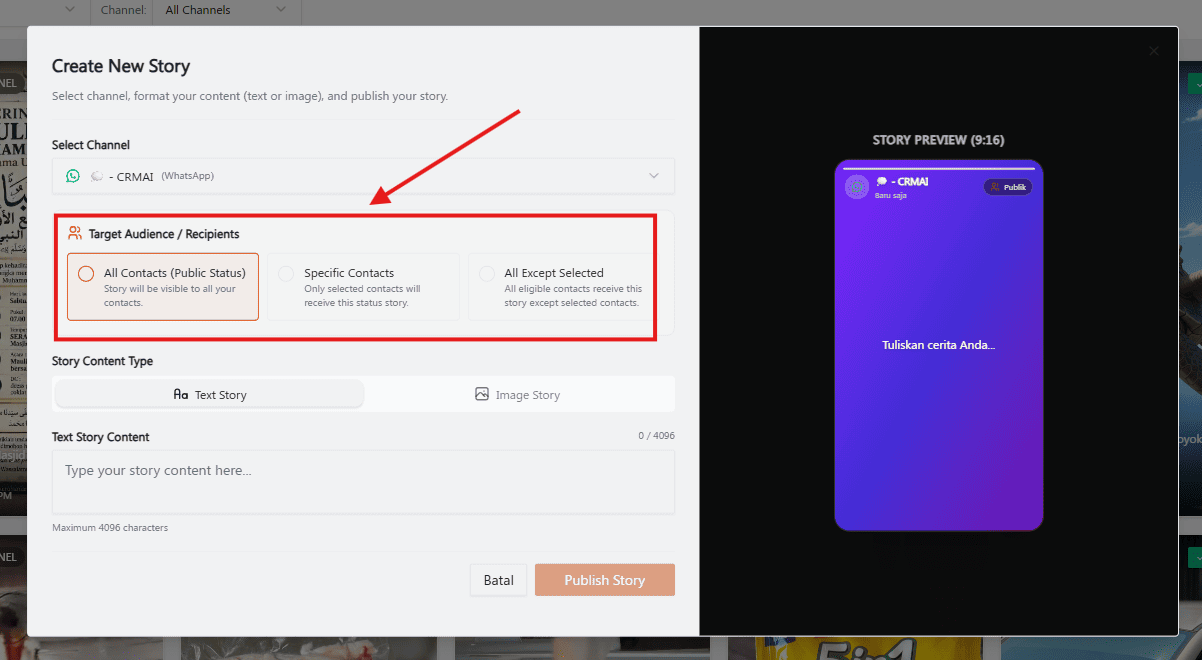
Choose the content format:
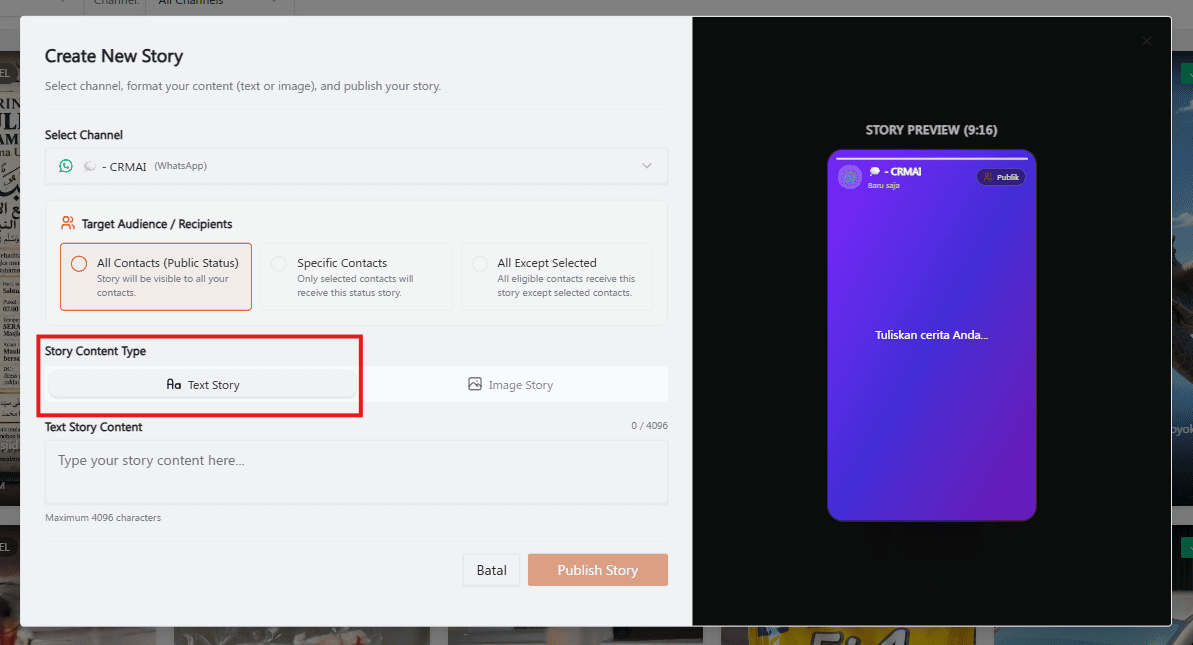
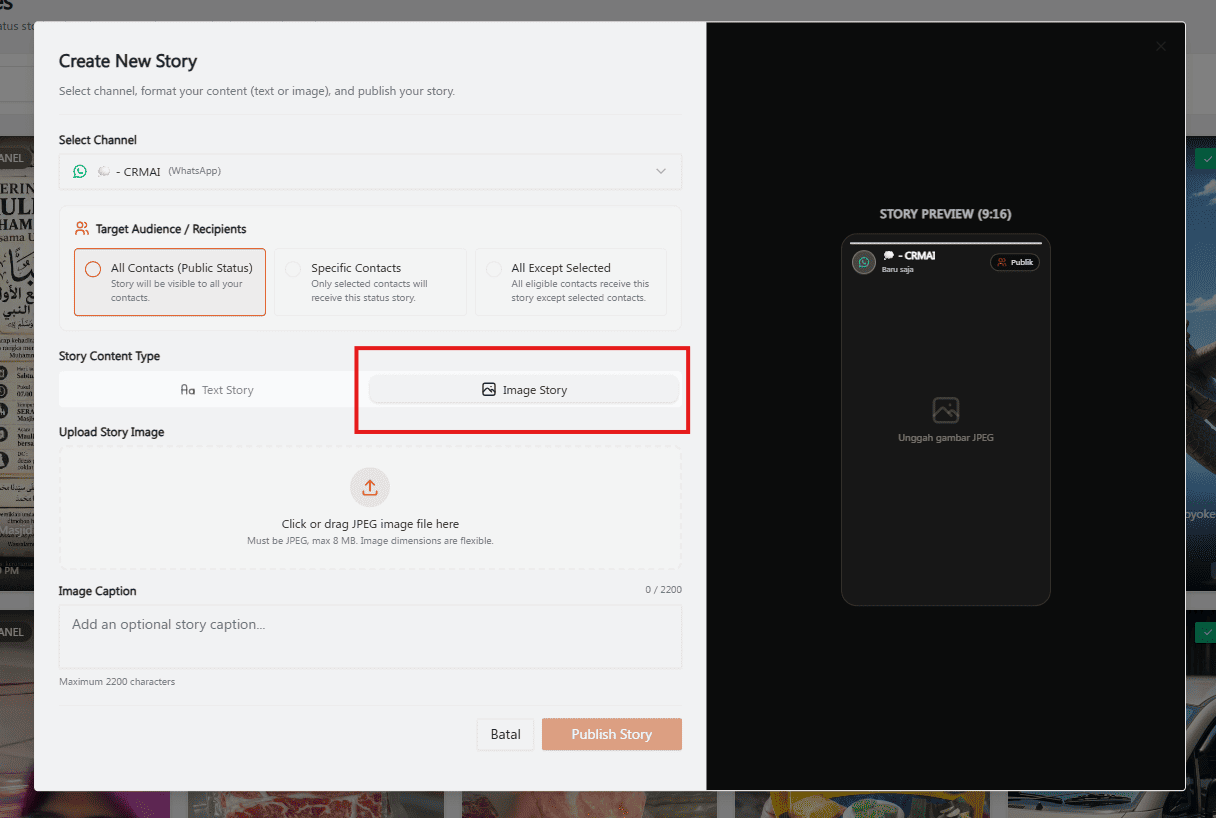
Text Story — fill in the Text Story Content field, up to 4,096 characters, cannot be empty.
Image Story — upload a JPEG/JPG file up to 8 MB, with an optional Image Caption up to 2,200 characters.
Telegram and Instagram only support the image format; the Text Story option isn't available for either. Files that aren't JPEG/JPG, or exceed 8 MB, are rejected before publishing.
Telegram only — set the Story Duration: 6 Hours / 12 Hours / 24 Hours (default) / 48 Hours. This setting only appears for Telegram connections, and the expiry time can also be checked later in the Story's detail view.
Review the result in Story Preview, then click Publish Story.
The "Story received and is being processed" notification only means the request has been queued — it doesn't mean the Story is live yet. Wait until the status changes to Published.
Story Status
Status | Meaning |
|---|---|
Pending | Created but not yet processing. |
Processing | Being sent/processed by the channel. |
Published | Successfully live. |
Active | Still active on channels that support this status. |
Failed | Publication failed — check the error code in the Story detail. |
Cancelled | The process was cancelled. |
Deleted | Removed via the delete action. |
Unknown | Status couldn't be determined from the channel's response. |
Story Detail & Deletion
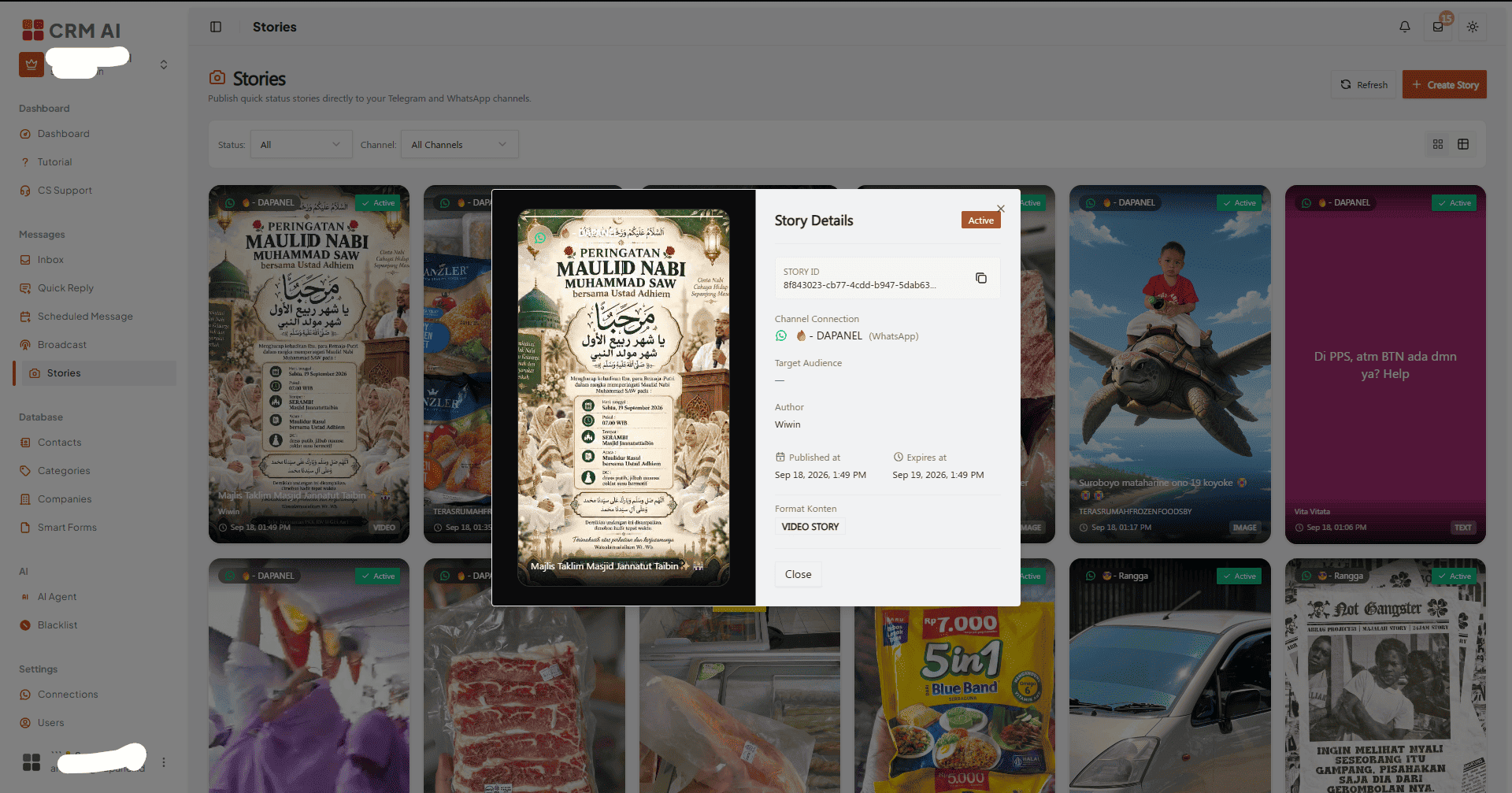
Click any Story card or row to open Story Detail, which includes: a vertical preview, status, Story ID (copyable), channel connection, target audience, publish/creation time, expiry time, content format, and error code (if failed). For image Stories, the caption appears below the preview; for text Stories, the text content appears on the preview background.
To delete: use the delete action on the card, or click Delete Story in the detail dialog, then confirm. Deletion is permanent — double-check the ID or content before confirming.
Troubleshooting
Issue | Solution |
|---|---|
No connections in the channel selector | Confirm a connection is created and active on the Connections page for the selected workspace, then click Refresh. |
Stories button/page is locked | Access is controlled by the Broadcast feature capability on the workspace — ask your administrator to check the plan, limits, or configuration. |
Image file rejected | Confirm the file is a genuine JPEG/JPG (not just a renamed extension) and no larger than 8 MB. |
An old Story is stuck at Processing | Publishing is asynchronous — wait briefly, then click Refresh. Check the error code in the Story detail. If it still doesn't change, note the Story ID, connection, creation time, and last status before contacting support. |
Publication failed | Confirm the connection is still active, re-check the content format and target audience, then note the Error Code in the Story detail. Don't resend immediately before knowing the cause, to avoid creating duplicate Stories. |
Contact targeting can't be selected | Contact targeting is only available on WhatsApp connections that support it — use All Contacts or switch to a supported WhatsApp connection. |
Recommended Practices
Get images and captions approved before publishing.
Double-check the channel connection so Stories aren't sent from the wrong account.
Match the target audience to the communication's purpose.
Monitor status until it reaches Published.
Keep the Story ID and error code handy when requesting technical support.
Avoid putting personal data, tokens, passwords, or unnecessary customer information into Story content.
Quick Checklist
Messages → Stories → Create Story.
Select the channel connection and target audience.
Choose Text Story (≤4,096 characters) or Image Story (JPEG/JPG ≤8 MB, caption ≤2,200 characters).
Telegram only: set the story duration.
Click Publish Story, then monitor status until it reaches Published.
Only delete a Story after confirming it's the correct one.