 CRMAI Docs
Connections Overview
What is Connections?
Connections is the central place for managing the communication channels CRMAI uses to receive and send customer messages.
From this page, workspace users can:
Connect WhatsApp numbers.
Connect Telegram bots.
Connect Instagram Business or Creator accounts through Meta OAuth or manual credentials.
Assign a connection to one or more Divisions.
Mark a connection as the default sender.
Configure greeting, farewell, and away messages.
Attach media to automated messages.
Use text variables or interactive messages.
View the current connection status.
Open a WhatsApp QR code or pairing code when required.
Refresh, connect, disconnect, or log out a connection.
Fetch historical WhatsApp messages for supported providers.
Edit or delete an existing connection.
Important: The available options depend on the selected channel, provider, connection status, workspace configuration, and user permissions.
Accessing Connections
Sign in to CRMAI.
Open the workspace dashboard.
Open Connections from the navigation menu.
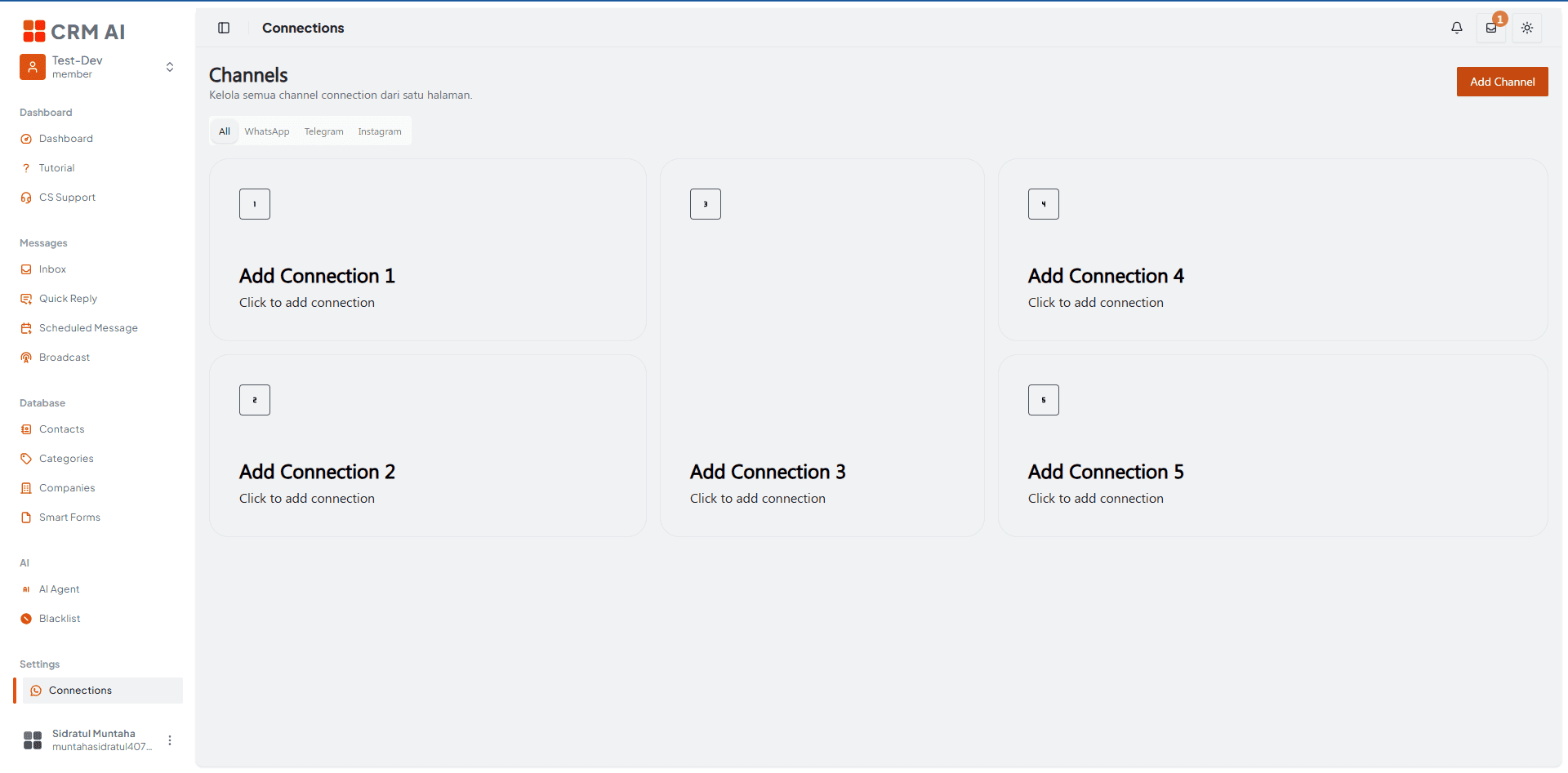
The page displays the Channels heading, channel filters, and the configured connection cards.
URL: /{locale}/dashboard/connections — example: /en/dashboard/connections
The
/connectionspath is also used as an Instagram OAuth callback route. After authentication, CRMAI redirects to the actual Connections page.
Required permissions
Permission | Purpose |
|---|---|
| Create a new channel connection. |
| Edit an existing connection or change its configuration. |
| Delete an existing connection. |
If you can't see or use a connection action, ask a workspace administrator to review your role and permissions.
Supported channels
The Connections page currently provides these channel filters:
All
WhatsApp
Telegram
Instagram
Channel comparison
Channel | Connection method | Credentials | QR/pairing code | Webhook-related fields |
|---|---|---|---|---|
Merapi or Merbabu | No manual credential fields | QR code or pairing code | Not shown in the WhatsApp setup form | |
Telegram | Telegram Bot | Bot token and webhook secret | Not used | Optional webhook URL |
Instagram Meta | Page access token, IG user ID, optional App ID | Not used | Managed through Meta/OAuth integration |
Email is not currently available as a selectable channel in the Connections UI.
Connection cards
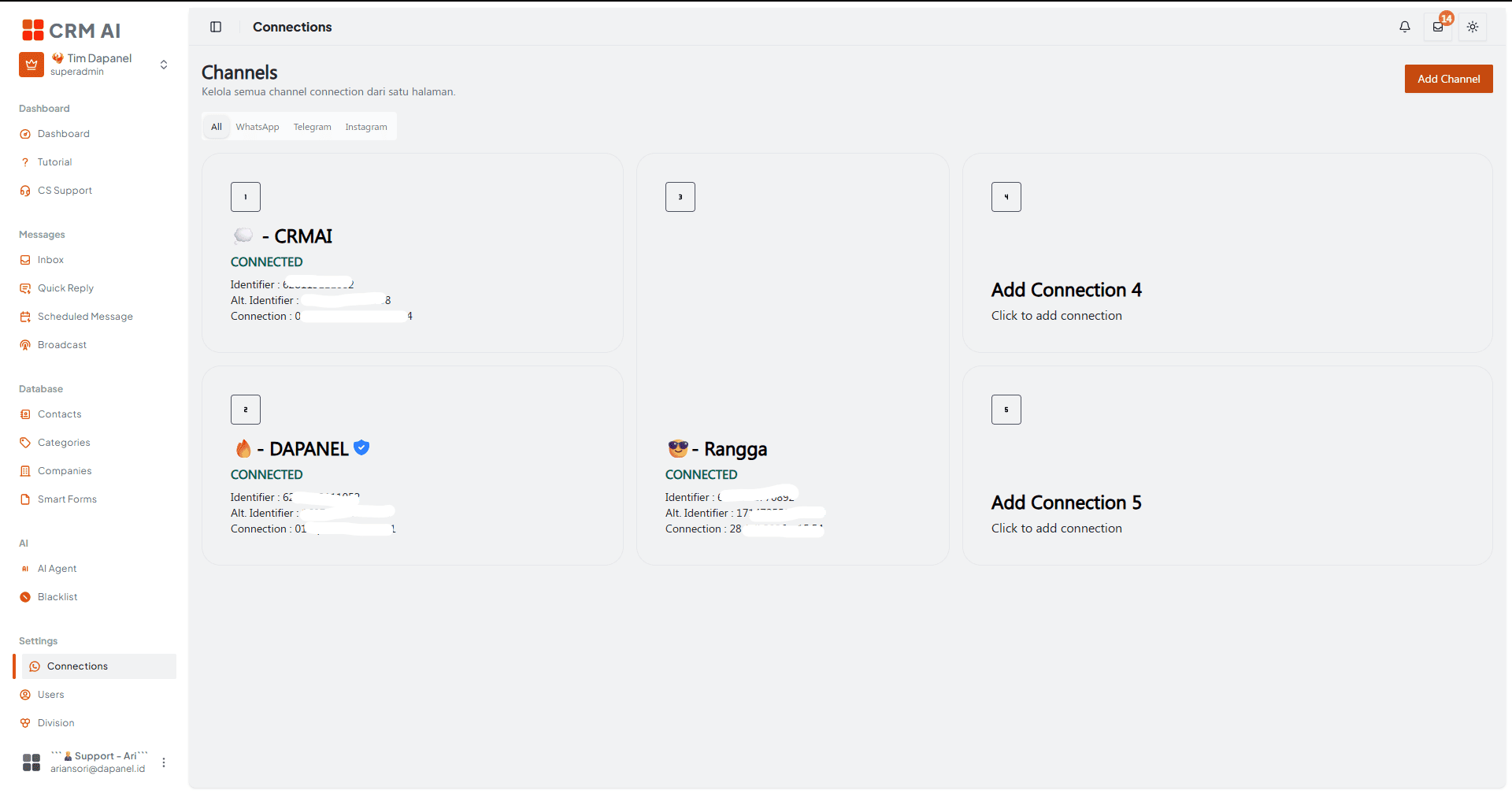
Each configured connection appears as a card, showing:
Connection name.
Channel icon or profile image.
Current status.
A shield icon when the connection is the default connection.
Connection identifier.
Alternate identifier.
Creation date.
A refresh/state button when the card is hovered or focused.
A QR code or pairing-code action when WhatsApp requires authentication.
Click the card to open the connection configuration dialog. Avoid clicking the refresh button when you intend to open the editor — refresh is a separate action.
Connection statuses
Status | Meaning |
|---|---|
| The channel is connected and available. |
| The channel is not currently connected. |
| The connection request is being processed. |
| The connection is waiting for QR-code authentication. |
| The connection encountered an error. |
A deployment may expose additional backend status values. If an unfamiliar value appears, use the state refresh action and contact your workspace administrator if the status doesn't change.
Common troubleshooting
Automated messages are not sent — review:
Whether the relevant section is enabled.
Whether the message text is not empty.
Whether the selected message type is supported by the provider.
Whether the schedule/timezone is correct.
Whether the recipient target includes the test customer.
Whether the cooldown prevents a repeat message.
Whether the connection is currently
CONNECTED.
A saved credential field is blank — credential fields are intentionally masked for existing connections. Enter replacement credentials only when you intend to update them. Leaving the fields unchanged preserves the stored credentials.
Messages aren't routed to the expected team
Open the connection configuration.
Review the selected target divisions.
Confirm that the intended division is selected.
Save the connection.
Test with a new message.
Security and operational recommendations
Treat bot tokens, access tokens, webhook secrets, and pairing codes as sensitive data.
Do not include real credentials in screenshots, documentation, tickets, or chat messages.
Use separate connections for separate business functions when teams, divisions, or reporting require clear separation.
Choose a single default connection per intended sending workflow.
Test greeting, farewell, away, and interactive messages before enabling them for all customers.
Use meaningful connection names so operators can identify the correct channel quickly.
Review the Delete related tickets? option carefully before deleting a connection.
Disconnect or log out a channel before changing authentication details when the UI disables those fields.
Use the least-privileged workspace role that still allows the required connection actions.