 CRMAI Docs
Telegram Setup
CRMAI connects to Telegram through a Telegram Bot. Customers message your bot, and the conversations appear in CRMAI.
Create a Telegram Bot connection
Click Add Channel.
Enter a Connection Name.
Select the target division(s).
Select Telegram as the channel, then Telegram Bot.
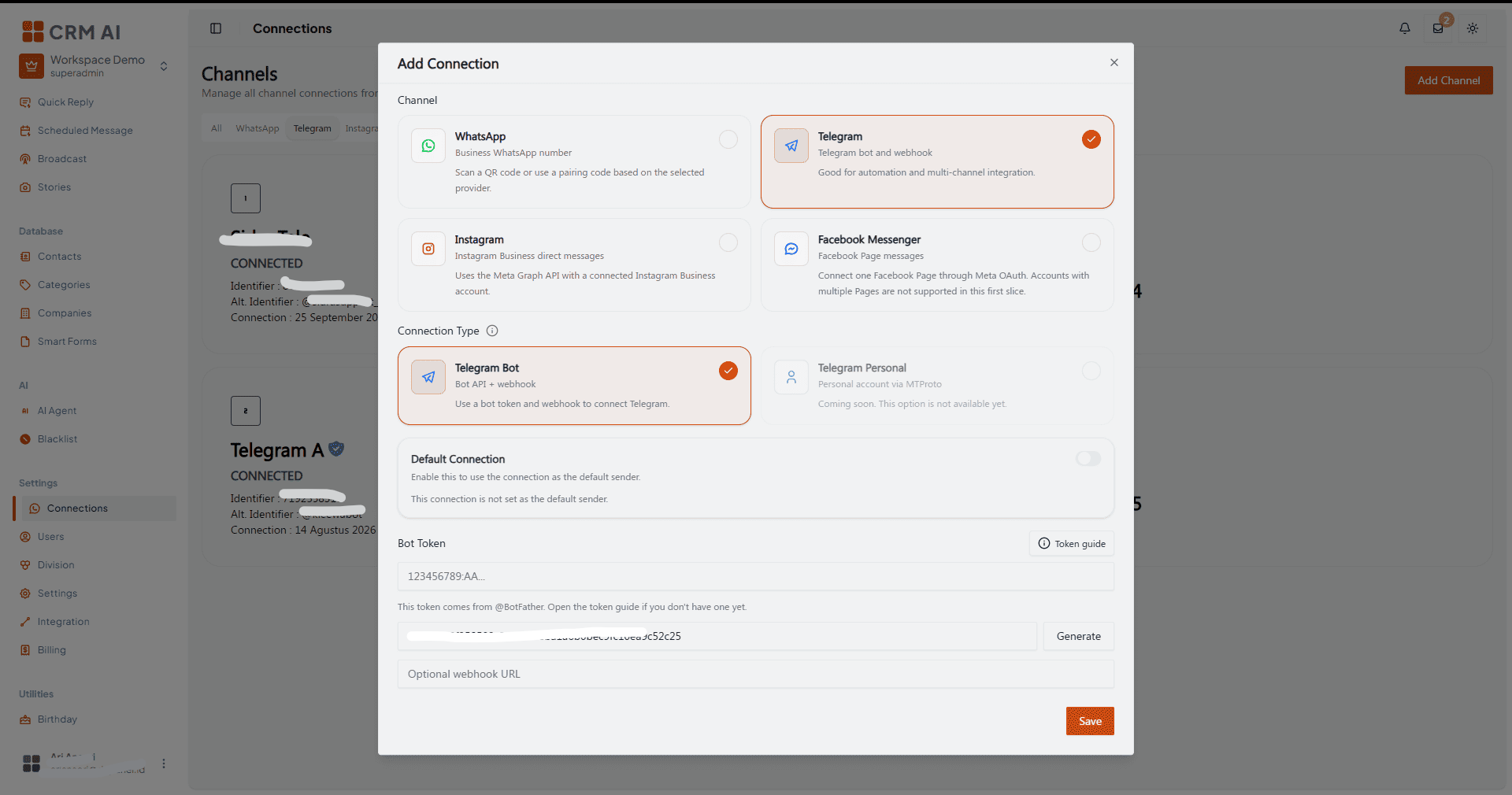
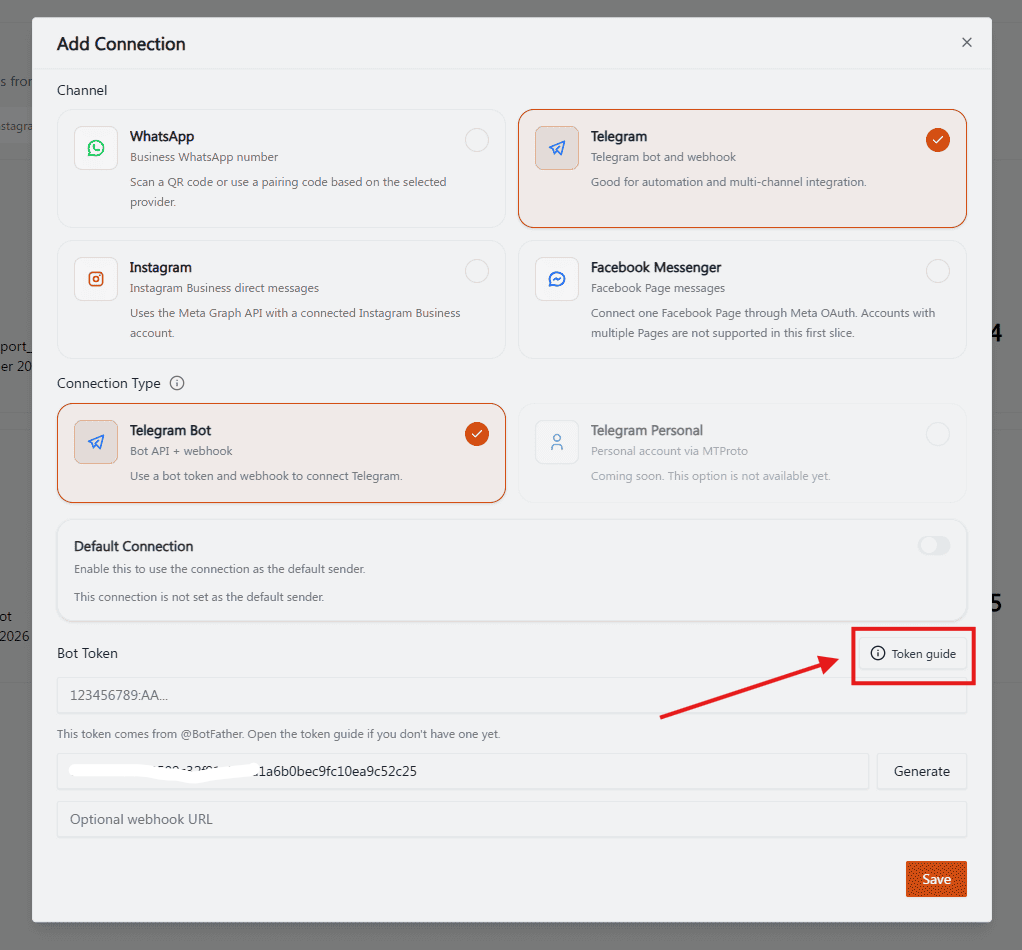
Enter the Bot Token (how to get one).
Enter the Webhook Secret (details).
Optionally enter a Webhook URL (details).
Set the common connection fields (default connection, greeting, farewell, and away messages).
Click Save.
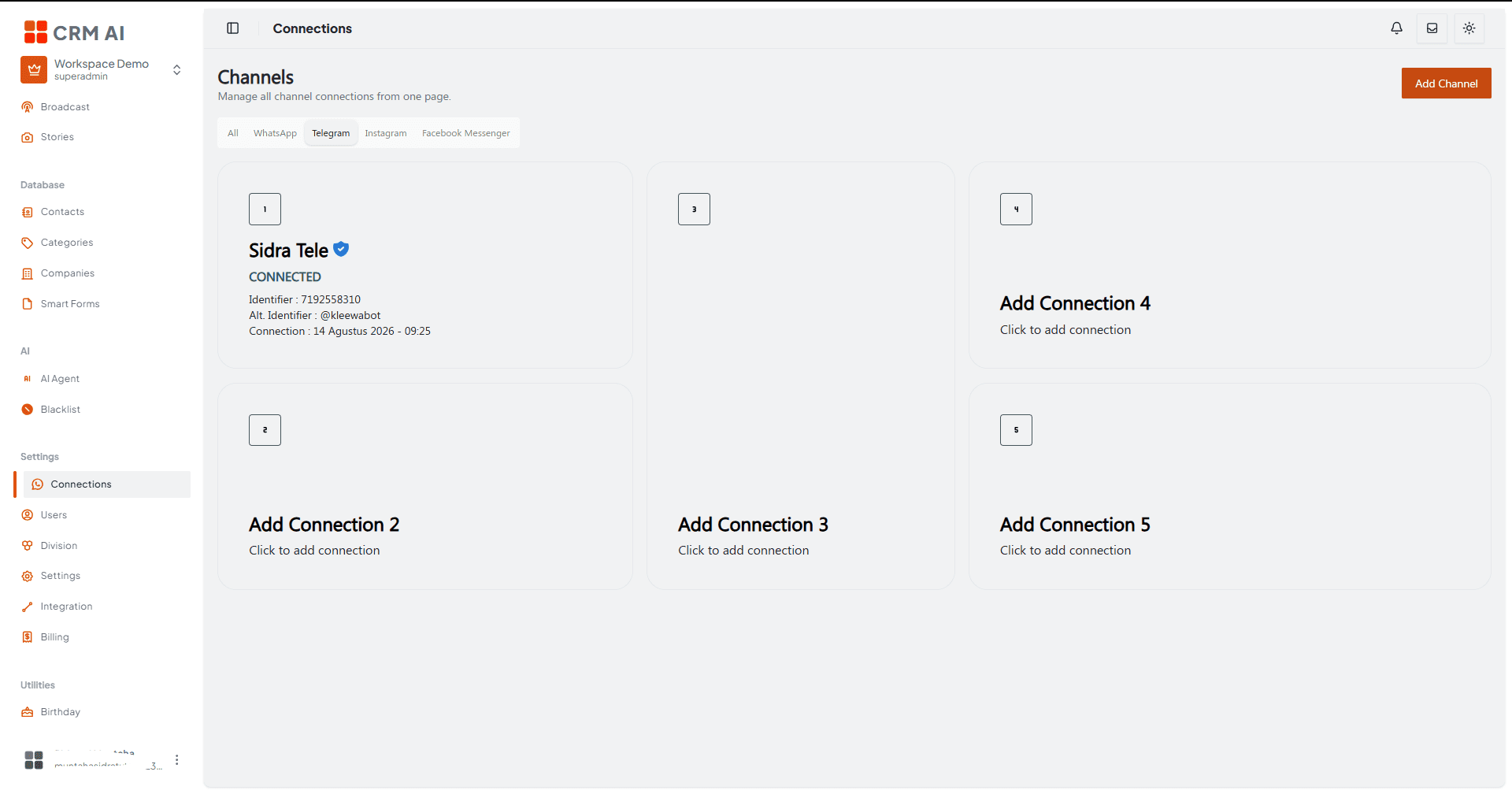
Both the Bot Token and the Webhook Secret are required for a new Telegram connection.
Get a Bot Token
Click the Token guide button in the form, or follow these steps:
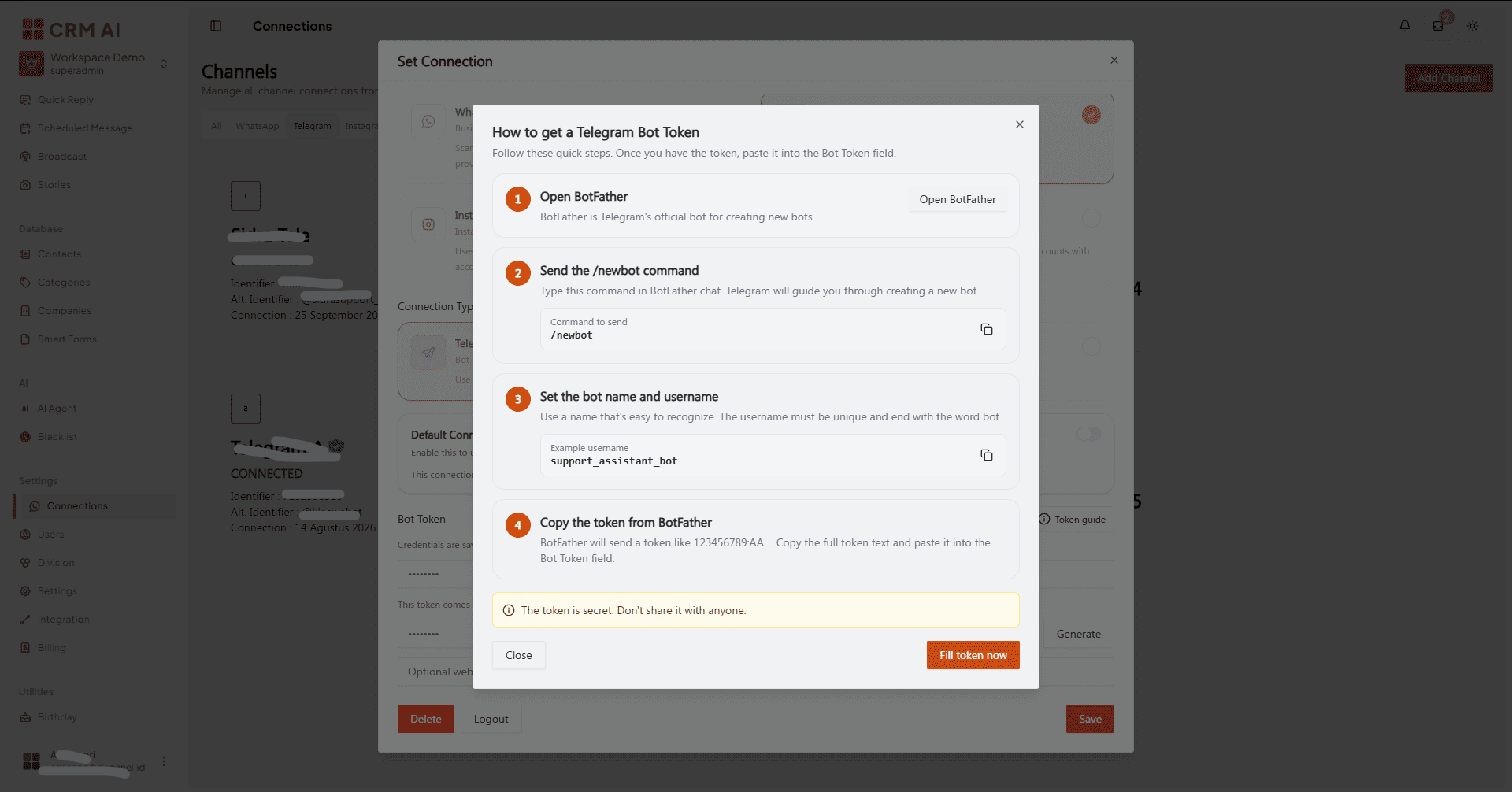
Open BotFather in Telegram.
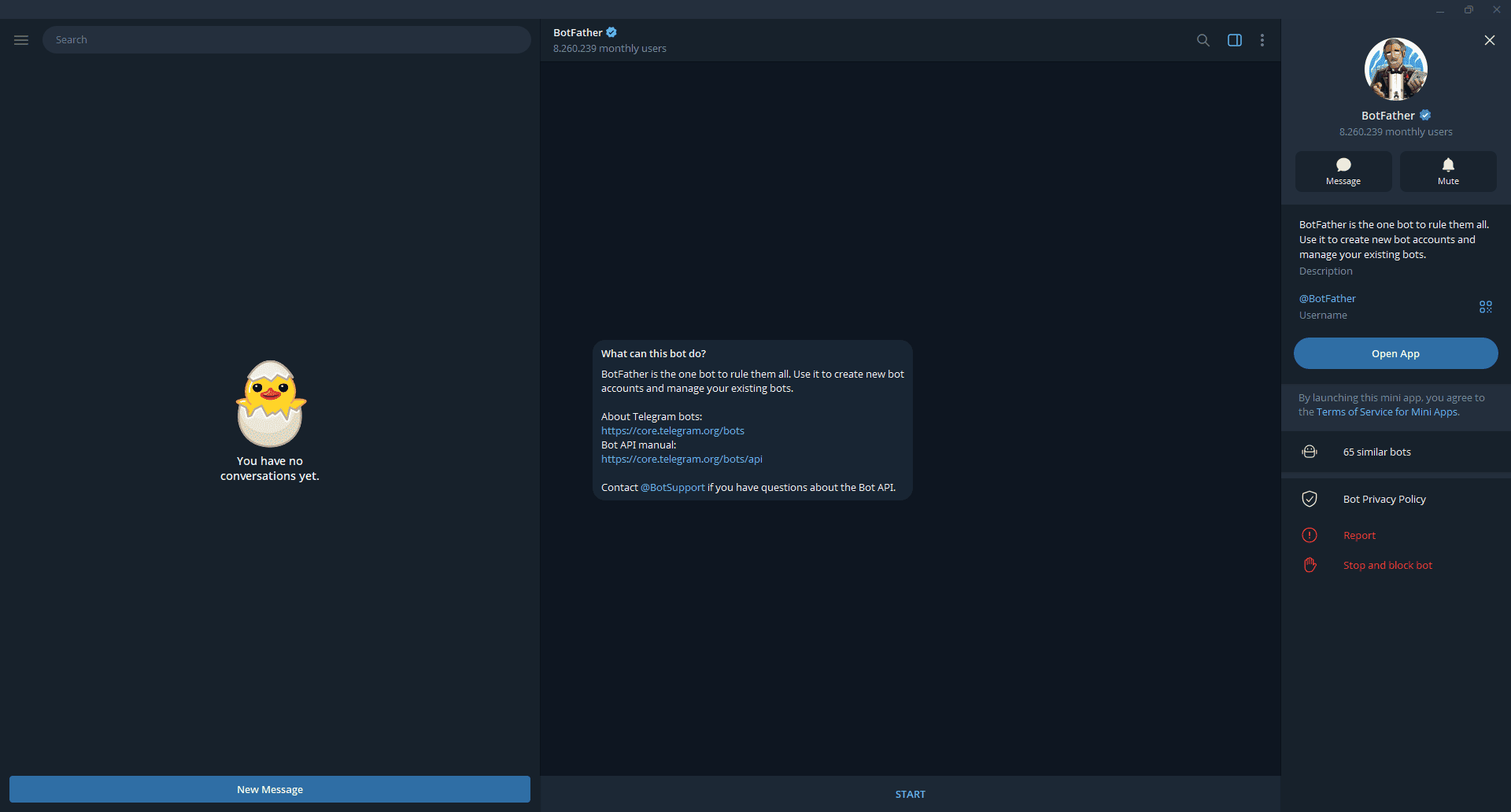
Send the
/newbotcommand.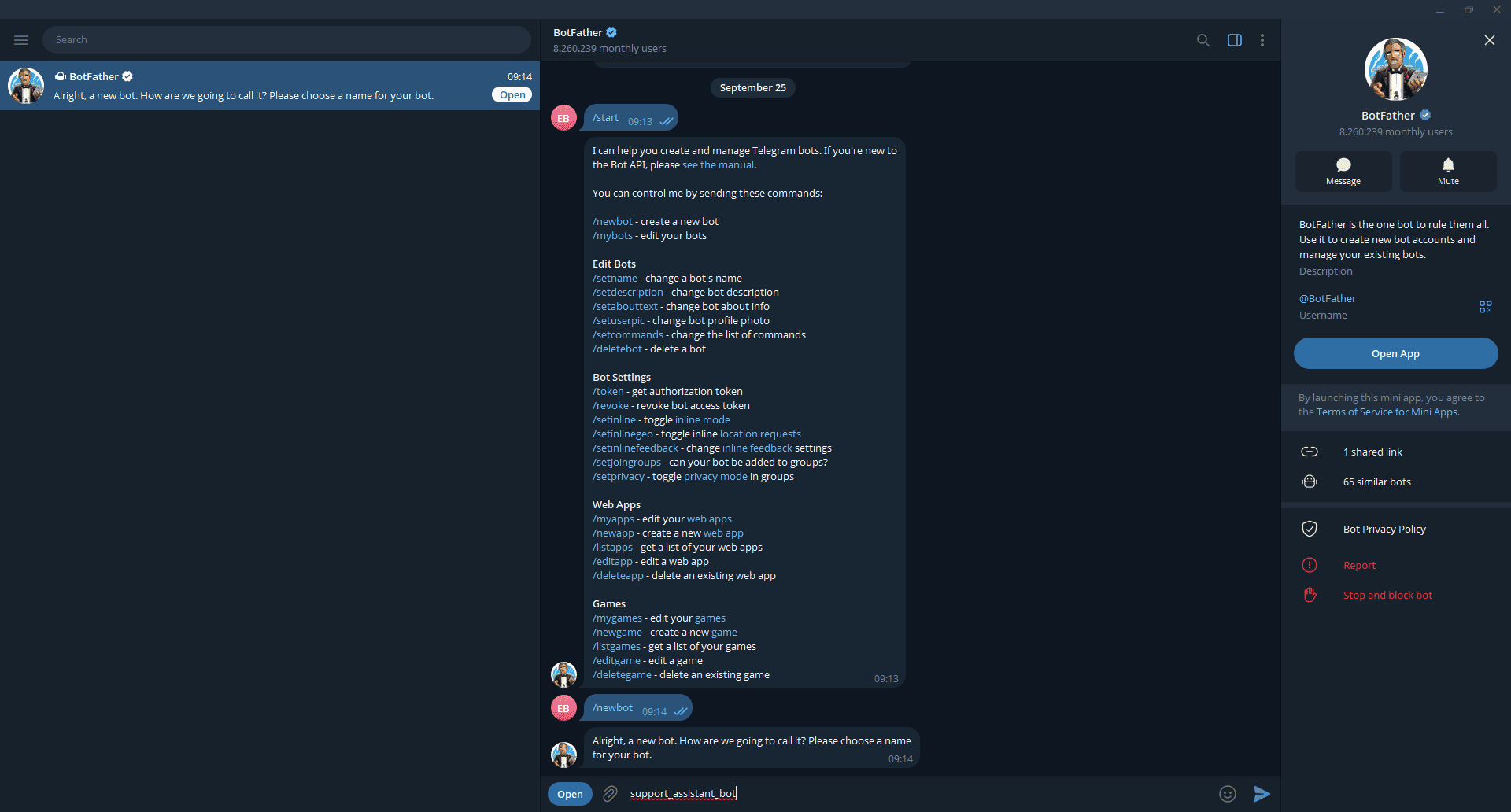
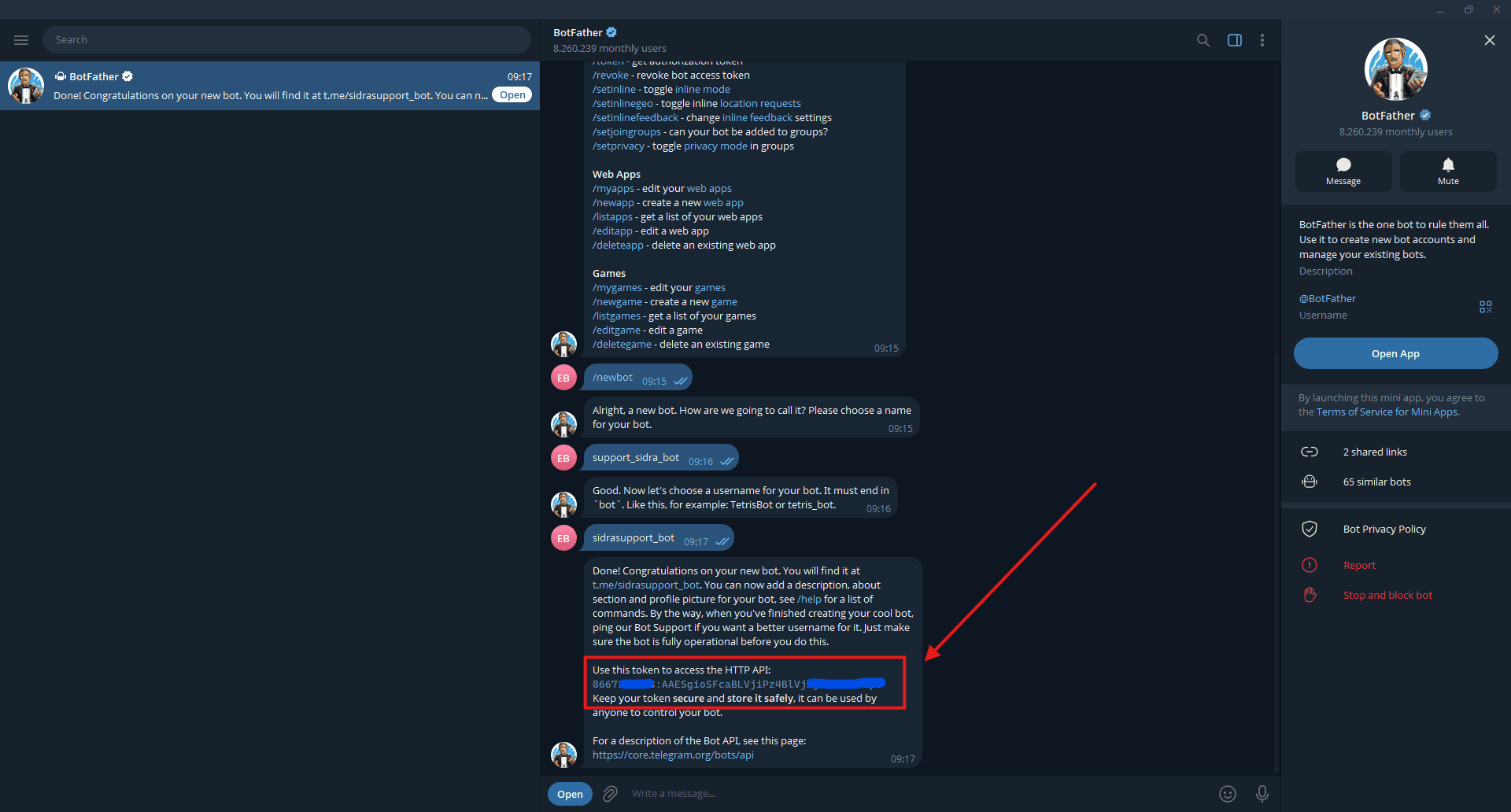
Set a bot name and a username. The username must be unique and end with
bot.Copy the token BotFather returns.
Paste the complete token into the Bot Token field.
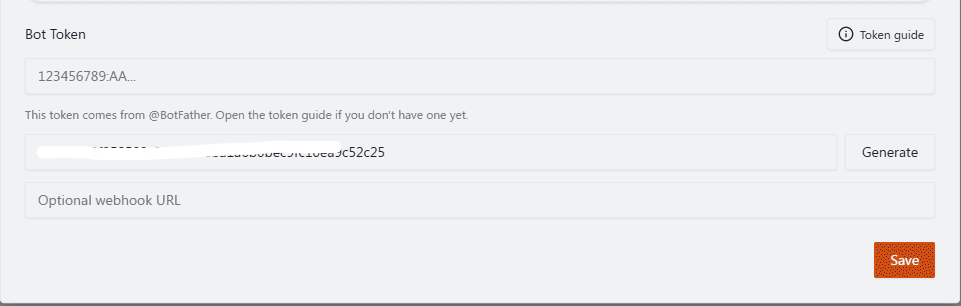
The form links directly to BotFather and can copy the /newbot command for you.
Webhook Secret
The Webhook Secret is a value you create for this CRMAI connection. It is not the token from BotFather, and the two must not be mixed up.
Click Generate to create a random secret, or paste one prepared by your administrator. For an existing connection, saved credentials are masked and are only replaced when you enter new values.
Webhook URL
Optional. Leave it empty if your deployment manages the webhook automatically. If your administrator gave you a specific URL, enter it exactly as provided.
Troubleshooting
Telegram credentials are rejected. Check that:
The token was copied completely from BotFather.
The token belongs to the bot you intended to connect.
The Webhook Secret is filled in.
The Webhook URL, if you entered one, is correct.
The bot hasn't been revoked.
Never send the real token or secret in a support request. Send the connection name and a redacted screenshot instead.