 CRMAI Docs
WhatsApp Setup
Adding a connection
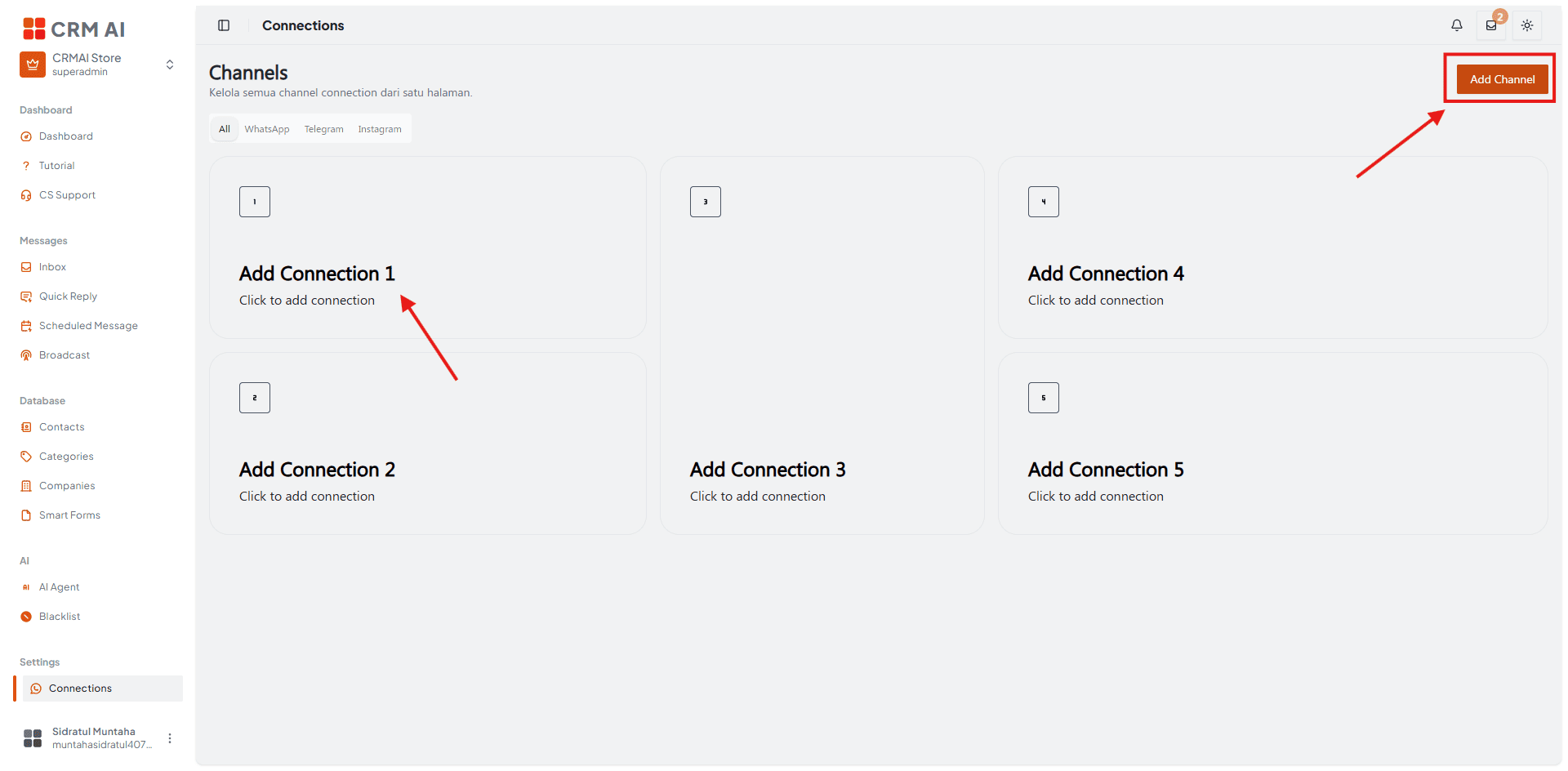
Open Connections.
Click Add Channel or click an empty connection card.
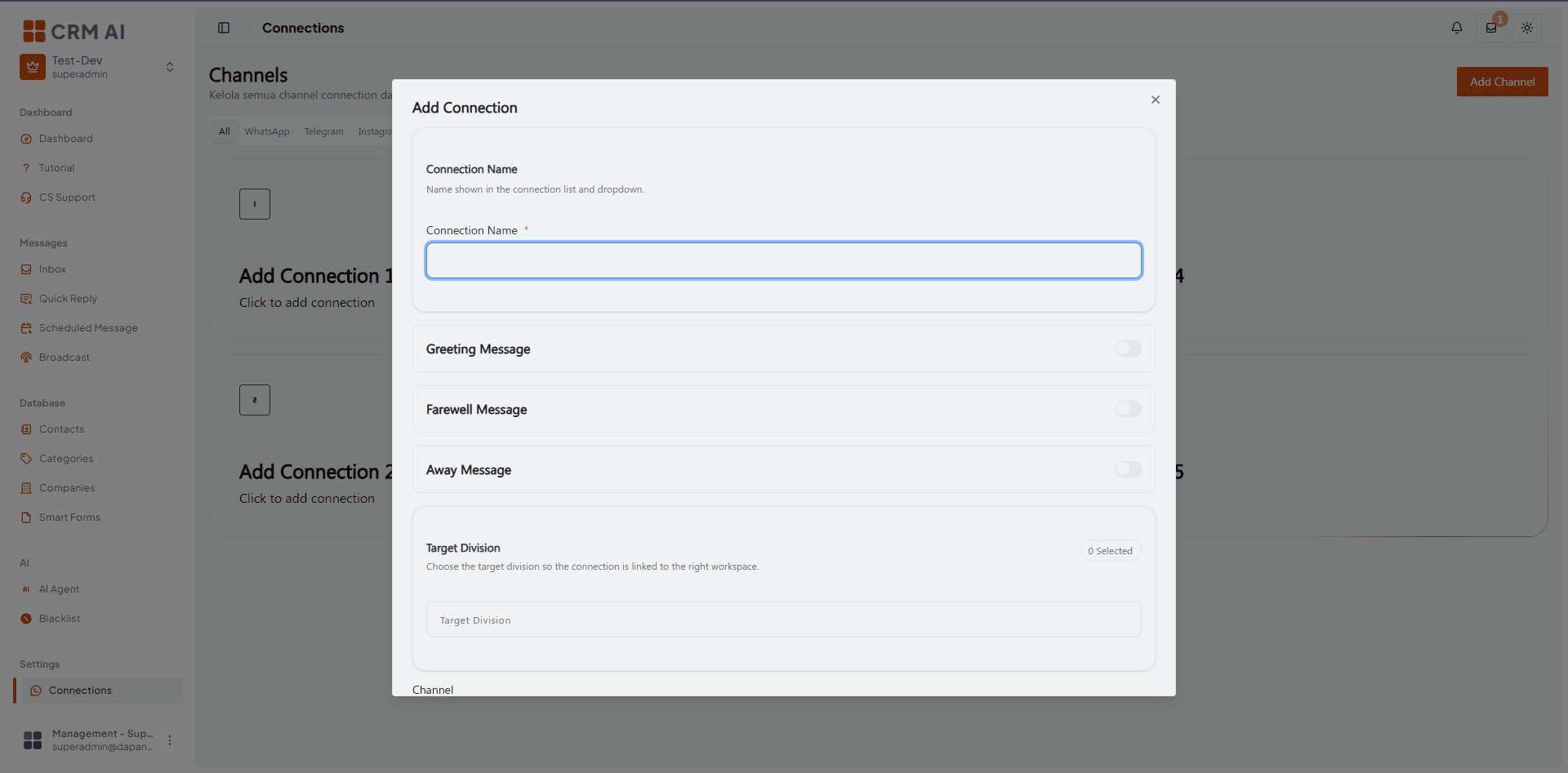
Enter a connection name.
Select the target division(s).
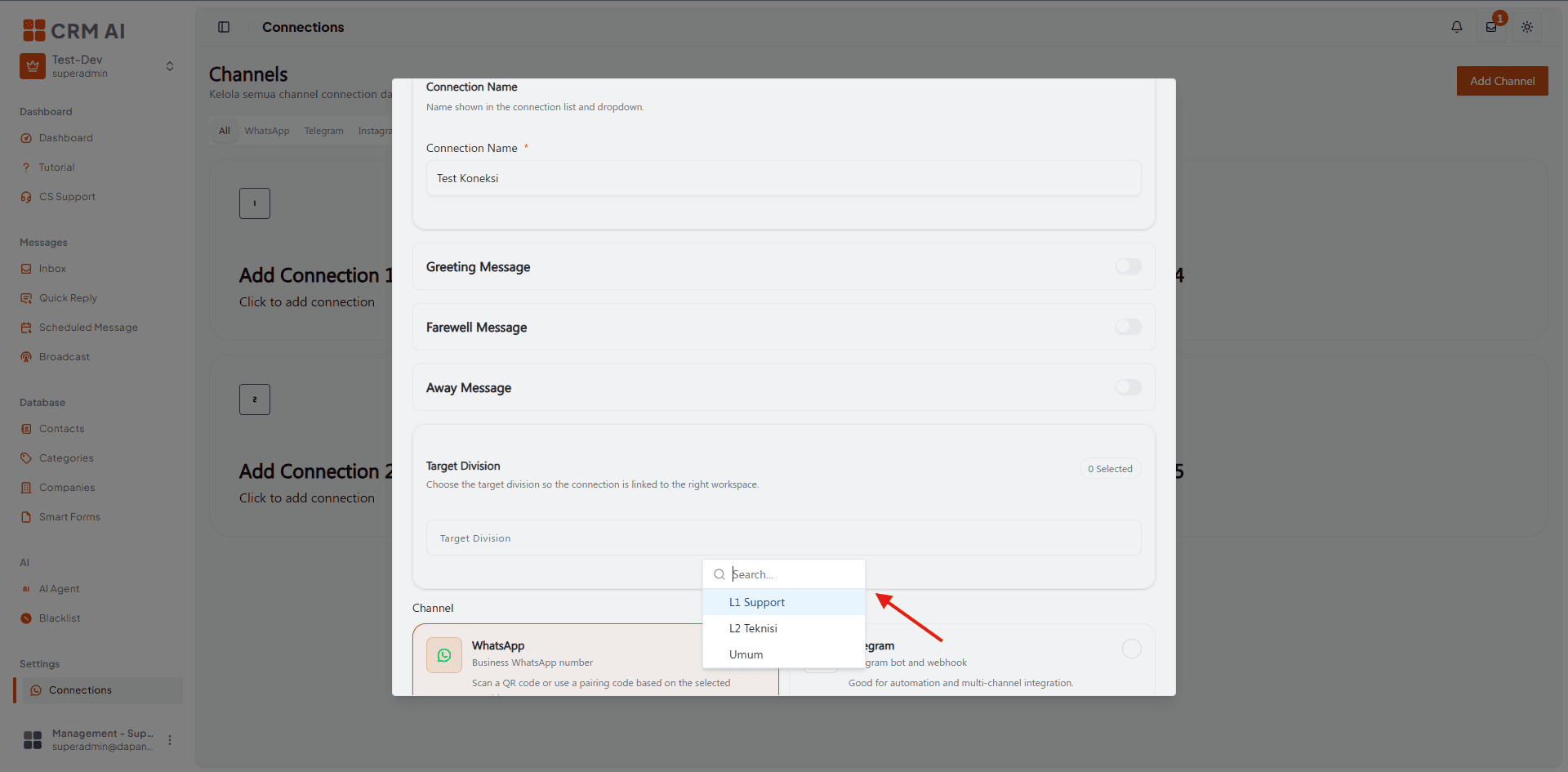
Select the channel: WhatsApp.
Select the provider.
Complete the channel-specific authentication fields.
Configure optional greeting, farewell, and away messages.
Decide whether the connection should be the default connection.
Click Save.
Complete the authentication step shown after saving.
Common fields
Connection Name — a recognizable name shown in the connection list and in connection-selection dropdowns used by other modules. Examples: Customer Support WhatsApp, Sales Telegram Bot. Required.
Target Division — select one or more divisions associated with this connection, helping route incoming conversations to the right operational area. For WhatsApp using the Merapi provider, division choices can also be shown as interactive quick-answer buttons.
Default Connection — enable this when the connection should be prioritized whenever CRMAI needs a default sender.
WhatsApp providers
Merapi
Session via QR or pairing code.
Recommended for a fast and stable setup.
The default WhatsApp provider in the current UI.
Merbabu
Browser-based session.
An alternative connection approach when a different session method is required.
Authentication methods
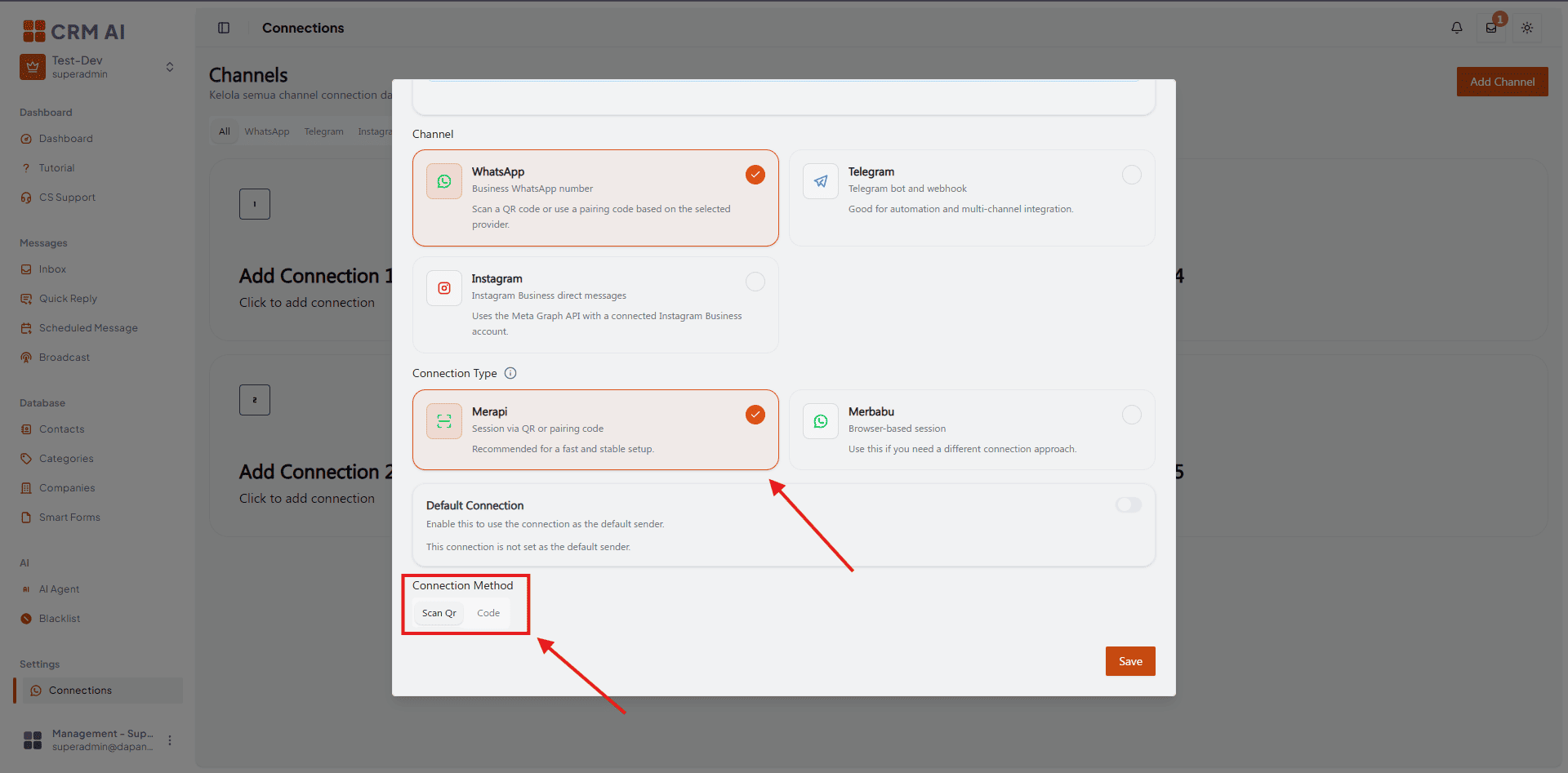
Scan QR
Select WhatsApp as the channel.
Select the desired provider.
Select Scan QR.
Enter the connection name and configure the remaining fields.
Click Save.
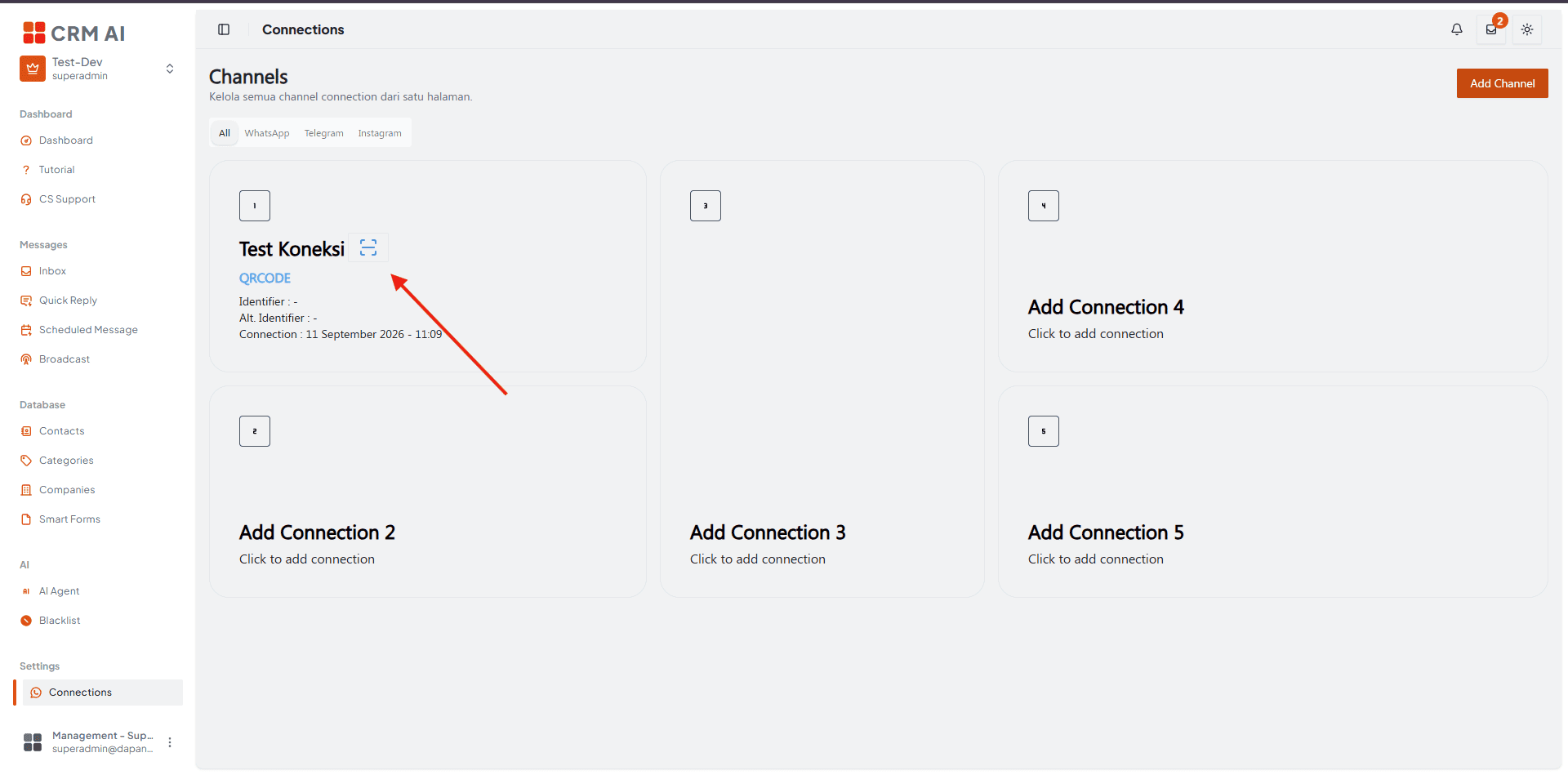
Wait for the connection card to display the QR action.
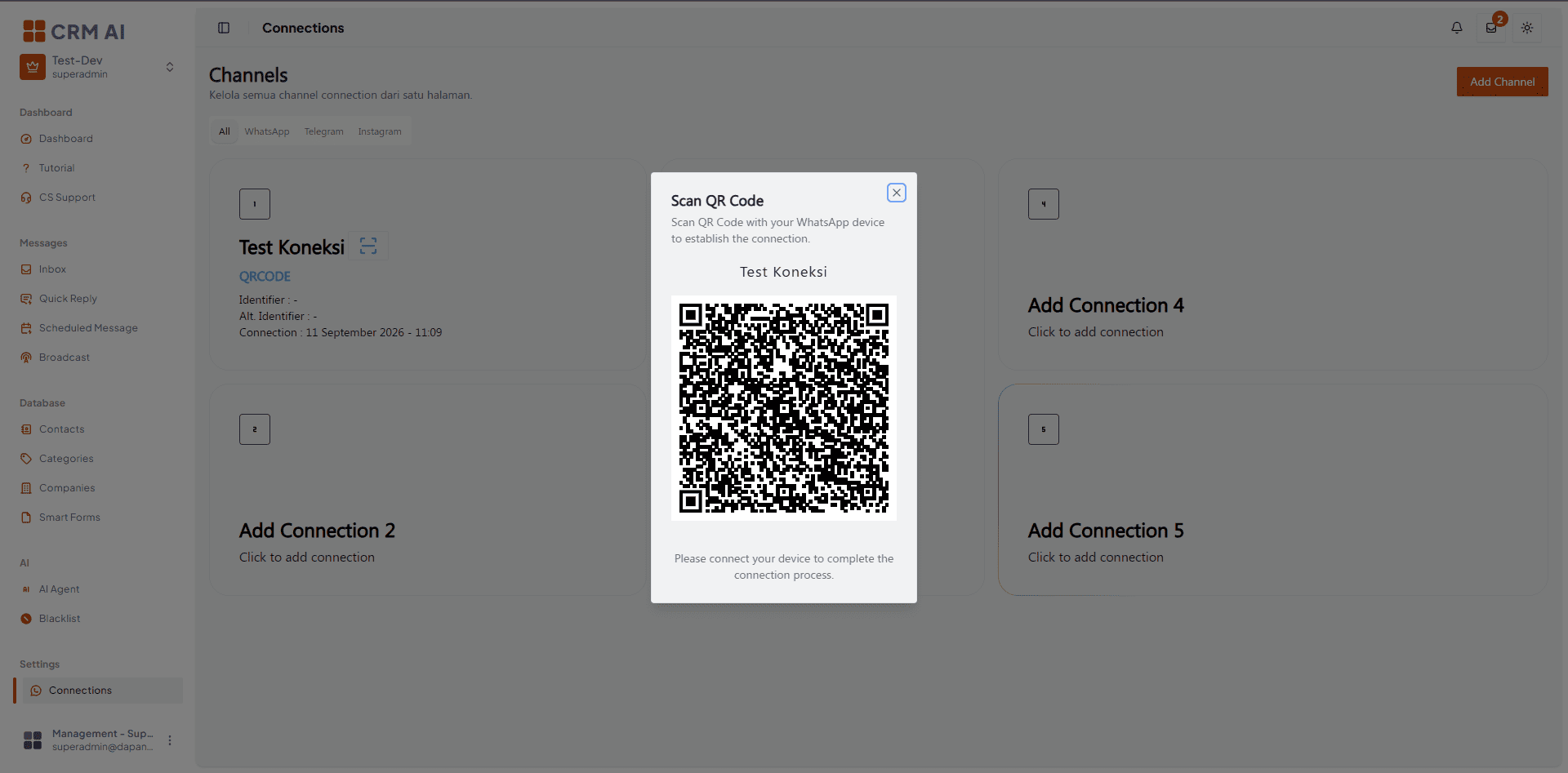
Open the QR dialog.
On your WhatsApp device, open the linked-device menu.
Scan the QR code displayed by CRMAI.
Wait until the connection status changes to
CONNECTED.
Pairing Code
Select WhatsApp as the channel.
Select Code in the connection method tabs.
Enter the WhatsApp phone number in international format (placeholder:
628xxxxxxxxx).Save the connection.
Open the pairing-code action when it appears.
Enter the displayed pairing code in WhatsApp when prompted.
Wait for the connection status to update.
The pairing-code method is marked as experimental in the interface.
Connecting, disconnecting, and refreshing state
Connect: start a connection that isn't currently connected.
Logout: stop or disconnect a connection that's currently connected.
The action label changes based on the current connection status.
Recommended troubleshooting sequence:
Open the connection card.
Use the refresh/state action.
If disconnected, click Connect.
If WhatsApp displays a QR or pairing code, complete the device authentication.
Refresh the state again.
Confirm the status is
CONNECTED.
Troubleshooting
The connection stays on QRCODE
Open the QR action on the connection card.
Make sure the QR code hasn't expired.
Scan it from the correct WhatsApp device.
Refresh the connection state.
If the QR code remains invalid, close and reopen the connection dialog or restart the connection.
The pairing code isn't displayed
Confirm the WhatsApp number uses the expected international format.
Confirm the Code method was selected before saving.
Refresh the connection state.
If the code still doesn't appear, contact your workspace administrator.