 CRMAI Docs
Invitation Code Management
Invitation codes let a workspace owner or admin invite other people to join the workspace. Anyone holding the code can join immediately with the role you've set — until the code expires or hits its user limit. Treat it like an access credential, not something to share freely.
Opening the page
This page lives at /{locale}/dashboard/integration.
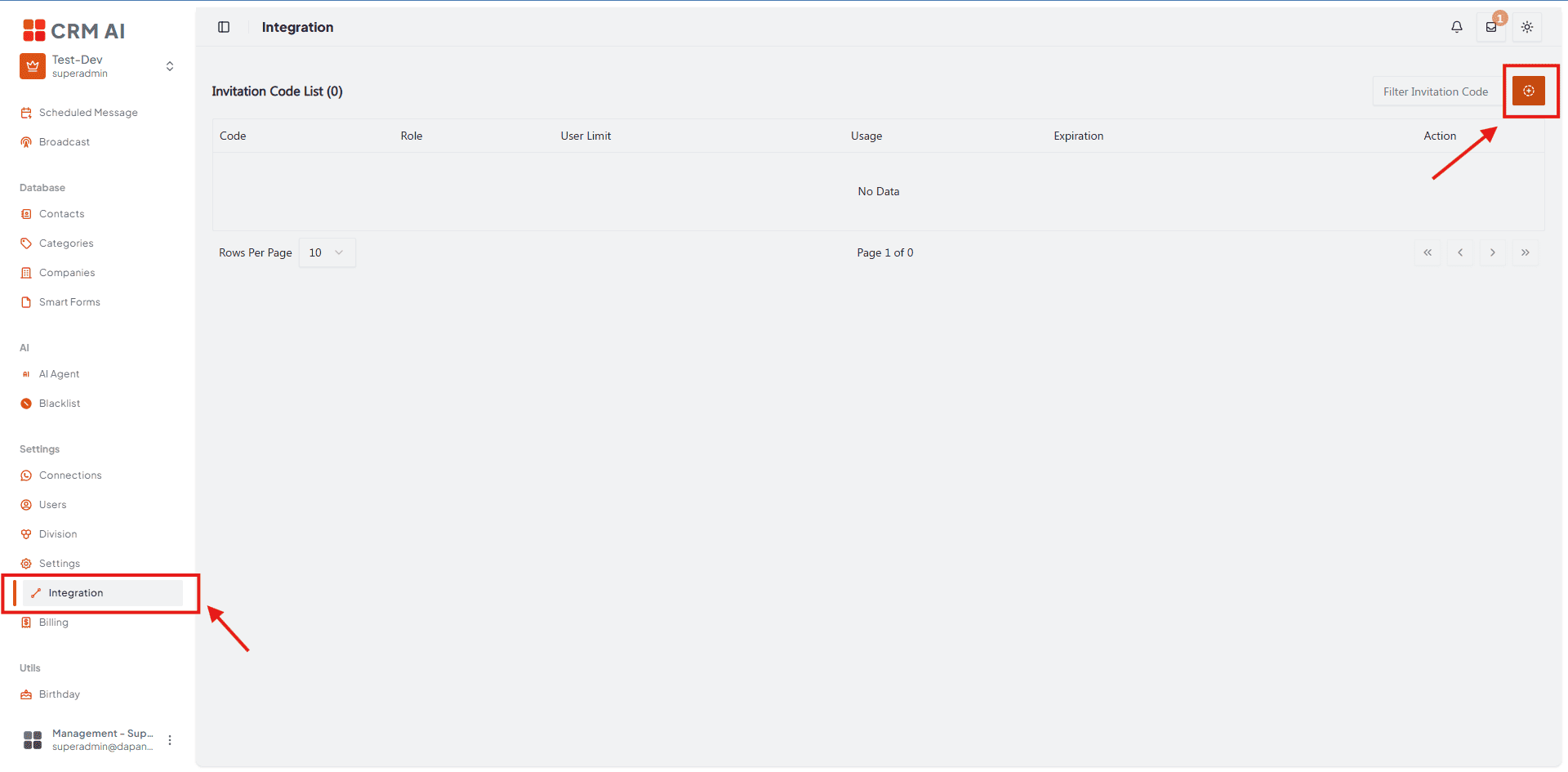
In the sidebar, this menu is labeled Integration — but on this page specifically, it's for managing workspace invitation codes. The page title is Invitation Code List.
Creating an invitation code
Open Integration.
Click the add button.
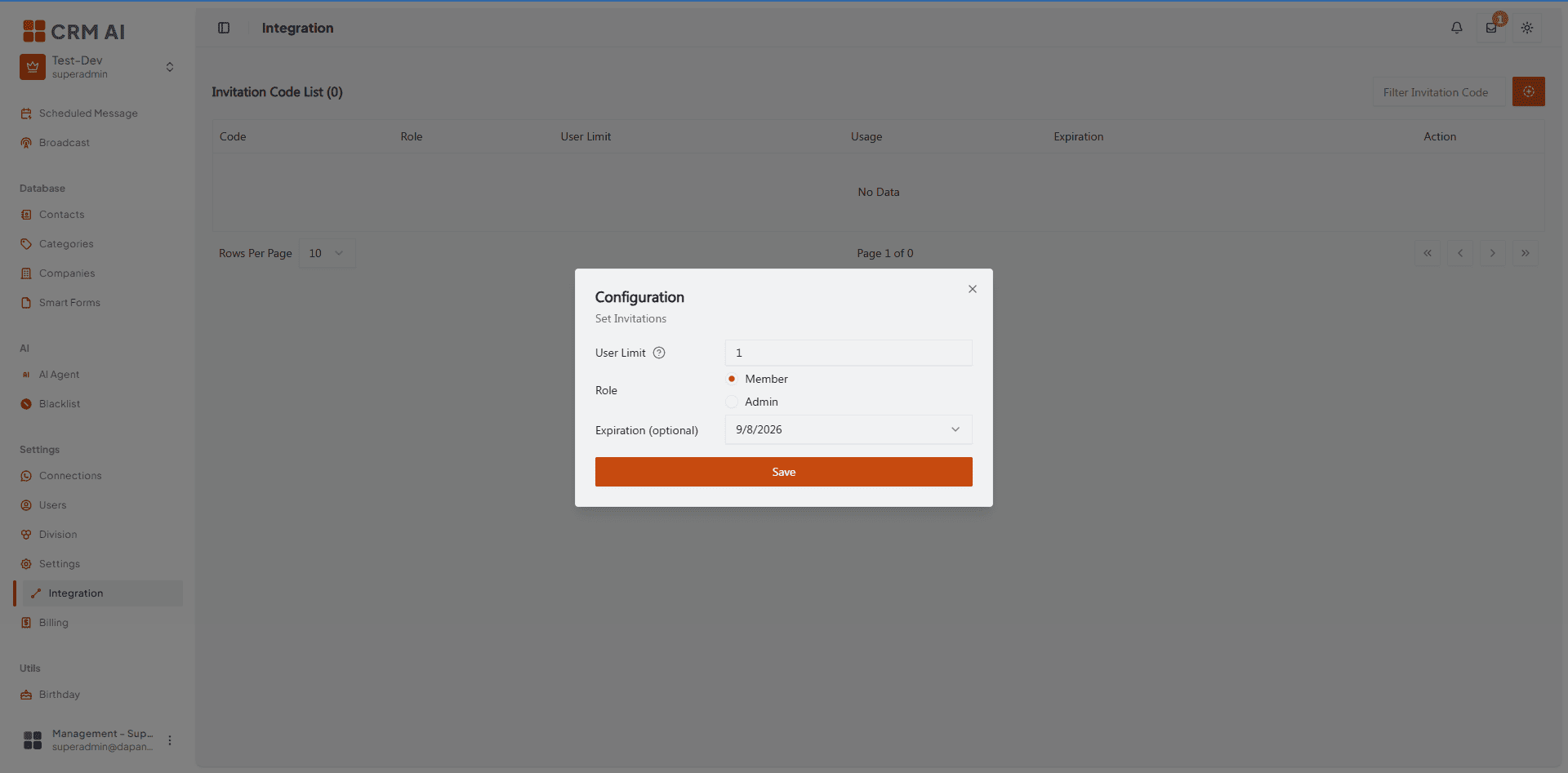
Set the User limit — enter
0for unlimited uses, or a specific number to cap how many people can join with this code.Choose the role people get when they join with this code: Member or Admin. The Super Admin role can't be granted through an invitation code.
Set an expiration date if you need one (optional).
Save the code.
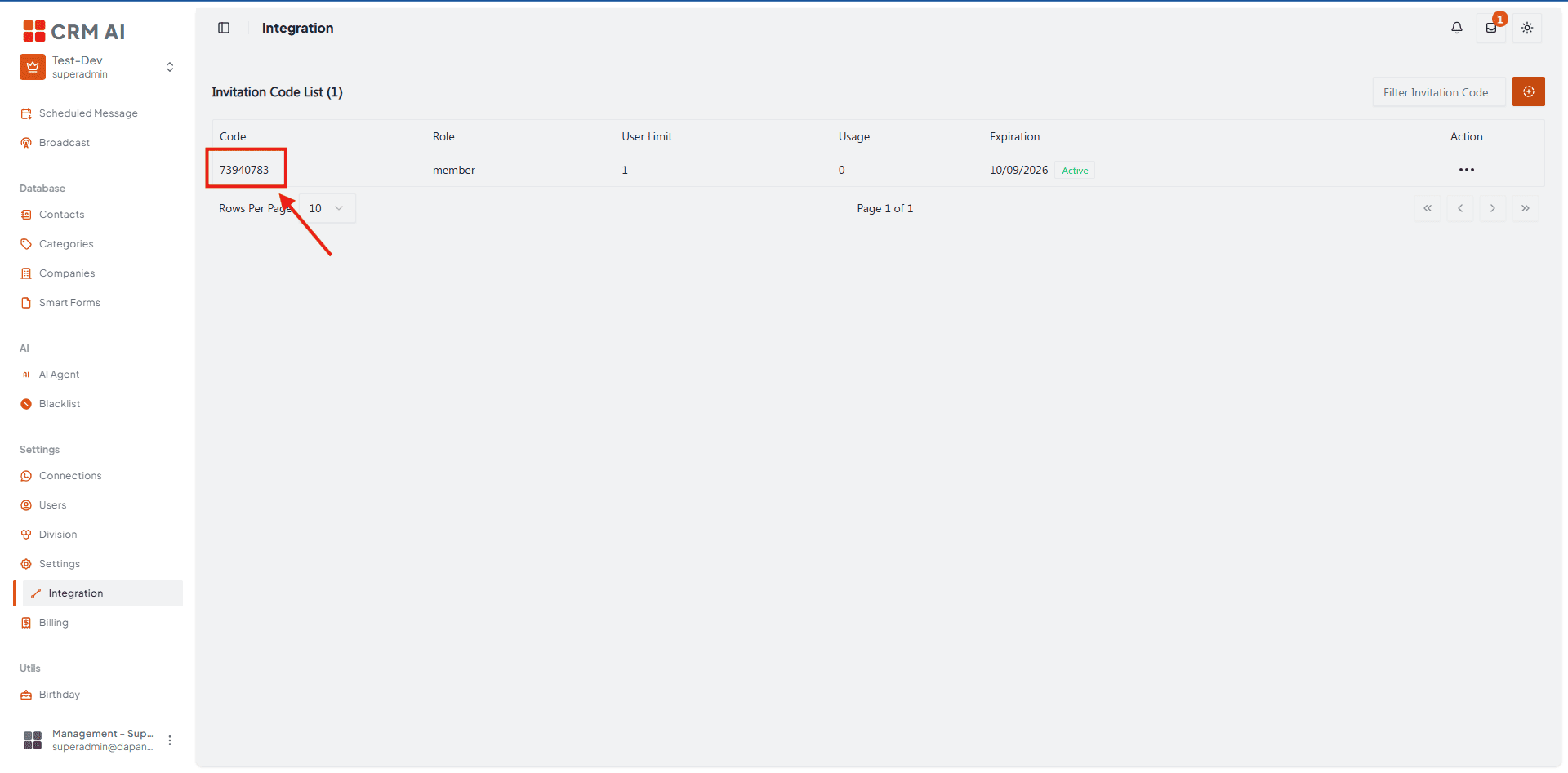
Share the code directly and privately with the people you actually intend to invite — never post it in a group or public channel. The code is 8 characters, and anyone who has it can join with the role you set, until it expires or the limit is reached.
Editing an invitation code
In the code list, open the one you want to edit from the Actions column.
Update its expiration date, user limit, or role as needed.
Save your changes.
Invitation code table columns
Column | What it shows |
|---|---|
Code | The 8-character invitation code. |
Role | The role automatically granted to anyone who joins with this code. |
User limit | How many people can use this code. |
Usage | How many people have used this code so far. |
Expiration | The code's expiration date, if one is set. |
Actions | Edit the code, or delete/revoke it once you no longer want it usable. Deleting a code doesn't remove members who already joined through it — it just shuts off access via that code. |
Invitation codes are access credentials. Never include a live code in screenshots, support tickets, public documentation, or chat messages.