 CRMAI Docs
Onboarding & Workspace Creation
After signing in for the first time, CRMAI opens Onboarding so you can create a new workspace or join an existing one.
Opening Onboarding
This page lives at /{locale}/onboarding. If you're logging in for the first time as a new account, you're taken here automatically.
You'll see two options:
Create New Workspace
Join Workspace
If you want to create or join another workspace later, use the Add button in the workspace switcher — it brings you back to this Onboarding screen.
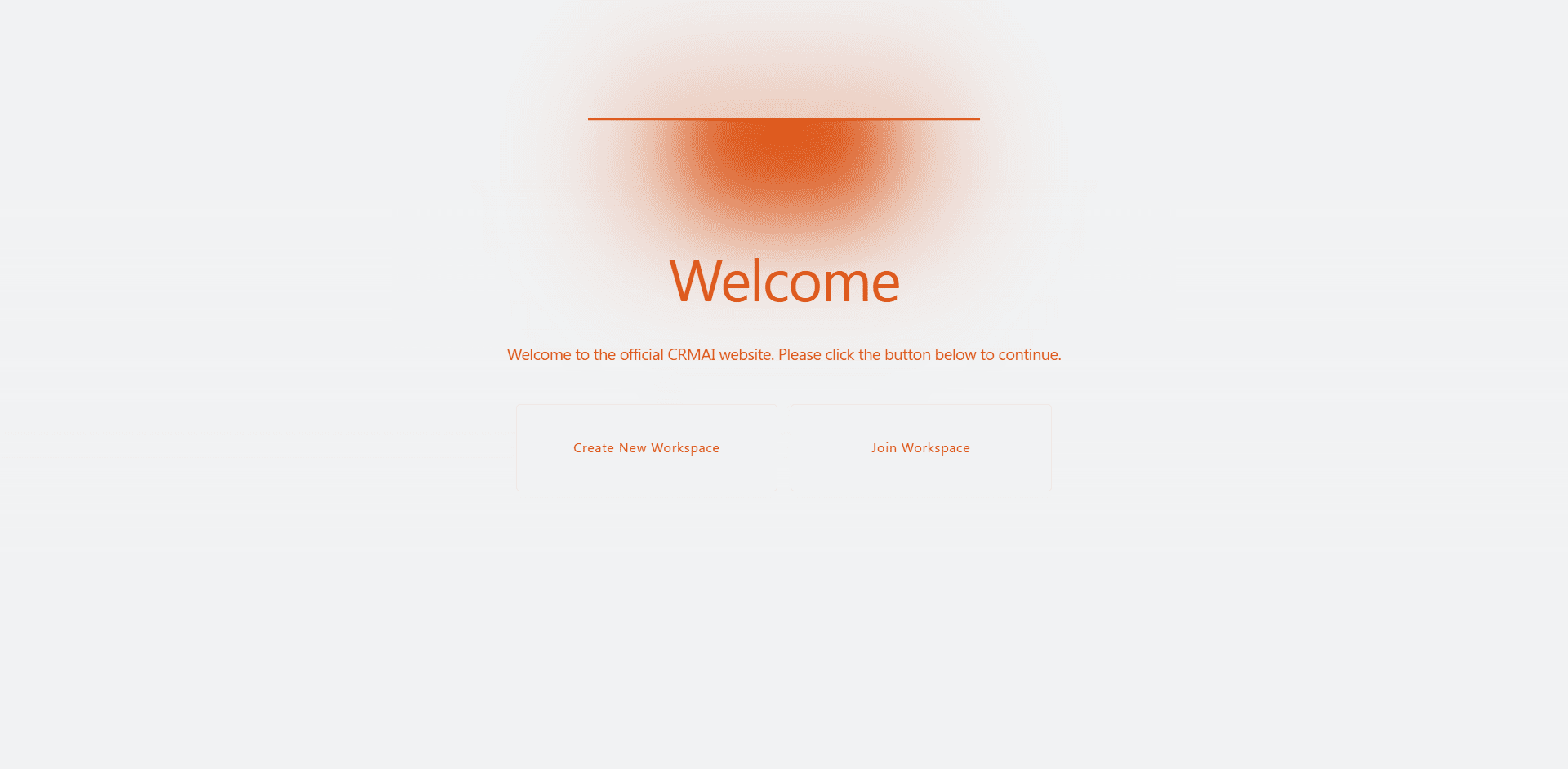
Joining an existing workspace
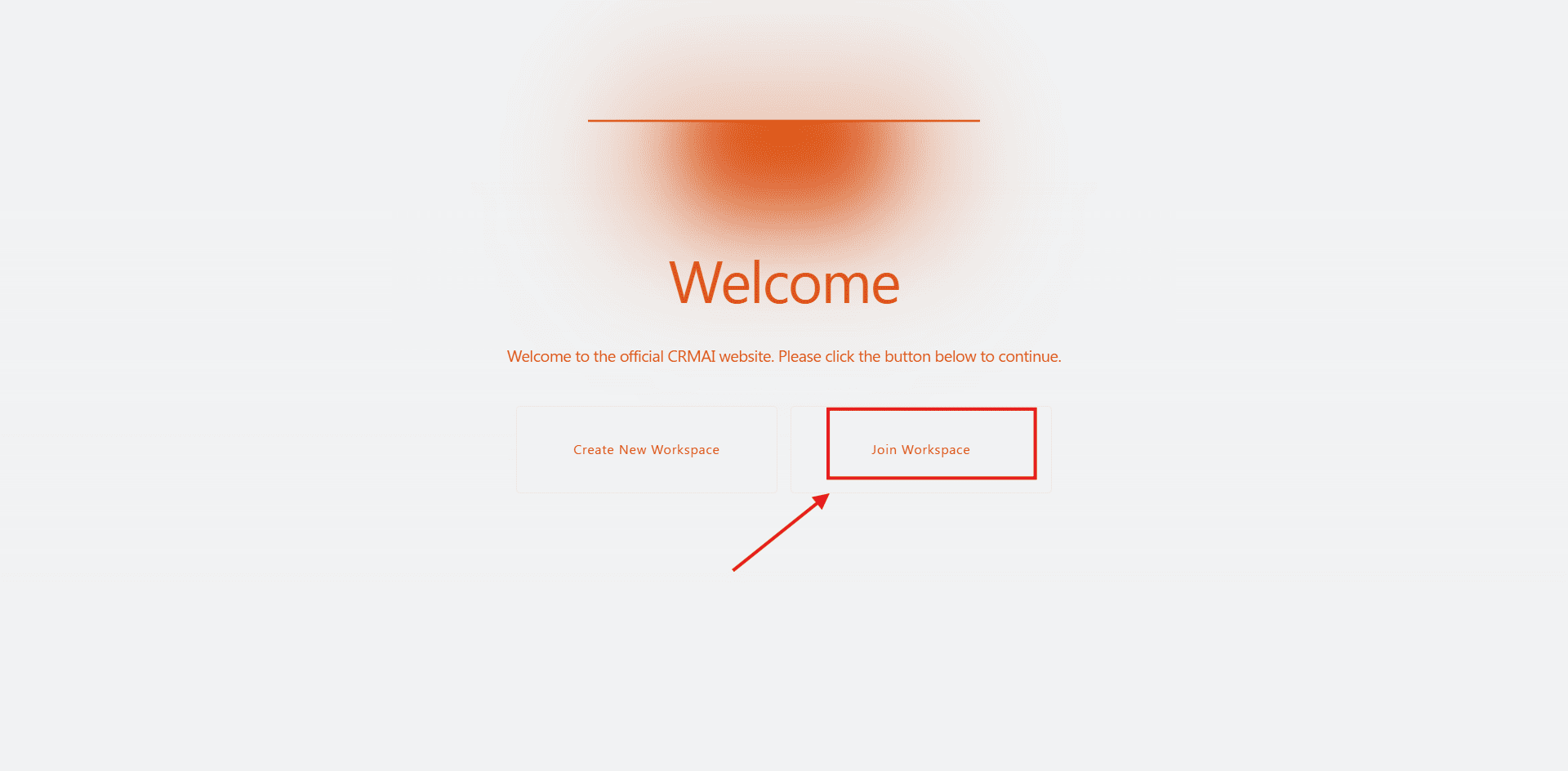
Select Join Workspace.
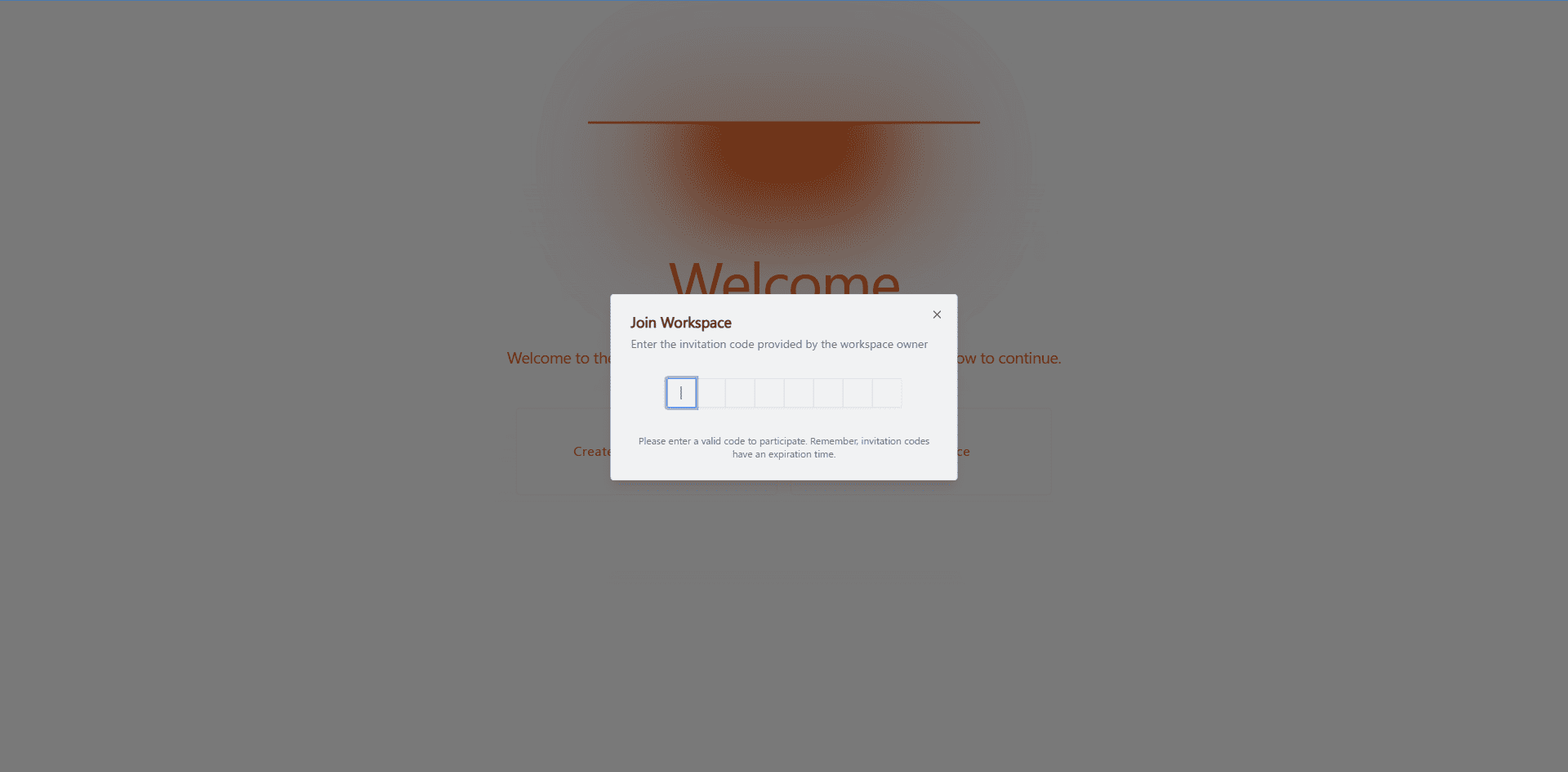
Enter the 8-character invitation code from the workspace owner. CRMAI attempts to join automatically once all characters are entered — there's no separate submit button.
Wait for the result.
On success, you become a member of that workspace and are redirected to
/{locale}/dashboard.
Invitation codes can expire. If yours is rejected, ask the workspace owner for a new one.
A successful join shows a welcome message with the workspace name. If it fails, CRMAI explains why — usually an invalid or expired code.
Never share a real invitation code in screenshots or public documentation. Treat it like an access credential.
Creating a new workspace
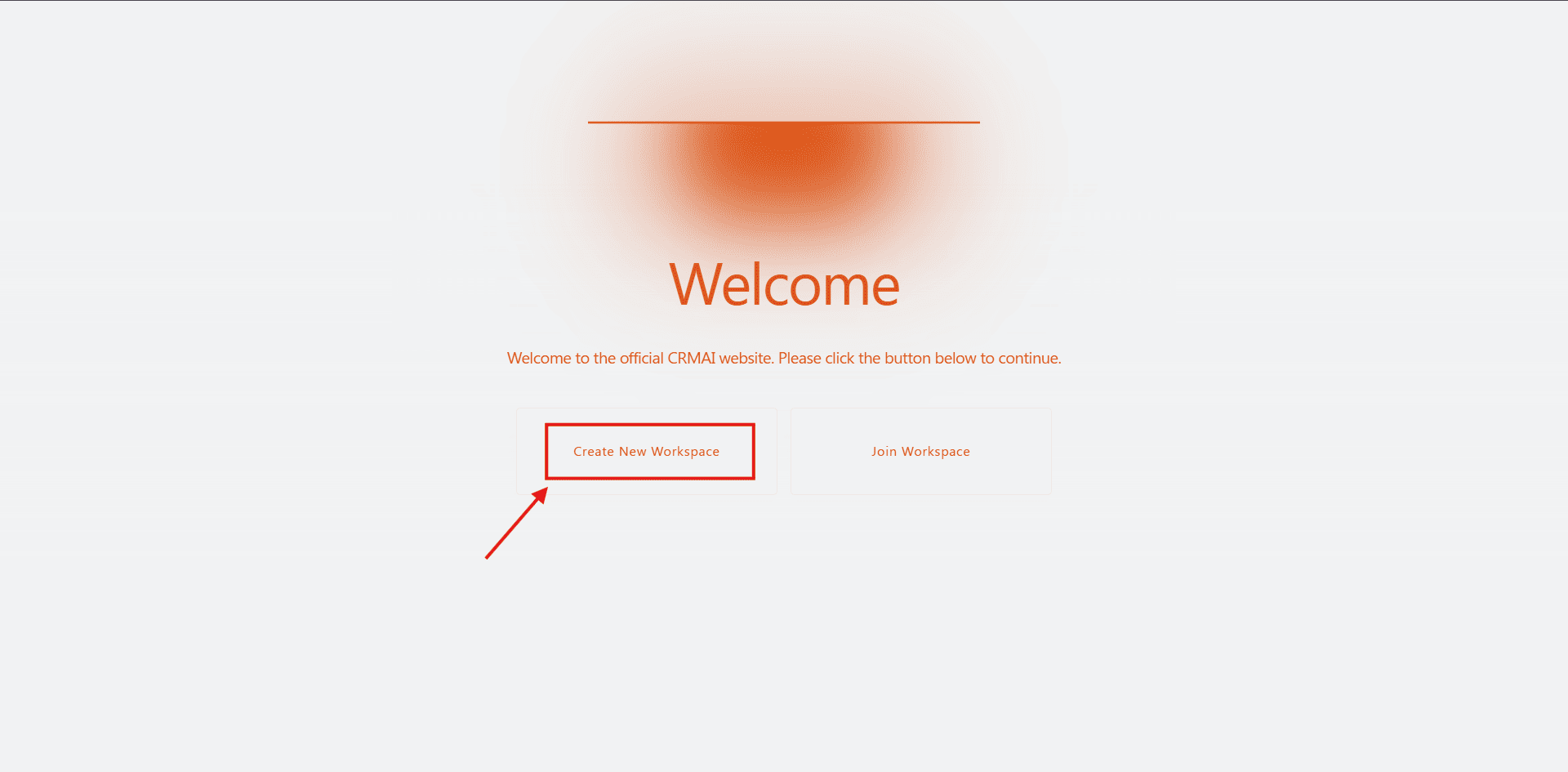
Select Create New Workspace.
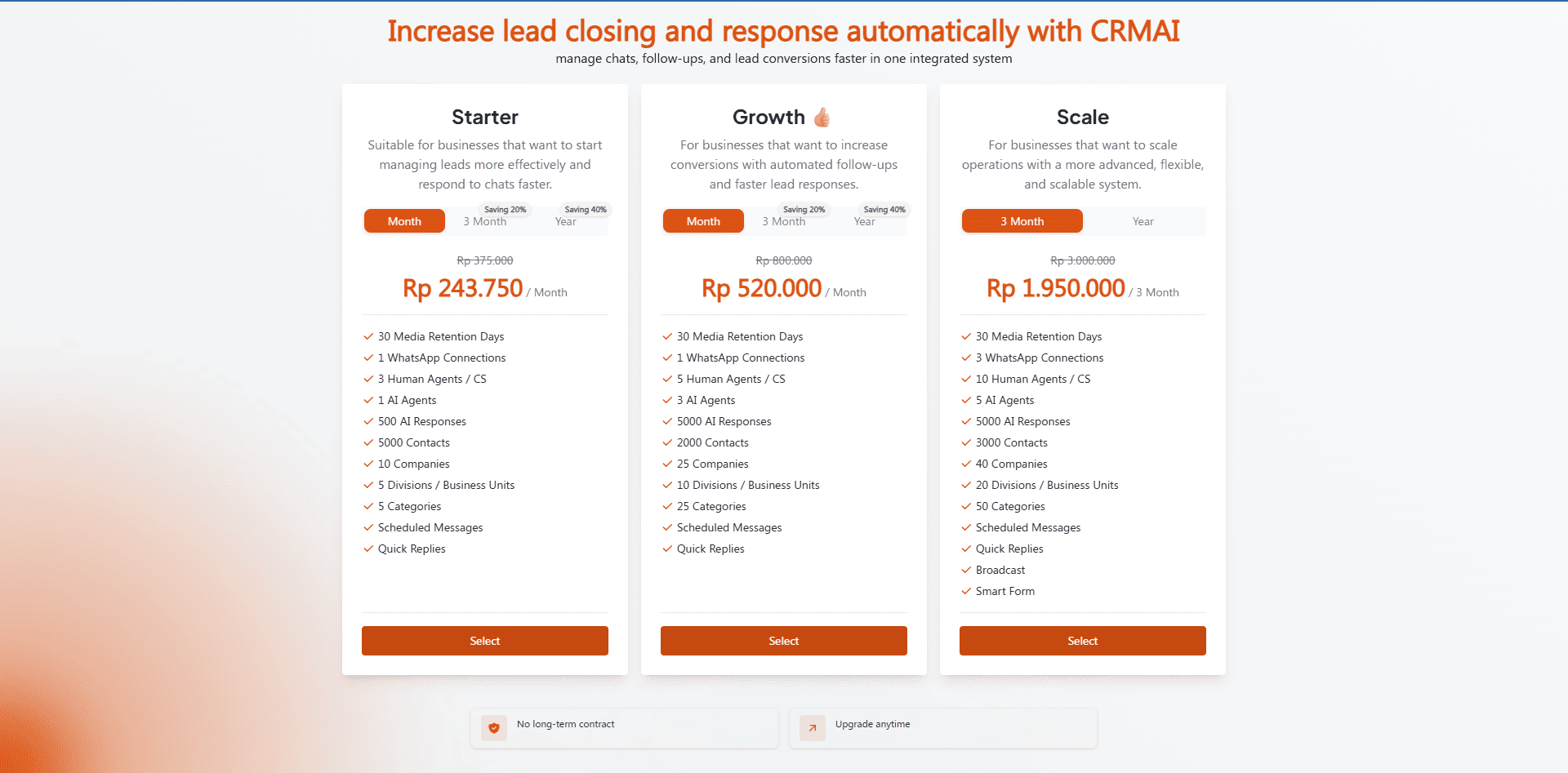
Review the available plans at
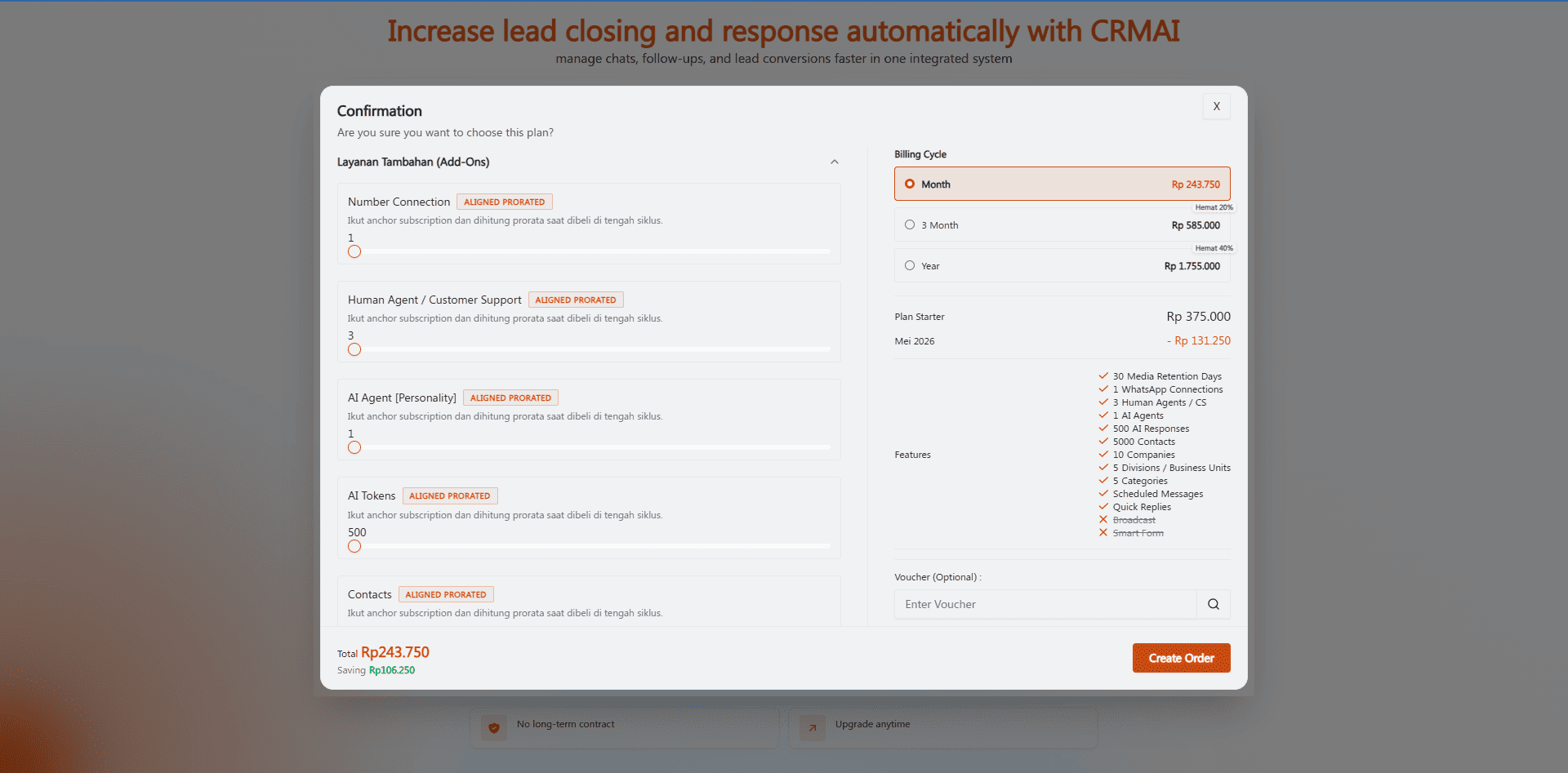
/{locale}/plans, then pick one.In the confirmation dialog, select your billing cycle/pricing option.
Add any add-ons you need, if available.
Enter a name for your workspace.
If you have a referral code, enter and verify it in the field provided — this is optional, and a valid code usually shows a discount preview.
Review the summary: plan, features, add-ons, discounts, and total.
Click Create Order.
Complete the payment flow if payment is required.
Wait for the payment result and the redirect to your new workspace.
You need to be signed in to create a workspace. If you're not, the Login modal appears first. Also make sure the plan you picked has an available pricing option — otherwise the order can't be created.
If the referral code you enter is invalid, inactive, expired, or has hit its usage limit, CRMAI tells you why right in the form. If you think a code should still be valid, contact support.
Payment outcomes
State | Meaning | What to do |
|---|---|---|
Success | Payment and workspace creation both succeeded. | Wait for the automatic redirect to your new workspace. |
Pending | The payment provider is still processing. | Wait it out, and don't create another order yet — check the payment status before retrying. |
Error | The payment attempt failed. | The payment area closes automatically. You can retry from the start. |
Closed | You closed the payment flow before it finished. | Reopen Create Order if you still want to continue creating the workspace. |
Available payment methods can vary — check the checkout page itself to see what's offered to you.