 CRMAI Docs
Workspace Switcher
If you belong to more than one workspace, you can switch the active one without logging out.
Switching workspaces
Open the workspace switcher — it sits at the top of the sidebar, right below the CRMAI logo.
Review your list of workspaces, along with the role shown for each one.
Select the workspace you want. The dashboard reloads automatically in that workspace.
Confirm the active workspace name before changing data or sending messages — make sure you're actually in the right one.
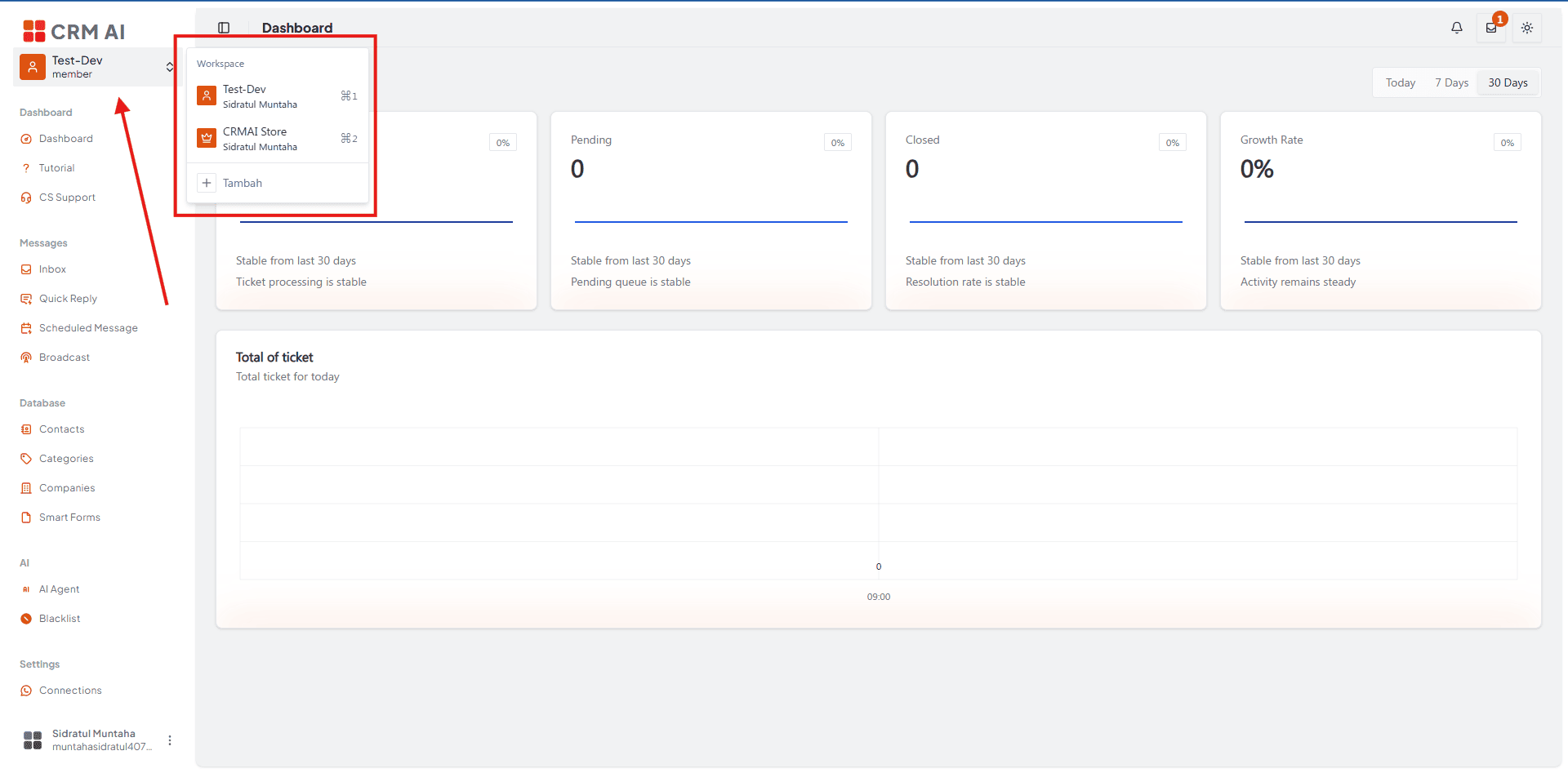
Roles shown in the switcher
The switcher shows role icons and labels for:
Member
Admin
Super Admin
The role belongs to your membership in that specific workspace — you could be an Admin in one workspace and just a Member in another.
Things to watch out for
Confirm the active workspace name before changing customer data or sending campaigns.
Re-check the active workspace after every page reload.
Remember that connections, contacts, tickets, AI configuration, and permissions are all scoped to a single workspace — none of it carries over when you switch.
If a workspace is missing from your list, ask its owner to add you as a member, or ask for an invitation code.