CRMAI Docs
Login
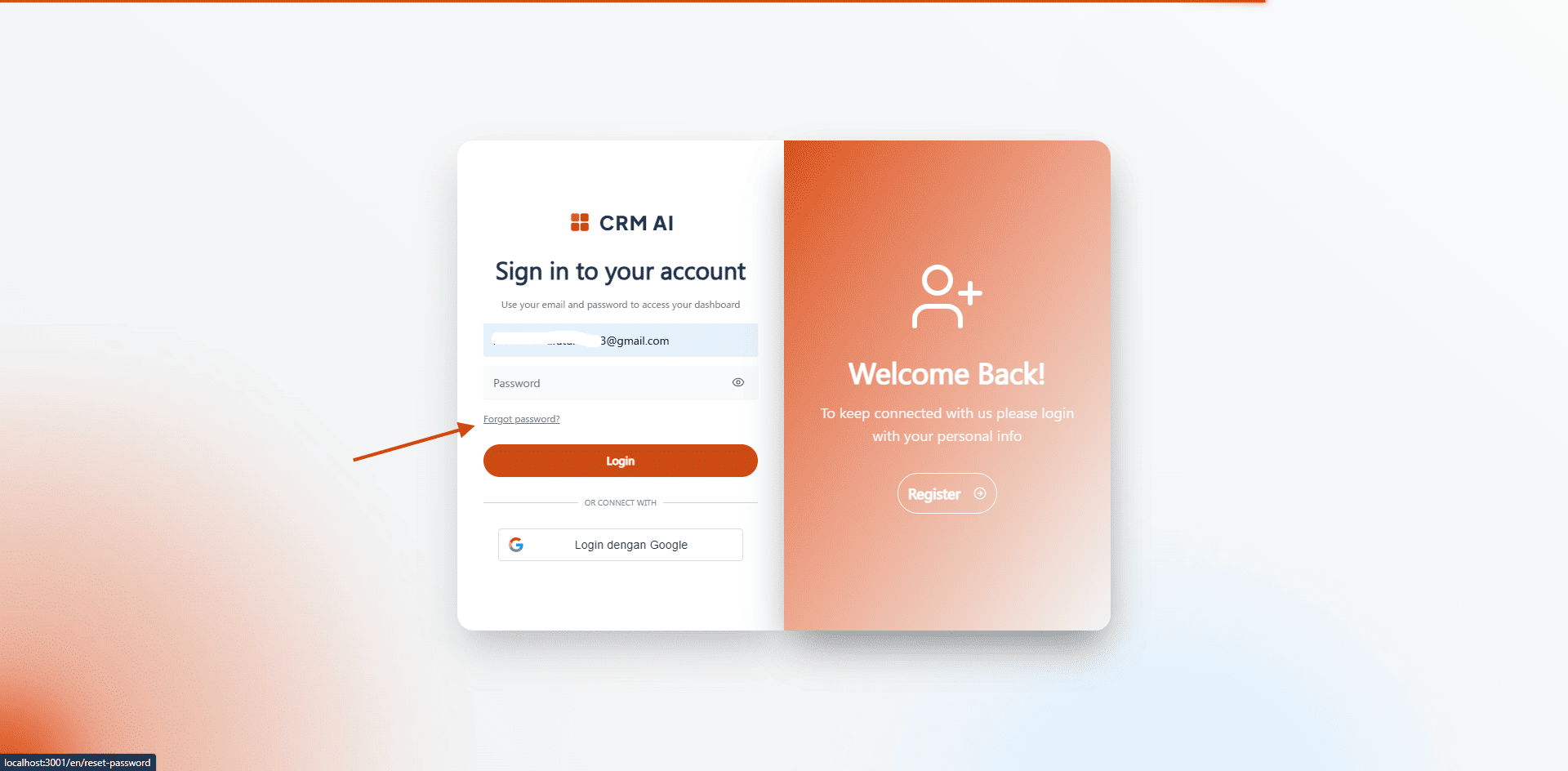
Login creates an authenticated session and opens your dashboard or onboarding flow, depending on your account status.
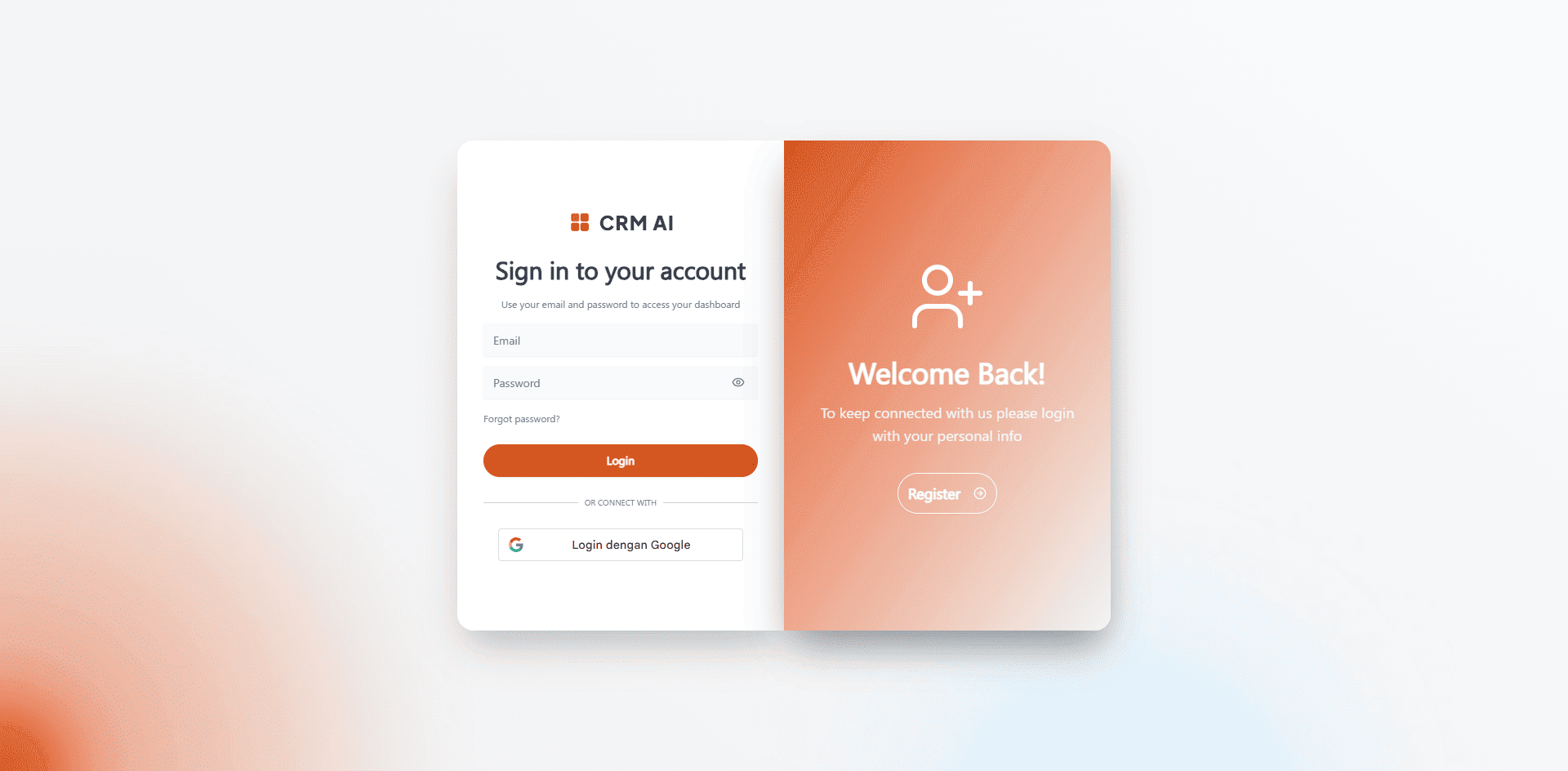
Opening the login page
Go to
/{locale}/login.If the page is showing Register, click Login to switch tabs.
Enter your email and password.
Click Login, or press Enter while focused in the password field.
If you click a login link sent from an email, the email field is usually pre-filled for you.
Never share a URL that contains someone's private email address.
Google sign-in
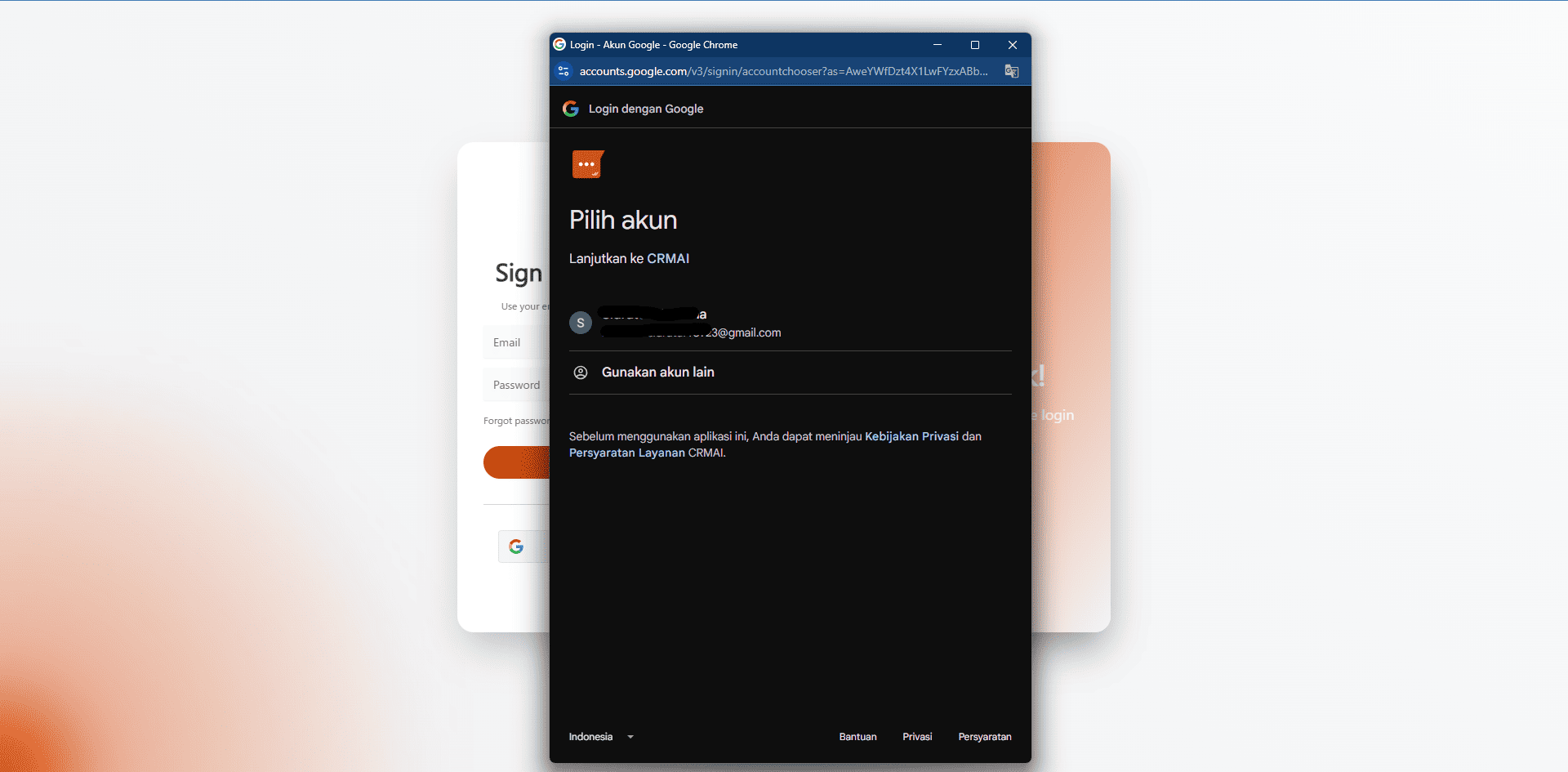
If Google OAuth is enabled for your workspace, the Login form shows an Or connect with section with a Google button.
Click the Google sign-in button.
Complete the authentication prompt on Google's page.
You're returned to CRMAI.
You'll be routed to the dashboard or onboarding, depending on your account state.
This option won't always appear — it depends on whether Google sign-in is enabled for your workspace.
What happens after logging in
If you already have an account, you're taken to
/{locale}/dashboard.If you're a brand-new user (account status
NEW_USER), you're taken to/{locale}/onboardingto create or join a workspace.If your account isn't verified yet, you may see an extra warning — complete email verification before creating a workspace, if your flow requires it.
If you still have an active session when you open the Login page, you're redirected straight to the dashboard without needing to log in again.
If login fails
Likely cause | What to do |
|---|---|
Wrong email or password | Double-check what you entered. If you've forgotten your password, use Forgot password?. |
Unverified or disabled account | Check your email for a verification link, or contact support if your account has been disabled. |
Expired session | Just log in again. |
Temporary network or authentication issue | Check your connection, then try again. |
Avoid repeatedly retrying a password if you suspect the account might get locked. Use Forgot password? instead if you genuinely don't remember it.
Forgot and reset password
Click Forgot password? on the Login page.
You're taken to
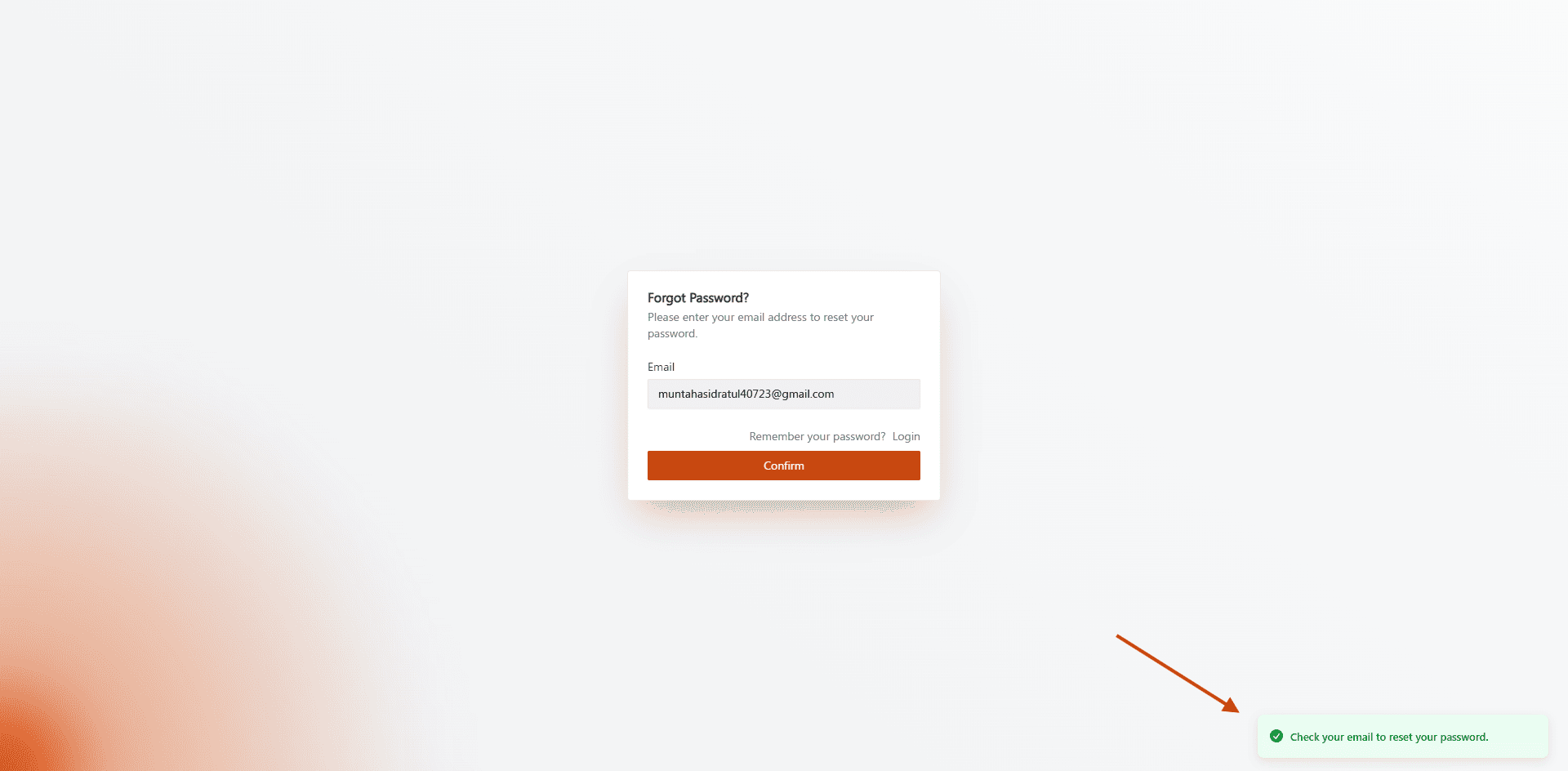
/{locale}/recovery.Enter your account email.
Submit the recovery request.
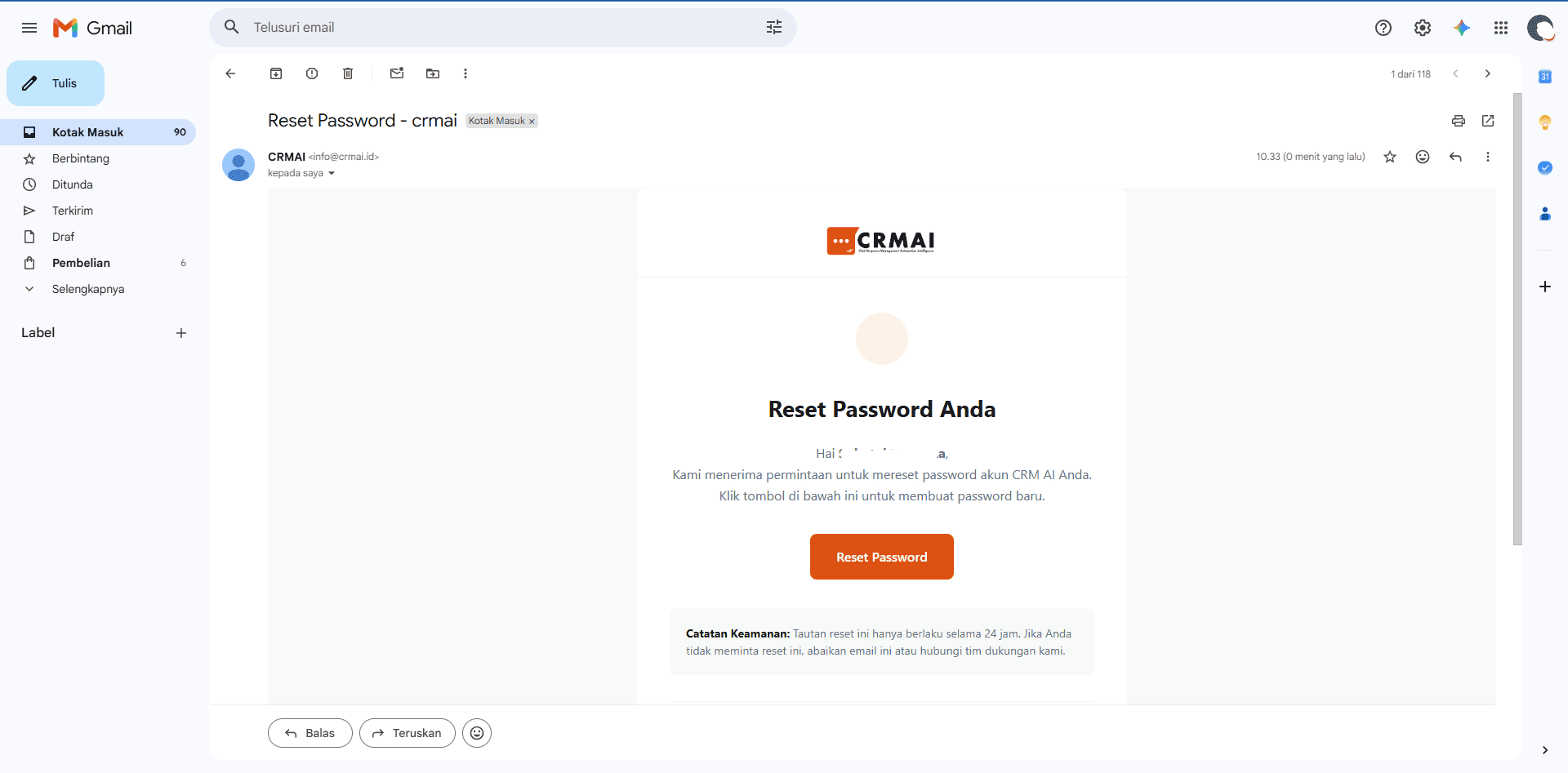
Open the reset link sent to that email address.
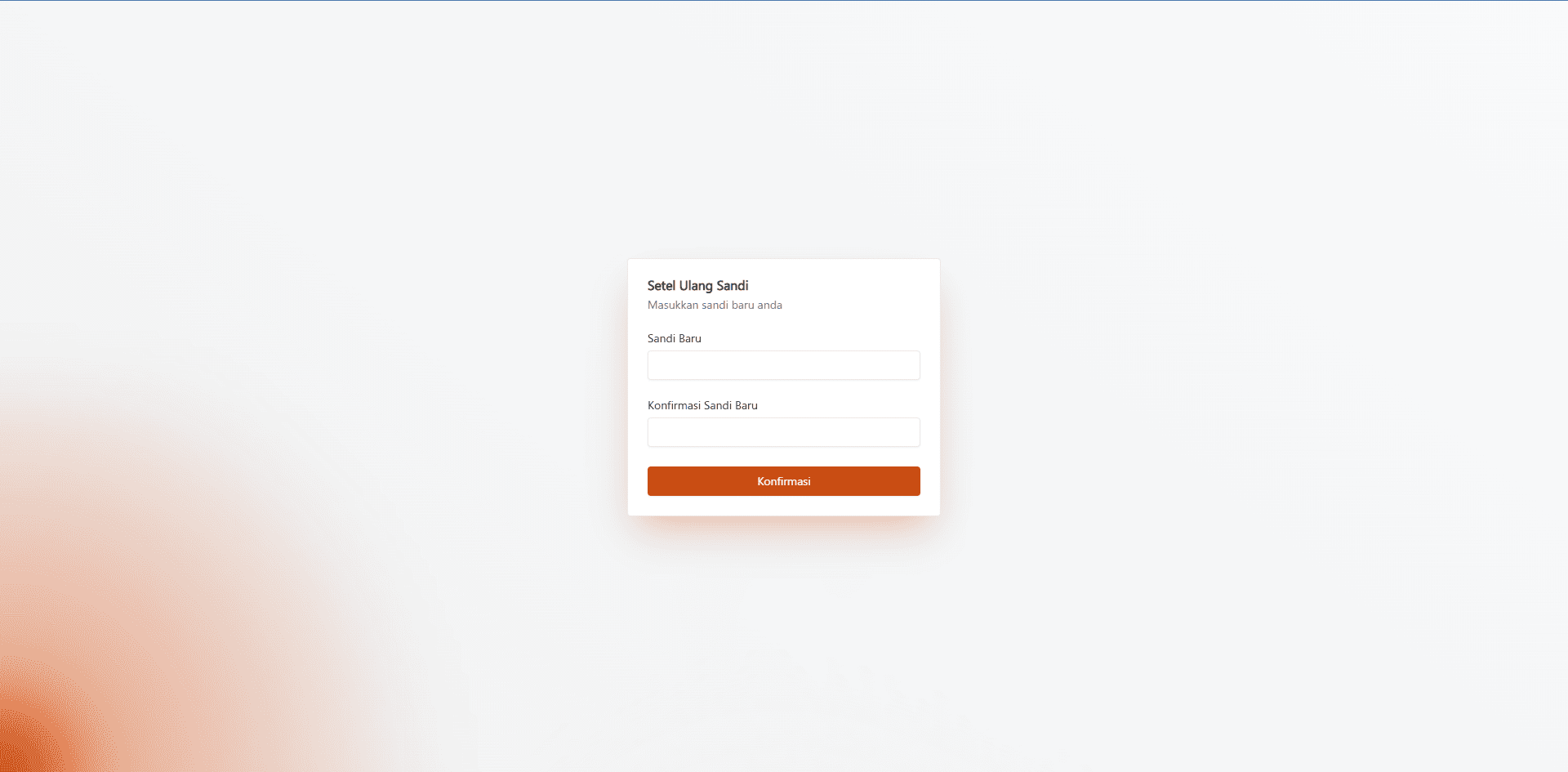
You'll land on
/{locale}/reset-password.Enter and confirm your new password.
Save the new password.
Head back to Login and sign in with your new password.