 CRMAI Docs
Profile
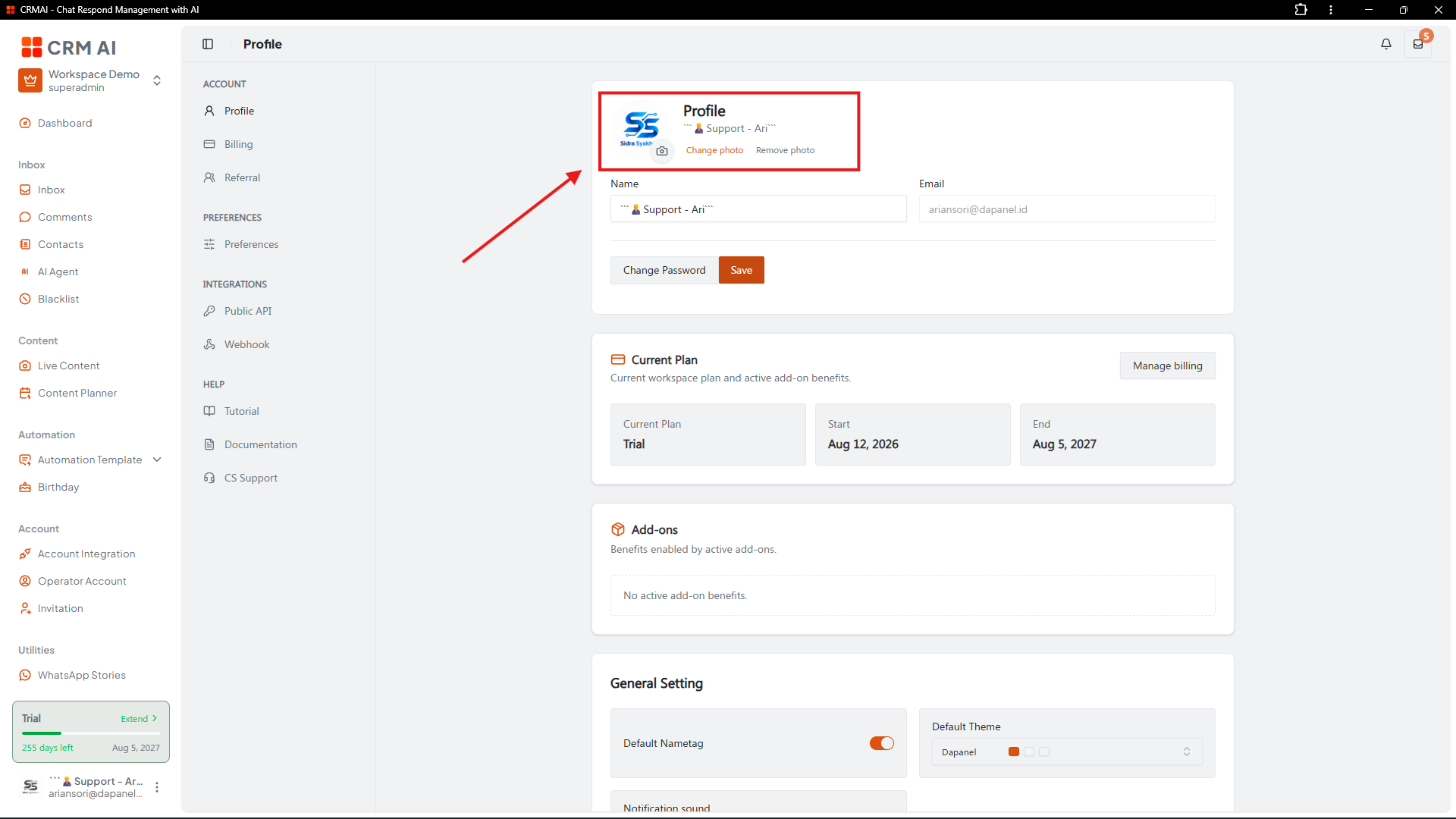
This page controls your own account: display name, photo, password, plan overview, name tag (signature), theme, and notifications. Changes here only apply to the account you're logged in as — they don't affect workspace settings or other users.
Opening the Profile page
Log in to CRMAI.
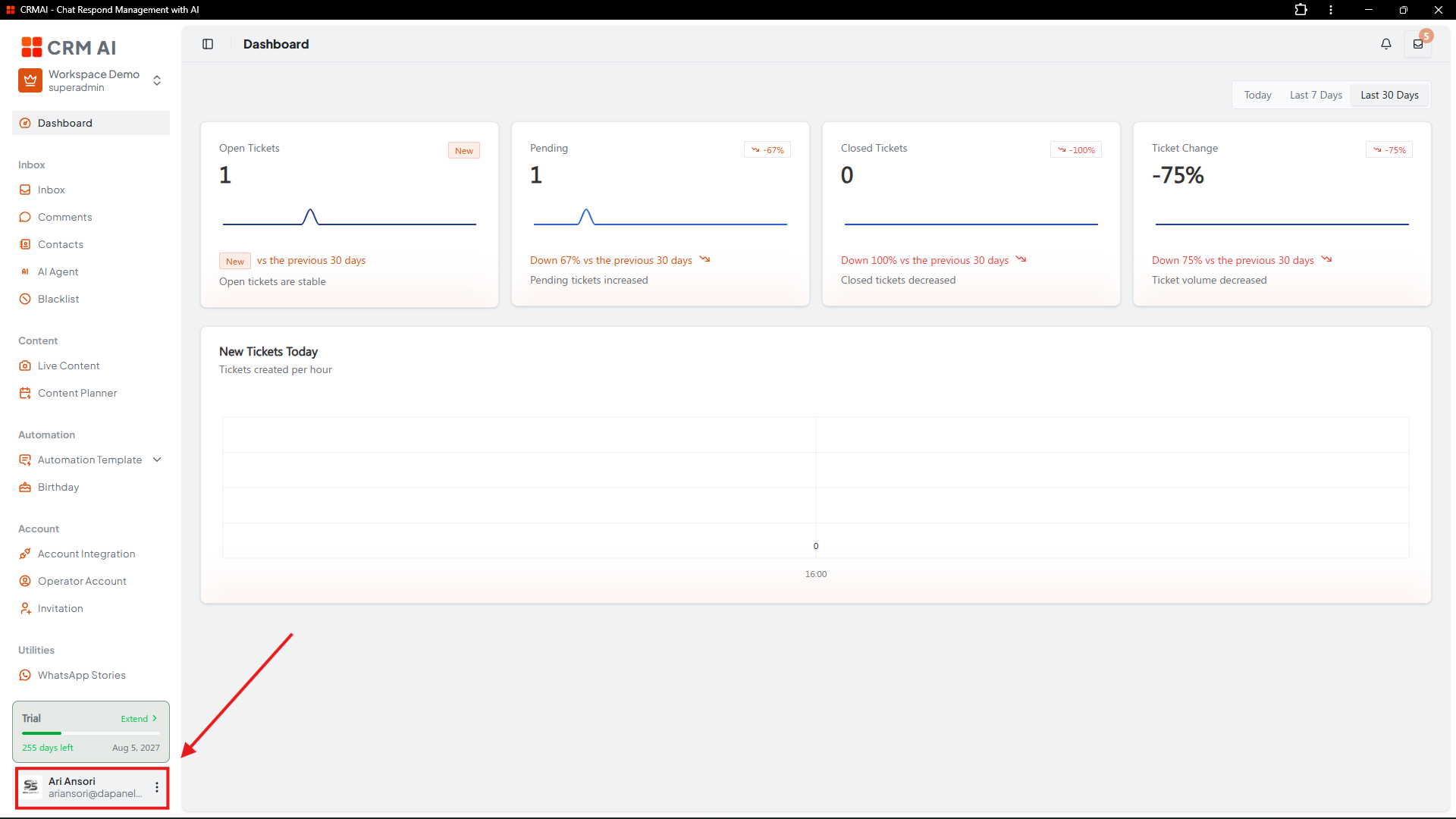
Click your name/avatar at the bottom-left of the sidebar (the ⋮ menu).
Select Settings.
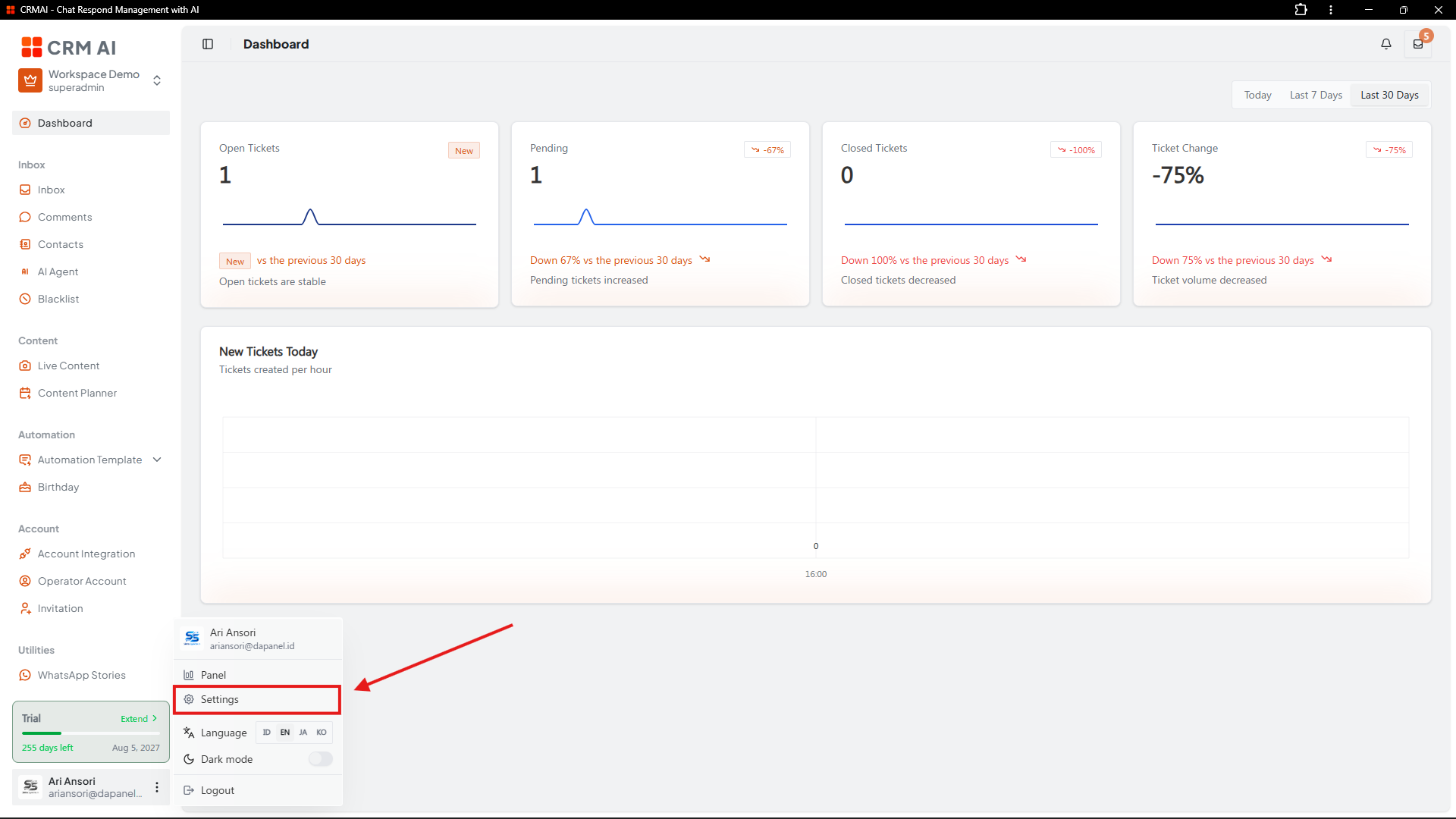
The page URL follows the active language, in the pattern /{language}/dashboard/profile.
The Profile page has these sections: Profile (photo, name, email, password), Current Plan, Add-ons, and General Setting (default name tag, default theme, notification sound).
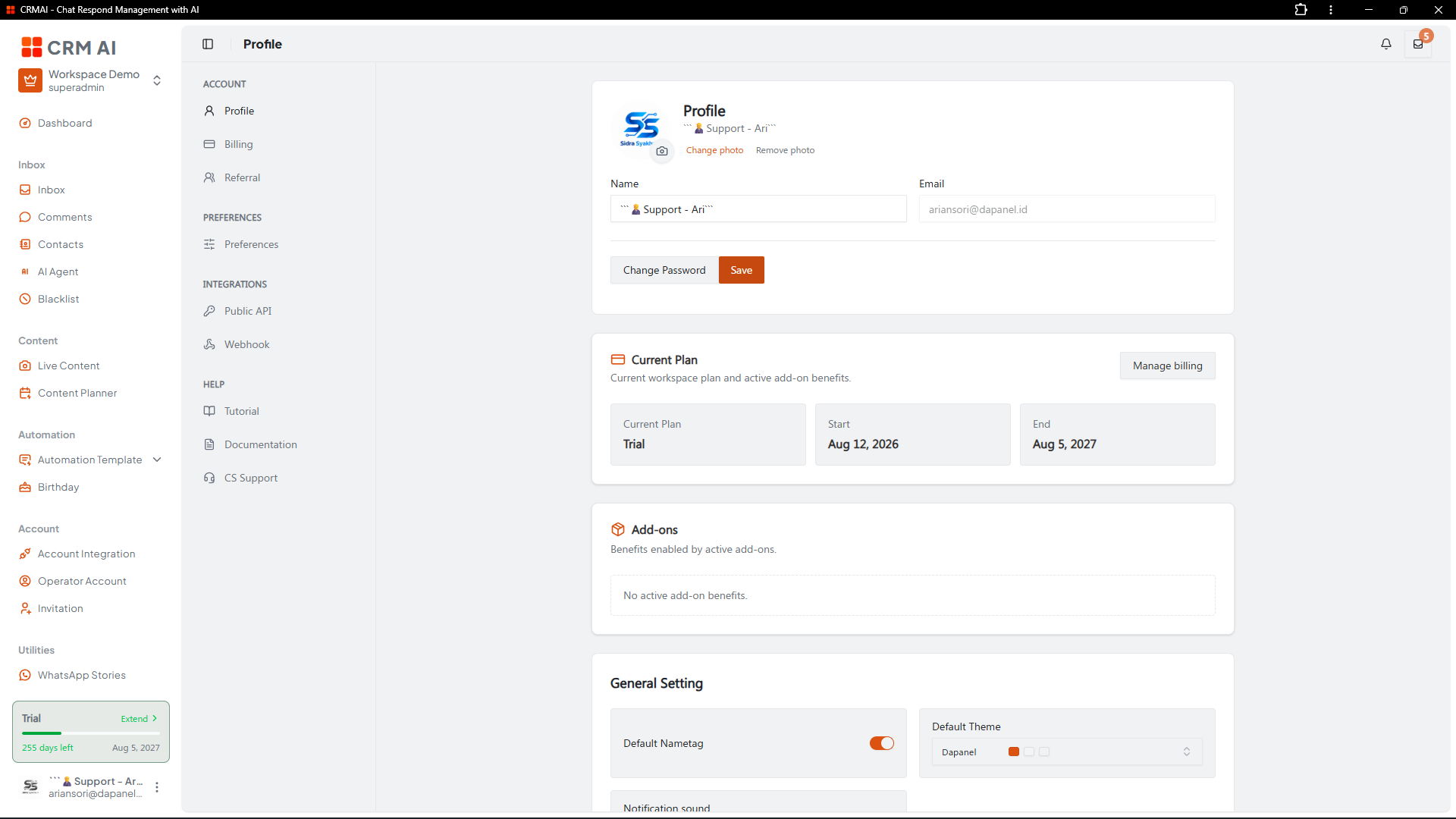
Email is shown for reference only and can't be edited here.
Changing your name
This is the display name shown throughout the app.
Open Profile.
Update the Name field.
Click Save.
Wait for the success notification.
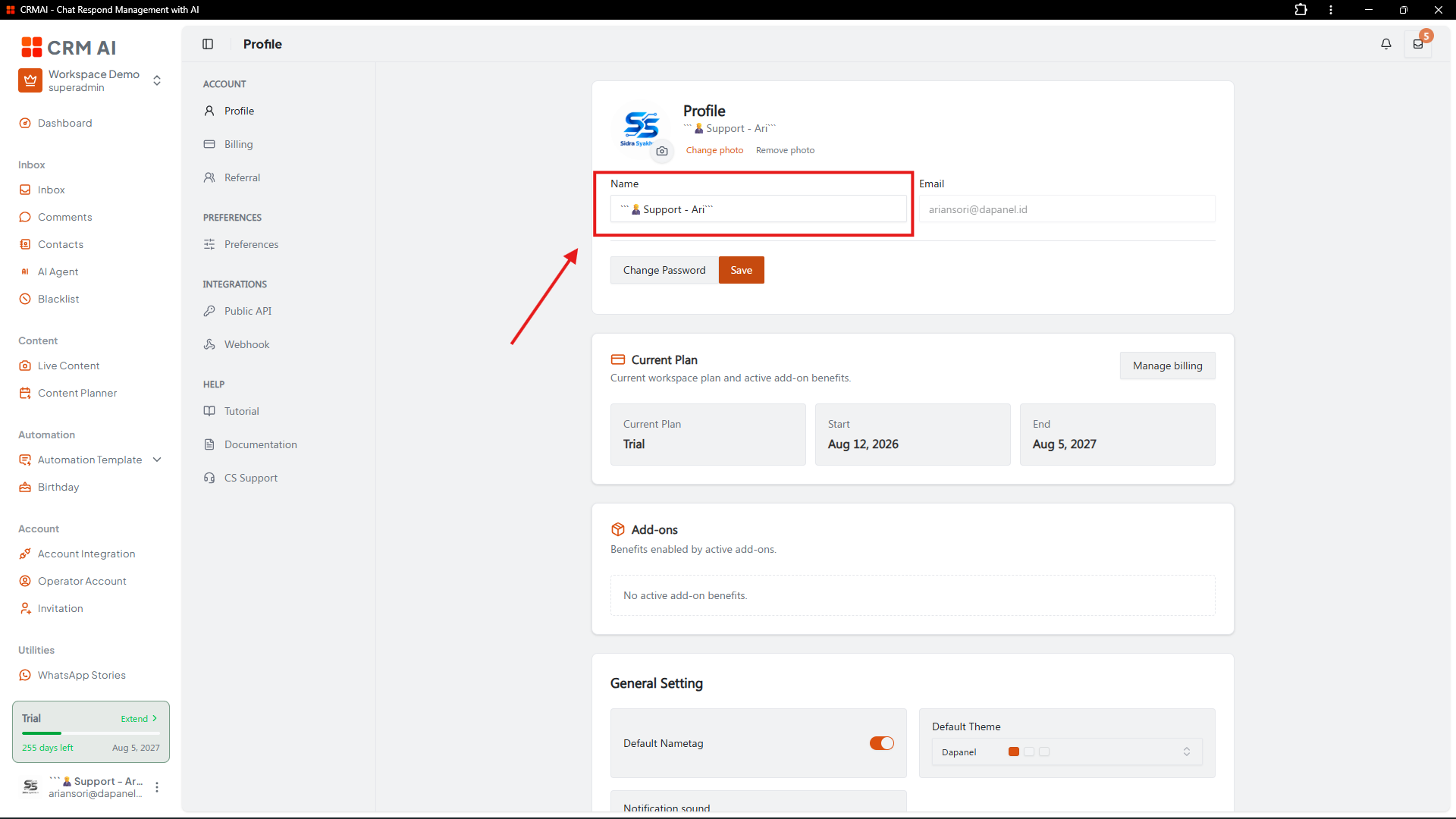
If the success message hasn't appeared, treat the change as unsaved — don't navigate away yet.
Your display name is also used by the name tag on messages you send (see section 6), so changing it changes how customers see you.
Changing your photo
Open Profile.
Click Change photo (or the camera icon on your avatar) and choose an image from your device.
To go back to the default avatar, click Remove photo.
Changing your password
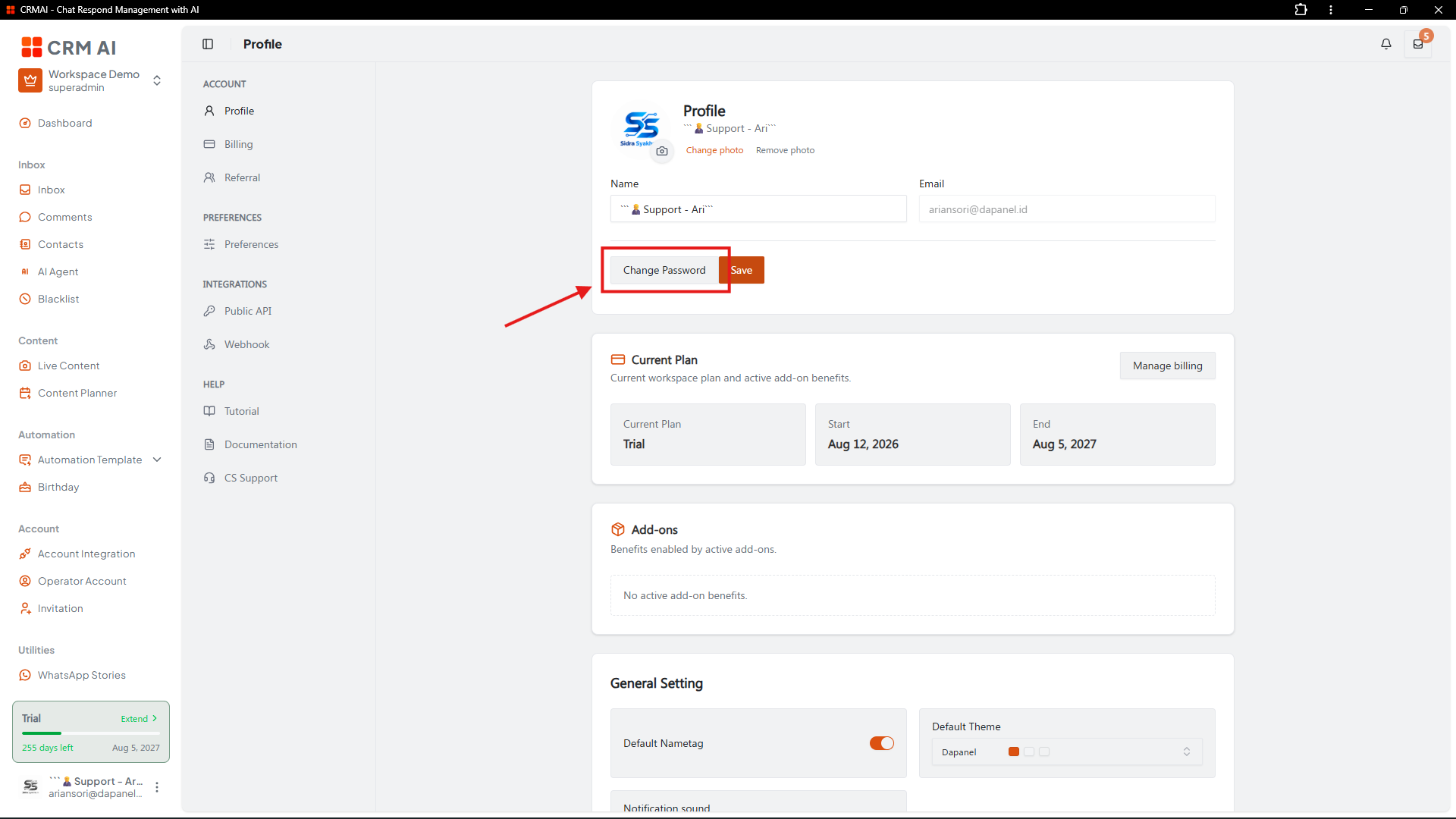
Open Profile.
Click Change Password. The password form opens below.
Enter Old Password.
Enter New Password.
Enter Confirm Password — it must match the new password exactly.
Click Save. Click Cancel to close the form without changing anything.
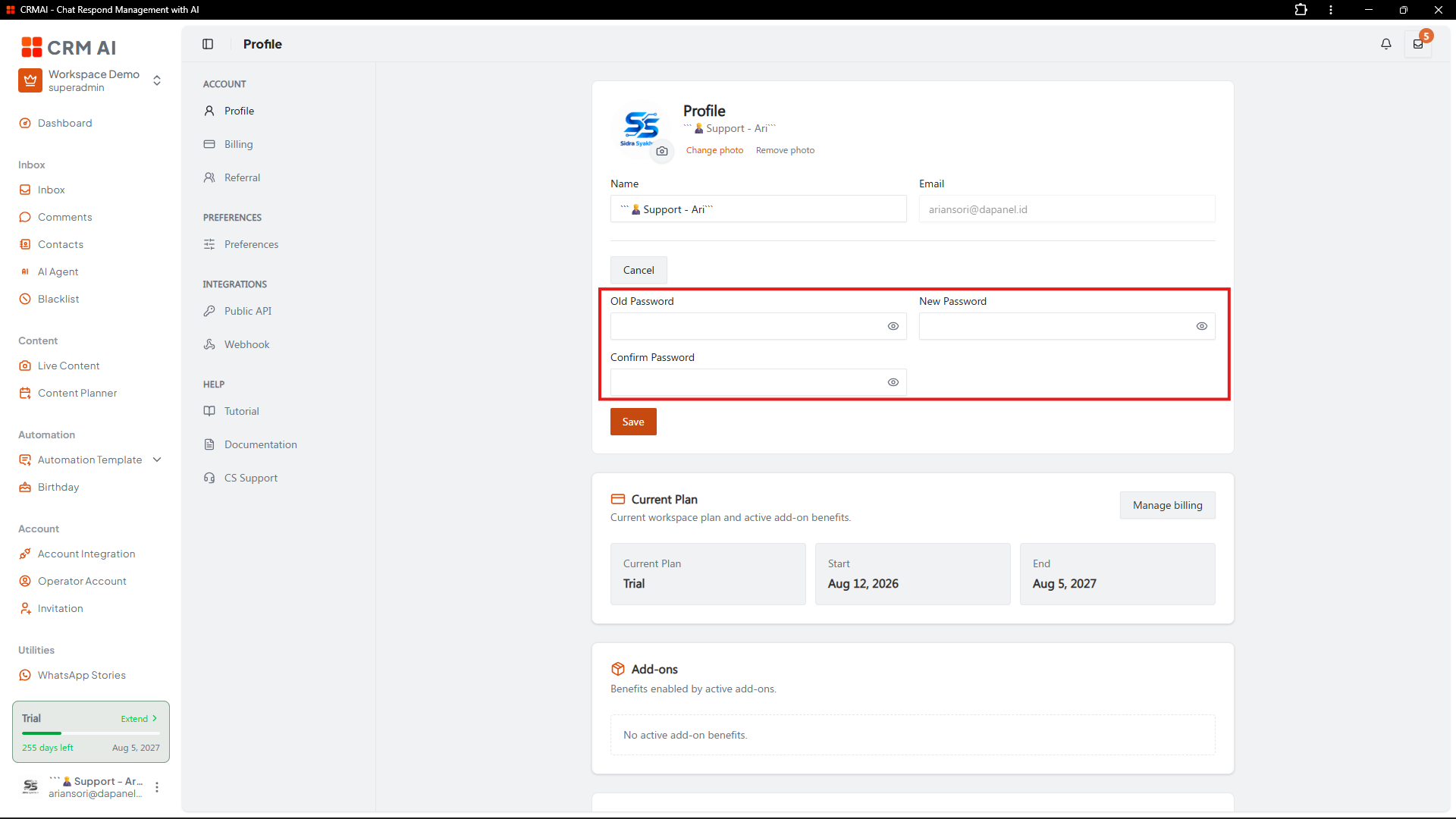
The eye icon on each field lets you double-check what you typed.
Forgot your old password? Don't guess it here. Log out and use Forgot password on the login page instead.
Security tips
Don't reuse a password from another service.
Don't share your password with anyone, including teammates.
Plan overview and managing your plan
The Current Plan card shows your workspace plan at a glance:
Field | Meaning |
|---|---|
Current Plan | Name of the active plan (e.g. Trial) |
Start | Date the plan began |
End | Date the plan ends |
The Add-ons card lists benefits from active add-ons. If none are active, it shows "No active add-on benefits."
To upgrade, renew, or manage your plan, click Manage billing at the top-right of the Current Plan card.
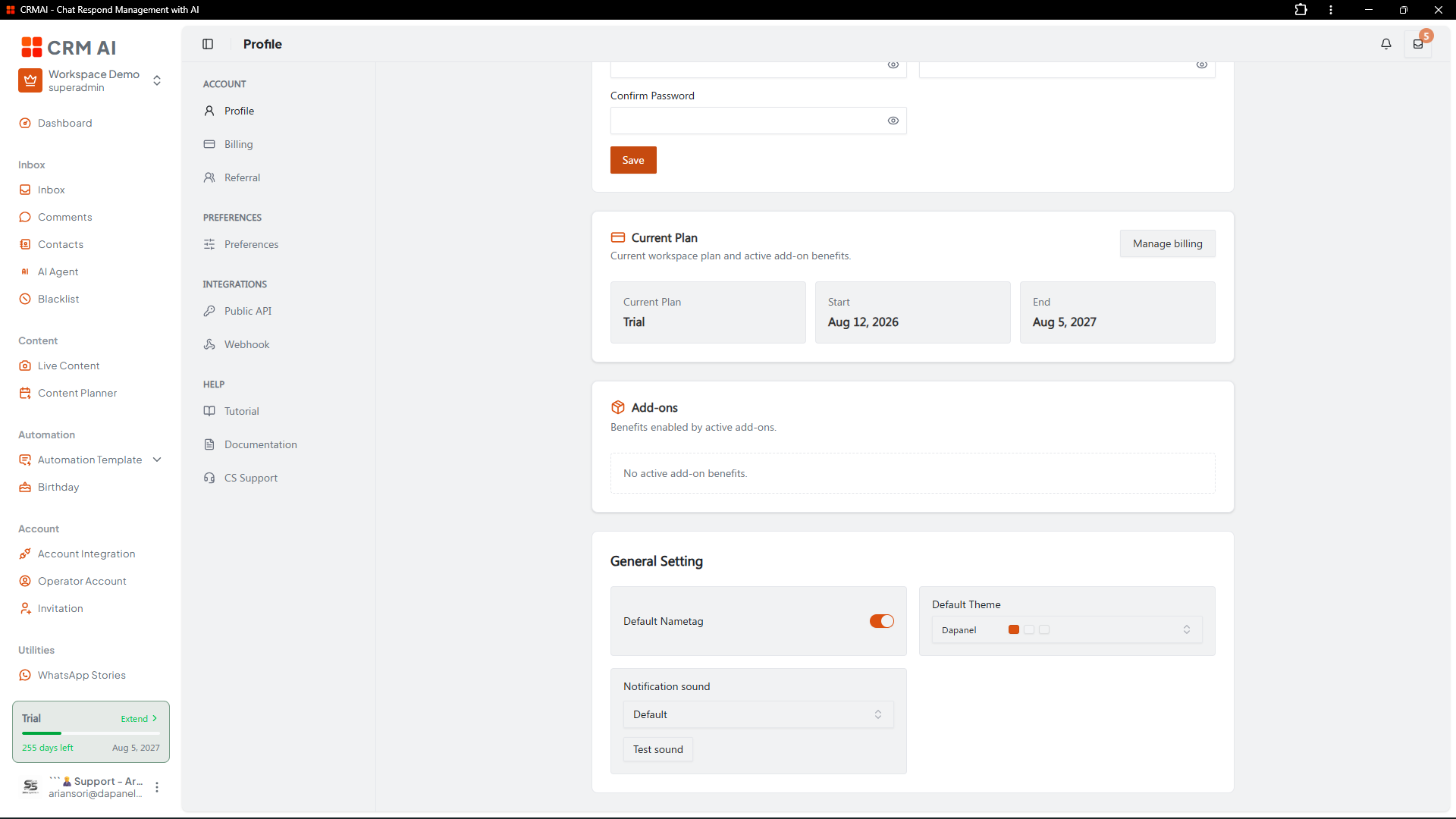
The sidebar also shows a plan summary with days left and an Extend shortcut.
Name tag / signature
The name tag adds your display name as a label at the top of messages you send, so customers (and teammates) can see who replied — for example, "Support - Ari :" followed by your message.
Set the default
Open Profile and scroll to General Setting.
Turn Default Nametag on to have it enabled by default, or off to disable it.
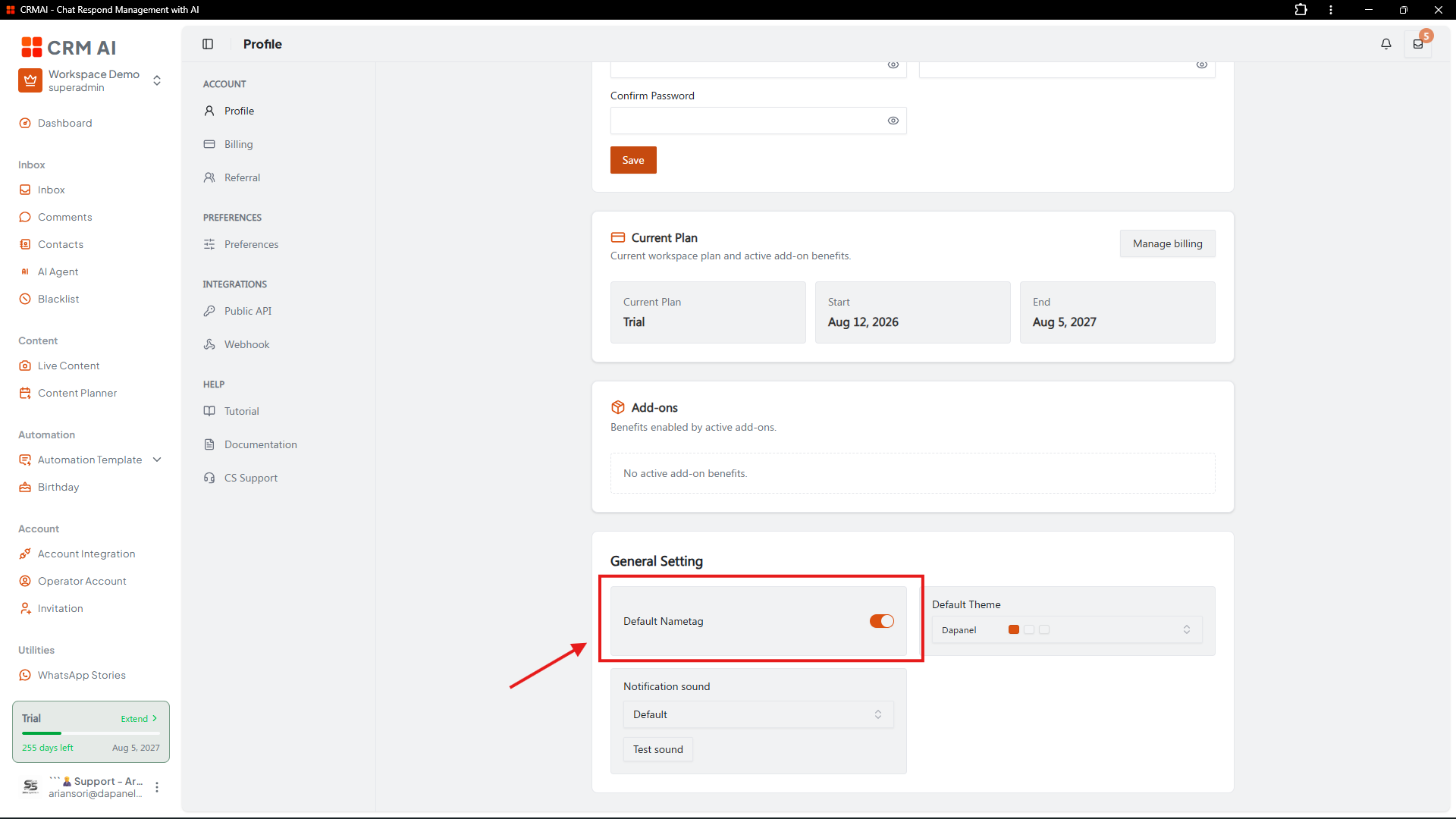
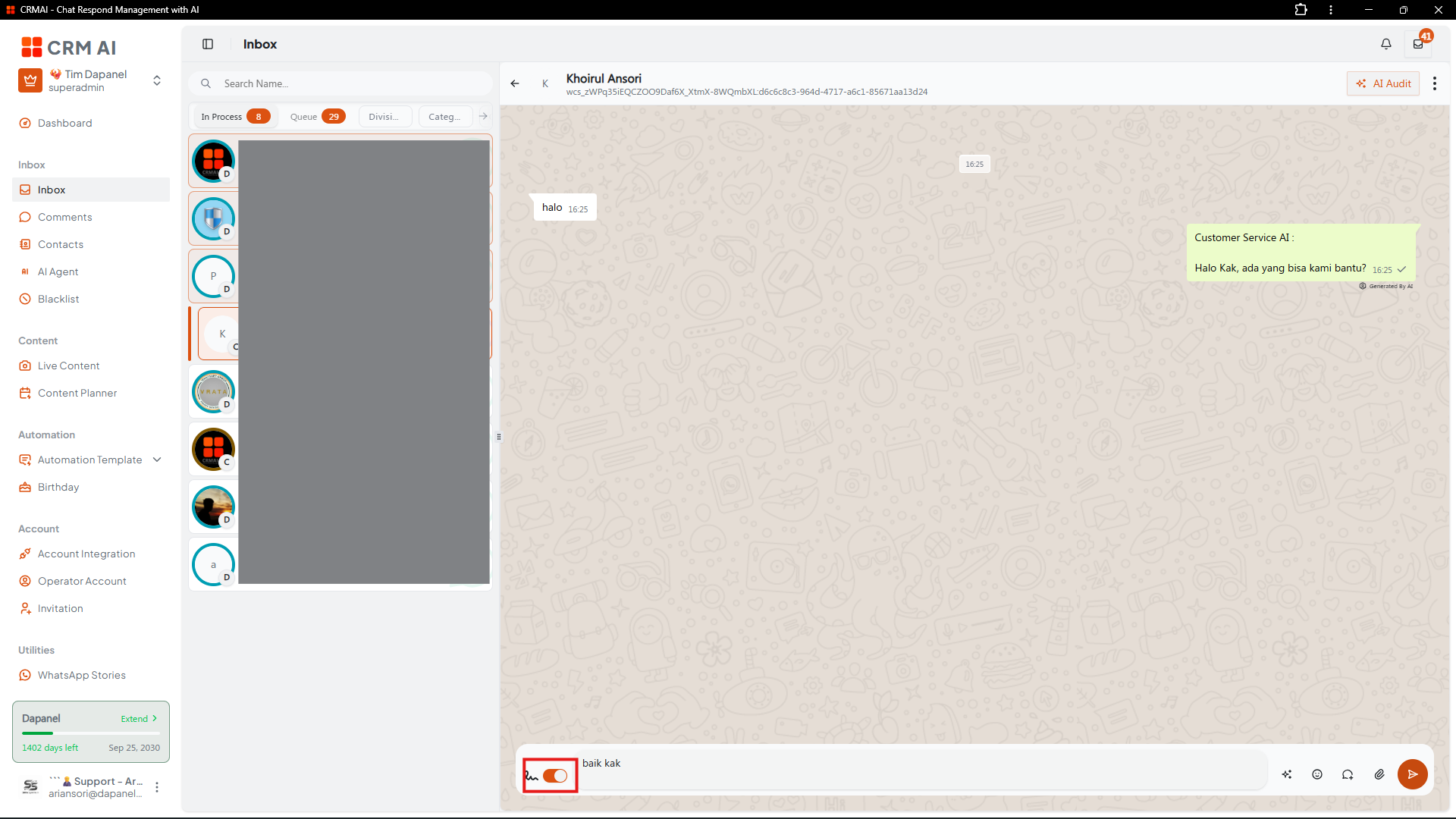
Turn it on/off per message In the chat box, use the signature toggle on the left of the message field. When it's on, your name tag is added to the message you send.
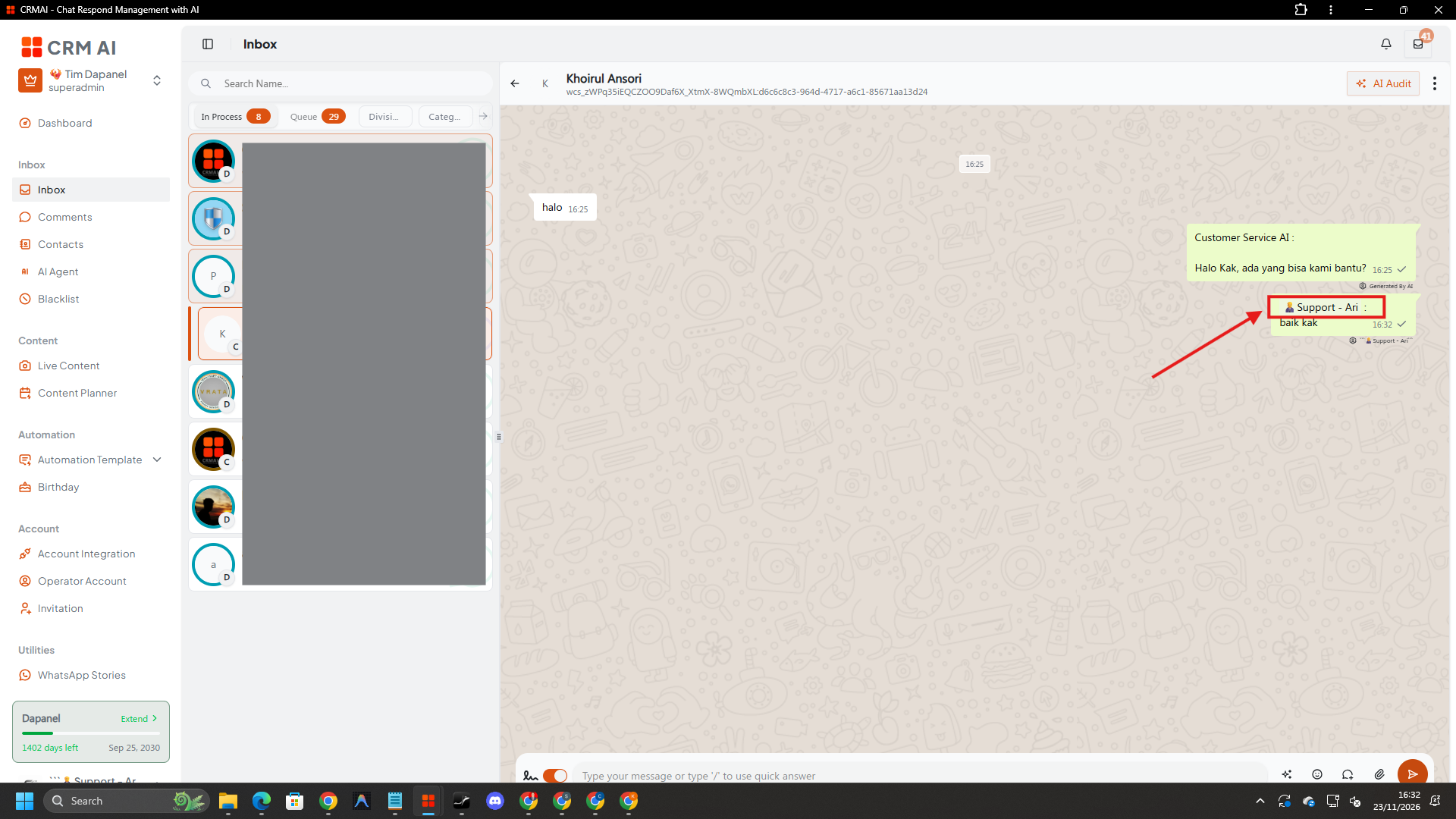
This is purely a display setting. It doesn't create, delete, or modify any tags saved in the system.
Theme, language, and dark mode
Color theme (preset)
The preset controls the combination of primary, secondary, and background colors across the dashboard.
Open Profile → General Setting.
Open Default Theme.
Scroll the list and pick a preset (each shows a color sample, e.g. Dapanel, Modern Minimal, Violet Bloom, Whatsapp).
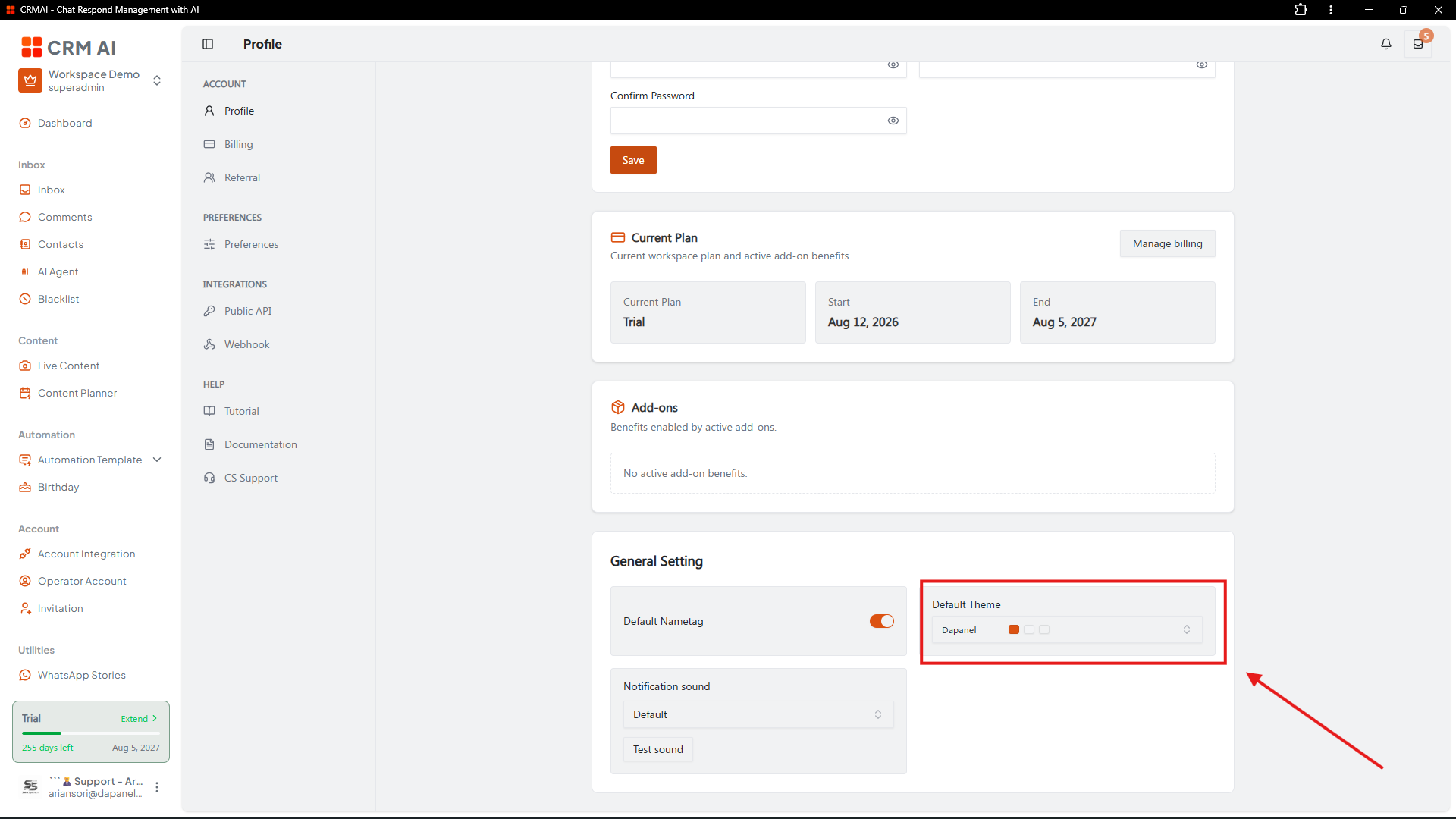
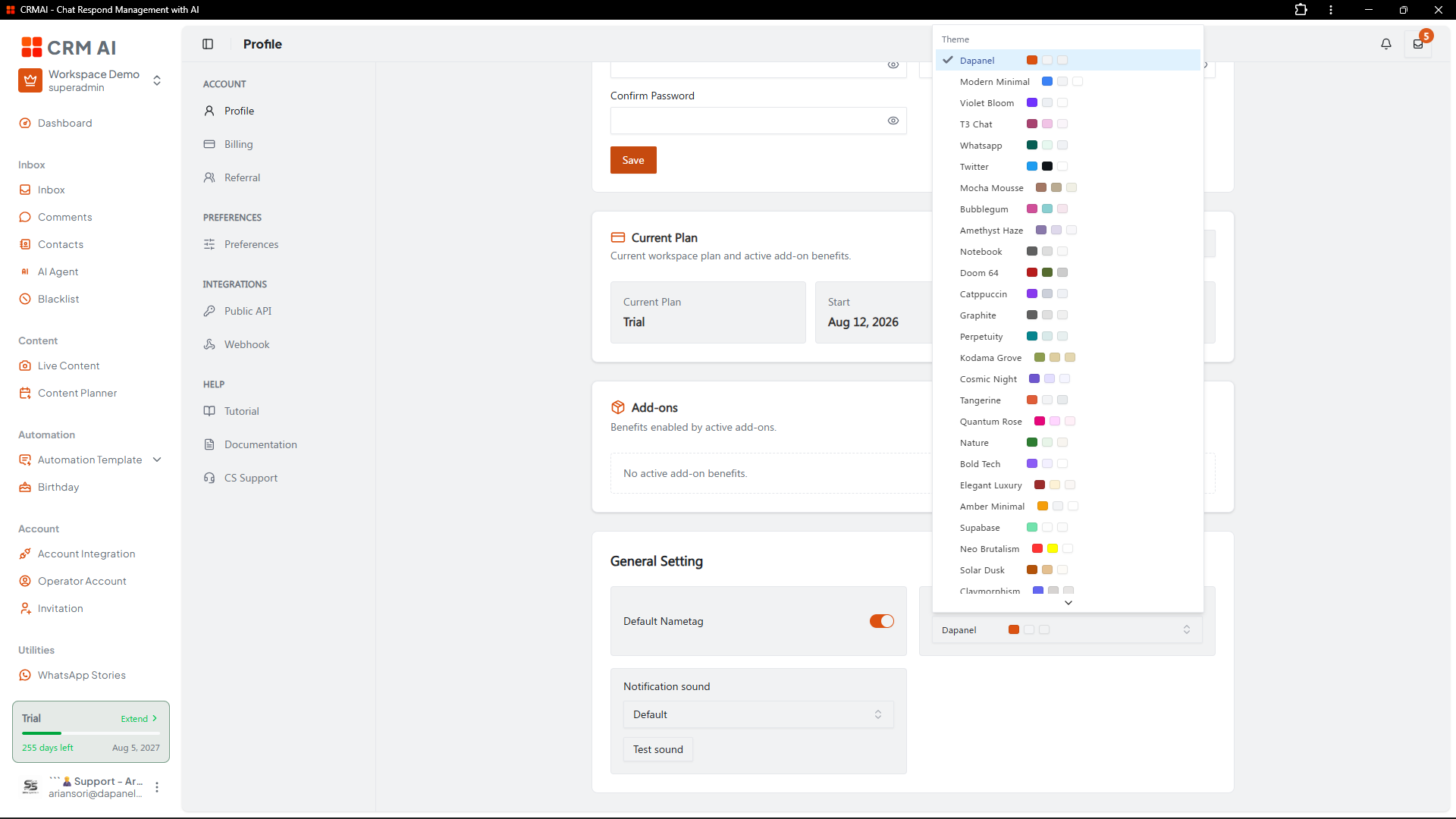
Colors apply immediately and are independent of Light/Dark mode.
Language and Dark mode
Both are in the account menu at the bottom-left of the sidebar.
Language: choose ID (Bahasa Indonesia), EN (English), JA (日本語), or KO (한국어). The app reloads with the new language code in the URL.
Dark mode: use the toggle to switch between Light and Dark. There's no "follow system" option.
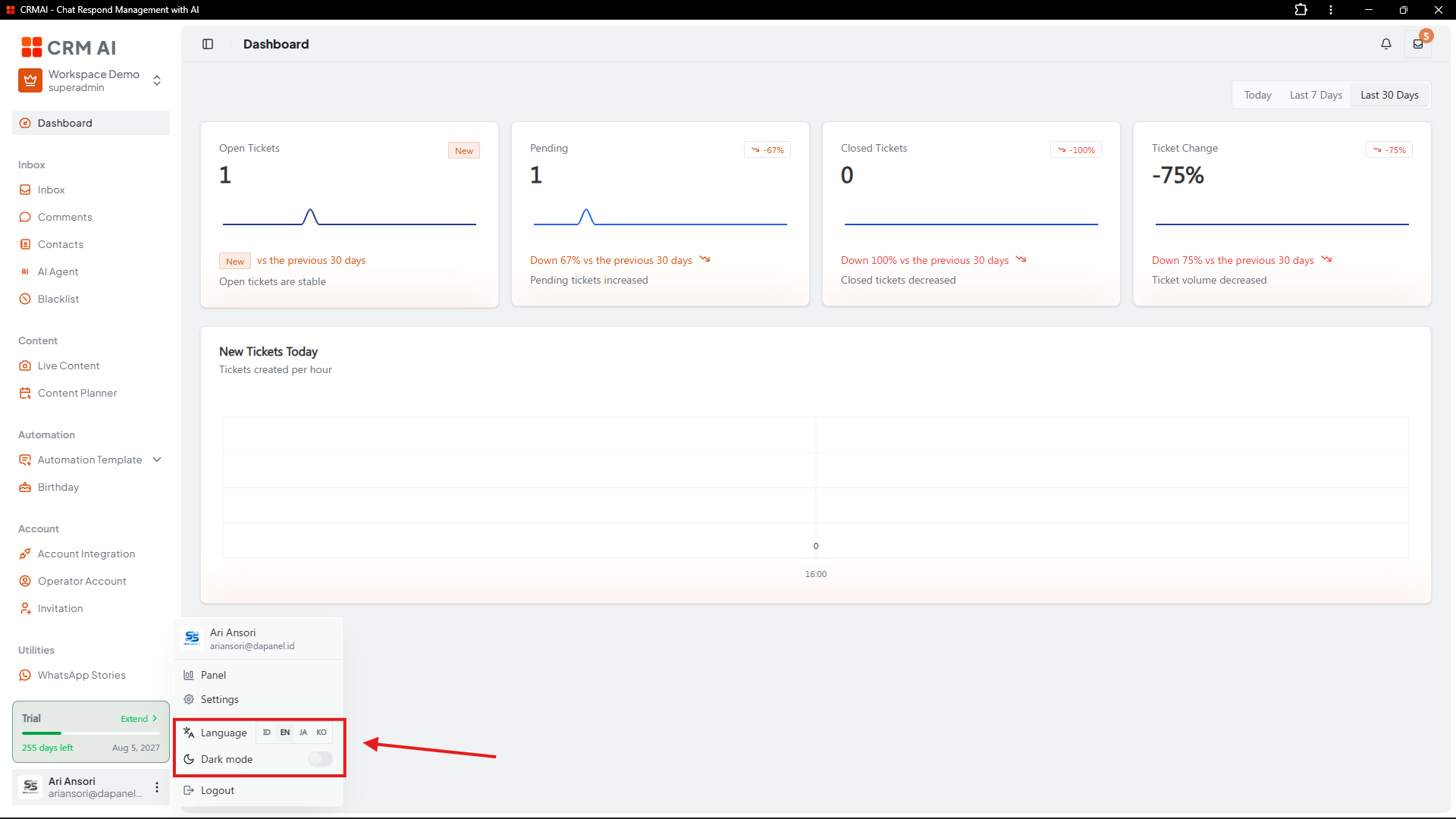
Only interface labels are translated. Business data you created (contact names, broadcast names, message content, knowledge base entries) is not translated automatically.
Notifications
CRMAI has two kinds of notifications, configured separately: notification sound (Profile) and browser notifications (bell icon in the header).
Notification sound
Under General Setting → Notification sound, choose:
Option | Behavior |
|---|---|
Default | CRMAI's built-in sound |
Custom | An audio file you upload |
None | Sound off (visual notifications may still appear) |
Click Test sound to preview.
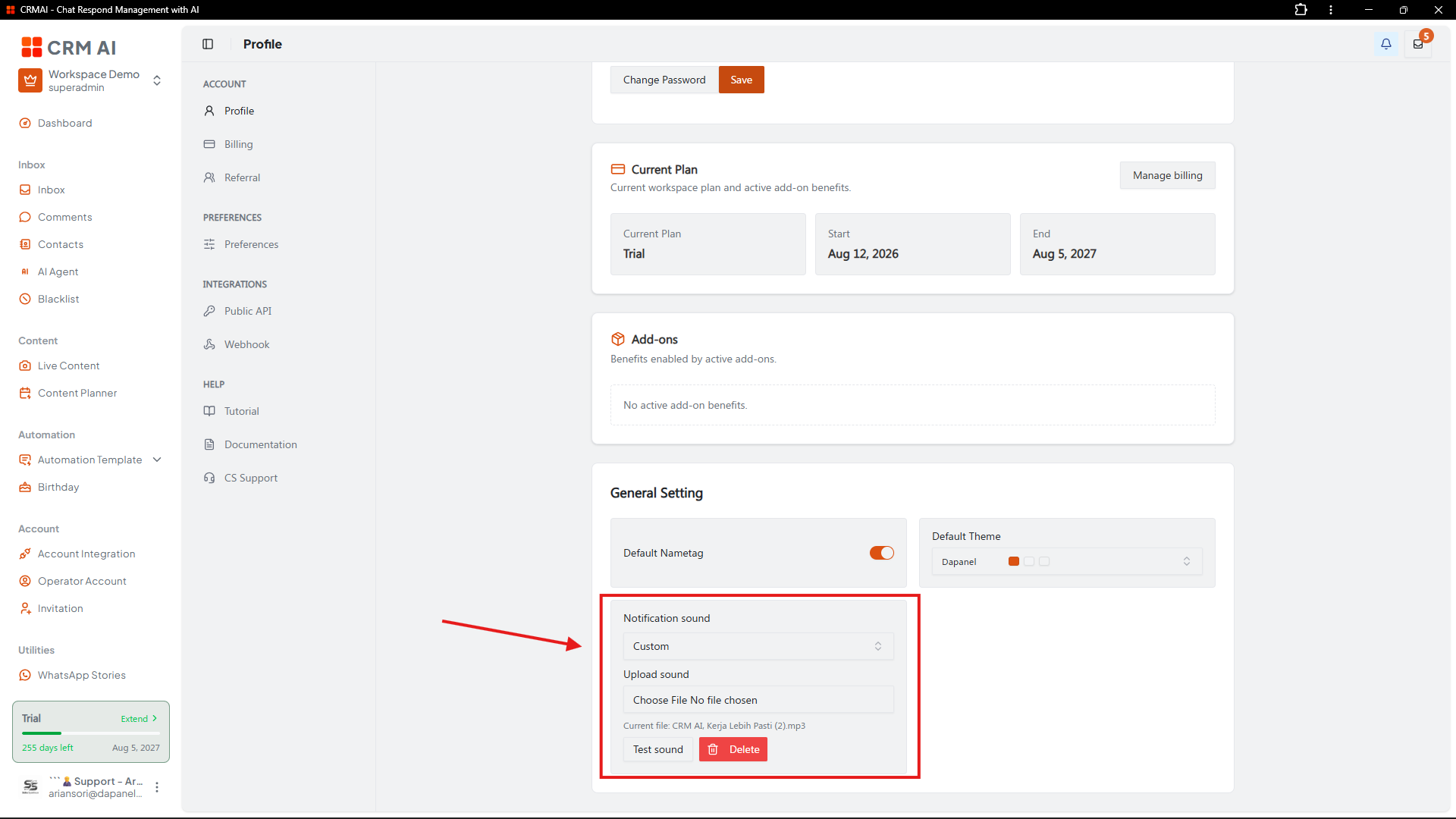
Using a custom sound
Select Custom.
Click Upload sound and choose an audio file (max 2 MB, a format your browser recognizes as audio).
Confirm the file name appears under Current file.
Click Test sound.
Removing a custom sound: while on Custom, click Delete next to Test sound. The system does not fall back to Default automatically — pick another option if you still want sound.
Browser notifications
System-level alerts that can appear even when the CRMAI tab isn't active.
Enable
Click the bell icon in the header.
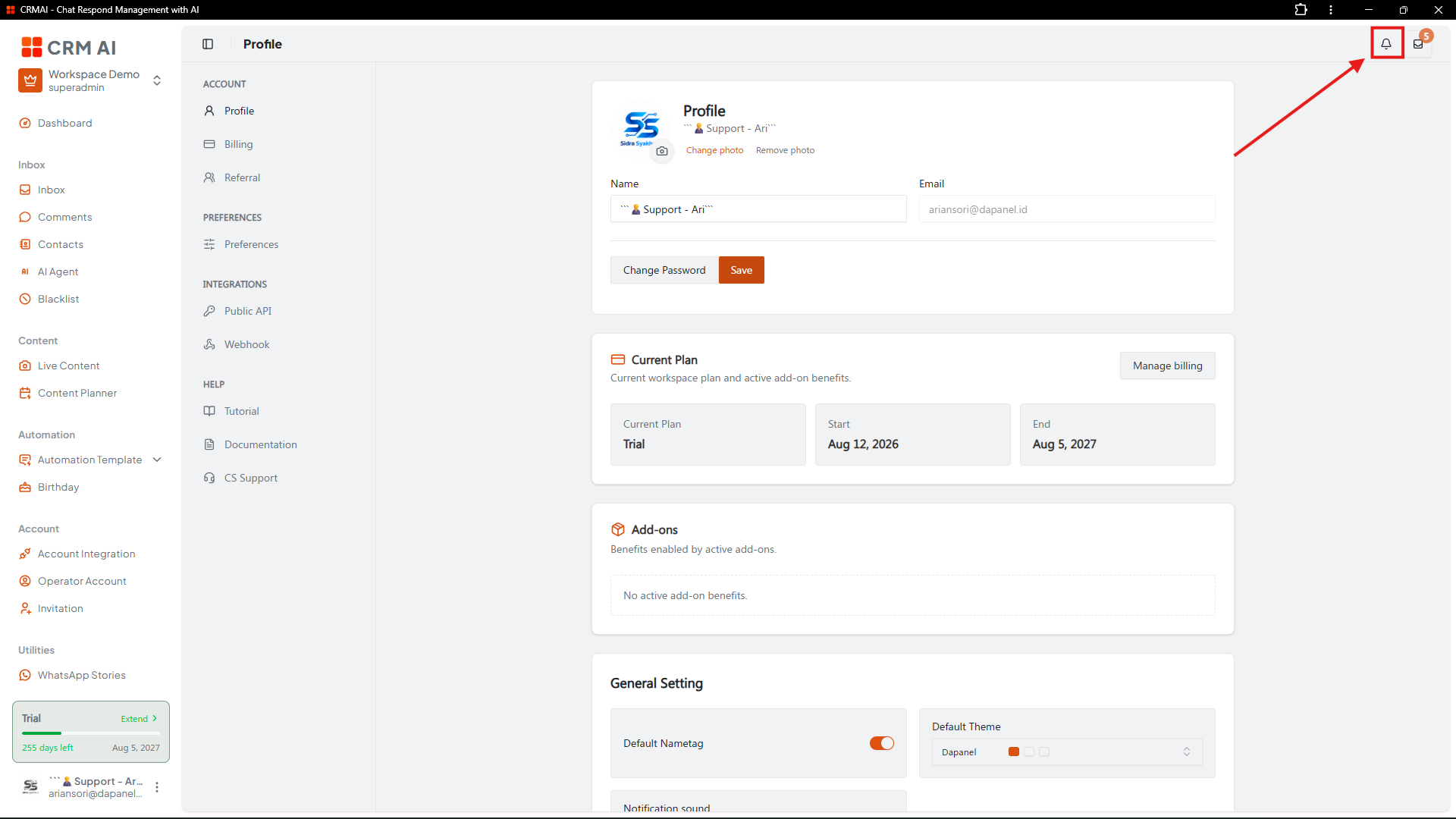
Click Enable.
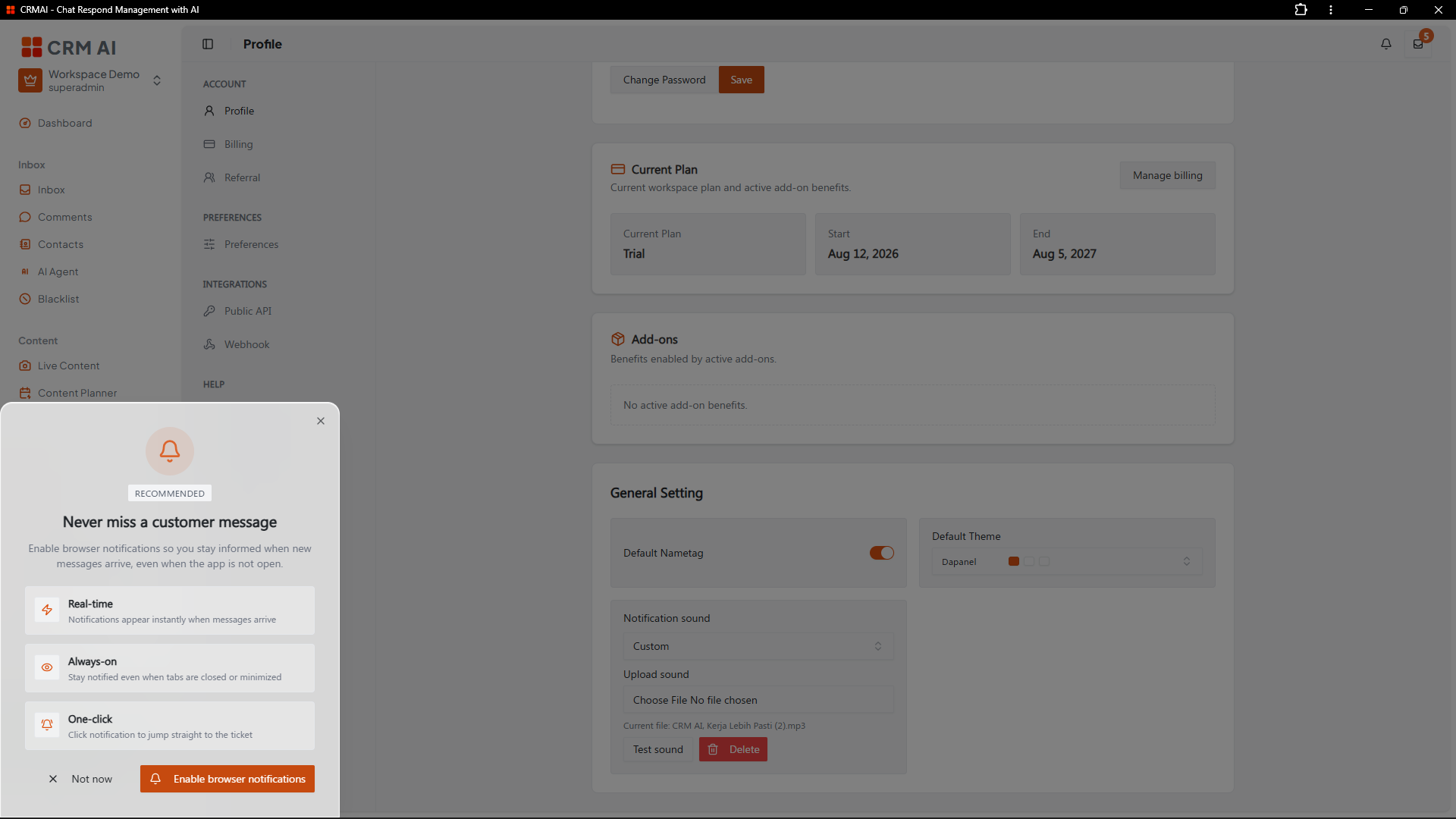
If your browser asks, choose Allow.
Wait for the confirmation notification.
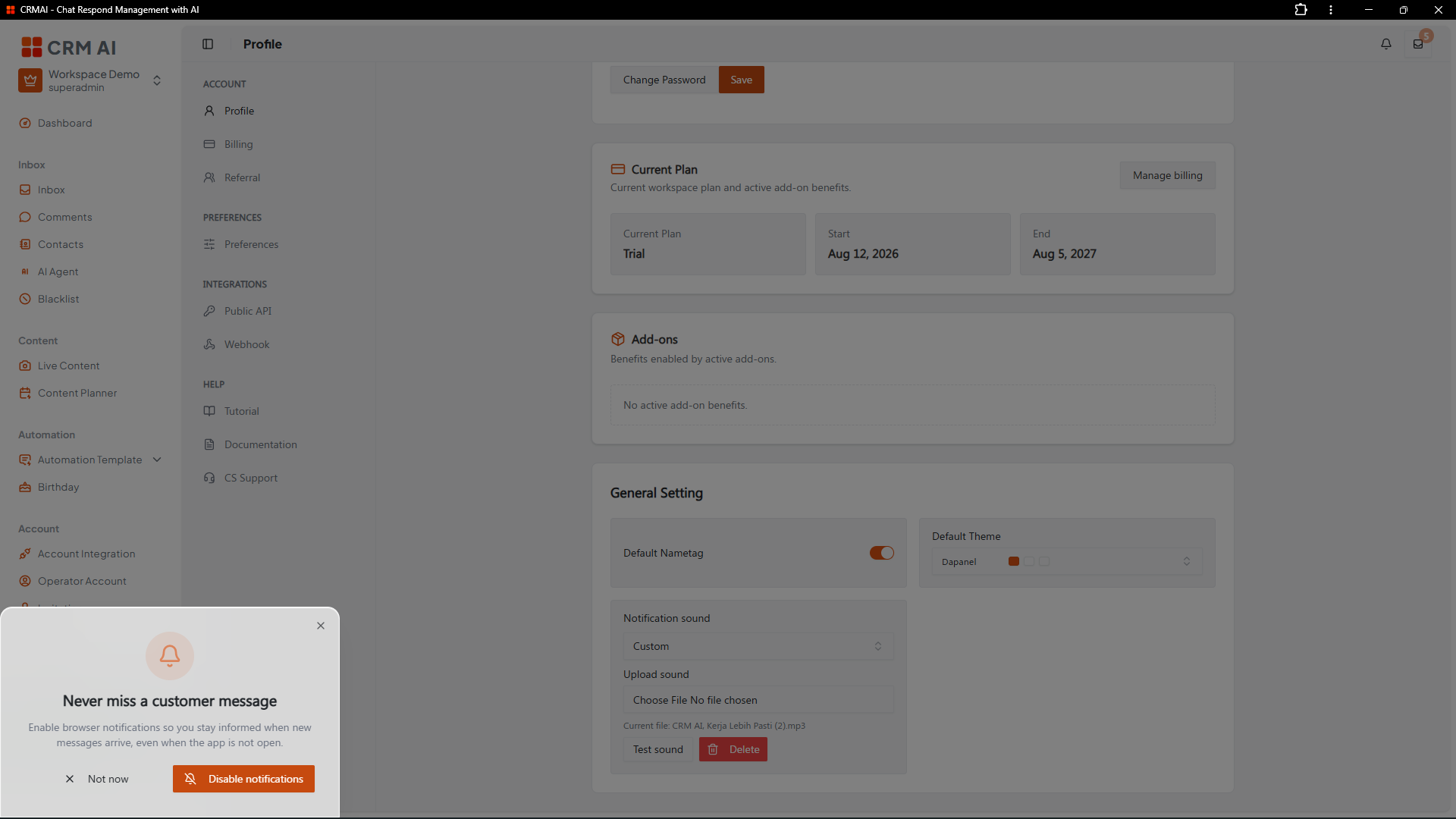
Disable: click the bell icon → Disable, and check for the success notification. This only removes the push subscription; your browser may still show permission as "allowed" — that's normal.
If blocked: click the bell icon → open Browser settings → allow notifications for the CRMAI domain → return and enable again. If the settings page can't be opened directly, CRMAI copies the instructions to your clipboard.
If there's no bell icon, your browser or device likely doesn't support Web Push.
Troubleshooting
Issue | Fix |
|---|---|
Name not saving | Make sure you clicked Save and saw the success notification. Check your session is still active — if you were logged out silently, the change may not have gone through. |
New password rejected | Check that the old password is correct and the new password matches the confirmation. If you forgot the old password, use Forgot password on the login page. |
Language changed but some text stayed the same | Expected — user-created business data isn't translated. Reload and check. |
Theme doesn't change right away | Wait for the page to finish loading, make sure you actually clicked the preset, then reload. |
Theme reverts | Check whether your browser blocks site cookies. If it persists, clear site data (make sure your login info is safe first). |
Custom sound fails to upload | Check file size (max 2 MB) and that the format is audio. |
Sound doesn't play on incoming messages | Check the active sound option (not None), device/browser volume, then use Test sound. |
No bell icon | Browser/device may not support Web Push, or the component is still loading. |
Browser notifications blocked | Open browser settings via the bell panel and allow notifications for the CRMAI domain. |
If the problem persists, note the last step you took and any error message, then report it to support. Never include your password or tokens in the report.