 CRMAI Docs
System
The System menu controls how your workspace behaves day to day: how tickets are distributed to agents, when tickets auto-close, when an old ticket is reused, how long media is kept, and when messages are marked as read.
Opening System
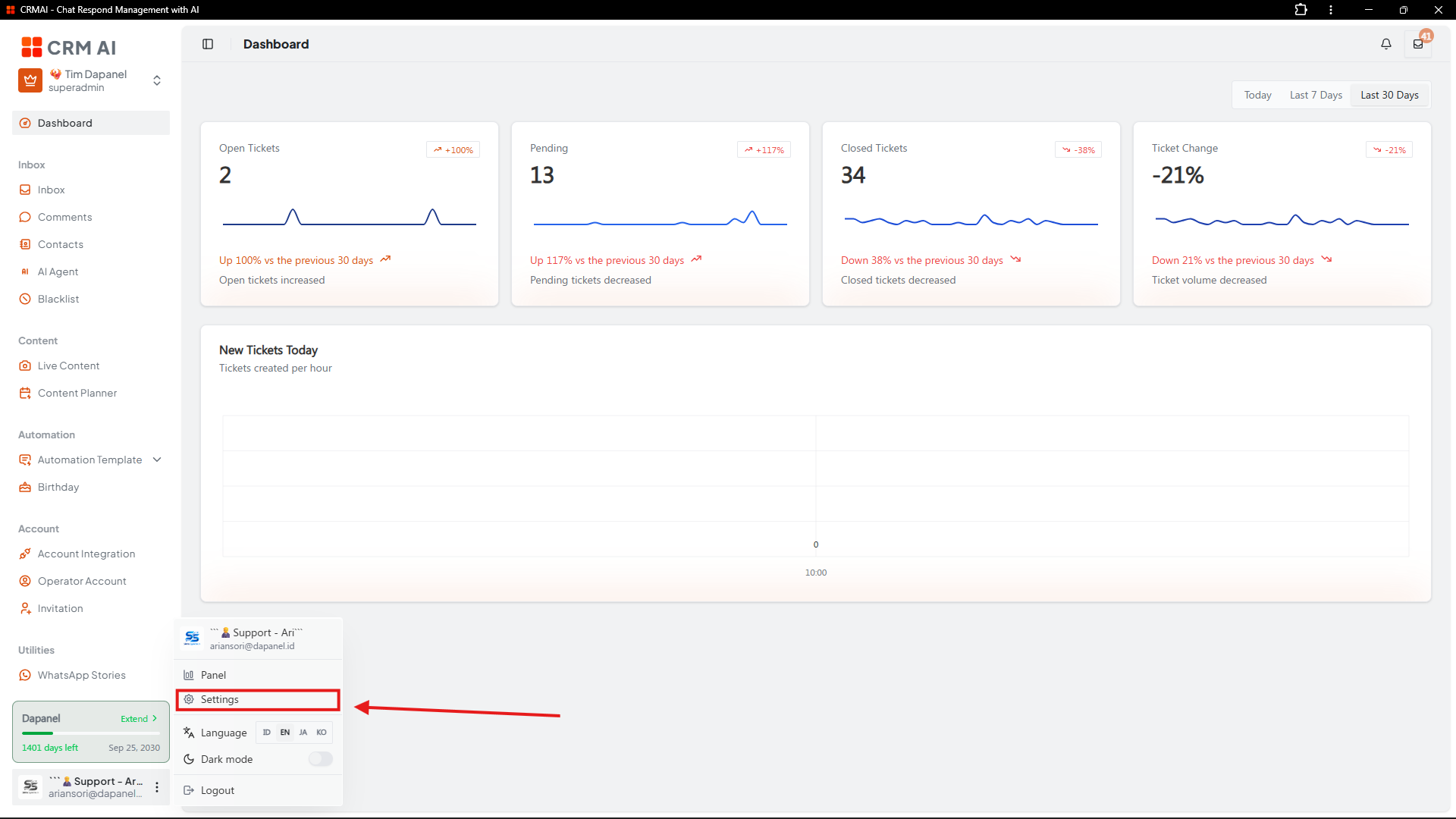
Click your name/avatar at the bottom-left of the sidebar and select Settings.
In the left sub-menu, click System.
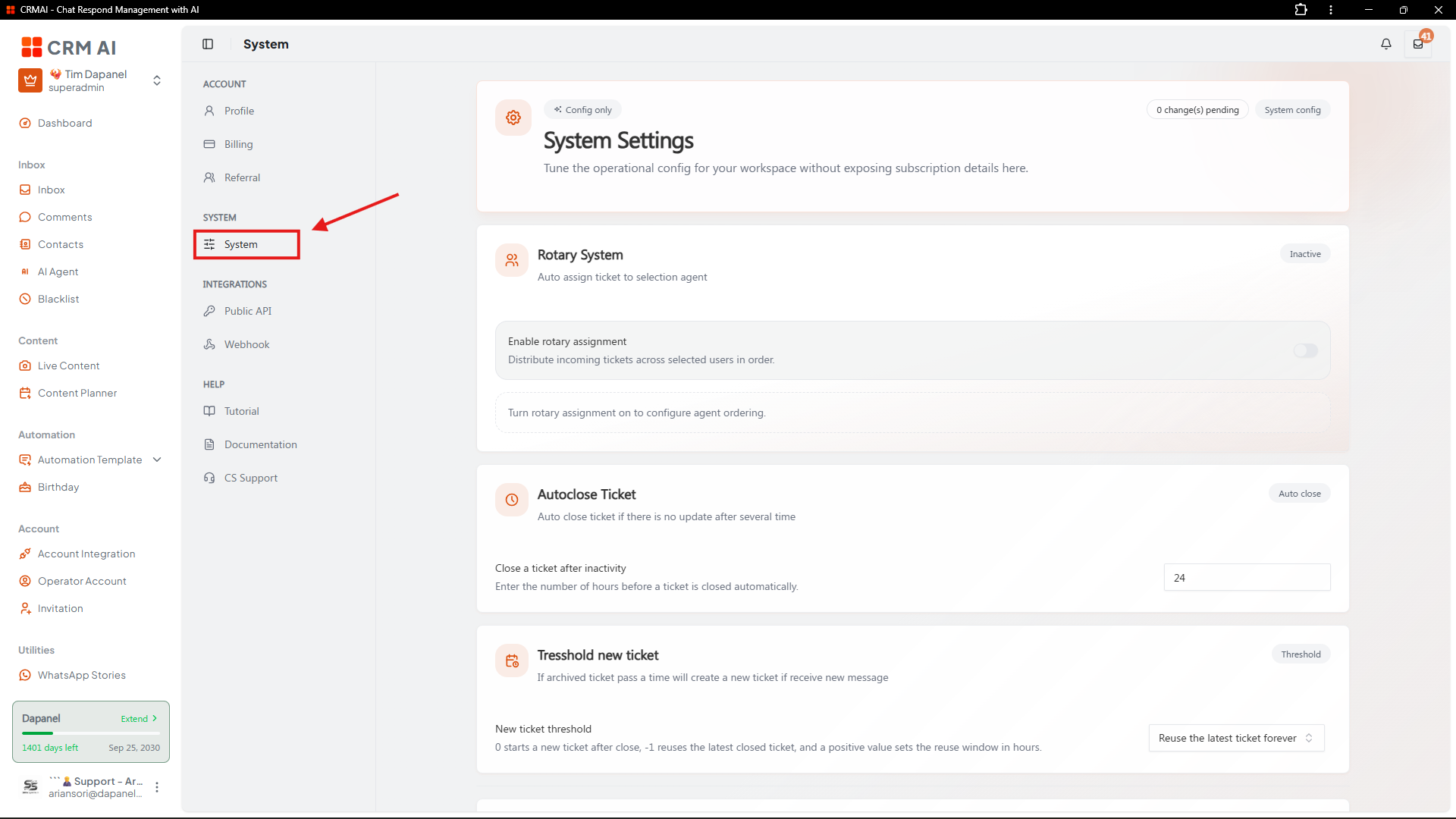
The page header shows System Settings with a "0 change(s) pending" badge. The number goes up as you edit values and goes back to 0 once saved.
Nothing saves automatically. The Save button appears only when there's a pending change, and each section saves on its own.
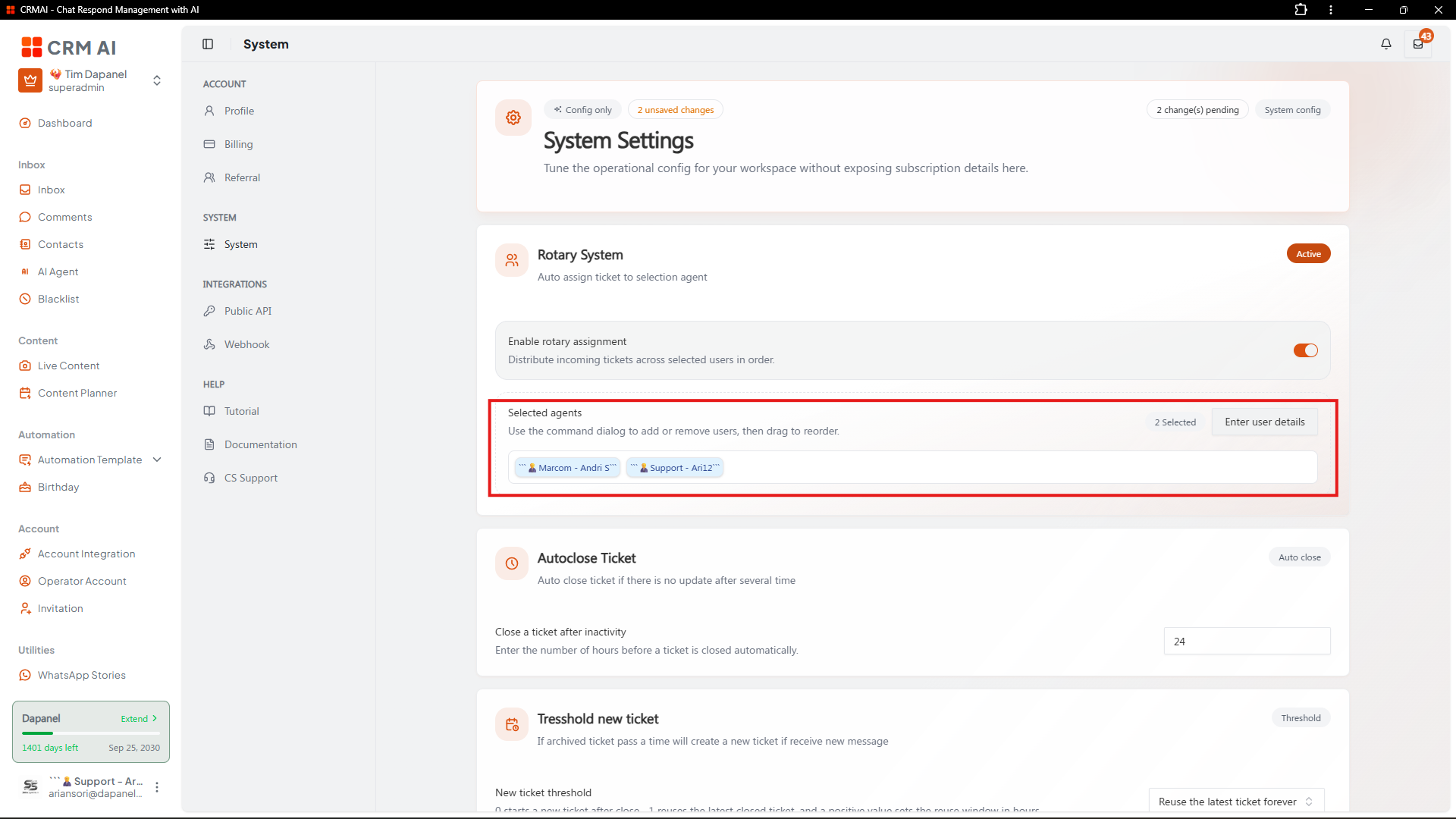
Rotary System
Distributes incoming tickets across several agents in rotation, in the order you set. The card shows an Inactive badge until the feature is turned on.
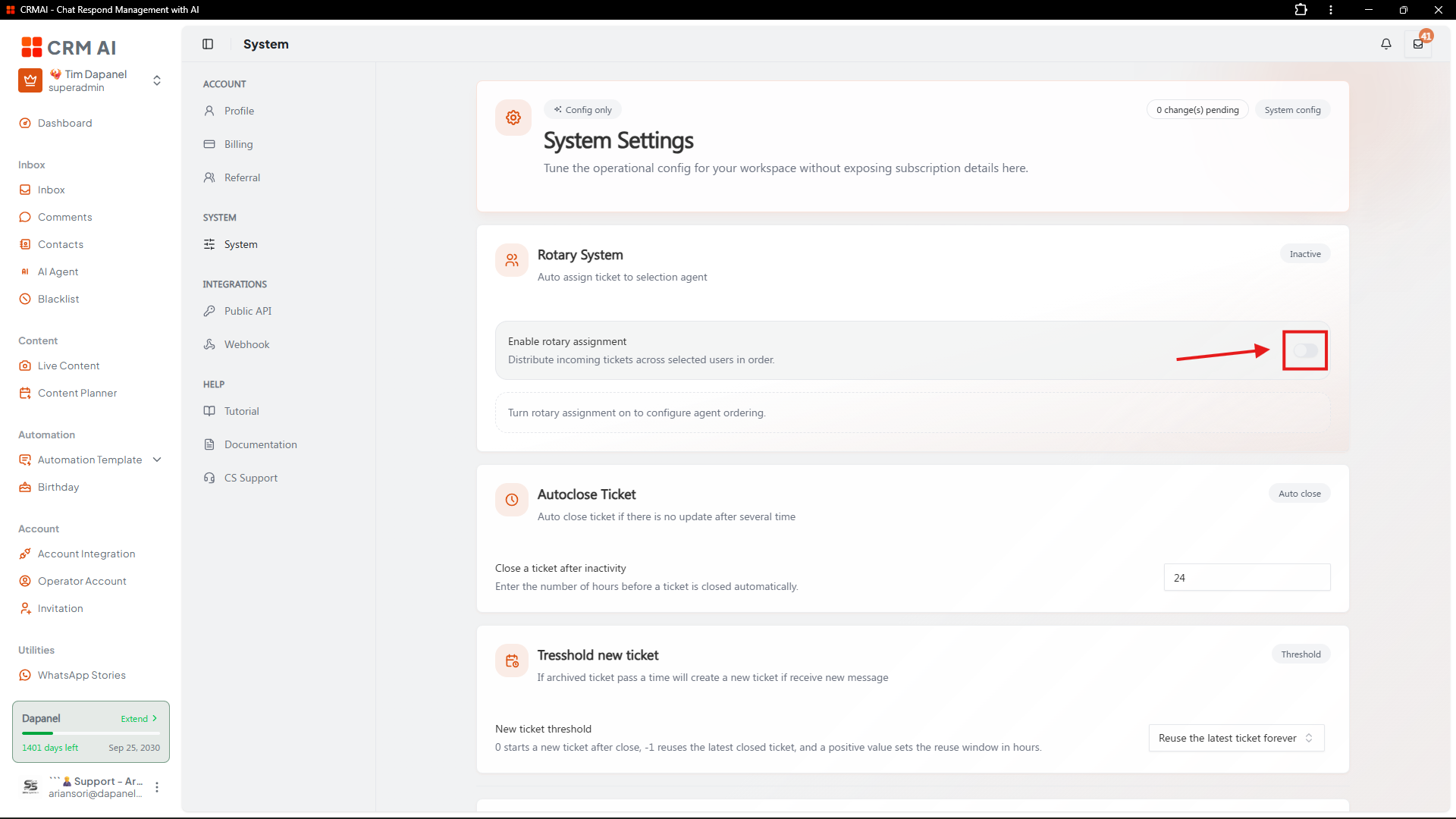
Turn on Enable rotary assignment. (While it's off, the card shows "Turn rotary assignment on to configure agent ordering.")
Pick agents through the user selector.
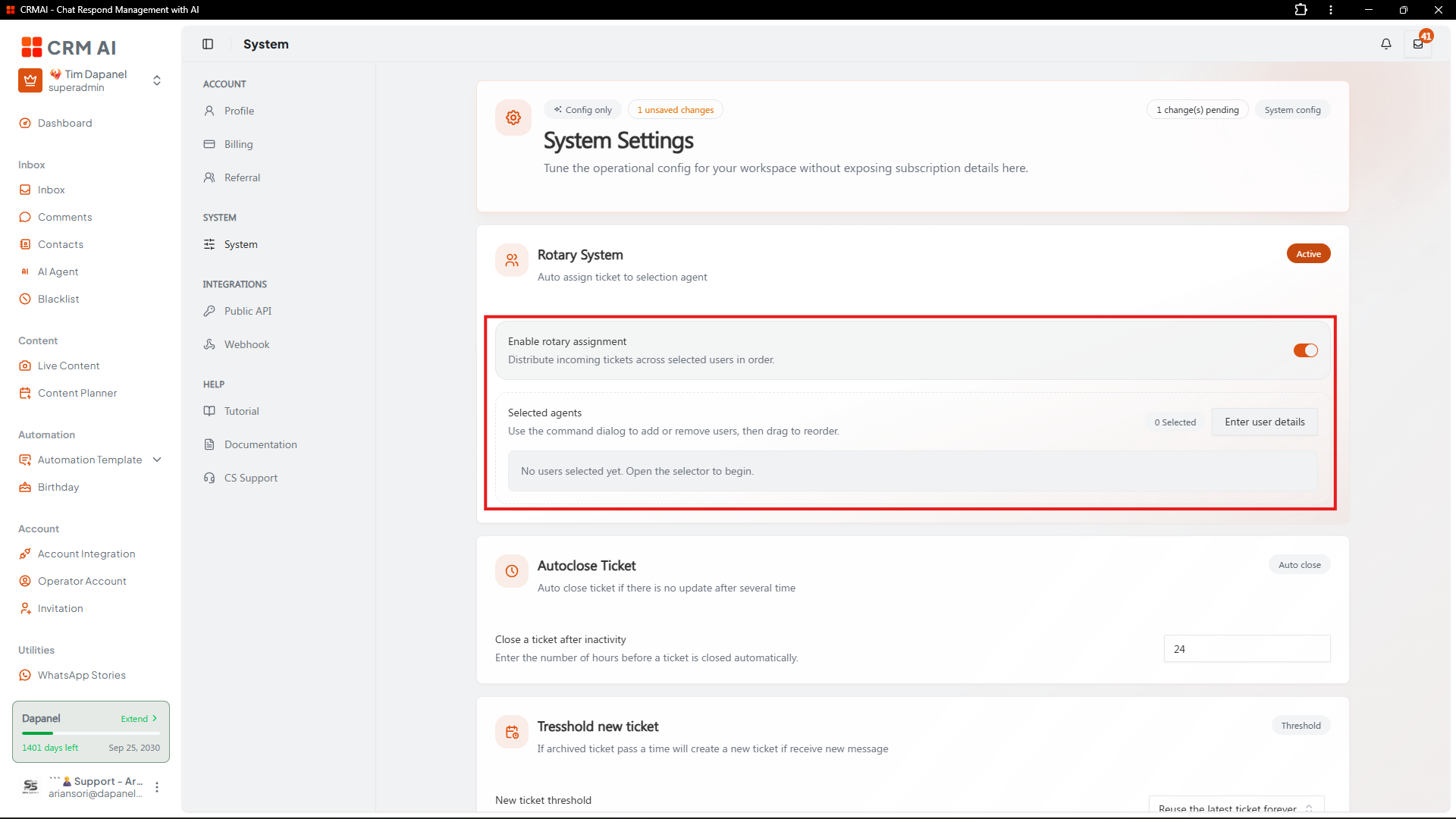
Drag and drop to set the order.
Click Save.
Don't turn this on before your agent list is ready — with no agents selected, tickets won't be distributed.
Autoclose Ticket
Closes tickets automatically when there's no activity for a set number of hours.
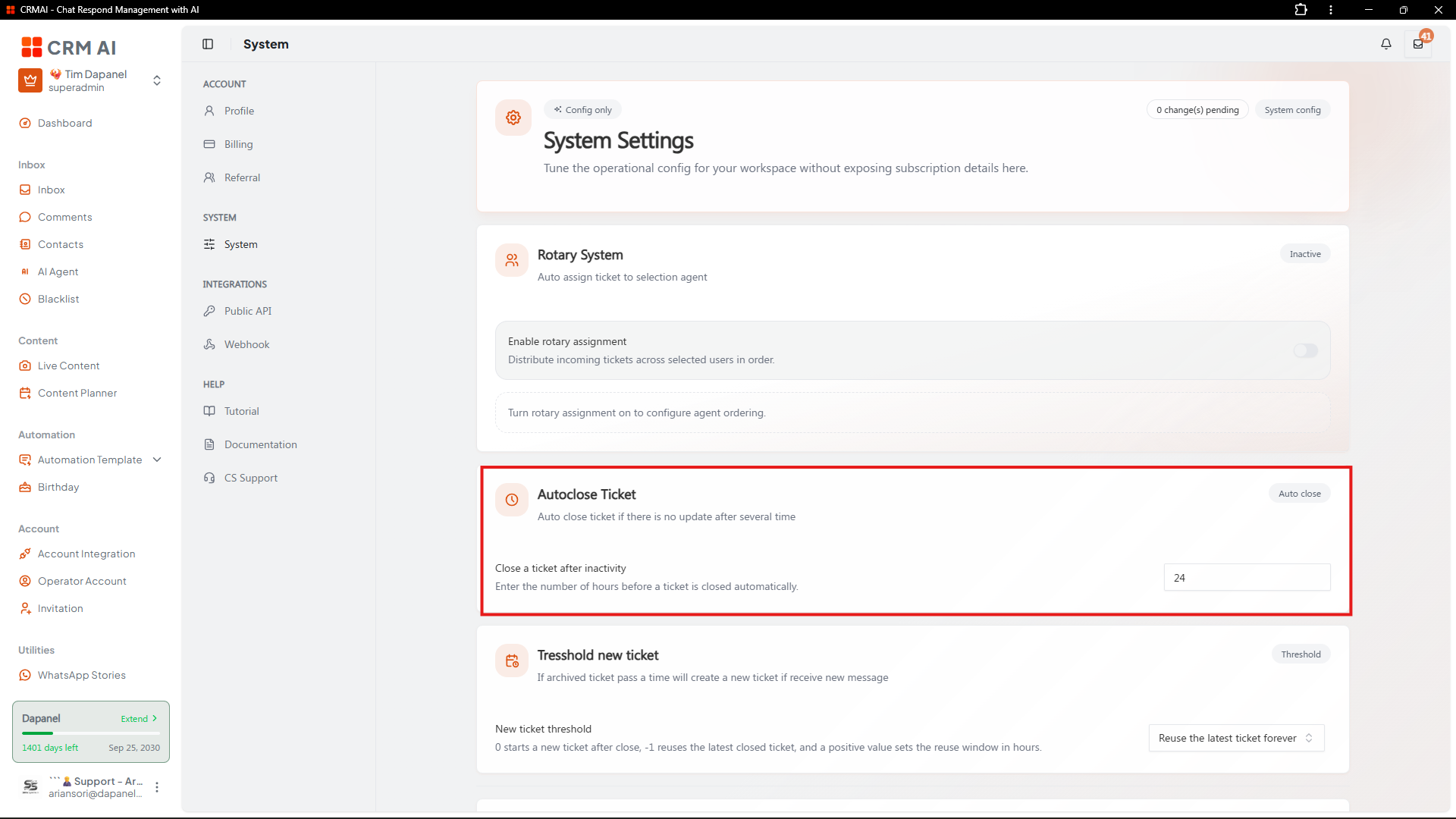
On the Autoclose Ticket card, enter the number of hours in Close a ticket after inactivity (the default shown is 24).
Click Save.
Avoid setting this too short — a ticket can close before the agent or customer gets a chance to continue.
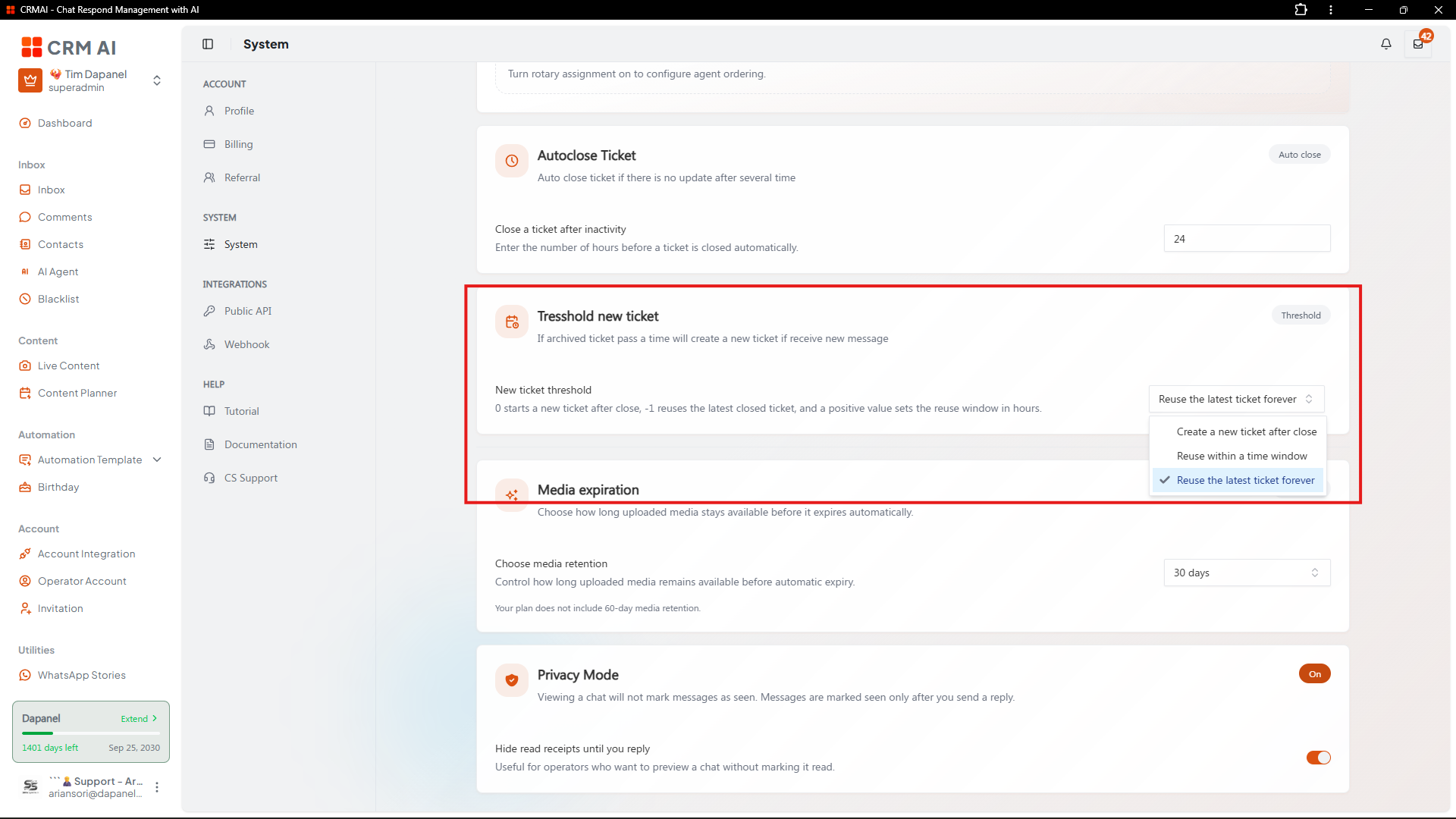
Ticket threshold
Decides what happens when a new message arrives after an old ticket was closed. Choose a mode in New ticket threshold:
Mode | Value | Behavior |
|---|---|---|
Create a new ticket after close | 0 | Always starts a new ticket |
Reuse within a time window | Positive number (hours, min. 1) | Reuses the old ticket, but only within X hours of closing |
Reuse the latest ticket forever | -1 | Always reuses the most recent ticket, no time limit |
Pick a mode from the dropdown.
If you chose a time window, enter the number of hours (minimum 1).
Click Save.
Be careful with "forever" mode — old conversations can keep being reused if it doesn't match your team's workflow.
Media expiration
Sets how long uploaded media stays available before it expires automatically.
On the Media expiration card, open Choose media retention.
Pick a duration (30 days or 60 days).
Click Save.
60 days is only available on plans that include it. If your plan doesn't, the card shows "Your plan does not include 60-day media retention."
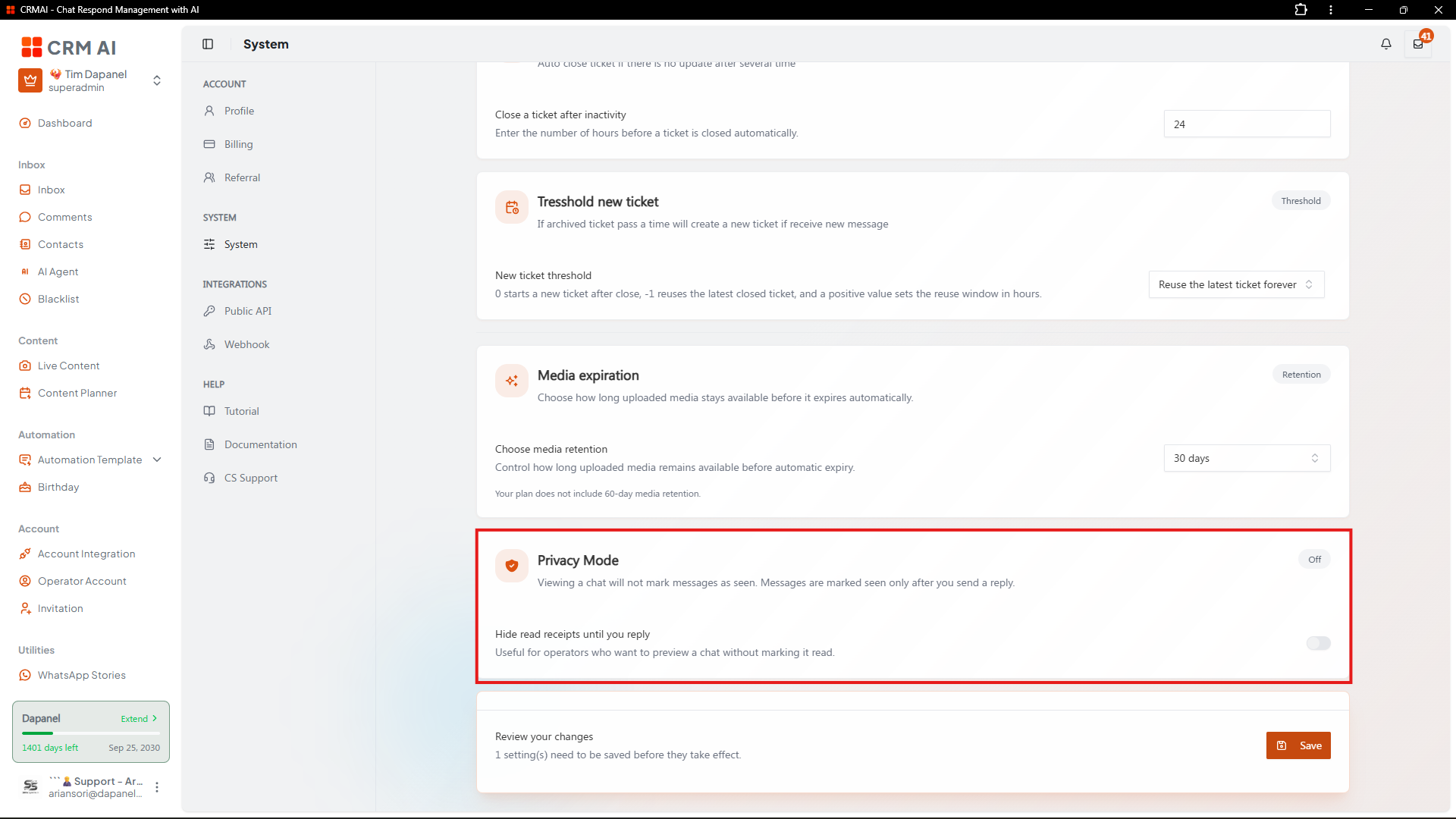
Privacy Mode
Stops a chat from being marked as read just because it was opened. Messages are marked as read only after the agent sends a reply — useful for previewing a chat without leaving a read receipt. The card shows an On badge when enabled.
Turn on Hide read receipts until you reply.
Click Save.
Troubleshooting
Issue | Fix |
|---|---|
Save button doesn't appear | Make sure a value was actually changed (check the "change(s) pending" counter). |
Changes disappear after reload | It wasn't saved yet — redo it and wait for the "Settings saved" notification. |
Rotary isn't distributing tickets | Check the switch is on, at least 1 agent is selected, and it's been saved. |
New messages land in the wrong ticket | Double-check the Ticket threshold mode and its time window value. |
60-day retention is unavailable | Your plan doesn't include it. Check Billing to upgrade. |
Saving fails | Check your connection and login session, then try again. |